 Easy Tech Tuts
Clickup Tutorial for Beginners, How to use clickup for Task & Project Management in the AI Era 2026
By Impran M N
Getting started with a new project management tool can feel overwhelming when there are so many features to explore, and ClickUp genuinely has more surface area than most beginners expect. This tutorial walks through what a new ClickUp workspace actually looks like on first login — the sidebar structure, how a task board fills in, where docs and AI live, and where automation hides — instead of just describing features in the abstract. It's built for someone who has never opened ClickUp before and wants to know exactly what to click, in what order, to go from an empty workspace to a working one.
01Get oriented in the sidebar first
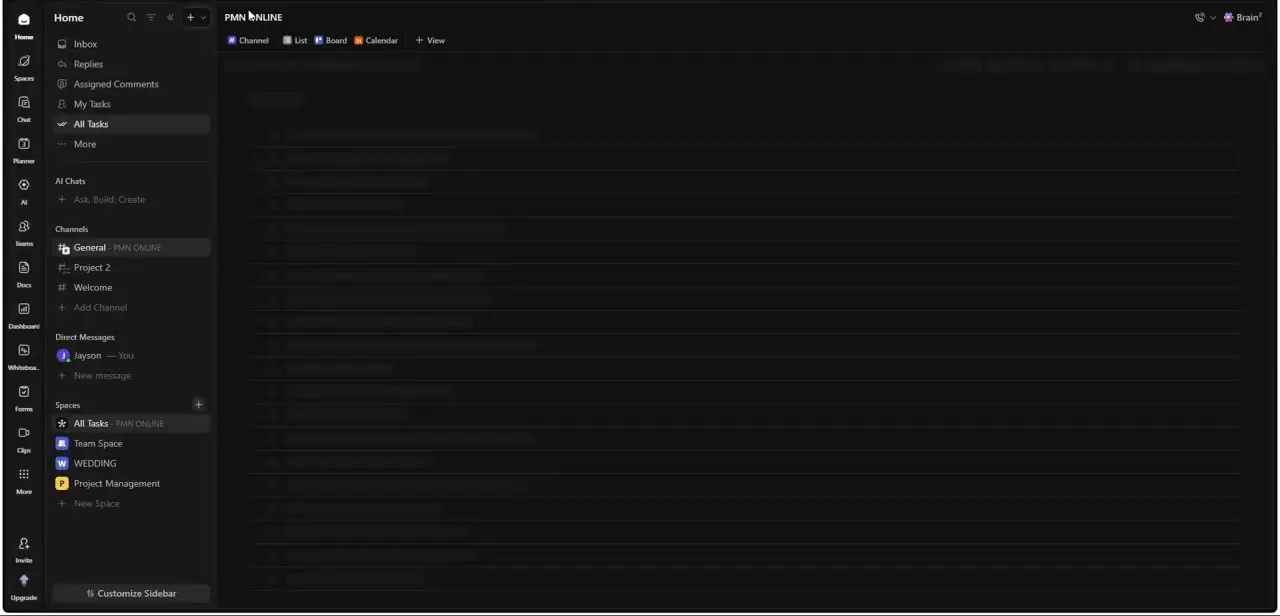
Everything in ClickUp branches off one left-hand sidebar: Home, Inbox, Replies, Assigned Comments, and My Tasks sit at the top as your personal views, with All Tasks and More just below. Under that, AI Chats gives you a shortcut into ClickUp's built-in assistant, and Channels and Direct Messages handle team chat without leaving the app.
Spaces is the section that matters most for structure — a starter workspace might already have All Tasks, a general Team Space, a dedicated WEDDING space, and a Project Management space, which shows how loosely or tightly you can scope each one. Spend your first few minutes here before creating anything; knowing where Spaces, Channels, and your personal task views live saves a lot of backtracking later.
02Create and manage tasks on a Board
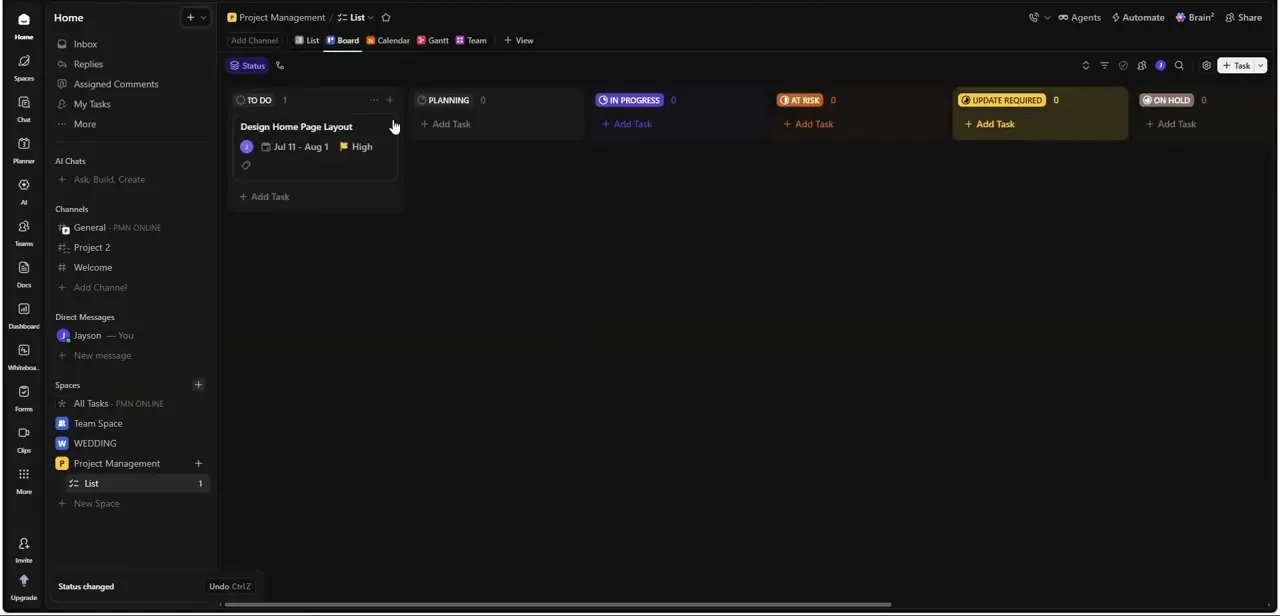
Inside a Space, open the Board view and you'll see status columns laid out left to right — To Do, Planning, In Progress, At Risk, Update Required, and On Hold in a typical setup. A task card like "Design Home Page Layout" carries an assignee avatar, a date range (Jul 11 to Aug 1), and a priority flag marked High, all visible without opening the task.
Every column has its own "+ Add Task" control, so moving work through stages is just dragging a card or creating it directly in the column it belongs to. This board view is where day-to-day project management actually happens — it's the screen you'll return to most, more than any dashboard or list.
03Keep notes and docs next to your tasks
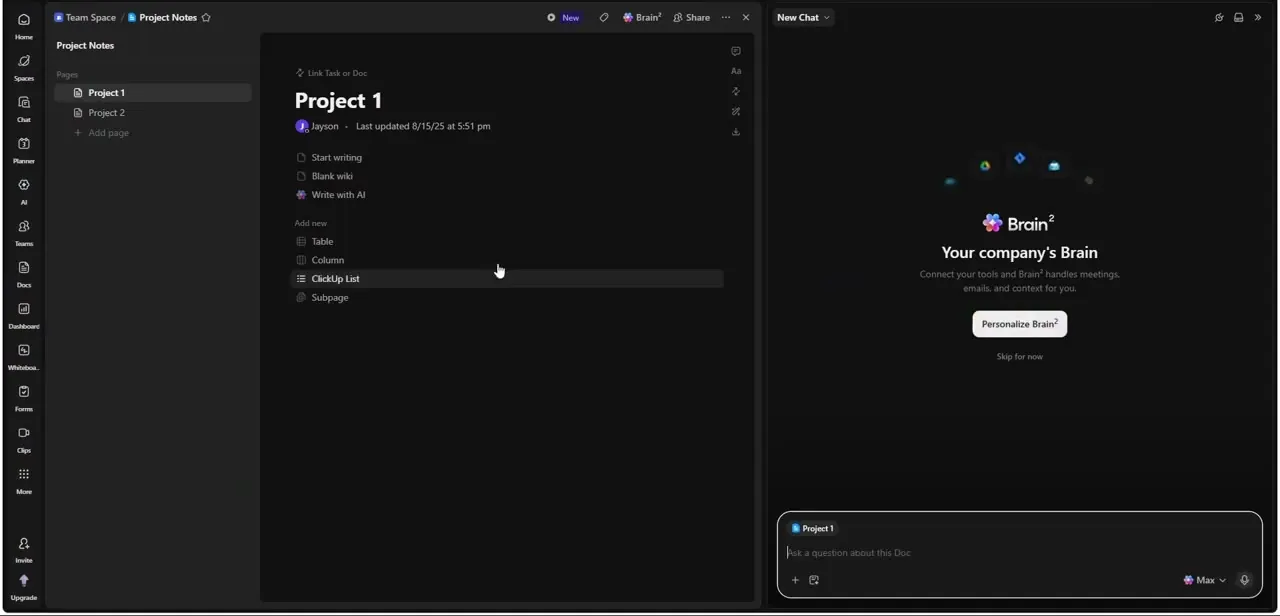
ClickUp Docs live in the same workspace as your tasks, organized as Pages you can nest — a "Project Notes" doc might hold separate pages for Project 1 and Project 2, each editable inline with a title, a "Start writing" prompt, and quick-insert options for a blank wiki, a table, a column layout, or an embedded ClickUp List. This means requirements, meeting notes, or a project brief don't have to live in a separate app from the tasks they describe — you can link a doc straight into a task or a task straight into a doc. For a beginner, the habit worth building early is writing the plan in a Doc before creating tasks from it, rather than the other way around.
04Use comments and channels for team collaboration
Collaboration in ClickUp runs through two channels at once: Assigned Comments, which surfaces every comment where you've been tagged across all tasks so nothing gets buried in a thread you're not watching, and Channels, which behaves like team chat scoped to a Space or a topic (a General channel tied to your workspace, for instance). Direct Messages sit right next to Channels for one-on-one conversations that don't need to be public. Because comments live on the task itself rather than in a separate chat history, the context of a conversation — what task, what status, what deadline — never gets lost the way it can in a general-purpose chat app.
05Try ClickUp's AI Agents
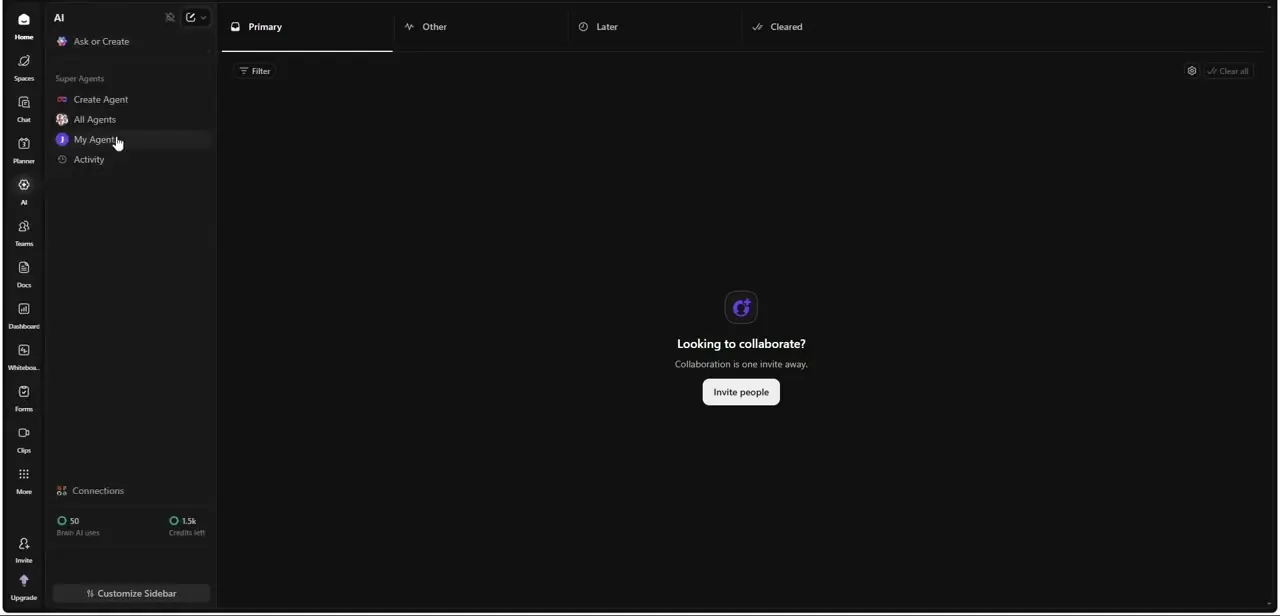
The AI section of the sidebar splits into Ask or Create, Super Agents, and a Connections panel showing usage limits — a free trial might show something like 50 Brain AI uses and 1,500 credits left, so it's worth knowing your quota exists before you build a workflow around it. Under Super Agents you can Create Agent, browse All Agents, check My Agents, or review Activity, which is ClickUp positioning its AI less as a single chatbot and more as a set of configurable agents you assign to specific jobs. For a beginner, start by using an existing agent on a real task rather than building a custom one — you'll learn what the AI is actually good at faster than reading a spec.
06Connect the tools you already use
ClickUp's value multiplies once it's not an island — integrations with tools like Slack and Google Drive let notifications, files, and updates flow in without manual copying. Rather than connecting everything on day one, pick the one integration that removes your biggest current annoyance (usually notifications duplicating across apps) and set that up first. You can always add more once the core workspace — Spaces, a Board, a Doc, and your comment habits — is already working the way you want it to.
Frequently asked questions
Is ClickUp free to use for beginners?
Yes, ClickUp offers a free plan with core features like tasks, Docs, and a limited AI allowance, making it accessible for individuals and small teams to start with before upgrading.
Can ClickUp integrate with other tools I already use?
Yes, ClickUp supports integrations with popular tools like Slack and Google Drive, letting notifications and files flow into your workspace instead of staying siloed.
How does automation help in ClickUp?
Automation and AI Agents reduce manual work by handling actions like status updates or task creation based on rules you set, rather than someone doing it by hand every time.
Is ClickUp suitable for both personal and team project management?
Yes — the same Spaces structure that organizes a personal space like "WEDDING" can just as easily hold a full team's Project Management space, so it scales down as easily as it scales up.
Where do comments and team chat happen in ClickUp?
Task-level discussion happens in comments on the task itself (surfaced globally under Assigned Comments), while broader team chat happens in Channels and Direct Messages in the sidebar.
Watch the full walkthrough
The same steps, demonstrated on screen from start to finish.


