 Easy Tech Tuts
How to Verify Domains in Brevo Easily 2026
By Impran M N
Domain authentication is no longer optional for email marketing — Gmail, Yahoo, and Microsoft all filter or flag mail from unverified domains, and Brevo builds the whole process around adding a small set of DNS records to prove you own the domain you're sending from. The setting lives inside general account settings rather than anywhere marketing-related, and the records themselves (a Brevo ownership code plus a DKIM key) are specific enough that a typo breaks verification silently. This guide covers where to find the setting and what the underlying records actually look like, based on Brevo's own settings panel and developer documentation.
01Find domains under account settings
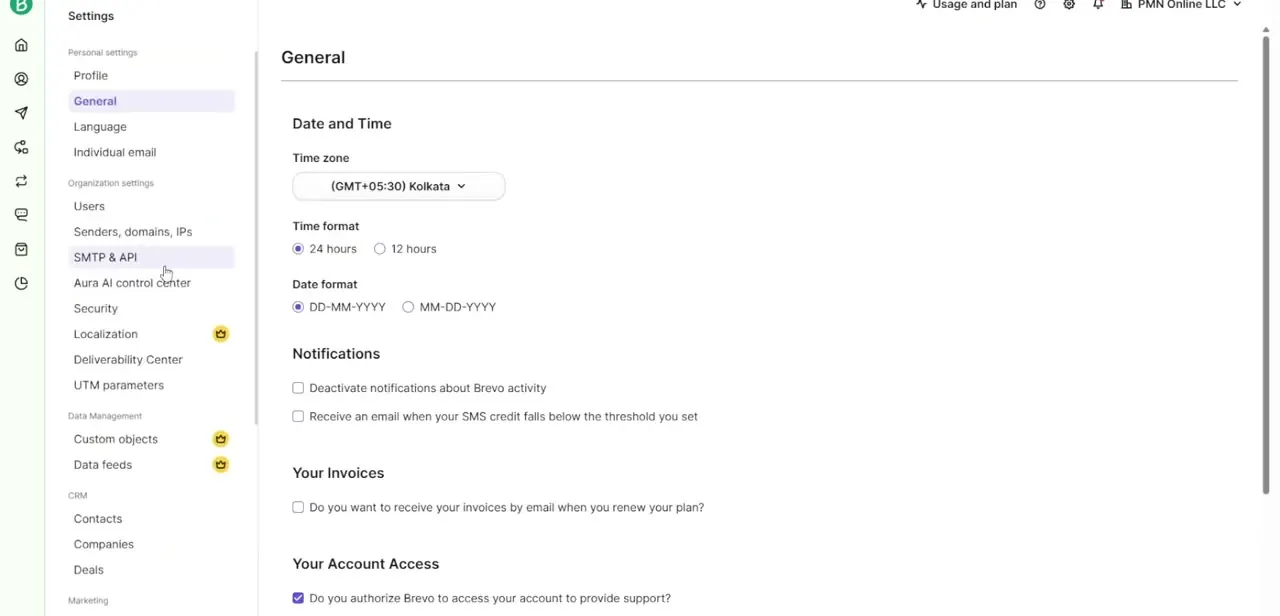
Domain verification isn't under Campaigns or Contacts — it's filed under Settings, in the Organization settings block alongside Users, SMTP & API, and Security. Brevo's settings sidebar groups it as "Senders, domains, IPs," which is easy to scroll past if you're expecting it under a marketing-labeled menu. Click into that section to reach the Domains tab where you'll add and manage your sending domains.
02Add your domain
In the Domains tab, click Add a domain and enter your root domain — just the domain itself, like yourcompany.com, with no https:// prefix and no trailing path. Save it to move into the verification options.
03Pick automatic or manual authentication
Brevo offers two routes. Automatic Verification signs you into your domain registrar directly and lets Brevo inject the required DNS entries for you, which is faster if your registrar supports the integration. Authenticate the domain yourself instead generates the specific record values so you can add them manually through your host's DNS zone editor — useful if your registrar isn't one of the supported automatic partners, or if DNS is managed by someone else on your team.
04Understand what the DNS records actually contain
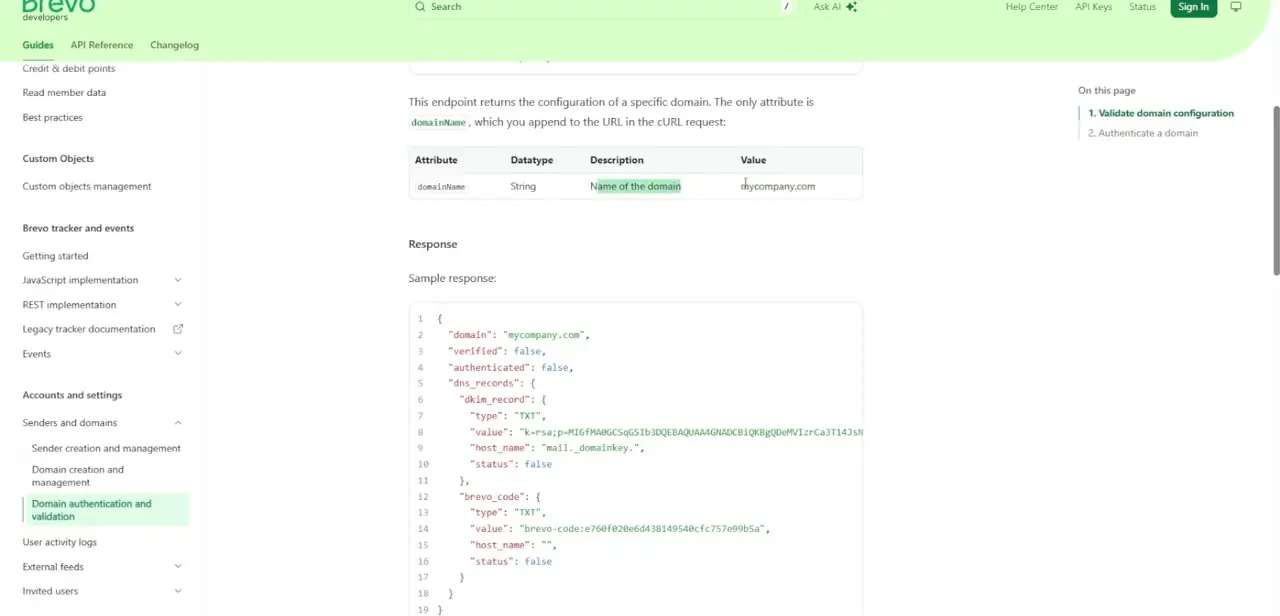
Brevo's developer documentation shows exactly what a domain's configuration looks like once records are in place: a dkim_record entry with type TXT, a value string starting with a public key format like k=rsa;p=..., and a host name of mail._domainkey — plus a separate brevo_code entry, also a TXT record, that proves ownership of the domain to Brevo specifically. Both records report a verified and authenticated status of true or false, which is what the dashboard is checking each time you refresh the domain's status.
05Add the TXT records at your DNS host
If you went the manual route, log into whatever service manages your DNS — your registrar or a separate host — and open the zone editor. Create two new TXT records using the exact host names and values Brevo displayed (mail._domainkey for the DKIM record and the host name shown for the Brevo code record). A single missing character in the value string is enough to fail verification, so copy rather than retype where possible.
06Confirm the domain shows as verified
DNS changes don't apply instantly — propagation can take anywhere from a few minutes to around 48 hours depending on your host and existing record TTLs. Return to the Domains tab in Brevo periodically and refresh; once both records resolve correctly, the domain's status updates and it becomes available to select as a sender for your campaigns.
Frequently asked questions
Where do I go in Brevo to verify a domain?
Settings → Senders, domains, IPs → Domains tab. It's grouped under Organization settings, not under Campaigns or Marketing.
What DNS records does domain verification require?
A DKIM TXT record (host name mail._domainkey) and a separate Brevo ownership code TXT record. Brevo's API returns both with a verified/authenticated true-or-false status.
What's the difference between automatic and manual verification?
Automatic Verification signs into your domain registrar and adds the records for you. Manual verification generates the record values for you to copy into your DNS host's zone editor yourself.
How long does DNS verification take?
It depends on your host's propagation time and existing record TTLs — anywhere from a few minutes up to roughly 48 hours.
What happens if I don't verify my domain?
Mail from unverified domains is more likely to be filtered, bounced, or marked as spam by Gmail, Yahoo, and Microsoft, all of which now expect authenticated senders.
Watch the full walkthrough
The same steps, demonstrated on screen from start to finish.



