 Easy Tech Tuts
How to Import an Email Subscriber List to Brevo Easily 2026
By Impran M N
Moving a contact list into a new platform is where a lot of email marketing migrations go wrong — messy columns, no clear email header, or contacts nobody actually consented to email. Brevo's Contacts section gives you three ways to bring a list in, and the one that saves the most headaches is the simplest: a clean spreadsheet with clear column headers, uploaded through the import screen. This guide walks through preparing that spreadsheet and what Brevo's import screen actually offers once you get there.
01Build a clean source spreadsheet first
Before touching Brevo, get your contact data into a simple spreadsheet with one column per field — name, email, and anything else you want to carry over. Keep each row a single contact, with the email address in its own column and no merged cells or extra header rows above your actual column labels, since anything irregular here is what causes a mapping step to fail later.
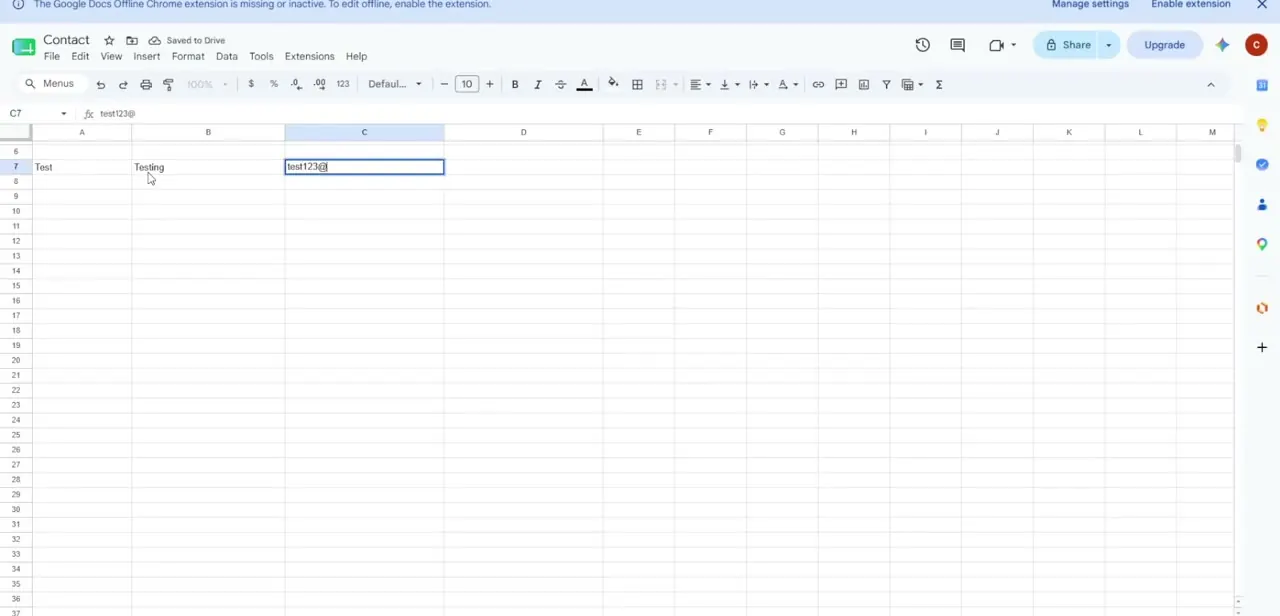
02Save it as a CSV, xlsx, or txt file
Once your columns are clean, export or save the file in one of the formats Brevo's importer accepts. A CSV saved with UTF-8 encoding is the safest choice if your list includes any accented characters or non-English names, since encoding mismatches are a common source of garbled names after import.
03Open Contacts and start an import
In the Brevo dashboard, open Contacts in the left sidebar, which expands into Lists, Segments, Companies, Deals, Tasks, and Custom objects. From the main Contacts screen, start the import flow, which lands you on a screen titled "Import contacts for bulk creation or updating" — the same screen handles both bringing in brand-new contacts and updating existing ones.
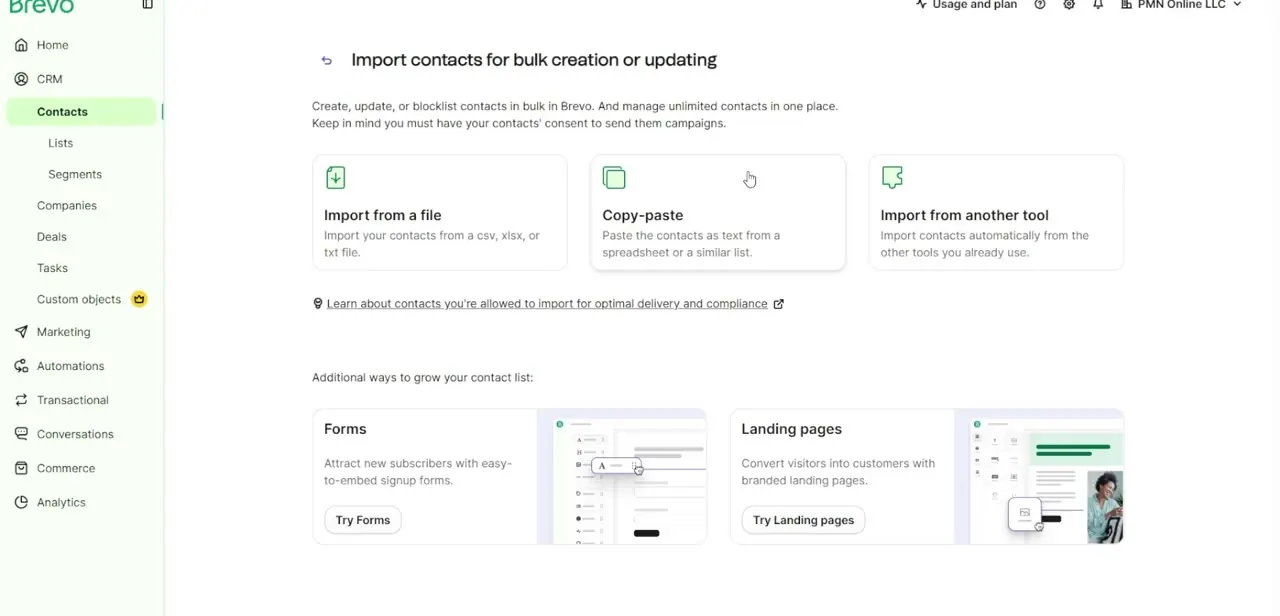
04Choose how you're bringing contacts in
The screen offers three distinct paths: Import from a file, for uploading a CSV, XLSX, or TXT directly; Copy-paste, for pasting contact data as text straight from a spreadsheet without saving a file first; and Import from another tool, for pulling contacts automatically from a platform you're already connected to. For a one-time list migration, Import from a file is the most predictable option since you control the exact file being uploaded.
05Map your columns to Brevo's fields
After uploading, Brevo scans the file's header row and tries to match each column to a profile attribute automatically — Email, First Name, Last Name, and so on. Check this mapping carefully before confirming; a column Brevo couldn't confidently guess will need to be assigned manually, or you can create a brand-new custom attribute on the spot if the field doesn't exist yet.
06Confirm the destination list and consent
Choose an existing contact list to add these people to, or create a new one by typing a name. Brevo requires you to confirm that the contacts you're importing have consented to receive campaigns — the import screen states this plainly at the top: "Keep in mind you must have your contacts' consent to send them campaigns." Only import people who actually opted in somewhere, since importing a purchased or scraped list risks your sender reputation and violates Brevo's terms.
Frequently asked questions
What file format does Brevo require for imports?
CSV, XLSX, or TXT. A UTF-8-encoded CSV is the safest choice if your contact names include accented or non-English characters.
Can I import a list without saving a file first?
Yes. Brevo's import screen includes a Copy-paste option that lets you paste contact data as text directly from a spreadsheet, alongside the standard file upload.
Do I need consent to import a contact list?
Yes. Brevo states directly on the import screen that you must have your contacts' consent to send them campaigns, and importing a list without it risks your sender reputation and violates Brevo's terms.
Can I map custom fields beyond name and email?
Yes. During mapping you can match spreadsheet columns to any existing custom attribute in Brevo, or create a new attribute on the fly if one doesn't already exist.
Where do I start an import in Brevo?
Contacts in the left sidebar, which also expands to Lists, Segments, Companies, Deals, and Tasks — the import flow itself is reached from the main Contacts screen.
Watch the full walkthrough
The same steps, demonstrated on screen from start to finish.



