Easy Tech Tuts
How to Find Airtable Base ID, Get Your ID Easily 2026
By Impran M N
Almost every integration that talks to Airtable — a Zapier automation, a custom script, a no-code app builder — asks for a Base ID before it can read or write your records. It's easy to find once you know where to look, and there are two reliable places: your browser's own address bar, and Airtable's auto-generated API documentation. This guide covers both, plus a quick note on why the Base ID itself isn't the sensitive part of your setup.
01Open the base you need the ID for
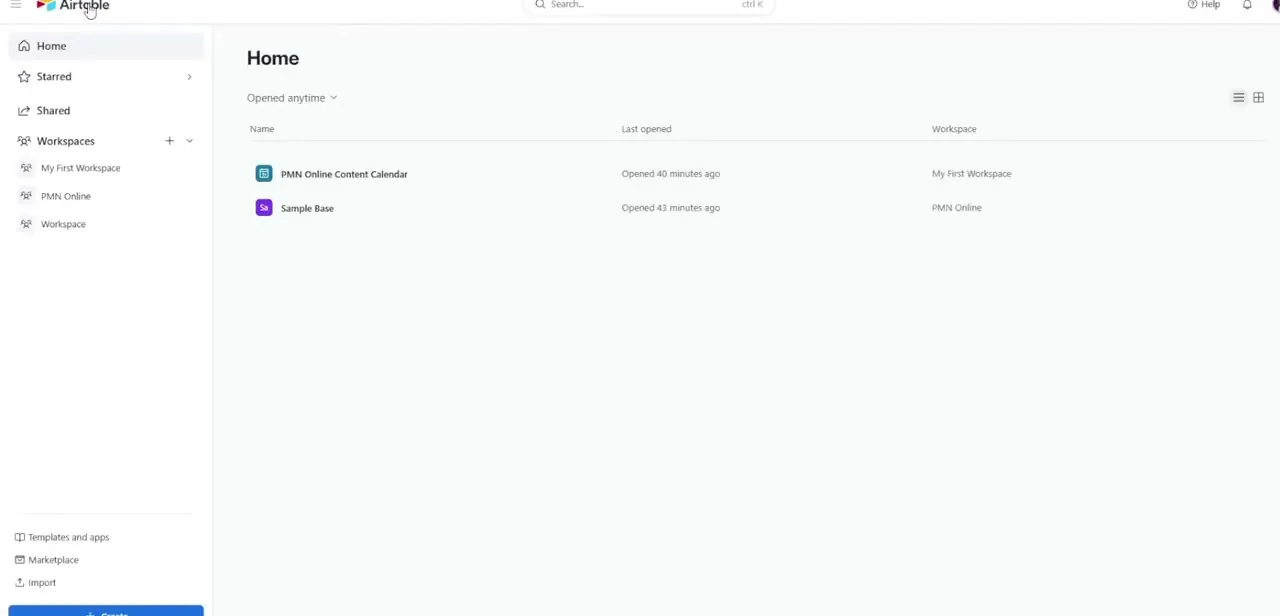
From your Airtable Home screen, click into the specific base — not just any base in the account, since every base has its own distinct ID. The Home screen lists each base with the workspace it belongs to, which is useful if you manage several bases across different teams and need to confirm you're opening the right one before you go hunting for its ID.
02Read the ID straight from the URL
With the base open, look at your browser's address bar. The URL contains a string starting with "app" followed by a run of letters and numbers — that's your Base ID, and you don't need to open any menu to get it. It's the fastest of the two methods, but it's easy to grab the wrong segment if you're not sure what you're looking at, since the same URL also contains table and view IDs (starting with "tbl" and "viw") right alongside it.
03Open the Help menu for an alternative route
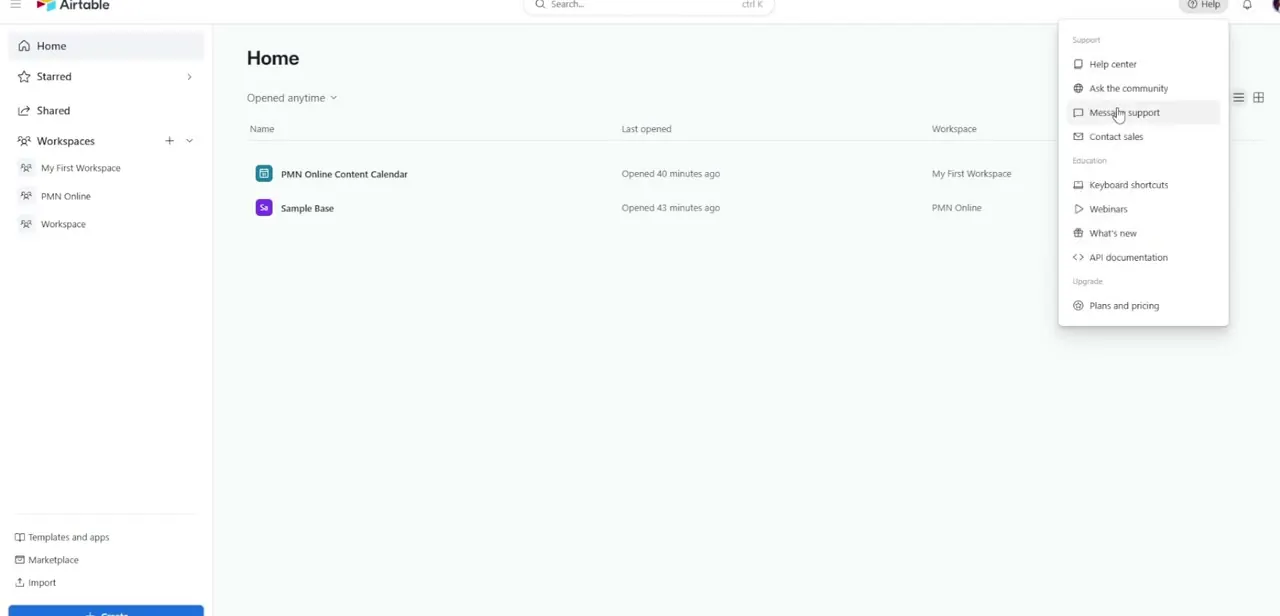
If you'd rather confirm the ID through Airtable's own documentation instead of parsing a URL, click the Help icon in the upper right of any screen. The dropdown groups Support, Education, and Upgrade options, and under Education you'll find API documentation — that's the link that takes you to Airtable's developer reference generated specifically for your account.
04Find your base in the API Reference
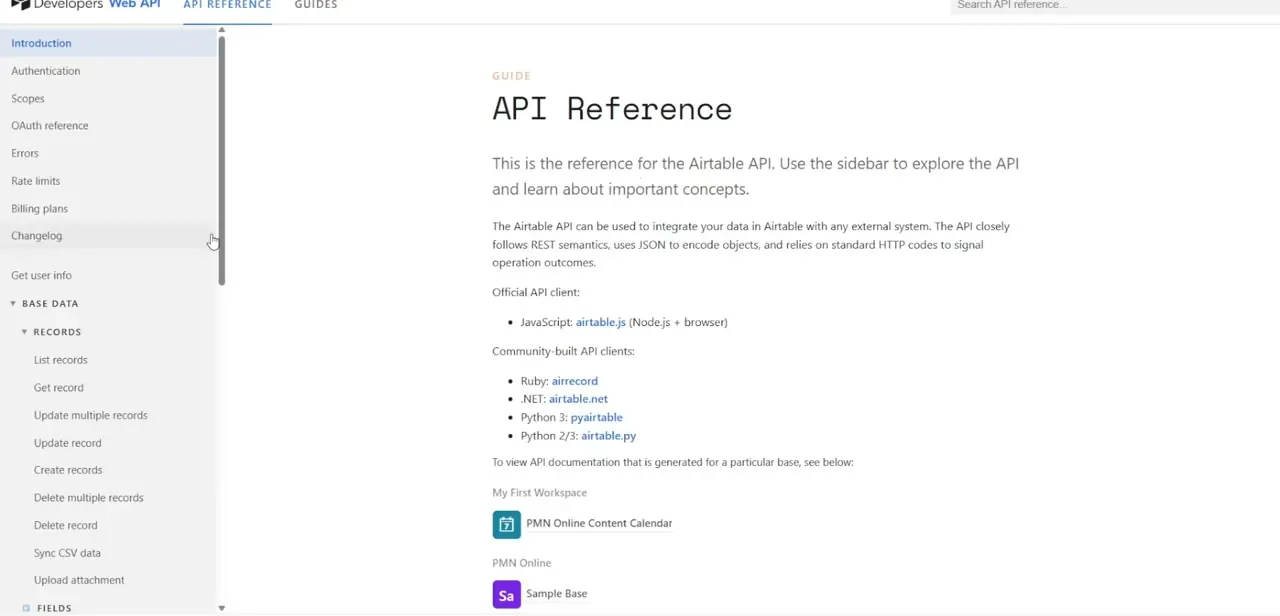
The API Reference page opens on an Introduction section describing the Airtable API in general — REST semantics, official and community client libraries, and so on. Scroll down and you'll see a line explaining that documentation is auto-generated for each of your bases, followed by a list of your workspaces and the bases inside them, each shown as a clickable card with its name and icon.
05Click through and copy the ID
Click the card for the base you need. That opens a documentation page scoped to just that base, and its Base ID is displayed right at the top of the introduction section, ready to copy. Because this page is generated per base, it's a good way to double-check you copied the ID from the URL correctly, or to grab it in the first place if you'd rather not parse a raw address bar string.
06Store it safely for your integration
The Base ID on its own isn't a secret — it identifies which base to talk to, but it doesn't grant access by itself. The credential that actually matters is your API key or personal access token, which is what determines whether a request with that Base ID is allowed to read or write anything. Keep the two together in whatever environment variables or secrets manager your integration uses, and avoid pasting either directly into shared documents or public code.
Frequently asked questions
What does an Airtable Base ID look like?
It's an alphanumeric string that begins with the prefix "app", distinguishing it from other Airtable identifiers like table IDs (which start with "tbl") or view IDs ("viw").
Is my Base ID sensitive information I need to hide?
The Base ID alone isn't a secret credential, but you should still combine it with a properly scoped API key or personal access token and avoid exposing both together in public code.
Can I find the Base ID without opening the API documentation?
Yes, the Base ID is also visible directly in your browser's URL when you have the base open — it's the segment starting with "app".
Does every base have a unique Base ID?
Yes, each base in your Airtable account has its own distinct Base ID used to reference it in the API, separate from any table or view IDs within it.
Why does the API documentation list all my bases instead of just one?
Airtable auto-generates a documentation page for every base in your account, so the introduction page shows all of them grouped by workspace — you click through to the one you actually need.
Watch the full walkthrough
The same steps, demonstrated on screen from start to finish.