Easy Tech Tuts
How to Create a Calendar in Airtable Easily 2026
By Impran M N
A grid full of start dates and deadlines is useful, but it doesn't let you see your schedule the way a calendar does — bunched by week, with gaps and overlaps obvious at a glance. Airtable's Calendar view solves that by reading the date fields you already have and laying every record out on an actual month grid, one you can drag records around on to reschedule them. This guide covers making sure your table has the right date fields, adding a Calendar view, mapping it to those fields, and handling records that use more than one date, like a start date and a deadline.
01Open the base from your Airtable home screen
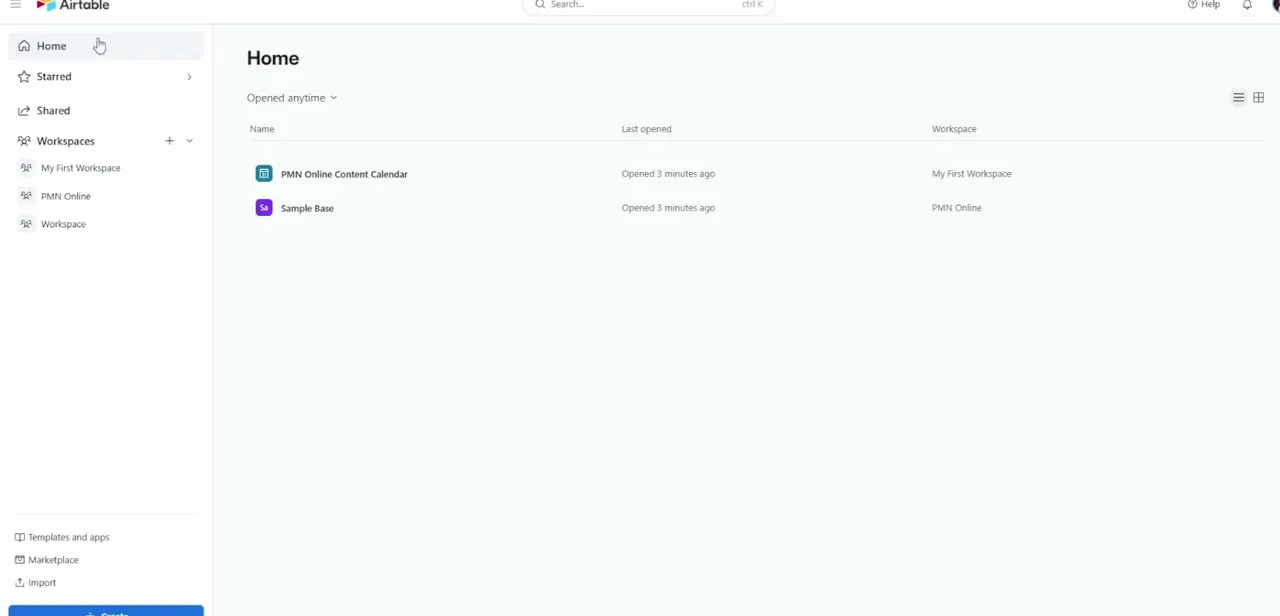
From Home, you'll see your recently opened bases listed by name, workspace, and when they were last touched. Open the base with the table you want to turn into a calendar — a content calendar or project tracker is the obvious fit, since those almost always already have date columns you can reuse instead of building fresh ones.
02Confirm your table has usable date fields
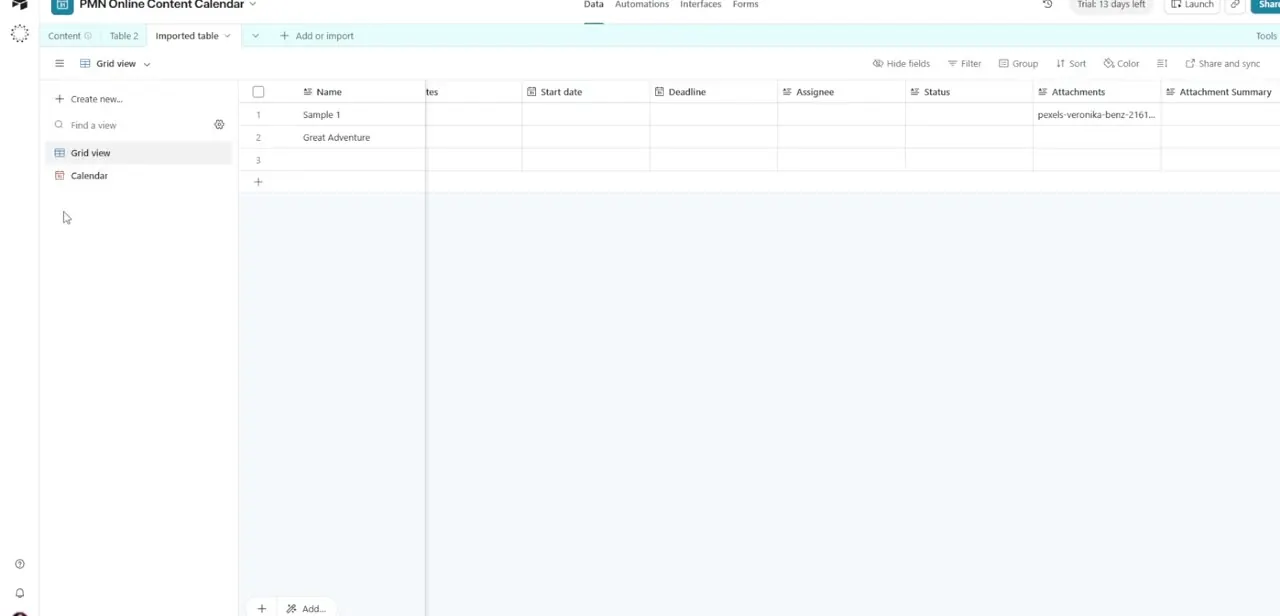
Before creating the Calendar view, check your grid for the date columns it'll rely on — things like Start date and Deadline. If those fields don't exist yet, add them the same way you'd add any column: the plus icon at the end of your header row, then the Date field type. Rows with no value in the date field you eventually choose won't show up on the calendar until you fill one in, so it's worth checking for blanks now rather than after the view is built.
03Create the Calendar view
In the Views sidebar on the left, click Create new and choose Calendar from the list of view types. Give it a name that describes what it's for, like "Editorial Calendar" or "Launch Timeline," and decide whether it should be collaborative — visible and editable by anyone with base access — or personal, visible only to you. You can always add more Calendar views later mapped to different fields or filtered to a subset of records, so don't worry about getting this one perfect on the first try.
04Map your date fields to the calendar
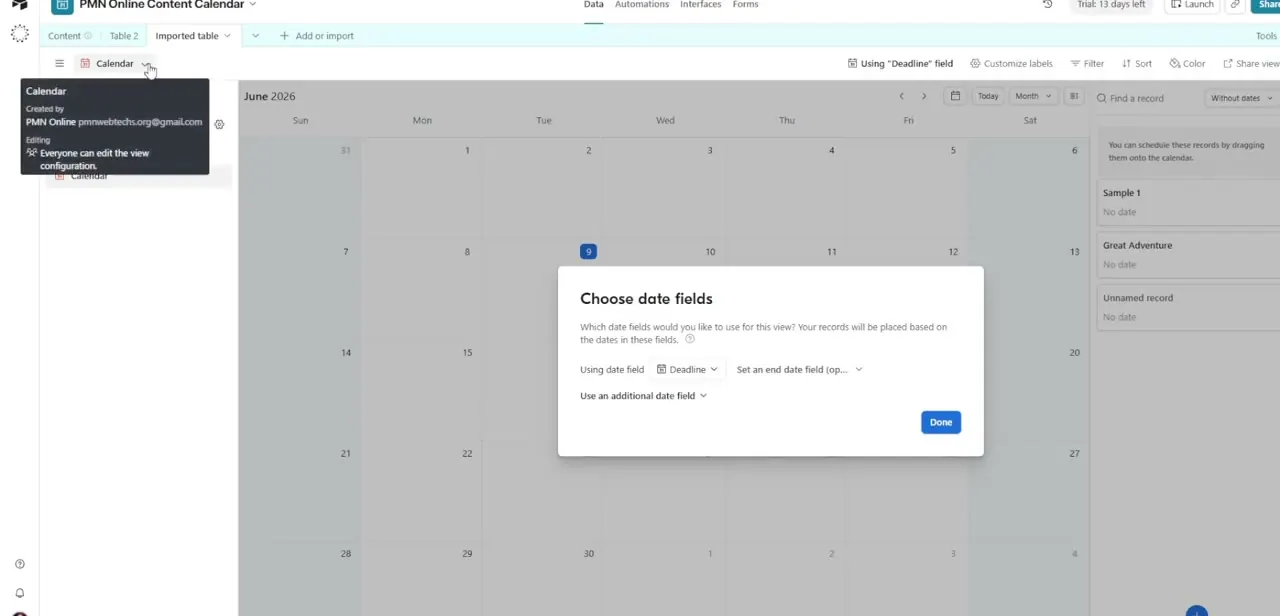
As soon as the Calendar view opens, a "Choose date fields" dialog asks which field determines where each record sits on the grid — pick your primary date, such as Deadline. If your records span a range rather than a single day, you can also set an end date field so a record shows as a bar across multiple days instead of a single dot. There's an option to add an additional date field too, useful if you want both a Start date and a Deadline represented for the same record.
05Reschedule by dragging cards
Once mapped, every record with a date lands on its day, and any record missing a date shows up in the sidebar under a "without dates" list so nothing gets lost. Drag a card from the sidebar onto a day to give it a date, or drag a card already on the calendar to a different day to reschedule it — either action updates the actual date field in your underlying table immediately, not just the visual position.
06Color-code and share the calendar
Use the Color button in the toolbar to color records by a field like Status or Assignee, which makes it much faster to scan a busy month for what's overdue or who owns what. When the calendar is ready to hand off, use Share and sync to generate a link — you control whether it's view-only or editable, so external collaborators can see the schedule without necessarily being able to change it.
Frequently asked questions
Does dragging a card on the calendar actually update the underlying data?
Yes, moving a card in the Calendar view updates the corresponding date field in your base's underlying table immediately.
Can I have multiple calendar views for the same table?
Yes, you can create several Calendar views mapped to different date fields or filtered to show different subsets of records.
Is the shared calendar link editable by outside viewers?
That depends on the sharing permissions you set when you generate the link, since you can configure it to be view-only or allow editing.
What if a record doesn't have a date filled in yet?
Records without a value in the mapped date field appear in a separate "without dates" list in the sidebar instead of on the grid, until you drag them onto a day or fill in the date manually.
Can a record show a date range instead of a single day?
Yes — when mapping date fields, you can set both a start field and an end date field so the record displays as a bar spanning multiple days rather than a single-day dot.
Watch the full walkthrough
The same steps, demonstrated on screen from start to finish.