Easy Tech Tuts
How to Edit Zendesk Knowledge Base Easily 2026
By Impran M N
Outdated troubleshooting steps or dead links in a live article can create more support tickets than they prevent. This guide covers finding, updating, and republishing existing Zendesk Guide articles so your knowledge base stays accurate.
01Find the article to edit
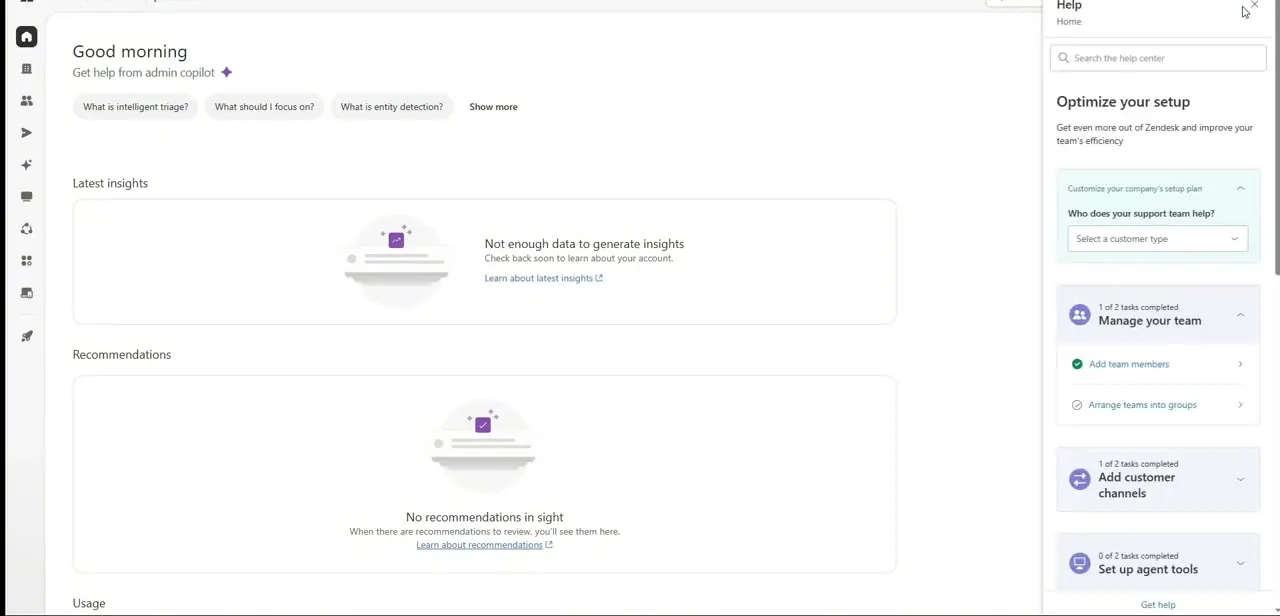
From the product matrix icon, select Knowledge, then click the Articles list.
02Locate the specific document
Use search or filters to isolate the published help document you want to update.
03Open the editor
Click Edit Article to open the WYSIWYG composer canvas.
04Update content and media
Update outdated text, insert fresh images, or correct broken web links throughout the article.
05Refine search tags
Open the right-hand control bar to revise meta tags and improve search placement for the article.
06Preview and publish
Check the viewport preview tool for desktop and mobile formats, then click Publish to commit your revisions live.
Frequently asked questions
Will editing an article break its existing URL?
No, category and section changes preserve cross-referenced structural paths without breaking active URL strings.
Can I move an article to a different category after publishing?
Yes, you can reassign edited articles to a different category folder or brand section.
Does Zendesk keep a history of article edits?
Yes, the editing panel tracks historical revisions and draft states separately from the live published version.
How do I check that my edits look right on mobile?
Use the interactive viewport preview tool to confirm desktop and mobile formats before publishing.
Watch the full walkthrough
The same steps, demonstrated on screen from start to finish.