 Easy Tech Tuts
How to Cancel TurboTax Return Easily 2026
By Impran M N
Made a mistake early in a TurboTax return and want a clean slate? TurboTax doesn't have a button literally labeled "Cancel return" — what it actually offers is a "Clear and start fresh" option that wipes your entered tax data so you can begin again, and it only works before you've filed.
This guide shows exactly where that option lives, what TurboTax warns you about before you use it, and what your realistic alternative is if you've already submitted. It's for anyone who started a return, hit a wall, and needs to undo it rather than push forward.
01Sign in to your TurboTax account
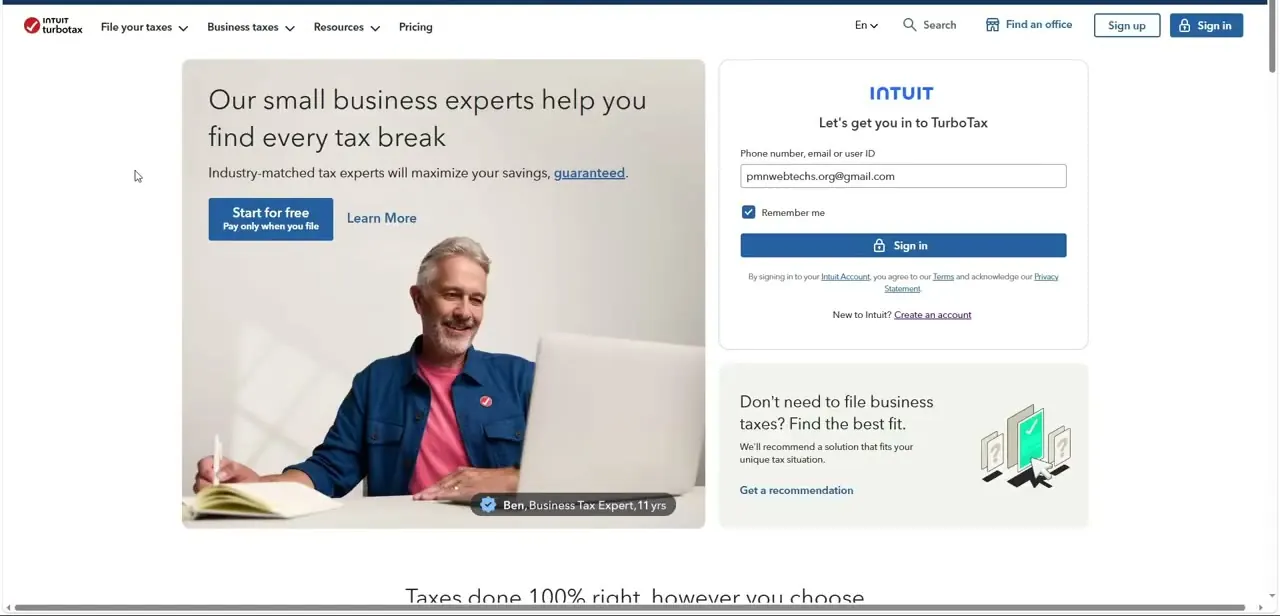
Go to TurboTax and sign in with the phone number, email, or user ID tied to your return — the sign-in page sits alongside TurboTax's marketing content about expert help and tax breaks, so look for the "Let's get you in to TurboTax" card on the right side of the page. If you've used TurboTax before, your email is often pre-filled and you just need your password; check "Remember me" if you're on a device only you use, so you don't have to repeat this every session while you're working through a return.
02Open Tax home and locate your in-progress return
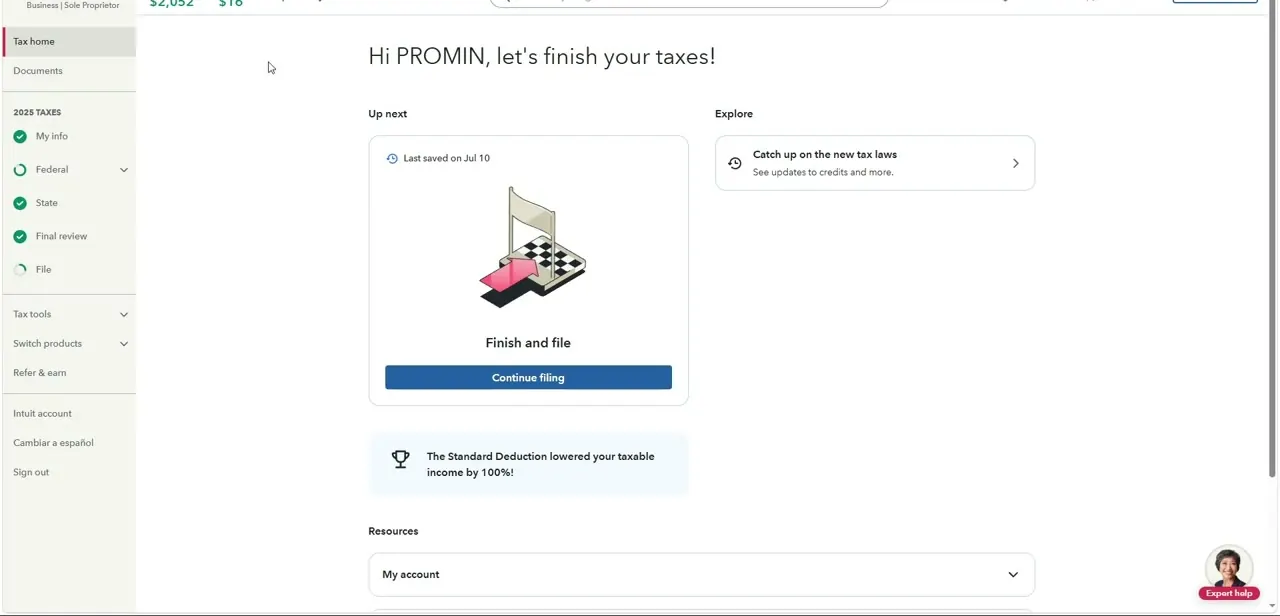
After signing in, you land on Tax home, greeted by name with a summary of where your return stands — a checklist down the left side covers My info, Federal, State, Final review, and File, with green checkmarks next to whatever sections are already complete. The main panel shows an "Up next" card with a Continue filing button and the date you last saved. Before clearing anything, glance at this checklist so you understand how much progress you'd actually be giving up.
03Find "Clear and start fresh" under Tax tools
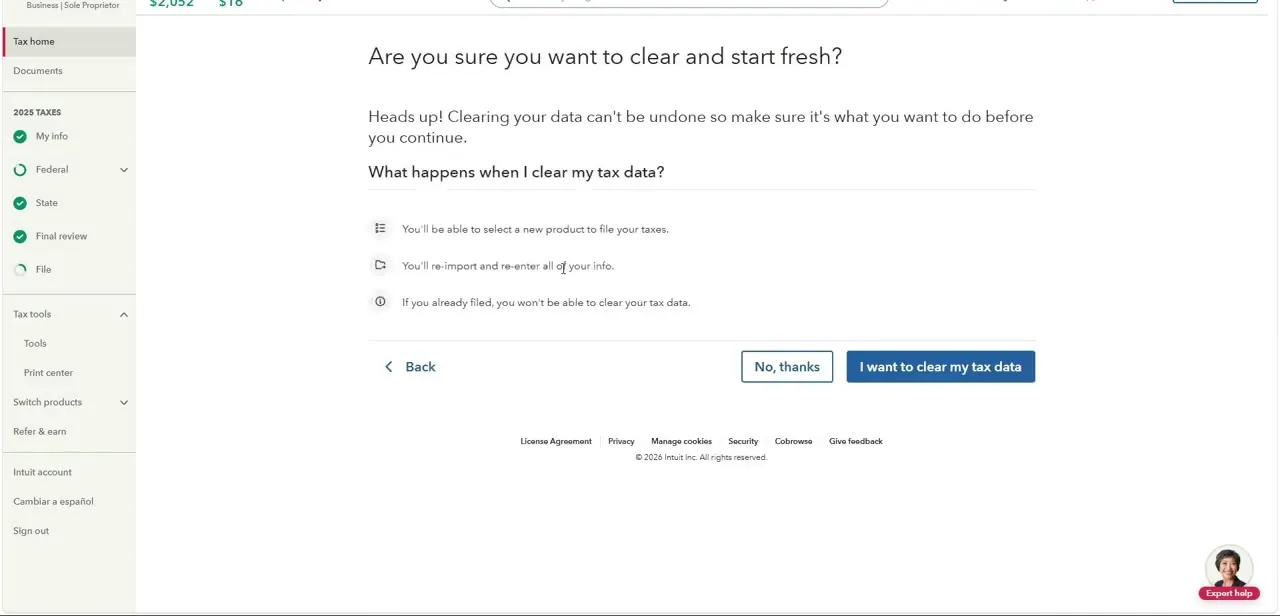
The clearing option isn't on the main Tax home screen — it's tucked under Tax tools in the left sidebar, alongside Tools and Print center. Opening it walks you to a confirmation screen titled "Are you sure you want to clear and start fresh?" rather than immediately wiping anything, which gives you one last chance to back out before committing.
04Read the warning before you confirm
TurboTax spells out exactly what clearing does: you'll be able to select a new product to file your taxes, you'll have to re-import and re-enter all of your info, and — critically — if you've already filed, you won't be able to clear your tax data at all. The page states plainly that clearing your data can't be undone, so treat this as a genuine point of no return rather than a soft reset. If any part of your entered info was hard to reconstruct (imported W-2s, prior-year carryovers), make sure you can get those again before confirming.
05Choose No, thanks or clear your data
Two buttons sit side by side: "No, thanks" backs you out with nothing changed, and "I want to clear my tax data" commits to the wipe. If you're not fully certain, back out and review your Federal and State sections first — sometimes what feels like a reason to start over is actually a smaller fix within a single section, which is far less costly than redoing entries you'd already finished.
06What to do if you've already filed
If your return shows as filed, this entire path is closed to you — TurboTax explicitly blocks clearing data after filing, and for good reason, since the IRS already has your submission on record. Your real option at that point is an amended return, filed separately (typically Form 1040-X for individuals), not a cancellation of the original. Trying to work around this by starting a brand-new account or return doesn't undo what was already filed with the IRS, so an amendment is the correct and only path once you're past this point.
Frequently asked questions
Does TurboTax have a literal "cancel return" button?
No. The closest equivalent is "Clear and start fresh," found under Tax tools in the sidebar, which wipes your entered data so you can begin again — but only before you've filed.
Can I cancel a TurboTax return after it's already been filed?
No. TurboTax explicitly states that if you've already filed, you won't be able to clear your tax data. You'd need to file an amended return instead.
Will clearing my data let me undo the action later?
No. TurboTax states clearly that clearing your data can't be undone, so confirm you're ready to lose your entered info, imported documents, and carryovers before clicking through.
Do I have to re-enter everything if I clear my return?
Yes. TurboTax tells you upfront that you'll need to re-import and re-enter all of your info after clearing, and you'll also be able to pick a different product to file with.
Is there a faster fix than clearing the whole return?
Often yes — check the Federal or State section causing the issue first. Many problems that feel like they need a full restart are actually fixable within a single section.
Watch the full walkthrough
The same steps, demonstrated on screen from start to finish.


