 Easy Tech Tuts
How to Reset TradingView Account Easily 2026
By Impran M N
There's no single 'reset account' button in TradingView, but there are several genuinely useful ways to get a clean slate depending on what's actually bothering you. This guide covers the account-level tools that matter most in practice: the account menu where sign-out and settings live, resetting chart-level clutter like layouts and watchlists, and what to do when you're locked out and need to recover access entirely. It's aimed at anyone who wants a fresh start without accidentally losing indicators or history they actually wanted to keep.
01Understand what 'reset' means on TradingView
TradingView splits your settings into separate systems rather than one master account. Chart layouts, watchlists, and Paper Trading balances are each reset from their own menu, and none of them touch your login, your subscription, or your saved scripts. Before you go looking for a reset switch, decide which of these you actually want cleared — a cluttered chart is a completely different fix from a locked-out login.
02Open the account menu to see your options
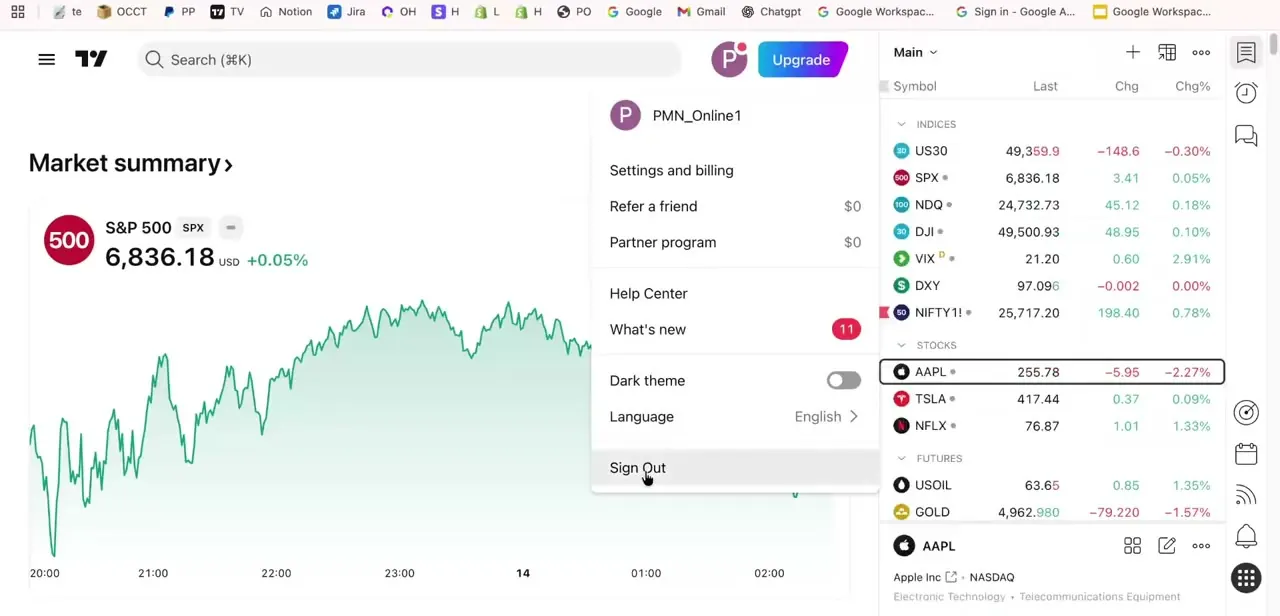
Click your profile icon in the top-right corner of TradingView and the account menu drops down with Settings and billing, Refer a friend, Partner program, Help Center, a dark theme toggle, a language selector, and Sign Out at the bottom. This is also where the platform's actual reset-adjacent controls live day to day — signing out and back in clears your active session, and Settings and billing is where subscription and profile details are managed if something there needs correcting.
03Reset your chart layout and indicators
For a cluttered chart rather than an account problem, open the layout menu next to your chart's tab name and choose to reset or create a fresh layout — this strips out added indicators, drawings, and custom scales without touching your account or watchlists. If you've built a layout you like and just want the drawings gone, most drawing tools can be cleared from the chart itself via the trash icon in the left toolbar, leaving your indicators intact.
04Clear out your watchlist
Your watchlist panel on the right side of the chart holds whatever symbols you've added over time, organized into sections like Indices, Stocks, Futures, and Crypto. Right-click any symbol or list name for options to remove individual entries or clear a whole section, which is the fastest way to declutter a watchlist that's grown unwieldy without losing your chart setup elsewhere.
05Reset your Paper Trading balance
If your simulated trading balance has drifted far from where you want to practice, TradingView's Paper Trading panel includes a reset option that restores it to the default starting amount. This only affects the simulated account, not any connected live broker balance, so it's safe to use as often as you like while testing a strategy.
06Sign in fresh or switch accounts
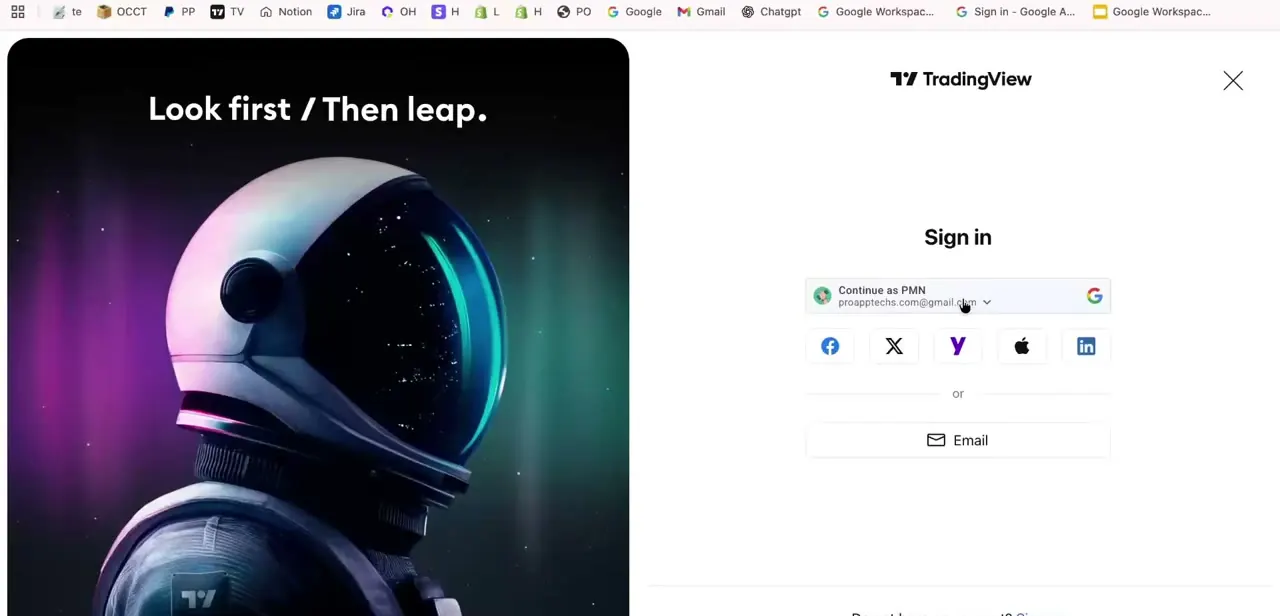
Sometimes the cleanest reset is simply signing out and back in. TradingView's sign-in screen offers Google, Facebook, X, Yahoo, Apple, and LinkedIn as one-click options alongside email, so switching between a personal and a trading-specific account, or re-authenticating after a sync issue, takes seconds rather than a full account rebuild.
07Use Account Recovery if you're actually locked out
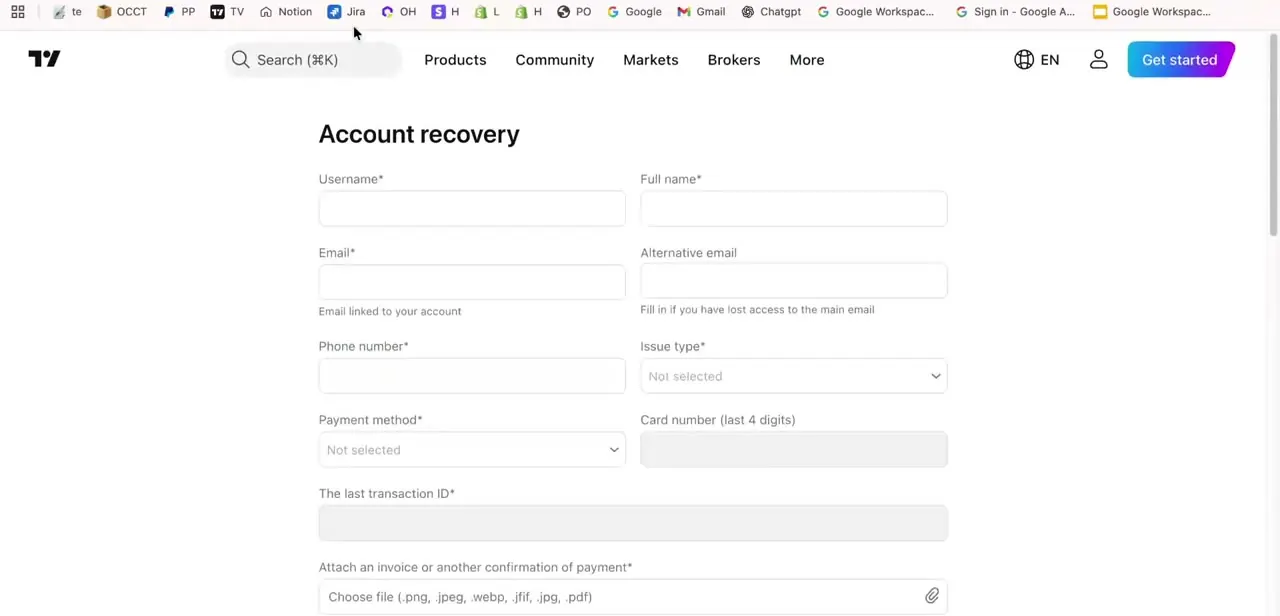
If the problem is real lost access rather than clutter, TradingView has a dedicated Account Recovery form asking for your username, full name, the email linked to the account, an alternative email, phone number, the issue type, and — if it's a billing dispute — payment method details and a transaction ID, with an option to attach an invoice or payment confirmation. This is the closest thing to a true 'reset my account' path, and having those transaction details ready before you start speeds up how fast support can verify you're the account owner.
Frequently asked questions
Can I fully reset a TradingView account in one click?
No, there isn't a single reset-everything button; chart layouts, watchlists, and Paper Trading balance are each reset individually from their own menus, and none of them touch your login or subscription.
Will resetting my chart layout delete my saved indicators?
Resetting the active layout removes indicators and drawings from that current view, but any separately saved layouts or scripts elsewhere in your account remain untouched.
How do I get my Paper Trading balance back to default?
Open the Paper Trading panel and use its reset option to restore the default starting balance — this only affects the simulated account, not any connected live broker.
What if I'm actually locked out and can't sign in at all?
Use the Account Recovery form, which asks for your username, linked email, phone number, and — for billing issues — payment and transaction details, so support can verify ownership and restore access.
When should I just create a new account instead of resetting?
If you want to completely start over, including profile history and connections, creating a new account is often simpler than resetting individual settings one by one.
Watch the full walkthrough
The same steps, demonstrated on screen from start to finish.



