 Easy Tech Tuts
How to Add 3 Indicators in TradingView Easily 2026
By Impran M N
Combining multiple indicators can improve confirmation for a trading strategy, but adding three to one chart runs into something a lot of guides skip over: TradingView's free and Basic plans cap how many indicators you can run at once. This guide shows how to search for and apply indicators, how they land in separate panes automatically, and exactly what happens — and what your options are — when you try to add a third indicator past your plan's limit. It's aimed at anyone building a multi-indicator setup for the first time who wants to know the real constraint before they hit it mid-session.
01Open the Indicators panel and browse or search
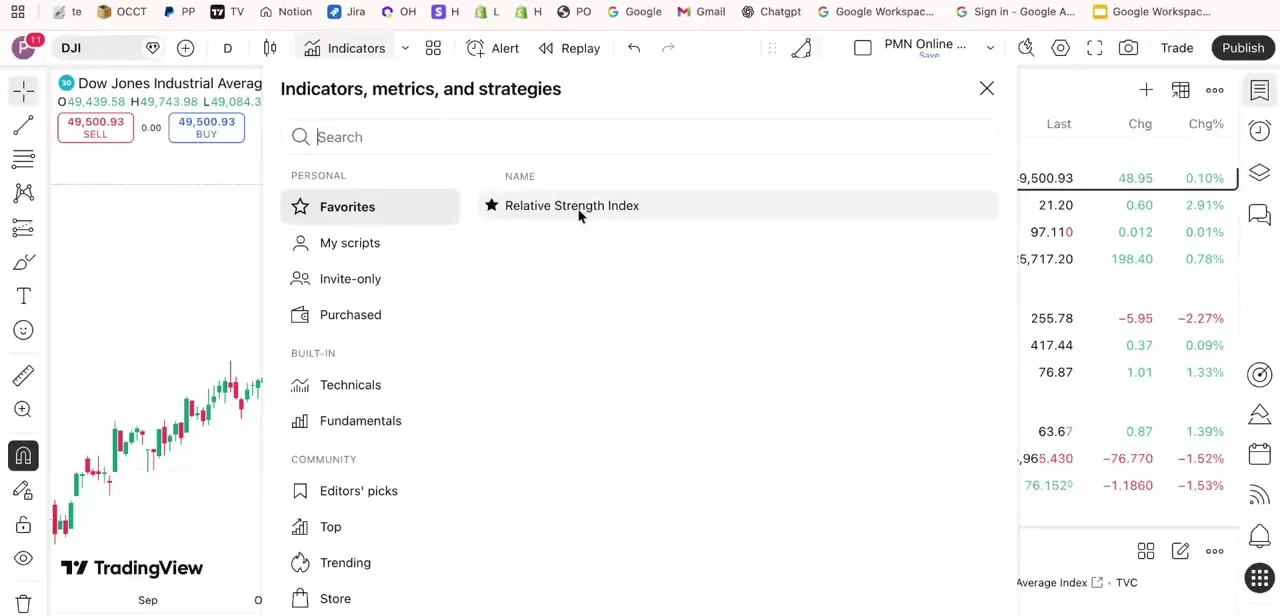
Click Indicators in the top toolbar to open the full panel, titled 'Indicators, metrics, and strategies.' The left column organizes options into Personal (Favorites, My scripts, Invite-only, Purchased), Built-in (Technicals, Fundamentals), and Community (Editors' picks, Top, Trending, Store). If you've starred anything before, it shows up under Favorites immediately — in a fresh account this list starts empty except for whatever you add.
02Add your first two indicators
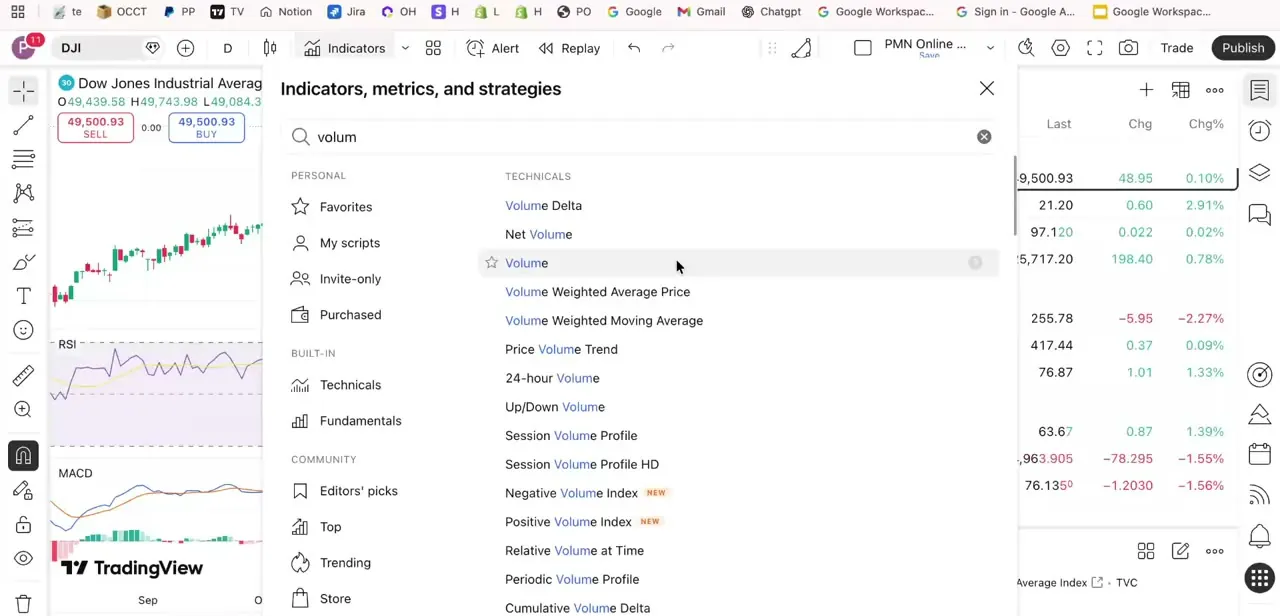
Search by name — typing part of a word like 'volum' brings up a long dropdown of every Volume-related indicator, from basic Volume to Volume Weighted Average Price and Session Volume Profile, sorted with the closest text match highlighted first. Clicking any result drops it onto the chart immediately. RSI and MACD are common first picks since one measures momentum on an overlay-adjacent scale and the other plots as its own oscillator — add both, and TradingView automatically puts each in its own pane below the price chart rather than overlapping them.
03Try to add a third indicator — and hit the plan limit
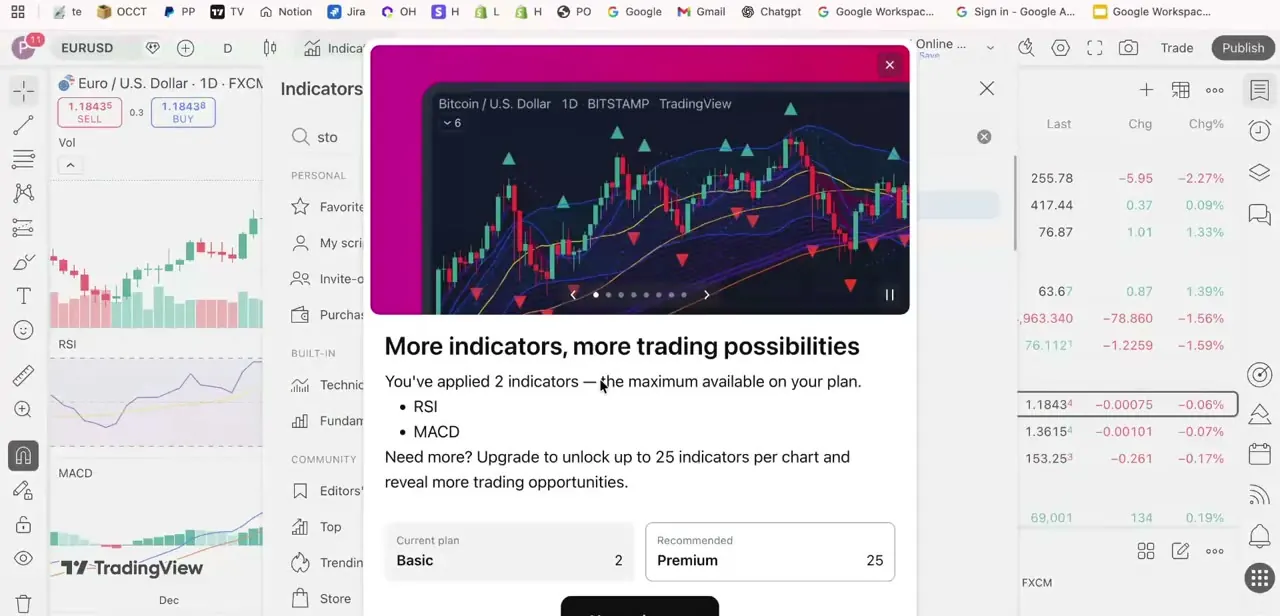
This is where the real constraint shows up. Attempting to add a third indicator on a Basic-tier account triggers an upsell panel instead of adding it: 'More indicators, more trading possibilities.
You've applied 2 indicators — the maximum available on your plan,' listing RSI and MACD as the two already in use, with 'Current plan: Basic (2)' next to 'Recommended: Premium (25)'. In other words, three indicators on one chart simply isn't possible on the free or Basic tier — it's a hard cap enforced by the plan, not a settings toggle you can find and switch.
04Know your real options at two indicators
If upgrading isn't on the table right now, the practical workaround is choosing your two indicators deliberately rather than stacking three loosely. Pairing a trend tool (a moving average, which overlays directly on price and doesn't count against some plan limits the same way a separate-pane indicator does) with a single oscillator like RSI or MACD covers both trend and momentum without needing a third pane at all.
05Manage panes once you're within your limit
Whatever indicators you do have, drag the pane divider to resize how much vertical space each oscillator gets, and use the eye icon next to an indicator's name in the pane to temporarily hide it without deleting it — useful for comparing 'RSI only' against 'RSI plus MACD' views without rebuilding the setup each time.
06Consider upgrading if three-plus indicators matter to you
For anyone who genuinely needs three or more indicators running simultaneously — say, a moving average, RSI, and a volume-based tool — the upgrade prompt itself lays out the answer: Premium raises the cap from 2 to 25 indicators per chart, which is the only path past the limit for a Basic account.
Frequently asked questions
How many indicators can I add to one TradingView chart?
It depends on your plan — TradingView's Basic tier caps you at 2 indicators per chart, while Premium allows up to 25. There's no free-tier way to add a third indicator to a single chart.
Why can't I add a third indicator even though the search still works?
The search and add flow works normally, but on hitting the second indicator's limit, TradingView shows an upgrade prompt instead of adding the third one — it's a plan-based cap, not a bug or a hidden setting.
Should all my indicators go in the same pane?
Not necessarily — moving averages usually overlay directly on price, while oscillators like RSI and MACD are automatically placed in their own separate panes below the chart.
What's the cheapest way to run more than 2 indicators?
Short of upgrading to Premium (which raises the cap to 25), the practical workaround on a Basic plan is picking one trend tool and one momentum oscillator rather than trying to stack three separate indicators.
Watch the full walkthrough
The same steps, demonstrated on screen from start to finish.



