 Easy Tech Tuts
How to Build a Website in Squarespace With AI Easily 2026
By Impran M N
Squarespace's AI-assisted setup, called Blueprint AI, skips the blank-template problem most website builders start you with by asking a few questions about your brand and generating a real starting site from the answers. Instead of scrolling hundreds of templates and guessing which one fits, you describe the kind of business it is and the tone you want, and Squarespace produces page layouts, a color palette, and starter content already assembled. This guide walks through that flow from the Squarespace homepage to a published site, showing exactly what the AI setup asks for and what it hands back at each stage.
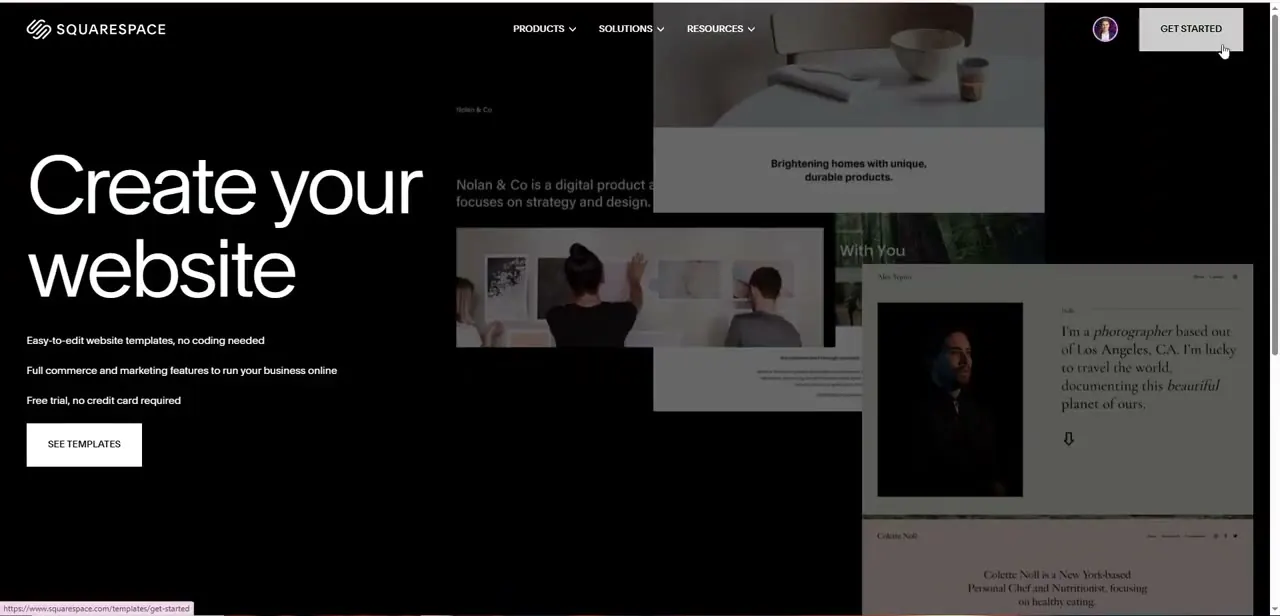
01Start from the Squarespace homepage
Squarespace's marketing site leads with easy-to-edit templates, full commerce and marketing tools, and a free trial with no credit card required — and it's worth noting that last point, since it means you can run through the entire AI setup and preview your generated site before committing payment details. The See Templates and Get Started buttons both lead into account creation, after which the AI-assisted flow, Blueprint AI, takes over.
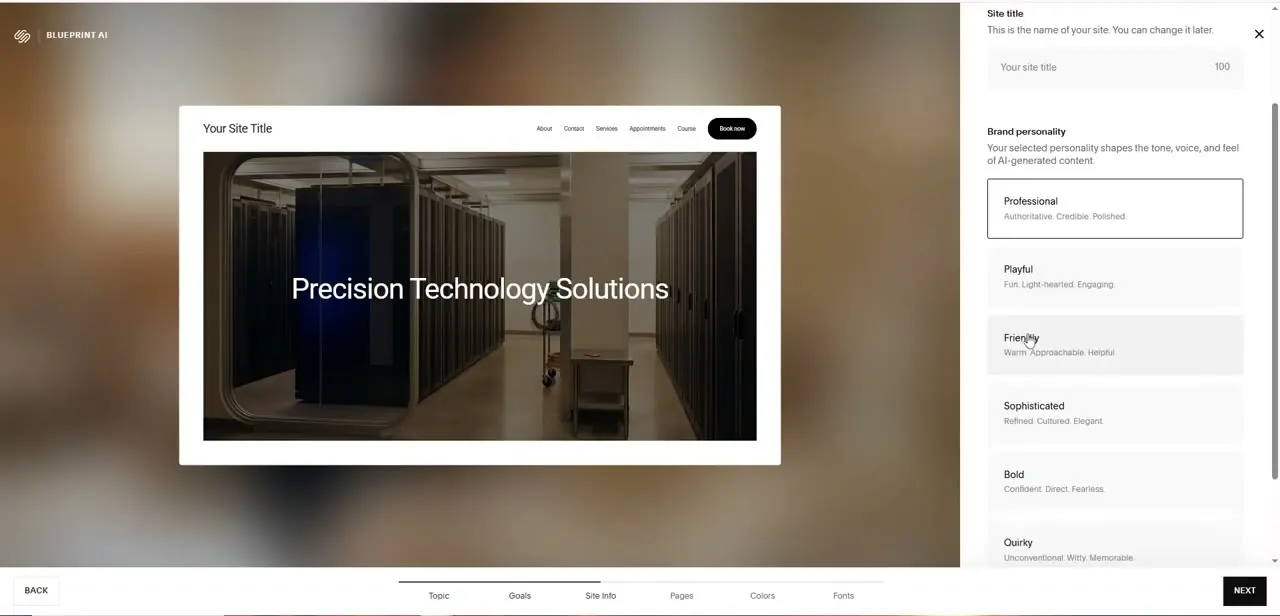
02Set your site title and brand personality
Blueprint AI opens with a live preview panel on the left, showing a sample hero image and headline that update as you make choices, and a form on the right where you enter your site title and pick a brand personality — Professional, Playful, Friendly, Sophisticated, Bold, or Quirky. This isn't cosmetic: Squarespace states directly that the personality you choose shapes the tone, voice, and feel of the AI-generated content that follows, so a Professional pick produces different sample copy than a Playful one would for the same business. A progress bar along the bottom — Topic, Goals, Site Info, Pages, Colors, Fonts — shows how many more questions stand between you and a generated site.
03Review the generated page layouts
Further into the flow, Blueprint AI shows full page mockups built from your answers — in this run, an Appointments page with a "Schedule a Strategy Session" booking layout and a Course page with expandable chapter and lesson lists, both already populated with realistic sample content rather than lorem ipsum placeholders. These aren't just visual previews; the booking and course structures are functional Squarespace features (Acuity Scheduling integration is visible powering the appointment slots), so the pages you're looking at are close to what you'd actually publish, not a mockup you'd need to rebuild later.
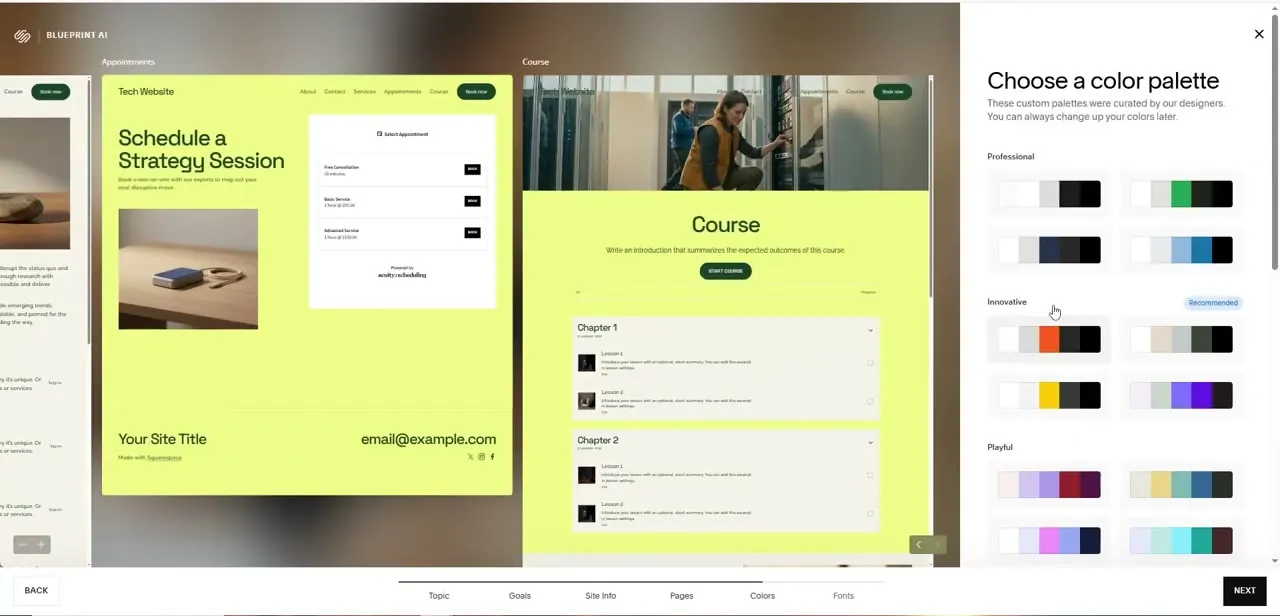
04Choose a color palette
Squarespace groups its suggested palettes under labels like Professional, Innovative, and Playful, with the Innovative section marked "Recommended" based on the brand personality chosen earlier. Selecting a palette updates the live page previews on the left instantly, so you can compare how the same Course and Appointments layouts look under a muted grayscale-and-green combination versus a bolder orange-and-black one before locking anything in. It's worth clicking through a few options here since the difference between palettes is more dramatic on a fully built page than it looks in the small swatches.
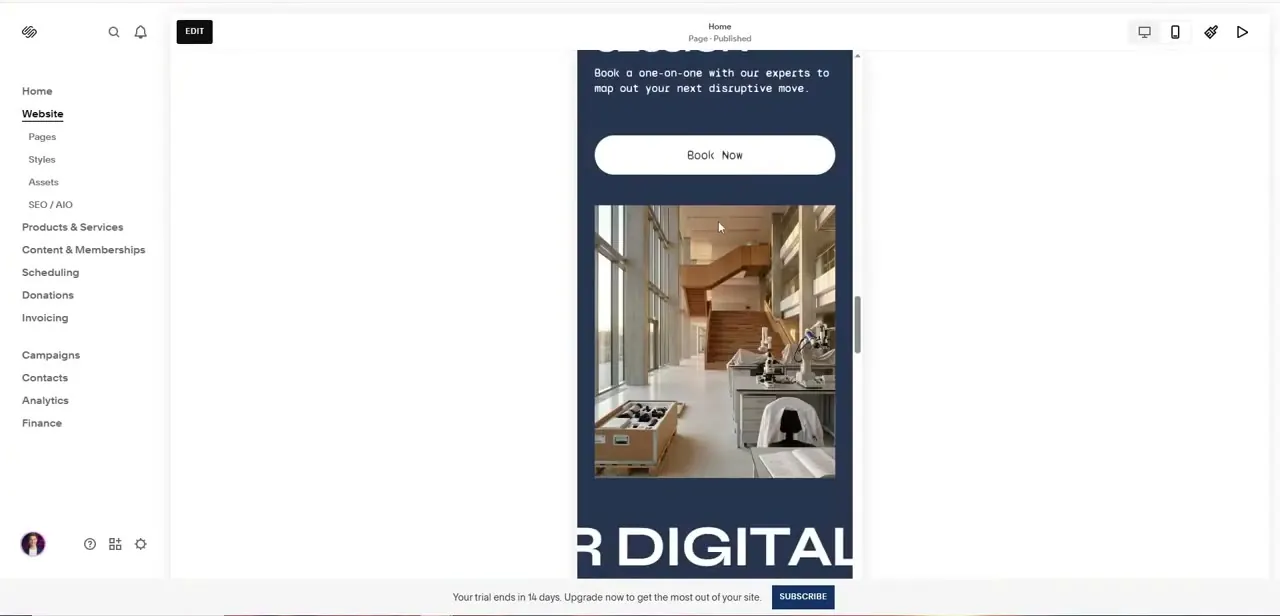
05Land in the real site editor
Once the questions are answered, Blueprint AI hands off to Squarespace's standard editor, with the familiar left-hand navigation — Website, Pages, Styles, Assets, SEO/AIO, Products & Services, Scheduling, Donations, Invoicing, Campaigns, Contacts, Analytics, Finance. The generated homepage is already live in the preview pane and marked "Page · Published," meaning the AI setup didn't just draft a design, it built and published a working site you can immediately start refining page by page.
06Refine and finalize before the trial ends
From here, treat the AI-generated site as a strong first draft rather than a finished product: swap in your own photography, tighten the sample copy into your actual voice, and check that Pages like Appointments or Products & Services are configured with your real services and pricing rather than the placeholder examples. Squarespace displays a trial countdown directly in the editor — in this case 14 days — as a reminder that the free preview period has a clock on it, so plan to finish reviewing and subscribe before that window closes if you intend to keep the site live.
Frequently asked questions
Do I need coding knowledge to build a website with Squarespace's AI tools?
No. Blueprint AI generates page layouts, colors, and starter content from a short questionnaire, and the result is edited through Squarespace's standard drag-and-drop editor — no code involved at any stage.
What does the brand personality choice actually affect?
Squarespace states that your selected personality (Professional, Playful, Friendly, Sophisticated, Bold, or Quirky) shapes the tone, voice, and feel of the AI-generated content across your generated pages, not just visual styling.
Is the site Blueprint AI generates ready to use right away?
It's a strong starting point rather than a finished product — pages come with realistic sample content and working structures like scheduling and course layouts, but you should still swap in your own photos, copy, and real service details before treating it as final.
How long is the free trial before I need to pay?
The editor displays a countdown — 14 days in this walkthrough — so you have time to build and refine the AI-generated site before deciding whether to subscribe and keep it live.
Can I change the color palette after Blueprint AI generates my site?
Yes — palettes are shown as live previews against your actual generated pages during setup, and colors and styles remain editable afterward from the Styles section of the standard editor.
Watch the full walkthrough
The same steps, demonstrated on screen from start to finish.


