Easy Tech Tuts
How to Connect SharePoint List to Power BI (Direct Connection) Easily 2026
By Impran M N
If your team tracks data in a SharePoint list, you don't need to export it manually to build a Power BI report. Power BI has a dedicated SharePoint Online Lists connector built specifically for this, sitting right alongside the Excel and SharePoint folder options in Get Data. This tutorial covers where that connector lives, the exact fields it asks for — including a setting that trips people up if they get it wrong — and how to keep the list data flowing in without repeating the setup every time.
01Review your SharePoint list before connecting
Confirm the list you want to pull in actually has the columns your report needs — status fields, dates, owners, whatever you're planning to build visuals around. It's much easier to add a missing column in SharePoint before connecting than to discover the gap after you've already built half a report in Power BI Desktop.
02Open Get Data and find the SharePoint connectors
In Power BI Desktop, click Get Data to open the full source catalog. You'll notice SharePoint folder listed under File, but that's for document libraries — a list of files, not structured list data. What you actually want is a level down in the catalog, under Online Services, where the dedicated SharePoint Online Lists connector lives.
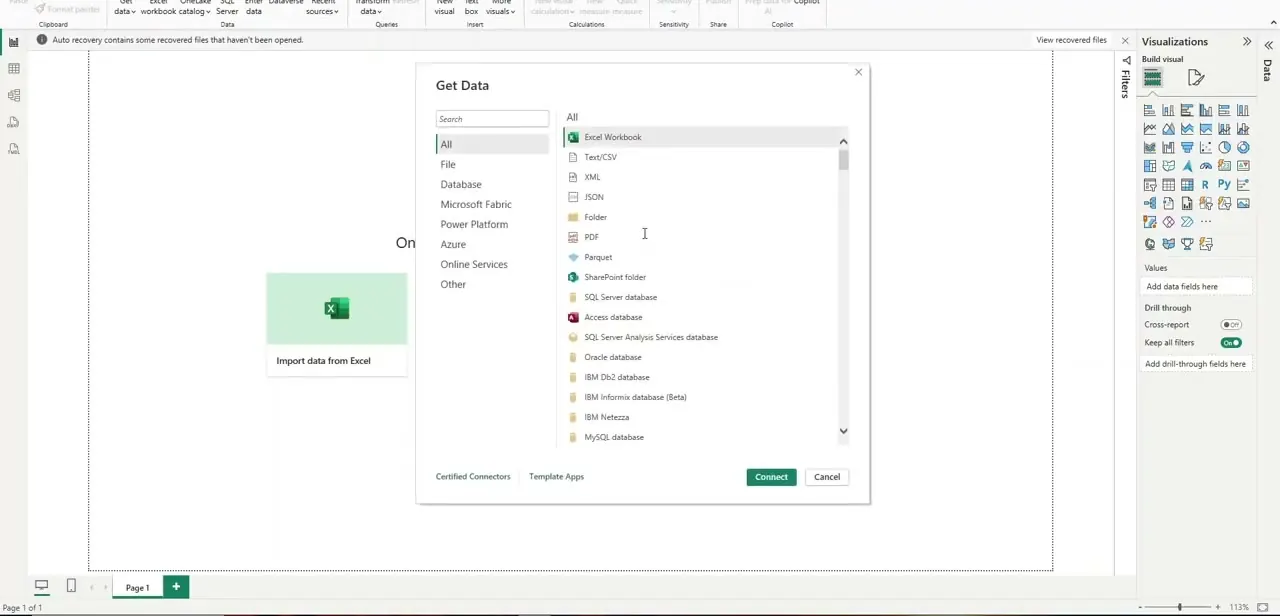
03Enter the site URL and choose the right implementation
Selecting SharePoint Online Lists opens a dialog asking for the Site URL — and this is the detail most people get wrong: it wants the root URL of the SharePoint site itself, not a link to the specific list or a subfolder within it. Paste something like https://yourcompany.sharepoint.com/sites/yourteam and nothing more; adding the list path onto the end causes the connection to fail or return nothing. Below that, an Implementation setting offers 2.0 or 1.0 — leave it on 2.0 unless you have a specific reason to fall back, since it's the newer, more reliable engine.
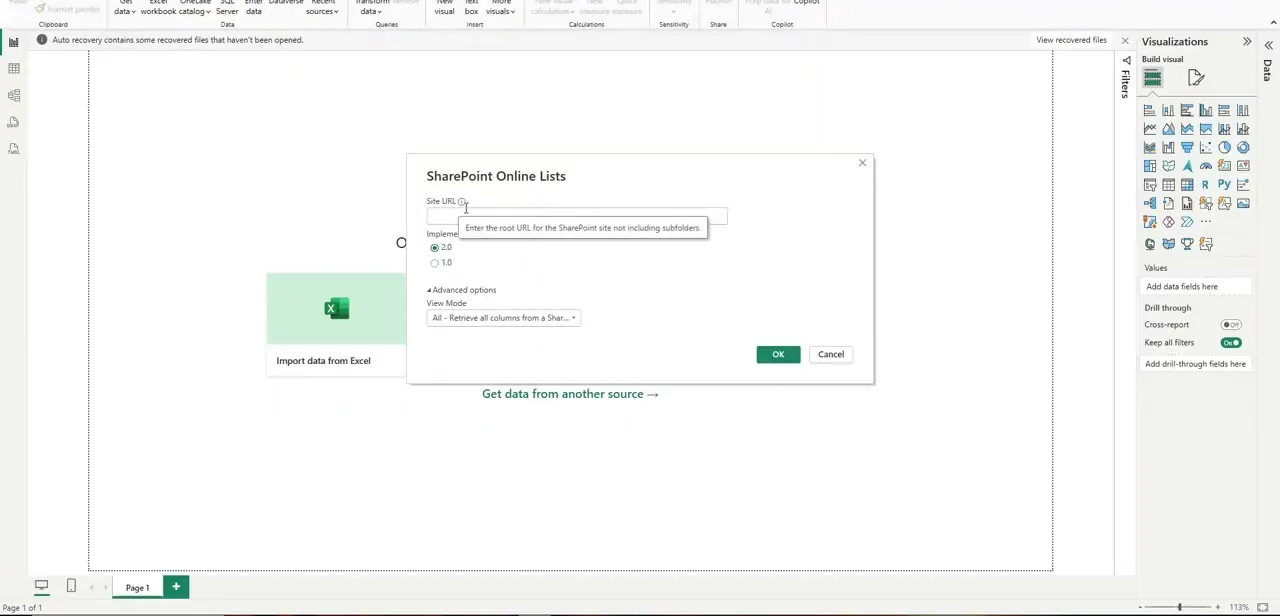
04Set the View Mode in Advanced options
Expanding Advanced options reveals a View Mode dropdown, defaulted to "All - Retrieve all columns from a SharePoint list." This pulls every column regardless of whether it's shown in any SharePoint view, which is usually what you want for a report, but it can also drag in hidden system columns you don't need. If your list has a lot of internal metadata columns, switching this to a specific view can cut down the noise and speed up your refresh.
05Pick the list and authenticate
After confirming the site URL, Power BI's Navigator shows every list available at that site — pick the one you actually need rather than everything visible, since a busy SharePoint site can easily have a dozen lists unrelated to your report. You'll be prompted to authenticate with your organizational account if you haven't already; make sure it's an account with at least read access to that specific list, not just the site in general, since list-level permissions can be more restrictive.
06Build visuals and keep the connection current
Once loaded, list data behaves like any other Power BI table — build status trackers, feedback summaries, or timeline visuals directly from the columns you pulled in. Publish to the Power BI service and set a scheduled refresh so changes made in the SharePoint list, like a status update or a new row, show up in the report without anyone re-running the import by hand.
Frequently asked questions
Does this connection require any special SharePoint permissions?
You need at least read access to the SharePoint site and specifically to the list, since list-level permissions can be more restrictive than general site access.
What URL should I enter in the SharePoint Online Lists connector?
The root URL of the SharePoint site itself, such as https://yourcompany.sharepoint.com/sites/yourteam — not a link to the specific list or a subfolder, which is the most common reason this connection fails.
Should I use Implementation 2.0 or 1.0?
Stick with 2.0 unless you have a specific compatibility reason to use 1.0. It's the newer, more reliable engine and is the default for good reason.
Can I refresh the data automatically after the initial connection?
Yes, you can set up scheduled refreshes once the report is published to the Power BI service, so your report reflects the latest changes made to the SharePoint list.
Can multiple SharePoint lists be combined into one Power BI report?
Yes, you can connect to several lists — from the same site or different ones — and merge or relate them within your Power BI data model.
Watch the full walkthrough
The same steps, demonstrated on screen from start to finish.