 Easy Tech Tuts
How to Set Up a Loan in QuickBooks Easily 2026
By Impran M N
Recording a loan incorrectly in QuickBooks can throw off your liability tracking and interest expense reporting down the line, and the setup isn't a dedicated "loan wizard" — it's a liability account you configure by hand. This guide covers opening the Chart of accounts, creating that liability account with the right type and detail type, and entering the loan's starting balance so QuickBooks tracks it correctly from day one. It's aimed at small business owners and accountants managing lending or borrowing activity who want the account set up right the first time.
01Open the Chart of accounts
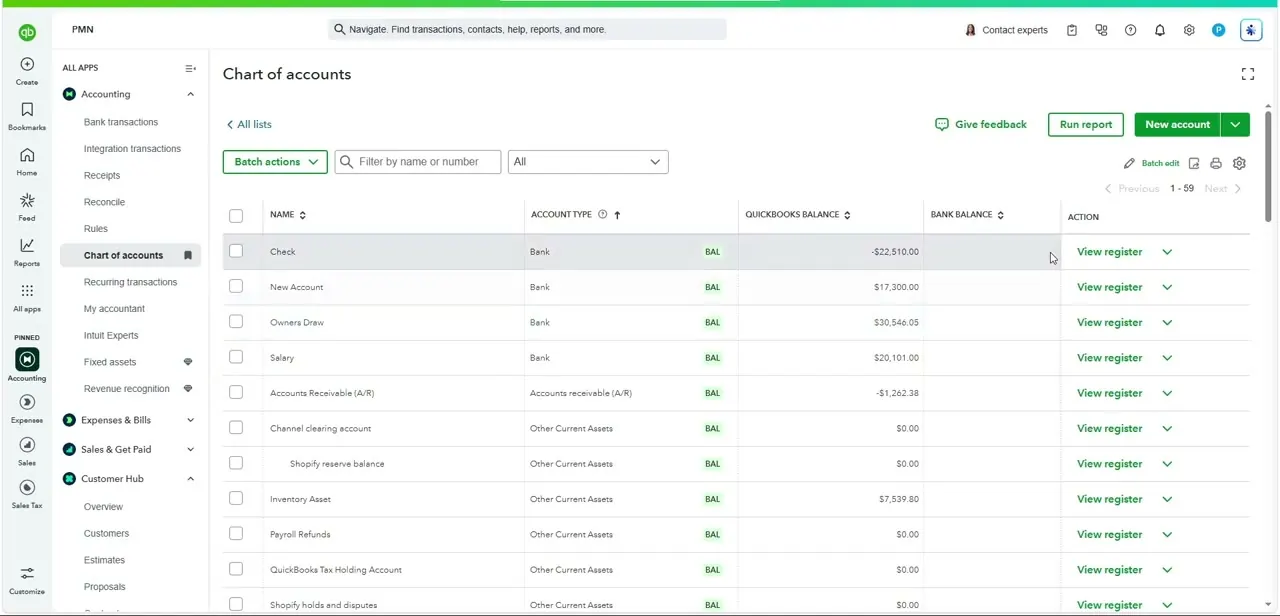
From the left-hand Accounting menu, select Chart of accounts. This is where every account QuickBooks tracks lives — bank accounts, accounts receivable, and liabilities all in one list, each showing its current balance. A loan isn't created anywhere else in the interface; it starts here as a new liability account, so this list is your starting point regardless of how the loan will eventually be paid down.
02Create a new liability account for the loan
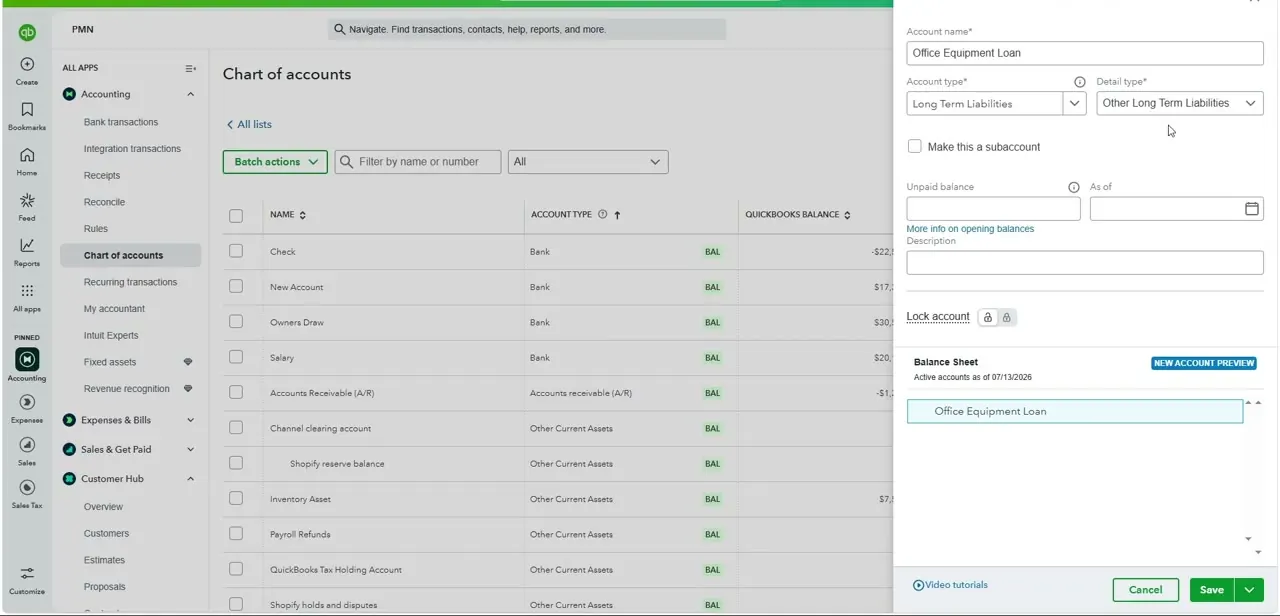
Click New account and give it a specific name — "Office Equipment Loan" rather than something generic like "Loan," especially if you expect to track more than one over time. For Account type, choose Long Term Liabilities if repayment stretches beyond a year, or Other Current Liabilities if it's due within twelve months; for Detail type under a long-term loan, Other Long Term Liabilities is the standard fit unless your loan matches a more specific QuickBooks category.
03Enter the starting balance and date
In the Unpaid balance field, enter the full original loan amount — not what's currently owed if you're setting this up partway through repayment, but the balance as of the date you're recording, paired with the matching "As of" date. QuickBooks uses this pair to establish the opening balance of the liability, and the panel's live Balance Sheet preview updates immediately so you can confirm the new account is showing up with the right figure before you save.
04Record where the loan money went
A liability account by itself only tracks what you owe — it doesn't move any money. If the lender deposited funds into your bank account, record a corresponding deposit or journal entry that increases your bank balance and offsets it against this new liability account, so both sides of the transaction are reflected. If the loan paid for something directly, like equipment purchased through the lender, record that purchase against the liability account instead of a bank account.
05Set up recurring payments that split principal and interest
Each loan payment usually isn't a single expense — part reduces the liability balance (principal) and part is a genuine cost (interest). When recording a payment, split it across two lines: one against the loan liability account for the principal portion, and one against an interest expense account for the rest. Setting this up as a recurring transaction under Recurring transactions saves you from re-splitting the amounts manually every payment cycle, as long as your loan has a fixed payment schedule.
06Monitor the loan through reports
Once payments start posting, check the Balance Sheet periodically to watch the liability balance decline, and run a Profit & Loss report to see the accumulated interest expense over time. Comparing the liability balance against your lender's own amortization schedule every few months is worth doing, since a mismatch usually means a payment was recorded with the wrong principal/interest split rather than an actual discrepancy with the lender.
Frequently asked questions
Why is it important to set up loans correctly in QuickBooks?
Correctly categorizing the loan as a liability and splitting each payment into principal and interest keeps your liability balance and interest expense accurate, which affects both your balance sheet and tax reporting.
Does QuickBooks Online have a dedicated loan setup wizard?
Not exactly — a loan is set up as a Long Term Liabilities (or Other Current Liabilities) account created from the Chart of accounts, with the balance and payment splits configured manually rather than through a guided wizard.
Should I use Long Term or Current Liabilities for a loan?
Use Other Current Liabilities if the loan is due within a year, and Long Term Liabilities if repayment extends beyond that — this affects how the loan appears on your balance sheet.
How do I record a loan payment correctly?
Split each payment across two lines: the principal portion reduces the loan liability account, and the interest portion posts to an interest expense account. Recording the whole payment against one account will misstate either your liability or your expenses.
How do I monitor a loan once it's set up in QuickBooks?
Check the Balance Sheet for the declining liability balance and run a Profit & Loss report to track accumulated interest expense, comparing both against your lender's amortization schedule periodically.
Watch the full walkthrough
The same steps, demonstrated on screen from start to finish.


