 Easy Tech Tuts
How to Import CSV Data in Power BI (Clean Import Guide) Easily 2026
By Impran M N
Importing CSV files into Power BI seems simple until formatting issues cause messy reports — a stray comma, an inconsistent date column, or a wrong file-type filter can leave you troubleshooting data that looked perfectly fine back in a spreadsheet. Because Power BI infers column types and delimiters automatically during import, small inconsistencies in the source file tend to surface as confusing downstream problems rather than a clear error message up front.
This guide walks through the actual import path from a fresh Power BI session: opening the app, pulling in a CSV through Get data, picking the right file, and confirming the columns landed the way you expected before you build a single visual on top of them. Get this part right once and every report you build afterward starts from clean data instead of a guessing game.
01Prepare your CSV file before you open Power BI
Check your file for consistent formatting before it ever touches Power BI: headers in the first row, no merged or blank header cells, and a single data type per column — mixing text and numbers in the same column is one of the most common causes of a messy import. If the file was exported from another system, open it once in a plain text editor or spreadsheet app to confirm the delimiter is actually a comma and not a semicolon, which is common in regions that use commas as decimal separators and can cause Power BI to read an entire row as a single unsplit column. It's also worth trimming any trailing blank rows at the end of the file, since Power BI will happily import them as rows of nulls that then need cleaning up later.
02Open Power BI and start a new report
Launch Power BI Desktop and you'll land on the start screen, which shows a Blank report tile alongside a Recommended section and a list of recently opened files. Choose Blank report if this is a new project, since you want a clean canvas before pulling in your CSV rather than layering it onto an existing file's data model. Recent .pbix files are listed below with their save location, which is handy if you're continuing work rather than starting fresh.

03Import the CSV through Get data
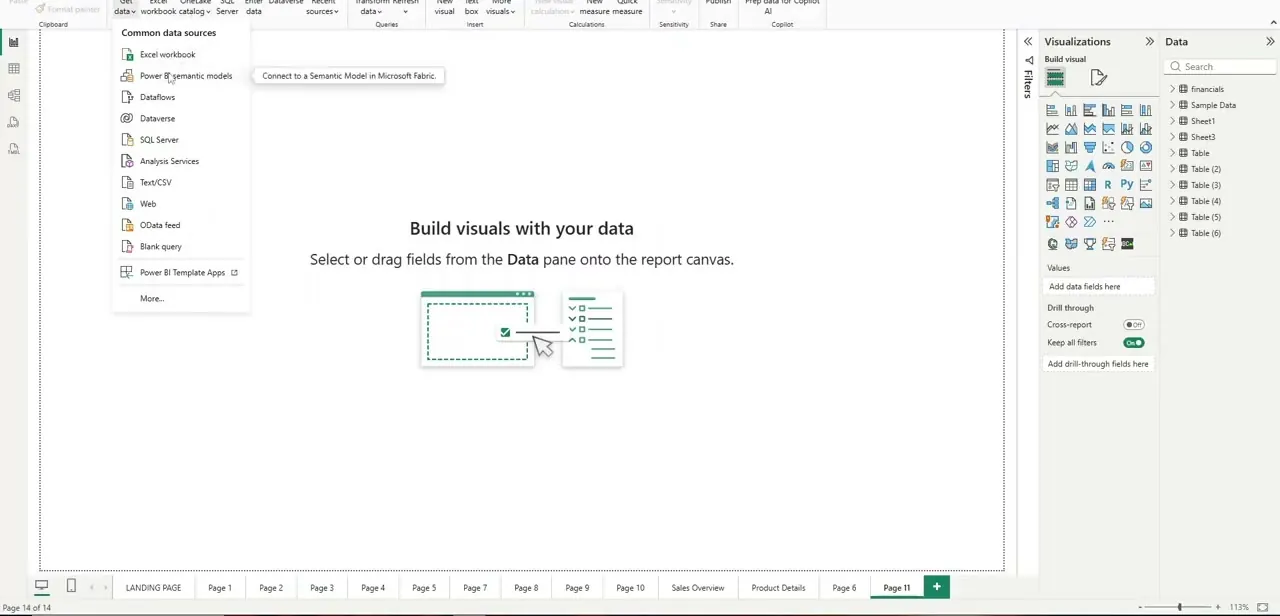
From the ribbon, click Get data and look under Common data sources for Text/CSV — it sits alongside Excel workbook, SQL Server, and Web as one of the standard connector options. This is the connector purpose-built for delimited text files, and it's a different path from Import or Excel workbook, both of which expect a different file structure entirely. Selecting Text/CSV opens a standard file browser rather than a data-source login screen, since a local CSV doesn't need credentials.
04Select your file with the correct filter applied
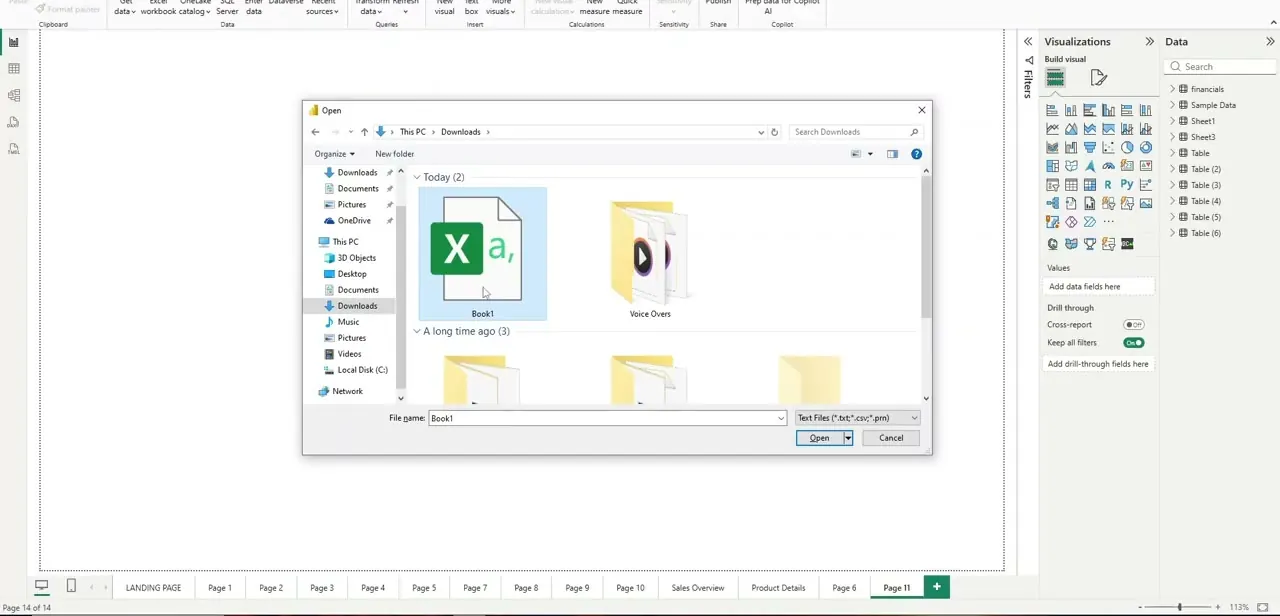
In the Open dialog, Power BI automatically filters the file list to Text Files, matching .txt, .csv, and .prn extensions, so your CSV should be visible without hunting through unrelated files. Navigate to wherever the file lives — Downloads is the default if you just exported it from another tool — select it, and click Open. Power BI then shows a preview pane with your detected delimiter, column headers, and data types before anything is actually loaded, which is your last chance to catch a formatting problem before it enters your model.
05Confirm the data landed cleanly
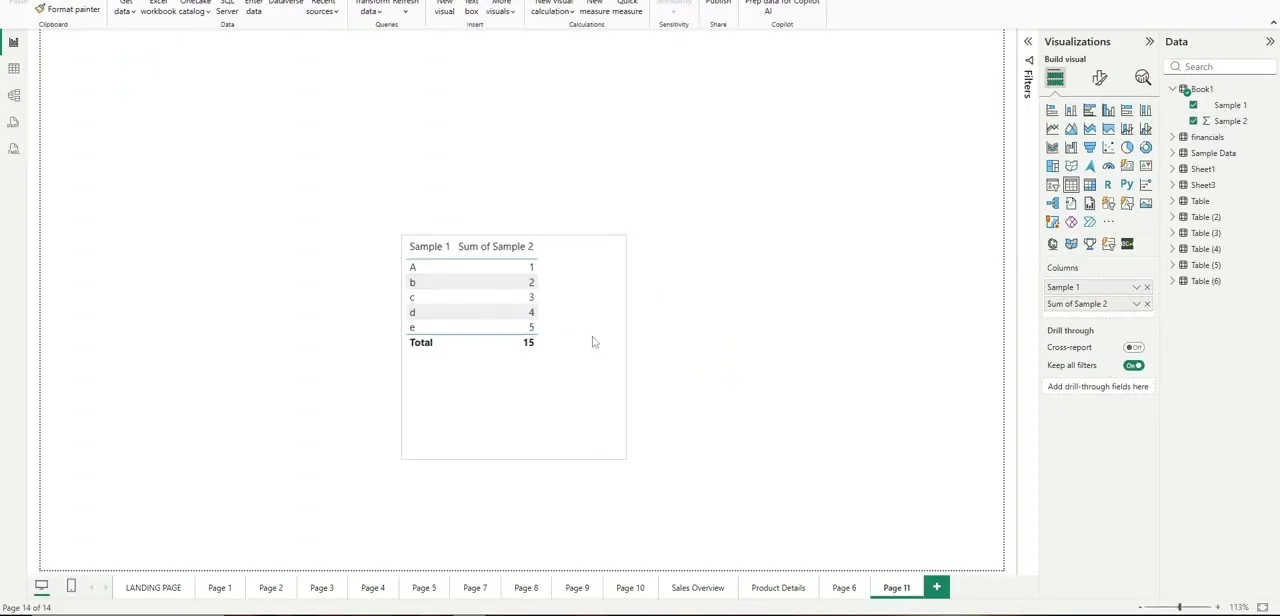
After loading, check the imported table in your report view against what you expected — column names should match your source headers exactly, and numeric columns should show as numbers rather than text, which you can spot immediately if a Sum or Total value calculates correctly. A quick sanity table with a running total, even just three or four sample rows, confirms in seconds whether the import came in clean or needs a trip through Power Query to fix column types.
06Build a repeatable process for future imports
Once you've got a clean import working, write down the steps you took — which connector, which delimiter, which columns needed type fixes — so the next CSV from the same source goes faster and you're not re-diagnosing the same quirks every time. If you're pulling from a system that exports the same report format regularly, Power BI's Power Query editor lets you save the transformation steps as an applied-steps list and simply point it at a new file each time, turning a several-minute manual check into something closer to a one-click refresh. This matters even more once several people on a team are importing from the same source, since a documented process keeps everyone's version of the data consistent.
07Combine clean CSV data with your other sources
Once a CSV imports cleanly, it doesn't have to stand alone — Power BI lets you relate it to tables pulled from Excel, SQL Server, or any other connector in the same model, as long as there's a shared key column between them. This is where a well-prepared CSV import pays off: a sales export sitting alongside customer feedback data or a product catalog turns into genuinely richer reporting, but only if the CSV's column types and values are consistent enough to join cleanly against the rest of your model in the first place.
Frequently asked questions
What common CSV formatting issues cause import errors in Power BI?
Inconsistent headers, mixed data types within a column, and the wrong delimiter (semicolon instead of comma, for instance) are the most common problems that cause a messy or failed import.
Can I import multiple CSV files into one Power BI report?
Yes, Power BI supports importing and combining multiple data sources, including several CSV files, within the same report using the same Get data > Text/CSV path for each one.
Do I need to clean my CSV file before or after importing?
It's generally best to check formatting beforehand, though Power BI's Power Query editor also lets you clean and transform data after import if issues show up in the preview or the loaded table.
Will updating the original CSV file automatically update my Power BI report?
Not automatically unless you set up a refresh connection to that file's location; otherwise you'll need to re-import or manually refresh the data.
Why doesn't my CSV file show up in the Open dialog?
Power BI's Text/CSV import filters the dialog to Text Files by default, matching .txt, .csv, and .prn — if your file has a different extension, change the file type filter in the dialog or rename the file's extension before importing.
Watch the full walkthrough
The same steps, demonstrated on screen from start to finish.


