 Easy Tech Tuts
How to Create and Edit Table With Enter Data in Power BI (Manual Tables) Easily 2026
By Impran M N
Sometimes you need a custom table in Power BI that doesn't come from an external data source — a short lookup list, a set of category labels, or a handful of reference values that don't justify setting up a full connection to a database or file just to hold five or six rows. The Enter Data feature covers exactly this case, letting you type values directly into a grid that becomes a proper table in your data model, joinable and filterable just like any table pulled from Excel or SQL Server. This guide walks through creating one from scratch, loading it into the report, verifying it landed correctly, and going back to edit it later once your data needs inevitably change.
01Open the Create Table dialog
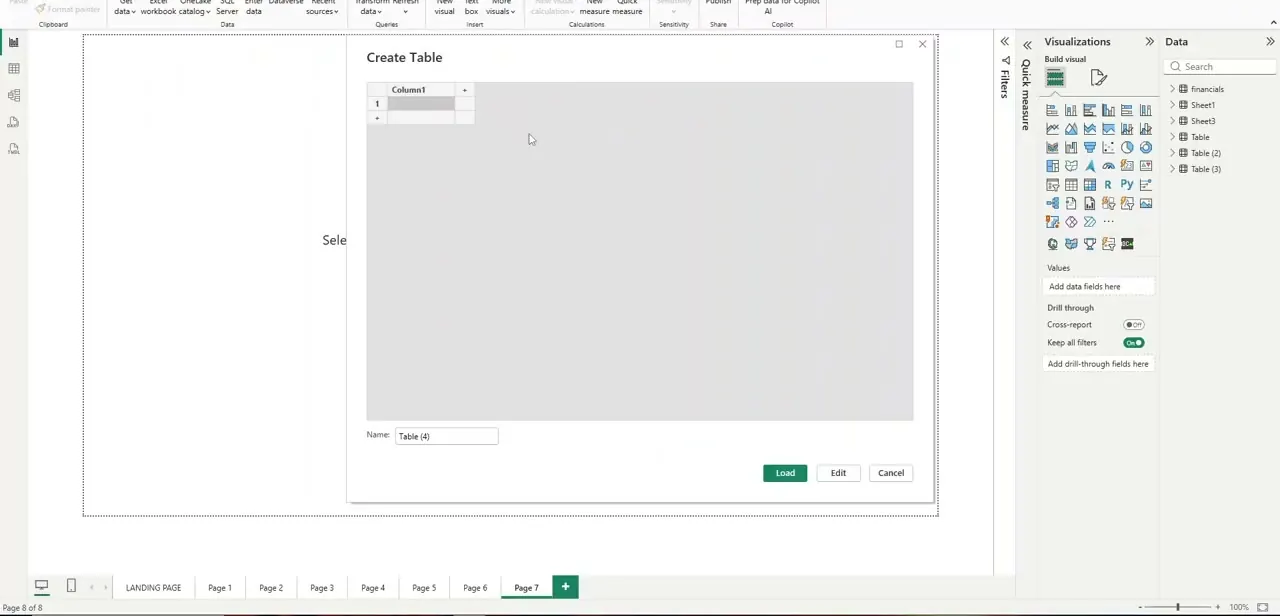
From the ribbon in Power BI Desktop, click Enter Data. A dialog titled "Create Table" opens with a small spreadsheet-like grid, starting with a single column named Column1 and one empty row ready for input. A Name field at the bottom lets you rename the table before loading it — Power BI defaults to something generic like Table, so give it a descriptive name now rather than renaming it later once other visuals may already reference it.
02Add columns and enter your values
Click the plus icon next to Column1 to add additional columns, and rename each one by double-clicking its header — for a simple product-and-price reference table, that might mean columns named Product and Price. Click into each cell and type your values directly, pressing Tab to move across a row and Enter to drop to the next one, the same way you'd fill in any small spreadsheet.
03Load the table into your report
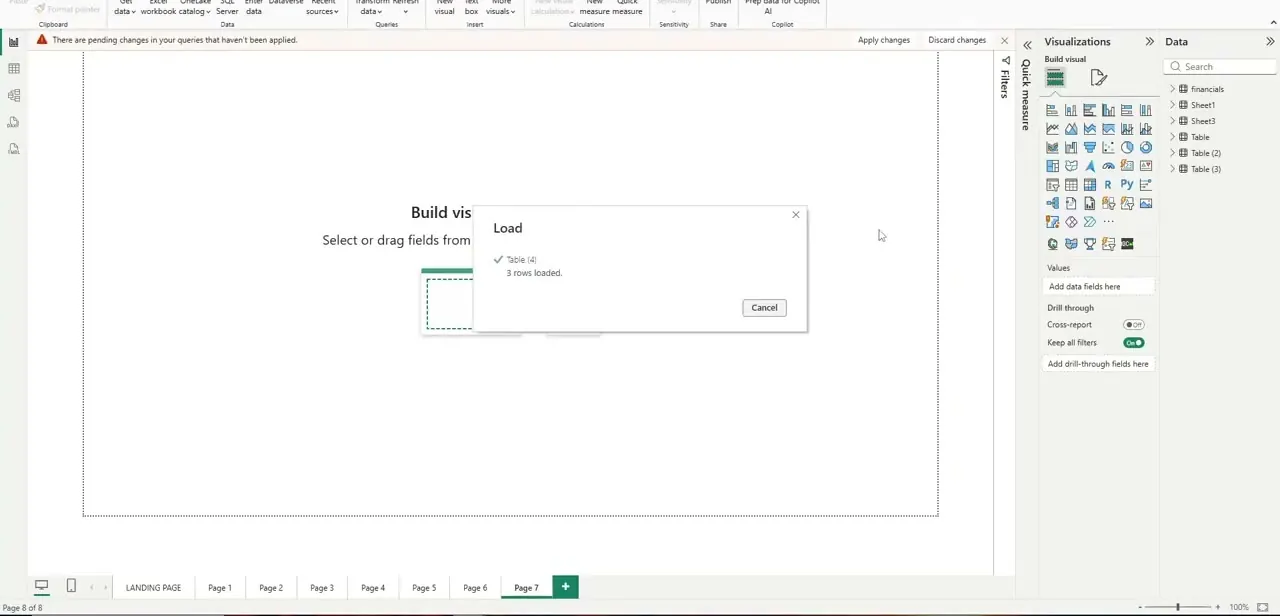
Once your data is entered, click Load rather than Edit — Load brings the table straight into your model and closes the dialog, while Edit routes you through Power Query first if you need to apply transformations before the data lands. After loading, Power BI shows a confirmation dialog reporting how many rows were loaded successfully, which is a quick way to catch a typo if the count doesn't match what you expect.
04Verify and edit the table in Data view
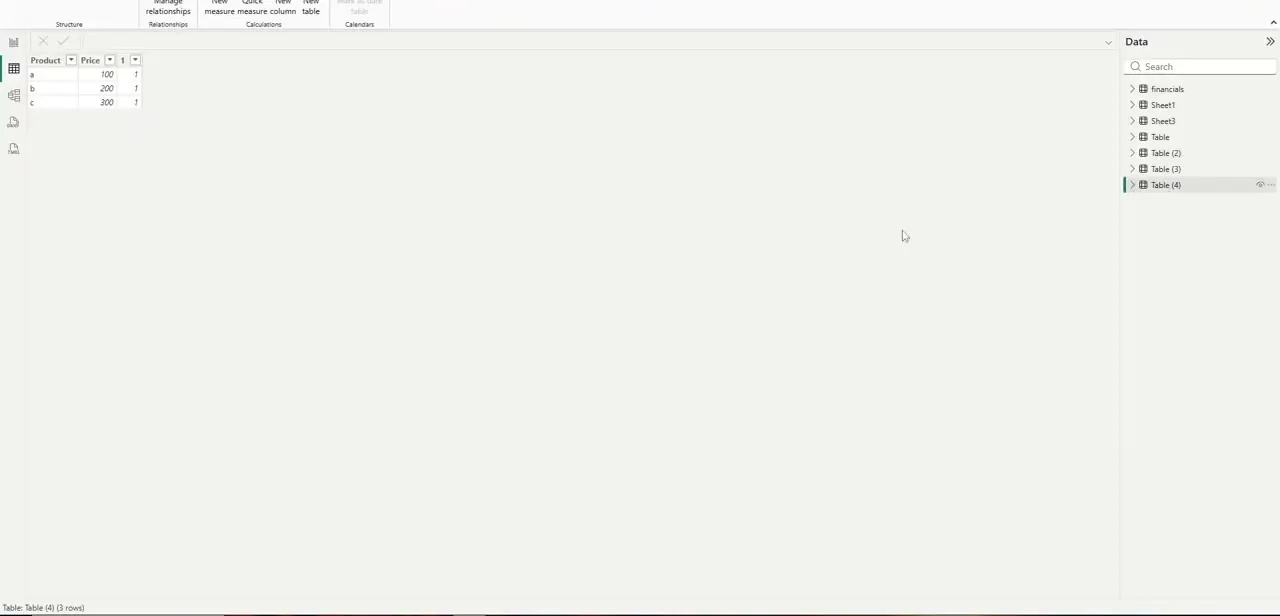
Switch to Data view using the icon on the left sidebar, and select your new table from the Data pane on the right to see it laid out as rows and columns, just like any table pulled from an external source. To edit values later, you don't need to reopen Enter Data at all — select the table, use New table or the transform tools on the ribbon, or return to Power Query's Edit Queries to adjust the source values directly in the same grid you started with.
05Know when a manual table makes sense
Manual tables are the right tool for small, stable reference data — a mapping of region codes to region names, a short list of budget categories, or threshold values a report checks against, the kind of thing that might change once or twice a year at most. They're the wrong tool for anything that changes often or grows past a few dozen rows, since every update means manually reopening and re-editing the grid rather than refreshing from a live source, and that manual step is exactly the kind of thing that gets forgotten when a report is handed off to someone else on the team.
06Keep manual tables organized as your model grows
Label manually entered tables clearly — a prefix like "Ref_" or "Manual_" in the table name makes it obvious at a glance which tables come from a live connection and which ones a person typed in by hand. This matters most when you're troubleshooting a report months later and need to quickly tell whether a value needs updating in a source system or just needs a quick manual edit, especially if someone other than the original report author is doing the troubleshooting.
07Relate a manual table to your other data
A manual table becomes far more useful once it's connected to the rest of your model rather than sitting on its own — open Manage relationships and link its key column (Product, in the example above) to the matching column in a larger fact table, the same way you'd relate any two imported tables. Once that relationship exists, values from your small manual table can filter, label, or categorize the larger dataset, which is usually the whole point of building it by hand in the first place rather than just leaving it as a disconnected reference list.
Frequently asked questions
When should I use Enter Data instead of importing a file?
Enter Data is best for small, custom datasets you're building from scratch — reference lists or lookup tables — rather than large datasets that already exist in an external file or source, which are better imported directly.
Can I edit a manual table after it's created?
Yes. Select the table in Data view and use the ribbon's transform tools, or return to Power Query's Edit Queries, to update, add, or remove entries in an existing manual table.
Is there a limit to how much data I can enter manually?
There's no hard limit, but manual entry is best suited for smaller datasets — a few dozen rows at most — since larger volumes are far easier to maintain through an automated data connection.
Can manual tables be combined with imported data in the same report?
Yes, manual tables can be related to and used alongside data imported from other sources within the same Power BI model, the same as any other table.
What's the difference between clicking Load and clicking Edit in the Create Table dialog?
Load brings your entered data straight into the model as-is. Edit instead routes you through Power Query first, which is useful if you want to apply transformations to the manually entered values before they load.
Watch the full walkthrough
The same steps, demonstrated on screen from start to finish.


