 Easy Tech Tuts
How to Create a Landing Page in Power BI Dashboard (Pro First Page) Easily 2026
By Impran M N
The first page of a Power BI dashboard sets the tone for how stakeholders engage with your data, and it's the one page almost everyone will see whether they explore further or not. Rather than dropping viewers straight into a dense chart-filled report the moment it opens, a dedicated landing page gives them a title, a sense of what's inside, and clear navigation to the pages that actually matter to them personally.
This is especially true for reports shared broadly across a team, where different viewers care about different sections and a plain, well-labeled entry point saves everyone from hunting through unfamiliar tabs. This guide covers building that first page from an empty canvas — placing a title, adding a placeholder visual, configuring which report pages actually show up in navigation, and keeping the whole thing current without extra manual work.
01Set up a dedicated landing page in your report
Start from your Power BI report and add a new page specifically for this purpose — name it something like "LANDING PAGE" so it's unmistakable in the page tab list, and drag it to the far left so it's the first thing anyone sees when the report opens. Keep this page visually separate from your working report pages; its job is orientation, not analysis, so resist the urge to cram a full chart onto it just because there's empty space available. Think of it more like a table of contents than another data page.
02Add a visual placeholder to anchor the layout
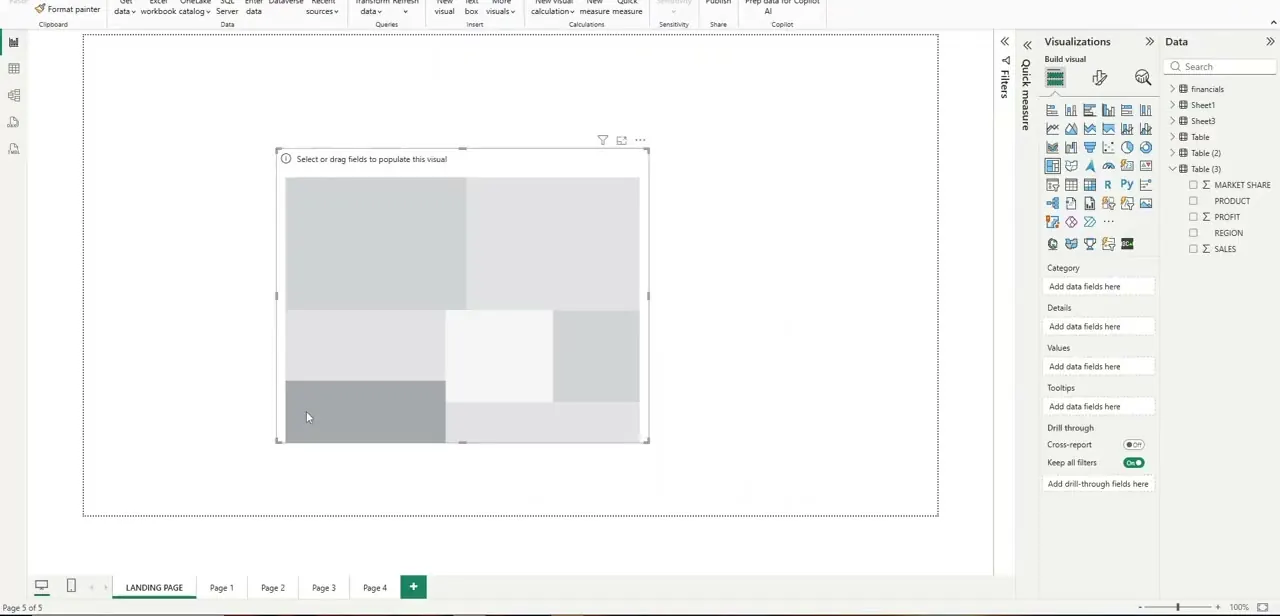
Drop a visual onto the canvas before you've decided exactly what data it will show — Power BI displays it as an empty gray placeholder with "Select or drag fields to populate this visual," which is a normal and useful intermediate state rather than something to worry about. Use it to block out the layout, deciding how much of the page a hero visual or summary chart should occupy relative to the surrounding whitespace, before committing to specific fields. Resize and reposition the placeholder a few times until the overall balance of the page feels right — it's much faster to move an empty box around than to keep rebuilding a fully populated chart every time you want to try a different layout.
03Add a clear title to the page
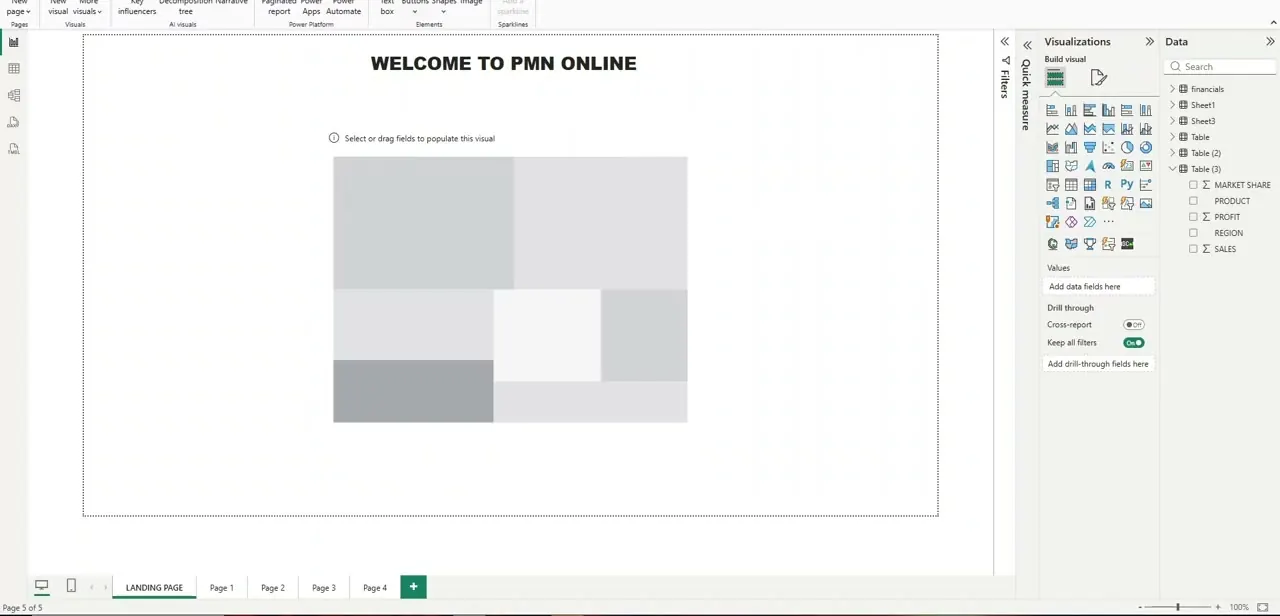
Place a text box or title element at the top of the page with your organization or dashboard name — something short and immediately legible, since this is the first text a viewer reads before anything else on the page registers. Keep it visually distinct from your data visuals with its own font weight or size, so it reads as a page heading rather than another chart label competing for attention. A one-line subtitle underneath, noting what the dashboard covers or how often it refreshes, adds useful context without turning the page into a wall of text.
04Control which pages appear in navigation
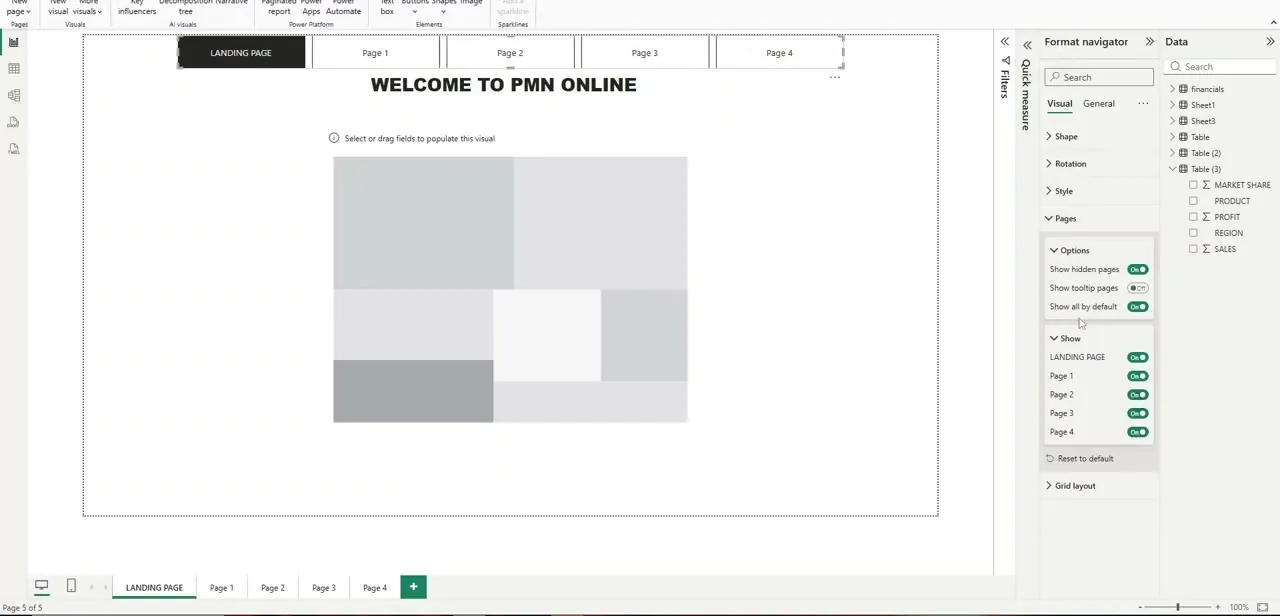
Open the Format pane and look under Pages, then Options, where you'll find toggles for showing hidden pages, showing tooltip pages, and showing all pages by default. Below that, a Show list lets you individually toggle visibility for every page in the report — your landing page, and each working page like Page 1 through Page 4. Turn off any page that's a work-in-progress or a tooltip-only helper page so your navigation only exposes what's actually ready for viewers.
05Set up automated refresh so the page stays current
A landing page loses credibility fast if the summary numbers on it go stale while the detail pages behind it stay current — a viewer who spots a stale headline number tends to distrust the rest of the report too, even if the deeper pages are perfectly up to date. Configure a scheduled refresh for the underlying dataset in the Power BI service, so the figures a viewer sees on first load are never more than a refresh cycle old. This matters more on a landing page than anywhere else in the report, since it's the number people remember even if they never click through to see anything else.
06Design for the audience that only looks once
Many viewers will open a dashboard, glance at the landing page, and leave without navigating further — treat that reality as a design constraint, not a failure state to fight against. Put the one or two numbers that matter most front and center, keep navigation buttons obvious and few, and save deep drill-down detail for the pages behind the landing page rather than trying to fit everything onto the first screen. If you find yourself wanting to add a fifth or sixth summary tile, that's usually a sign it belongs on a dedicated overview page one click deeper, not on the landing page itself.
07Add simple navigation buttons to the pages behind it
Beyond Power BI's built-in page tabs, adding a few labeled buttons directly on the landing page — "Sales Overview," "Product Details," "Customer Insights" — gives viewers an obvious, guided path instead of leaving them to guess which small page tab corresponds to what they're looking for. Set each button's action to navigate to a specific page, and keep the labels in plain business language rather than internal page names, since the person reading the landing page usually isn't the person who built the report.
Frequently asked questions
What makes a good landing page for a Power BI dashboard?
A good landing page prioritizes clarity: a clear title, one or two headline metrics, and simple navigation to the pages behind it, rather than trying to show every visual at once.
Can I make my Power BI landing page update automatically?
Yes, by setting up a scheduled refresh for the underlying dataset in the Power BI service, so the landing page's summary numbers stay current without manual intervention.
How many visuals should I include on a landing page?
Fewer, well-chosen visuals generally work better than a crowded page — the goal is a quick, clear overview and obvious navigation, not every possible detail.
Is designing a landing page difficult for Power BI beginners?
No. The core steps — adding a page, placing a title and a placeholder visual, then controlling page visibility in the Format pane — are approachable even for a first-time report builder.
How do I hide draft pages from viewers while I keep working on them?
Use the Show toggles in the Format pane's Pages section to turn off visibility for any page that isn't ready, so your landing page's navigation only exposes finished work.
Watch the full walkthrough
The same steps, demonstrated on screen from start to finish.


