 Easy Tech Tuts
How to Check Power BI License Type (Free, Pro or Premium) Easily 2026
By Impran M N
Knowing your Power BI license type determines which features and sharing options are actually available to you, and it explains a lot of confusing behavior — like a Share button that's grayed out, a workspace you can't publish to, or a refresh schedule that's more limited than a colleague's on the same team. The check itself takes under a minute once you know where to look, but it's tucked inside your account profile rather than anywhere in the main report-building interface, so plenty of people go months without knowing exactly what they're working with. This guide shows exactly where to find your license status in the Power BI service, what a trial banner is quietly telling you, and walks through what each tier unlocks so you know what to expect once you've confirmed yours.
01Sign in to the Power BI service
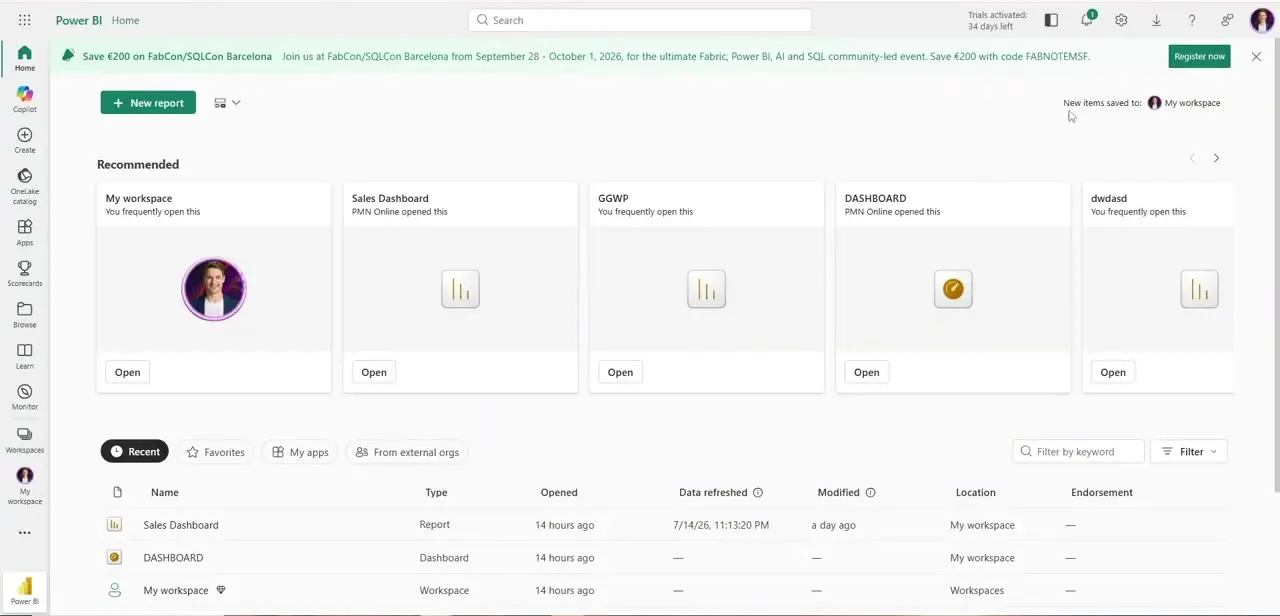
Open the Power BI service in your browser and land on the Home screen, which shows your recommended and recently opened workspaces along with a banner for any active trial. Notice the top-right corner: if you have a trial running, Power BI shows a countdown like "Trials activated, X days left," which is a hint you're currently on a temporary Pro or Premium trial rather than a permanent license — worth knowing before you check the full details.
02Open your profile panel
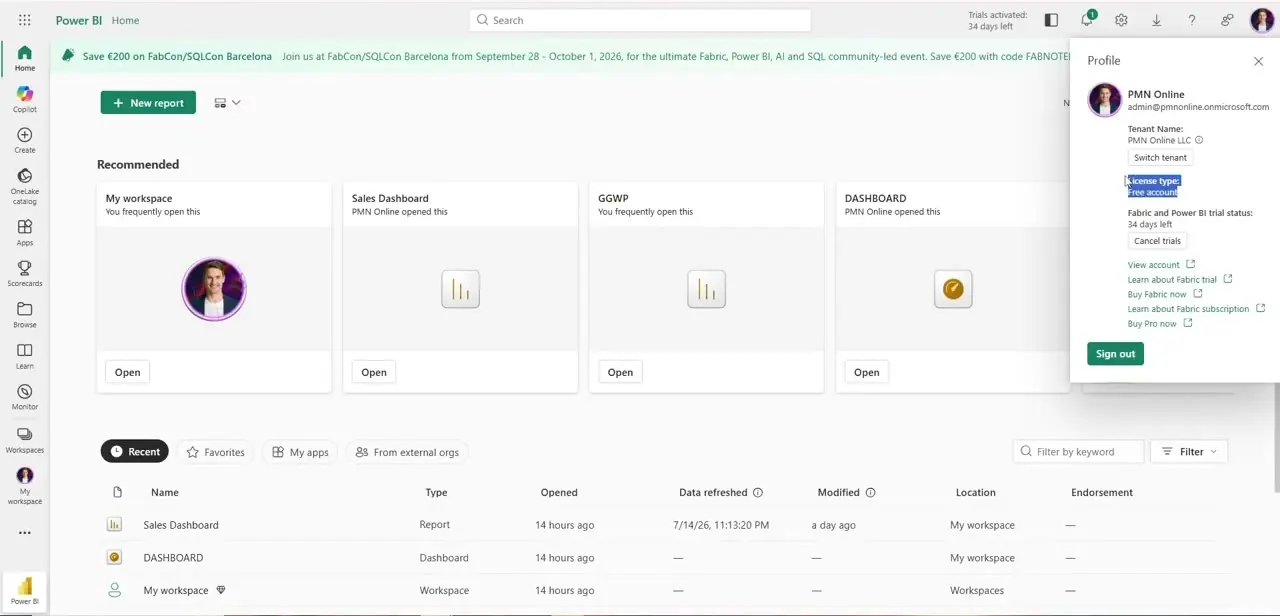
Click your profile picture in the top-right corner of the Power BI service. A panel slides out showing your organization name, tenant name, and — critically — a line labeled "License type" that states plainly whether you're on a Free account, Pro, or Premium per-user license. This is the fastest confirmation available, since it's a single label rather than something you have to infer from what features are or aren't working.
03Check the full licensing details in My account
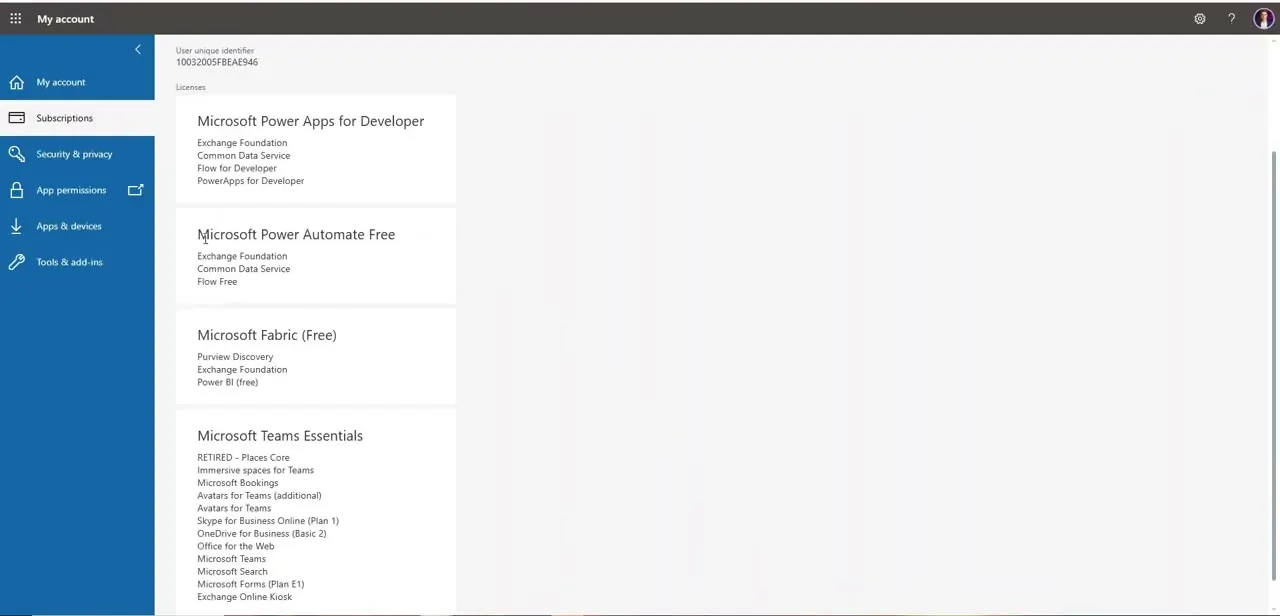
For more detail than the profile panel gives you, click "View account" from that same panel, or navigate directly to the Microsoft 365 My account page and open Subscriptions. This page lists every license assigned to your user ID, not just Power BI — you'll typically see entries like Microsoft Power Apps for Developer, Power Automate Free, and Microsoft Fabric, with Power BI's tier listed as one of the services bundled under whichever plan applies to you.
04Understand what separates Free, Pro, and Premium
Free lets you build and view reports in your personal workspace but can't share them with others through the standard workspace-sharing flow, which is the single most common wall people hit and the reason they end up checking their license type in the first place. Pro adds full collaboration — sharing reports, publishing to app workspaces, and consuming content others share with you — and is the tier most individual analysts and small teams end up needing. Premium, now largely folded into Fabric capacity licensing, removes the per-user Pro requirement for viewers and adds larger dataset sizes, more frequent scheduled refreshes, and dedicated capacity, which matters most for larger organizations distributing reports to dozens or hundreds of people rather than individual analysts working alone.
05Check what your trial status means for the future
If the Home screen showed a trial countdown, remember that trial access to Pro or Premium features is temporary — when the trial expires, your license reverts to whatever your organization has actually assigned you, which for many individual accounts is Free. Note the expiration date and plan ahead, either by requesting a permanent Pro license from your admin or by understanding which features will stop working once the trial period ends, so a report you built and shared during the trial doesn't quietly break for its viewers afterward.
06Plan around what your license unlocks
Once you know your tier, you can stop guessing why a feature isn't behaving as expected — a Free account hitting a wall trying to share a report isn't a bug, it's the license working exactly as designed. If your team is scaling past a handful of report consumers, a Fabric or Premium capacity often ends up cheaper per-seat than assigning individual Pro licenses to every single viewer, so this is worth revisiting whenever your audience for a given report grows meaningfully larger than when you first built it.
07Ask your admin if the licensing picture still isn't clear
In larger organizations, licenses are often assigned centrally through Microsoft 365 admin center rather than something you can change yourself, so if the Subscriptions page shows something unexpected — or a license you were told you'd have simply isn't listed — the fastest resolution is usually a quick message to whoever manages your organization's Microsoft licensing rather than troubleshooting further on your own. It's also worth asking whether your organization has Fabric capacity at all, since that can grant Pro-equivalent sharing rights to viewers even when their individual account shows as Free.
Frequently asked questions
What's the difference between Power BI Free and Pro?
Pro unlocks sharing and collaboration features — publishing to workspaces, sharing reports with colleagues — that aren't available on the Free tier, which is largely limited to personal use.
How do I know if my organization has Power BI Premium?
Checking the Subscriptions page under My account will show whether Premium or Fabric capacity licensing is applied to your account, alongside your other assigned Microsoft licenses.
Can I upgrade my Power BI license after checking my current type?
Yes, once you know your current tier, the profile panel and account pages both include links to buy Pro or learn about Fabric subscriptions if an upgrade makes sense for your needs.
Does my license type affect how I share reports with others?
Yes, sharing capabilities differ significantly between Free, Pro, and Premium — Free accounts generally can't share through standard workspace sharing at all, making this one of the first things worth checking before you plan a distribution.
Where exactly does Power BI show my license type?
Click your profile picture in the top-right of the Power BI service — the panel that opens includes a "License type" line directly below your tenant name, which is the fastest place to check.
Watch the full walkthrough
The same steps, demonstrated on screen from start to finish.


