 Easy Tech Tuts
How to Send an Email with Embedded Image in Power Automate Easily 2026
By Impran M N
An image that shows up as a paperclip attachment instead of sitting inline in the email body looks unfinished, especially for automated reports or notifications you want to look intentional. Power Automate can embed an image directly into the HTML body without attaching it or hosting it anywhere public, using a short chain of actions: pull the file content, convert it to a data URI, then drop that string straight into an img tag. This guide follows that exact flow structure, screen by screen, so you can build the same thing.
01Start the flow from the Create page
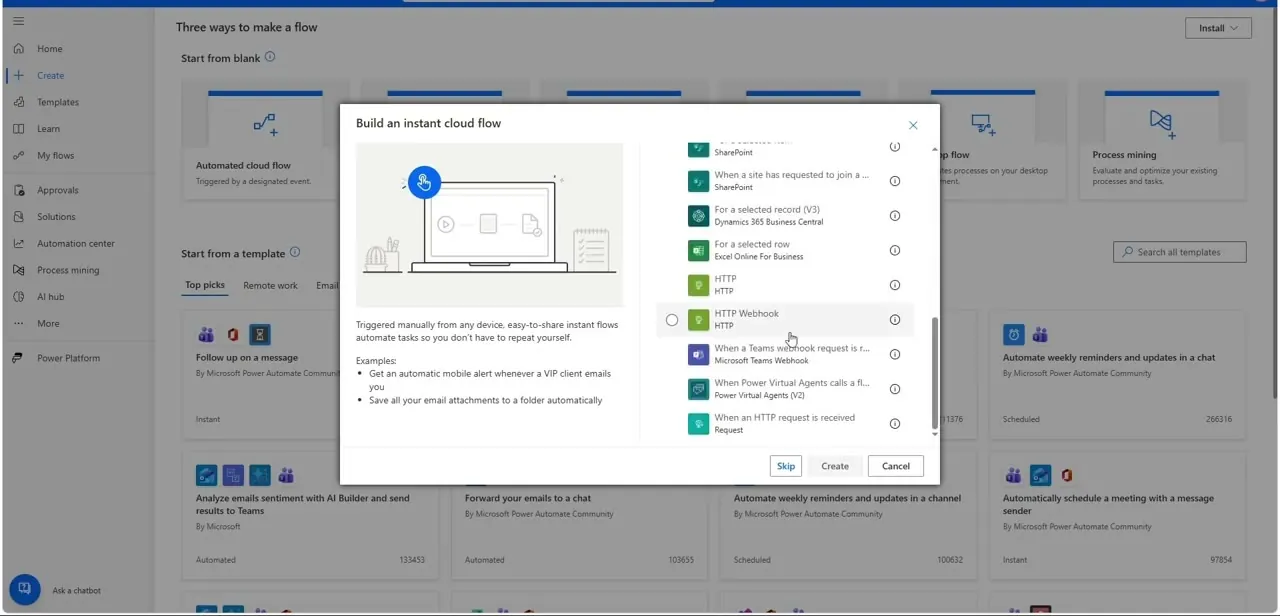
Open Create in Power Automate and choose to build an instant cloud flow if you want to trigger it manually for testing, or pick a trigger that matches your real use case. The "Build an instant cloud flow" dialog lists a long set of trigger options beyond the obvious manual button — SharePoint events, HTTP requests, webhooks, and more — scrollable in a panel on the right. For this walkthrough the flow starts with "Manually trigger a flow," which is the simplest way to test the email-building logic before wiring it to a real trigger.
02Get the image file's content
Add a "Get file content" action pointed at wherever the image lives — OneDrive or SharePoint are the common choices — and this pulls the raw file bytes into the flow as an output you can reference in later steps. This step alone doesn't do anything with the image yet; it just makes the binary data available to whatever comes next in the chain.
03Convert the file into a data URI with Compose
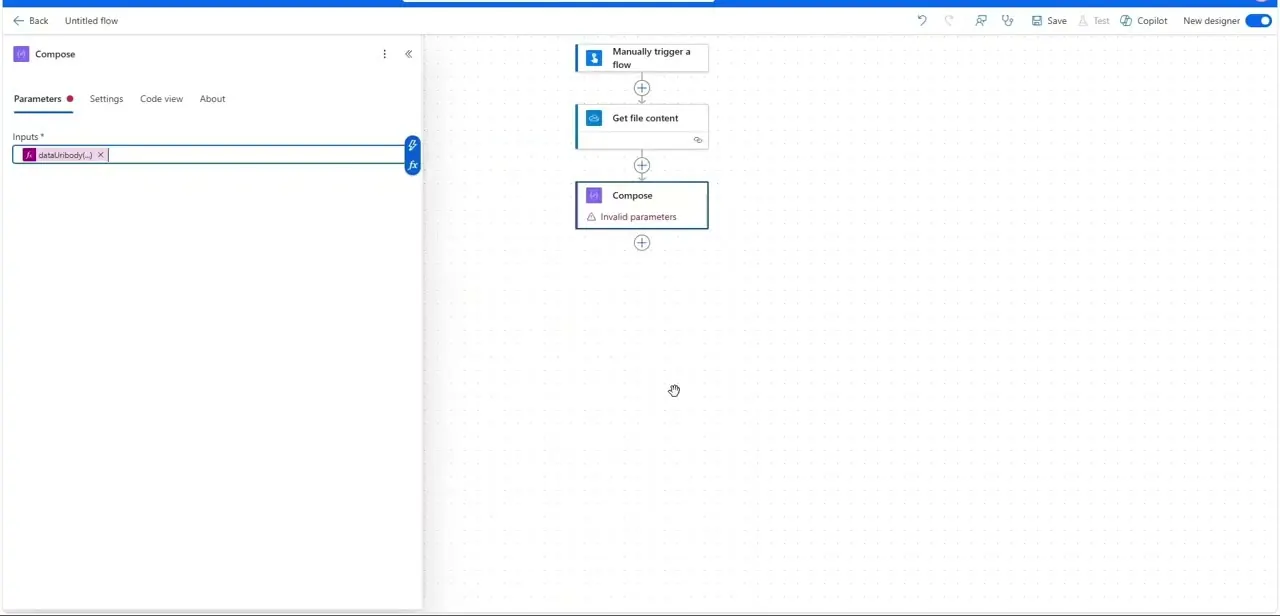
This is the step that actually makes inline embedding work. A Compose action takes the file content from the previous step and wraps it with the dataUriBody() expression, which converts the binary image data into a base64-encoded data URI string — the kind of value you'd normally see as a very long "data:image/png;base64,..." string.
That single string is everything an img tag needs to render the picture without linking out to any external file or attaching it separately. In the flow shown, this Compose step briefly flagged "Invalid parameters" until the correct file content reference was wired into its Inputs field, which is a common snag worth checking if your Compose step shows the same warning.
04Store the data URI in a variable
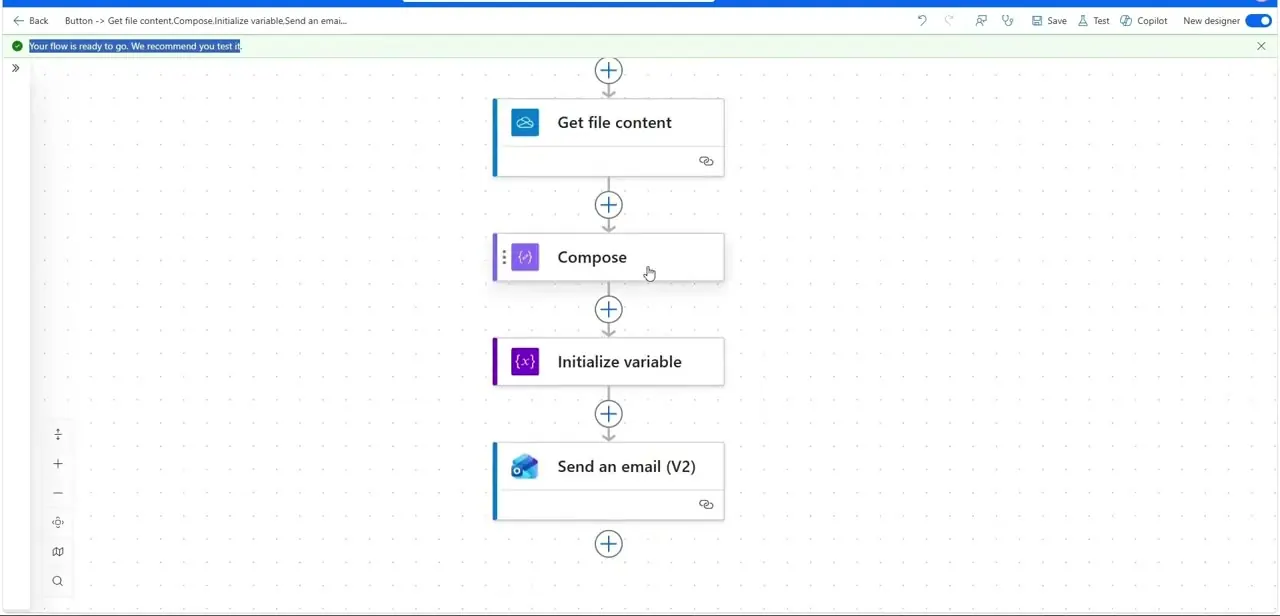
Add an "Initialize variable" action after Compose and set its value to the Compose output. This isn't strictly required — you could reference the Compose output directly in the email body — but it keeps the HTML template easier to read, since you're inserting a short variable name into your img src attribute instead of a Compose reference buried in expression syntax. It also makes the flow easier to debug, since you can inspect the variable's run history separately from the Compose step.
05Reference the data URI inside your HTML email body
In your "Send an email (V2)" action, switch the body to HTML mode and write an img tag whose src attribute points to the variable you just initialized, something like <img src="@{variables('ImageDataUri')}" />. Because the data URI contains the full image data as text, the email client renders it inline directly from the HTML — no attachment, no external image request, and nothing that can break because a hosted file got moved or deleted later.
06Test the flow and check rendering across clients
Run the flow and open the resulting email in a couple of different clients if you can — Outlook desktop, Outlook web, and Gmail don't always render embedded HTML identically. Data URIs are broadly supported but some older or more locked-down email clients strip them for security reasons, so if your audience includes a lot of unknown or older mail clients, it's worth testing there specifically rather than assuming it'll look the same everywhere it did in your own test.
Frequently asked questions
What's the difference between a data URI and a CID reference for embedding images?
A data URI encodes the entire image as base64 text directly inside the HTML, as built here with dataUriBody(), so nothing else needs to load. A CID reference points to an image attached to the same email by a content ID, which some mail systems handle more consistently but requires managing the attachment separately.
Will embedded images work in every email client?
Compatibility varies. Data URIs render in most modern clients, but some older or more security-restrictive ones strip them, so testing across the clients your recipients actually use is worth doing before relying on it broadly.
Can I use this for automated newsletters or reports?
Yes. This same Get file content → Compose → Send an email (V2) pattern works well for branded report headers, automated notification logos, and approval emails where you want a consistent inline image every time.
Why did my Compose action show 'Invalid parameters'?
This usually means the Inputs field isn't correctly wired to the Get file content output yet. Confirm the dataUriBody() expression references the right file content field before running the flow.
Do I need coding skills to build the HTML email?
Basic HTML knowledge helps for writing the img tag and structuring the body, but the data URI conversion itself is handled entirely by the dataUriBody() expression inside Compose — no scripting required.
Watch the full walkthrough
The same steps, demonstrated on screen from start to finish.


