 Easy Tech Tuts
How to Create a Scheduled Flow in Microsoft Power Automate Easily 2026
By Impran M N
A scheduled flow is Power Automate's answer to anything that needs to happen on a timer instead of in response to an event — a weekly report, a nightly backup, a recurring reminder. The setup takes just a few screens: choosing the scheduled flow type, configuring how often it fires, adding the actions it performs, and confirming a run actually succeeded. This guide follows a real example flow called Weekly Project Report from creation through its first successful test run, so you can see exactly what each stage looks like.
01Choose Scheduled cloud flow when creating a flow
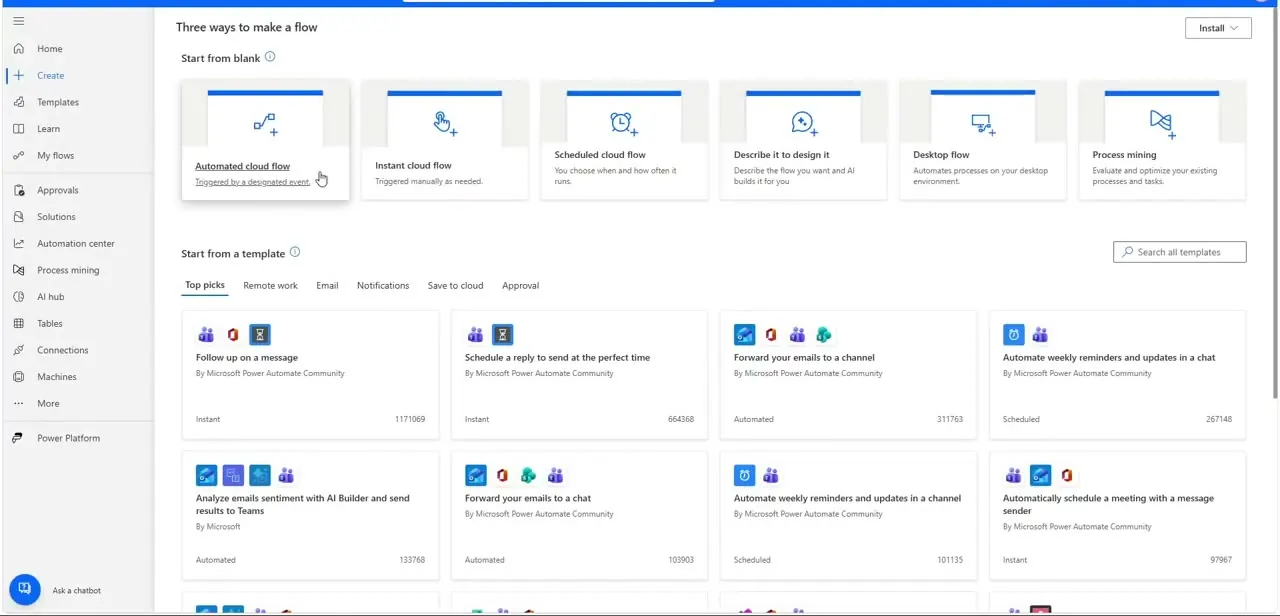
From the Create page in Power Automate, you're offered several starting points under "Three ways to make a flow": Automated cloud flow, Instant cloud flow, Scheduled cloud flow, Describe it to design it, Desktop flow, and Process mining. Scheduled cloud flow is the one built specifically for time-based automation — its subtitle reads "You choose when and how often it runs," which is the giveaway that separates it from Automated (triggered by an event) or Instant (triggered manually). Below the blank-start options, Power Automate also lists community templates like "Schedule a reply to send at the perfect time" and "Automate weekly reminders," which are worth scanning before you build from scratch in case one already does most of what you need.
02Set up the Recurrence trigger
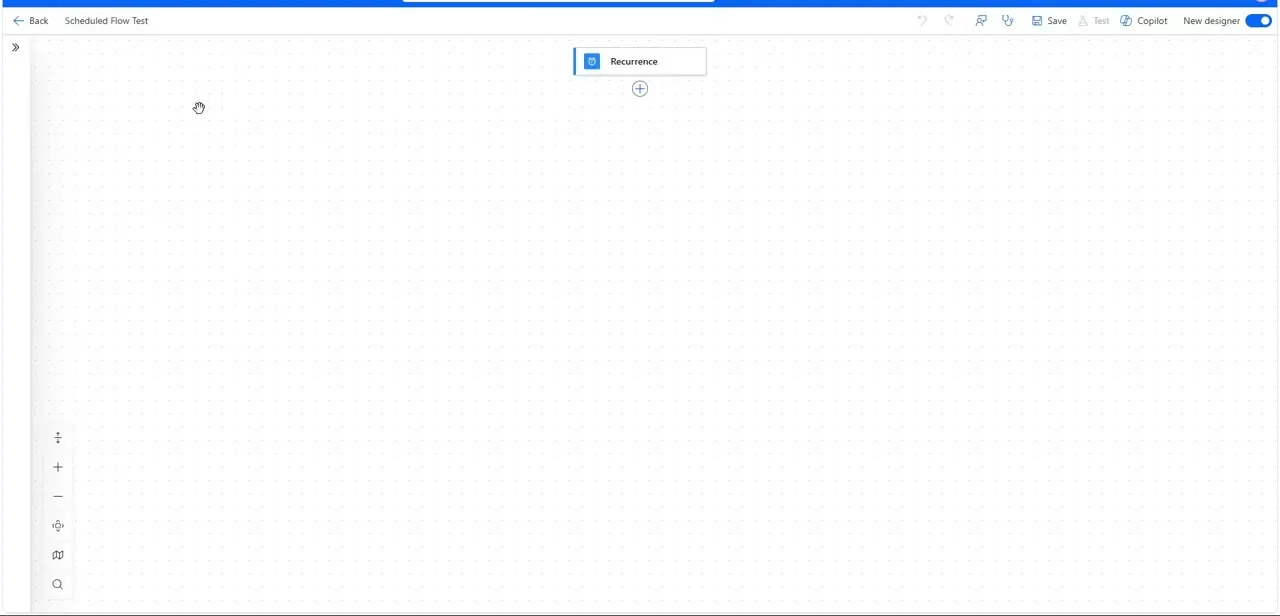
Naming your flow and picking Scheduled cloud flow drops you into the designer canvas with a single Recurrence block already sitting at the top. This trigger is where the actual schedule lives — you set the interval (every N minutes, hours, days, weeks, or months) and, for daily or weekly patterns, the specific time and days it should fire. Everything else in the flow builds downward from this block using the plus icon underneath it, so getting the recurrence right first means every action you add after inherits the correct timing.
03Add the actions the flow should perform
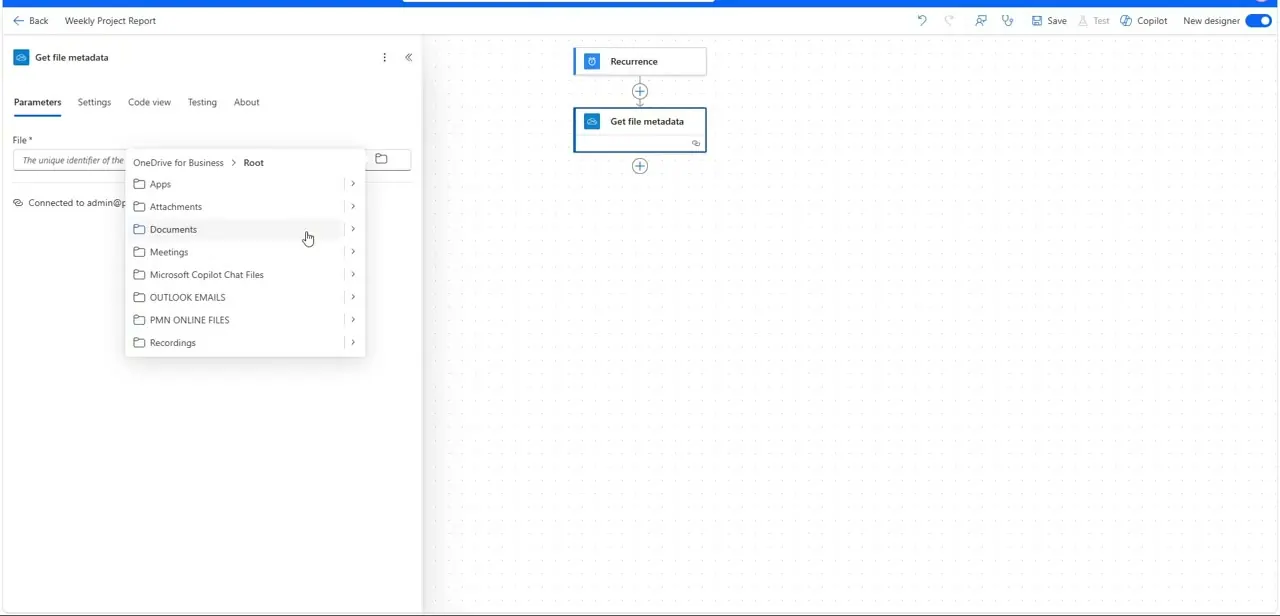
Click the plus icon below Recurrence to add your first action. In the example flow, that's Get file metadata, connected to OneDrive for Business — the parameters panel on the left lets you browse folders like Documents, Meetings, OUTLOOK EMAILS, and PMN ONLINE FILES to pick the exact file the flow should check each time it runs. This is the pattern for every action you add: configure its connection, point it at the right file or data source, and let it feed into whatever comes next, whether that's generating a report, sending an email, or writing to another system.
04Save the flow and give it a clear name
Power Automate saves flows under the name you gave them at creation — in this walkthrough, "Weekly Project Report" — and that name is what shows up in My flows, in run history, and in any notifications tied to it. Pick something that describes what the flow does and how often, not a generic placeholder, since you'll be scanning a list of flow names later when something needs troubleshooting and a vague name won't help you find the right one quickly.
05Test the flow and confirm it ran
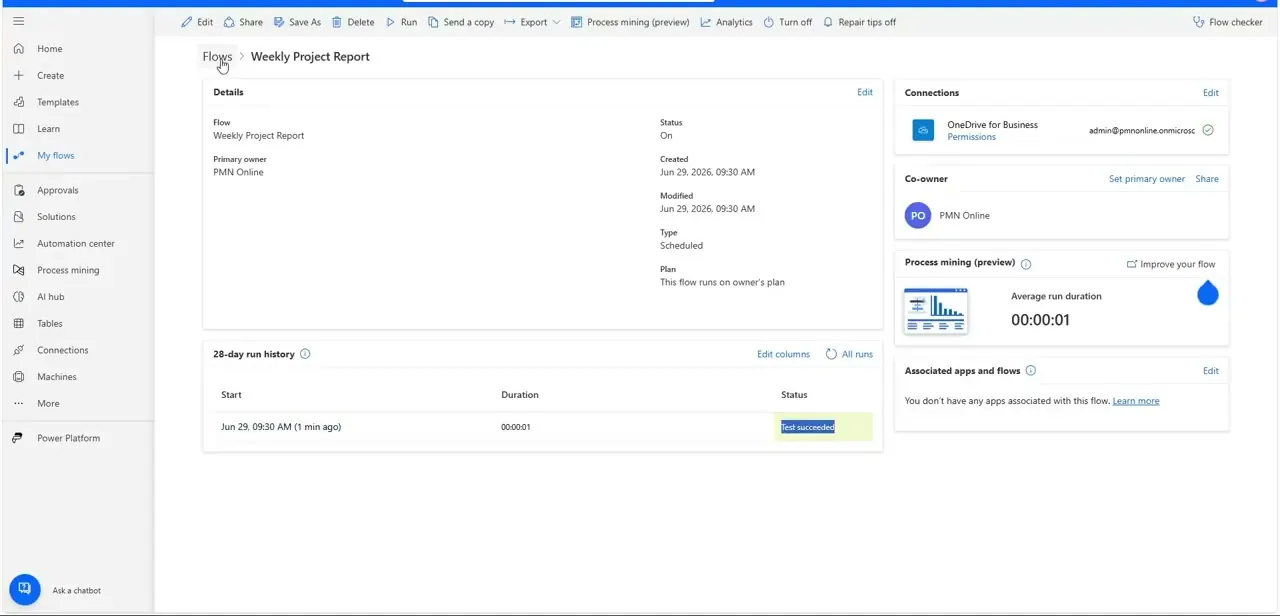
Once saved, open the flow's details page to see its Status (On), Type (Scheduled), owner, and a 28-day run history table listing every execution with its start time, duration, and status. In the example, a manual test run completed in 00:00:01 and shows "Test succeeded" highlighted in the Status column — that's the confirmation the flow is wired correctly before you let it run unattended on its schedule. This page is also where you'd catch a failure early: a red "Failed" status here means fixing the flow now, not waiting for someone to notice a report never arrived.
06Monitor it going forward
After the first successful run, keep an eye on the run history periodically rather than assuming a scheduled flow will quietly work forever — connections can expire, source files can move, and permissions can change. The same details page you used to confirm the test run is where every future execution logs its status, so bookmarking it (or checking My flows regularly) is enough to catch problems before they become a pattern of missed reports or failed automations.
Frequently asked questions
How often can a scheduled flow run?
The Recurrence trigger accepts an interval in minutes, hours, days, weeks, or months, plus a specific time and days for daily or weekly patterns, so it covers everything from a few-minute interval to a monthly job.
Can I change the schedule after creating the flow?
Yes. Open the flow in the designer, click the Recurrence trigger, and edit its interval or time settings, then save — existing actions downstream aren't affected.
How do I check if a scheduled flow ran successfully?
Open the flow's details page and look at the run history table, which lists each execution's start time, duration, and status, such as "Test succeeded" or a failure state.
What kinds of tasks are good candidates for scheduled flows?
Anything that should happen on a timer rather than in response to an event — recurring reports, file checks, reminders, backups, and data syncs are all common uses.
What's the difference between Scheduled and Automated cloud flows?
A Scheduled cloud flow runs on a recurrence you define, while an Automated cloud flow is triggered by an event, like a new email arriving or a file being created.
Watch the full walkthrough
The same steps, demonstrated on screen from start to finish.


