 Easy Tech Tuts
How to Scan a PayPal QR Code Easily 2026
By Impran M N
PayPal's QR code payments are built to remove the checkout dance at a market stall or small counter: instead of typing card details, one side displays a code and the other scans it. The clearest place to see exactly how this is supposed to work is PayPal's own QR code documentation, which lays out the process for both sides of the transaction — what a customer does to pay, and what a seller does to generate and price a code in the first place. This guide walks through that documentation directly, so you know precisely what each step does before you rely on it in person.
01What a PayPal QR payment actually is
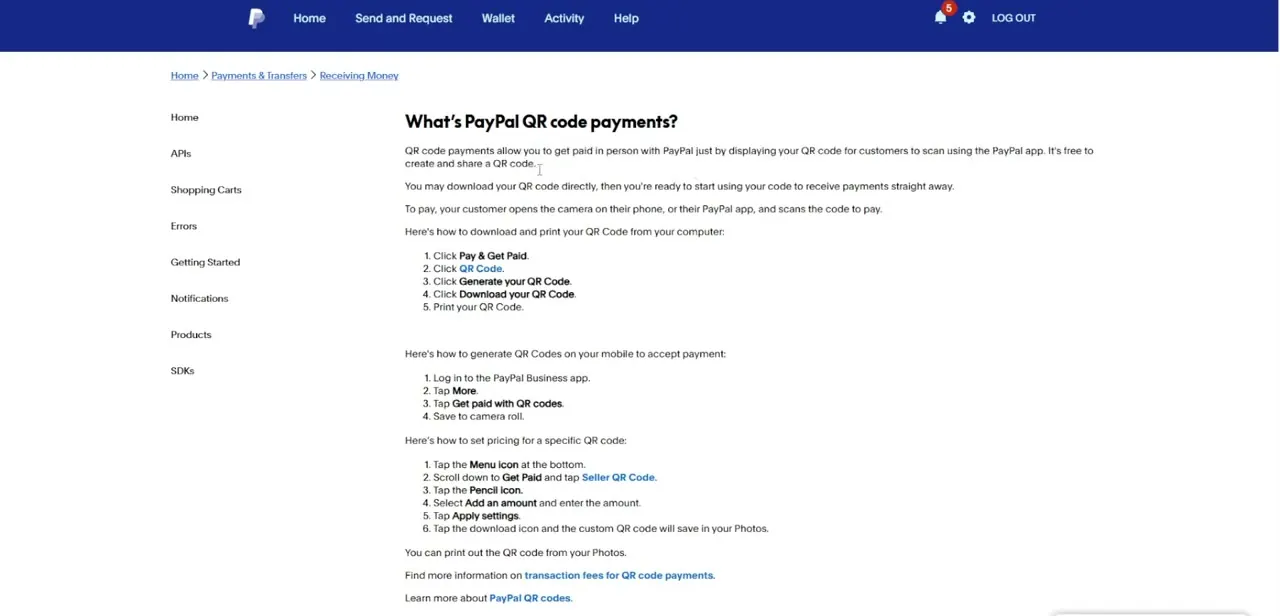
According to PayPal's own explanation, QR code payments let a seller get paid in person just by displaying a code that a customer scans using their phone's camera or the PayPal app. It's free to create and share a code, and no extra hardware is involved on either side — the entire transaction runs through the code and the two PayPal accounts behind it.
02How the customer's side works
From the paying customer's perspective, the process is intentionally short: open your phone's regular camera or the PayPal app, point it at the seller's code, and scan. PayPal's documentation doesn't describe extra steps beyond that on the customer side — the scan itself is what triggers the payment flow, which is why sellers are told they don't need any additional devices to accept it.
03How a seller downloads a QR code from a computer
For sellers setting up their own code, PayPal's instructions describe five steps from a desktop browser: click Pay & Get Paid, click QR Code, click Generate your QR Code, click Download your QR Code, and print it. Once downloaded, the code is ready to display and accept payment immediately — there's no additional activation step listed.
04How a seller generates a code from the mobile app
The same documentation gives a separate path for the PayPal Business app: log in, tap More, tap Get paid with QR codes, and save the resulting code to your camera roll. This is the faster option for a seller who wants a code ready to print or display without sitting down at a computer.
05Setting a fixed price on a QR code
Sellers who want a code tied to a specific amount — rather than a generic code the customer types an amount into — follow a slightly longer path: tap the Menu icon, scroll to Get Paid and tap Seller QR Code, tap the Pencil icon, select Add an amount and enter it, then tap Apply settings. The finished custom code saves to Photos and can be downloaded and printed from there.
06Where to check if something isn't working
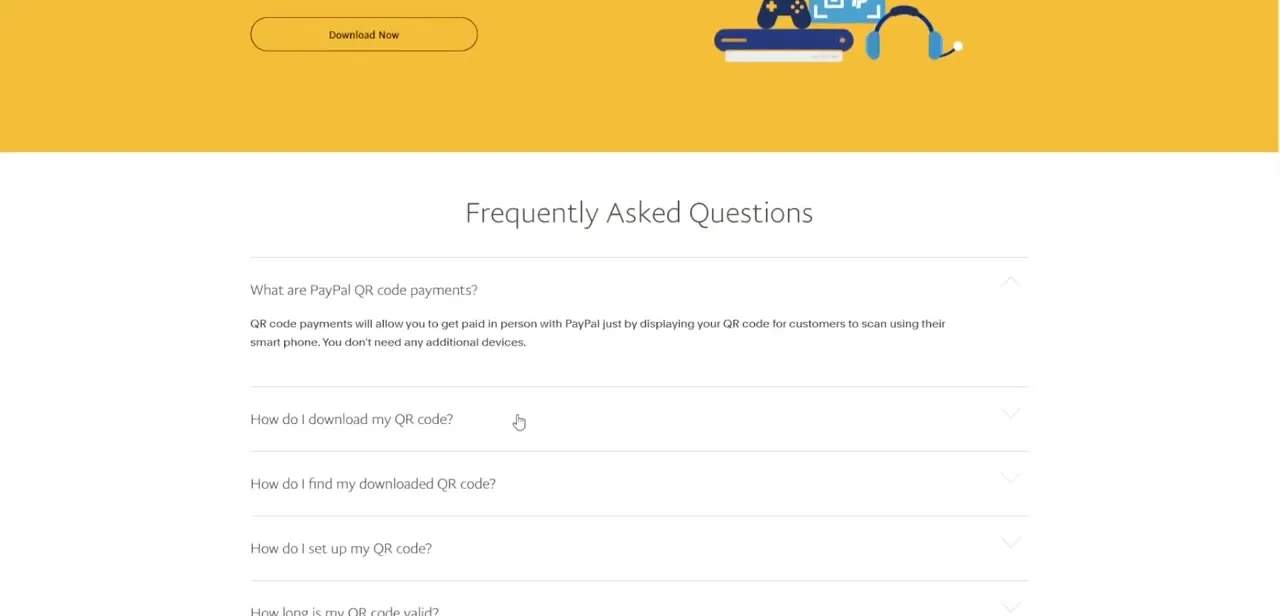
PayPal's support site also runs a dedicated FAQ section covering common snags — how to download your QR code, how to find a code you've already downloaded, how to set one up, and how long a code stays valid. If a code isn't scanning or you've lost track of a downloaded file, this is the section built specifically to answer that before you troubleshoot on your own.
Frequently asked questions
What does a customer actually need to do to pay with a QR code?
Just open their phone's camera or the PayPal app and scan the seller's displayed code — PayPal's documentation doesn't list any extra steps beyond the scan itself.
Do I need special hardware to accept QR payments as a seller?
No. PayPal's own materials state you don't need any additional devices — a downloaded or printed code, plus a customer's phone camera, is enough.
Can a seller set a fixed amount on their QR code?
Yes. Through the Seller QR Code option and its Pencil icon, a seller can add a specific amount and apply it before saving the custom code.
How long does a PayPal QR code stay valid?
PayPal addresses this directly in its QR code FAQ section — check "How long is my QR code valid?" there for the current answer, since validity policies can change.
Is there a fee for QR code payments?
PayPal's documentation links out to a dedicated page on transaction fees for QR code payments — check that page for current rates, since fees depend on the funding source used.
Watch the full walkthrough
The same steps, demonstrated on screen from start to finish.


