 Easy Tech Tuts
How to Link PayPal to QuickBooks Online Easily 2026
By Impran M N
Manually re-typing every PayPal sale, refund, and transfer into QuickBooks is exactly the kind of busywork that eats an afternoon and still leaves room for typos. Linking PayPal to QuickBooks Online pulls those transactions in automatically through the same bank feed connection you'd use for a checking account, and once it's set up you're categorizing instead of retyping. This guide walks through the actual connection screens — from the QuickBooks homepage to the sign-in handoff to what shows up in your feed afterward — so you know what to expect at each step.
01Start from the QuickBooks Online homepage
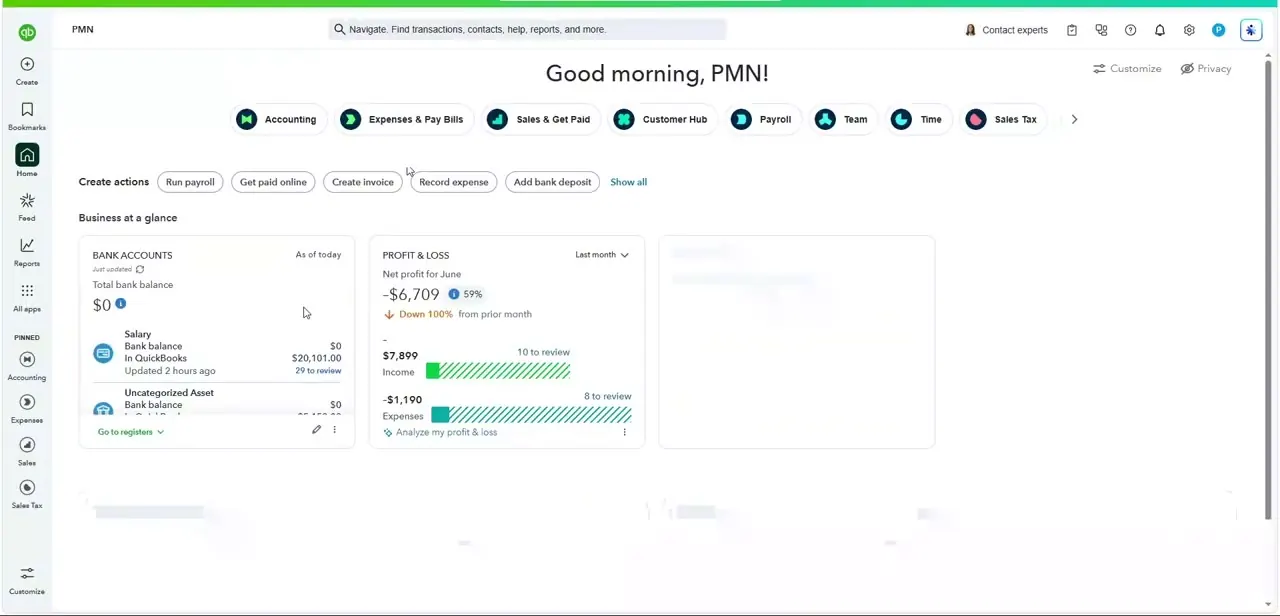
Log in and you'll land on the Business overview, with bank balances, profit and loss, and unpaid invoices summarized in cards across the top. The bank connection tool you need for PayPal is accessible from here, either through the Bank accounts card or the Banking section in the left-hand menu. This overview is also a useful baseline — note your current bank balance and profit and loss figures before connecting, so you have something to compare against once PayPal transactions start flowing in.
02Search for PayPal on the connect-account screen
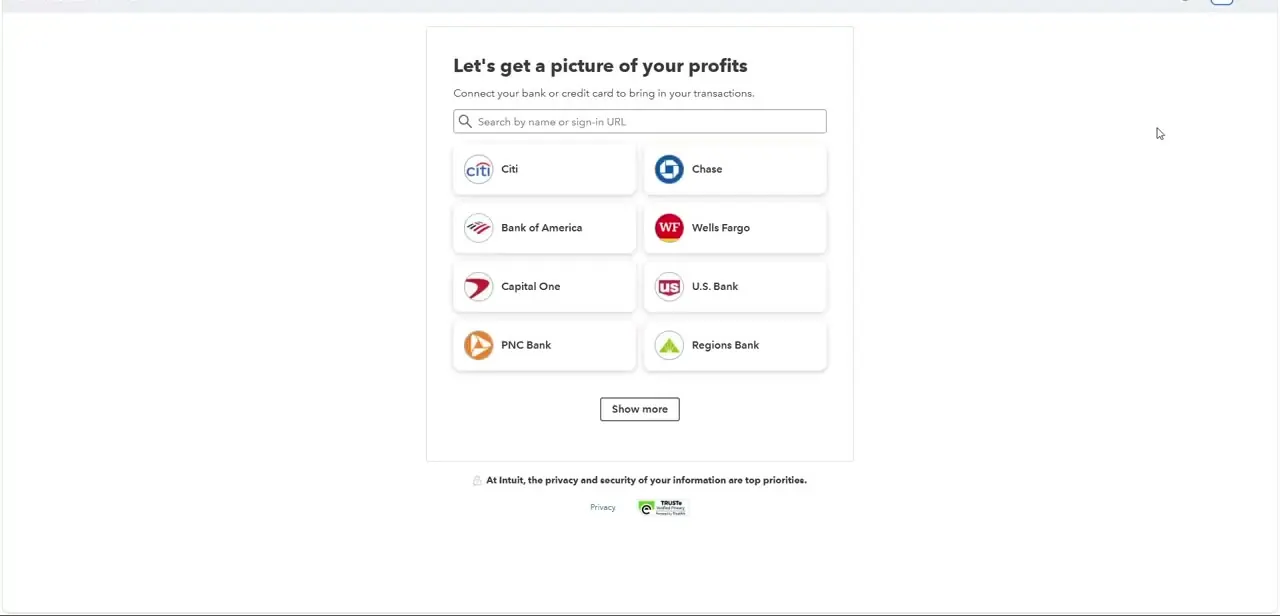
Starting a new bank connection opens a screen titled "Let's get a picture of your profits," with a search bar and a grid of commonly connected institutions like Citi, Chase, Bank of America, and Wells Fargo. PayPal isn't one of the tiles shown by default, so type "PayPal" into the search-by-name field at the top rather than scrolling through the bank list — QuickBooks treats PayPal as its own connectable account type, not a traditional bank, and the search surfaces it once you type the name.
03Sign in to PayPal through the pop-up window
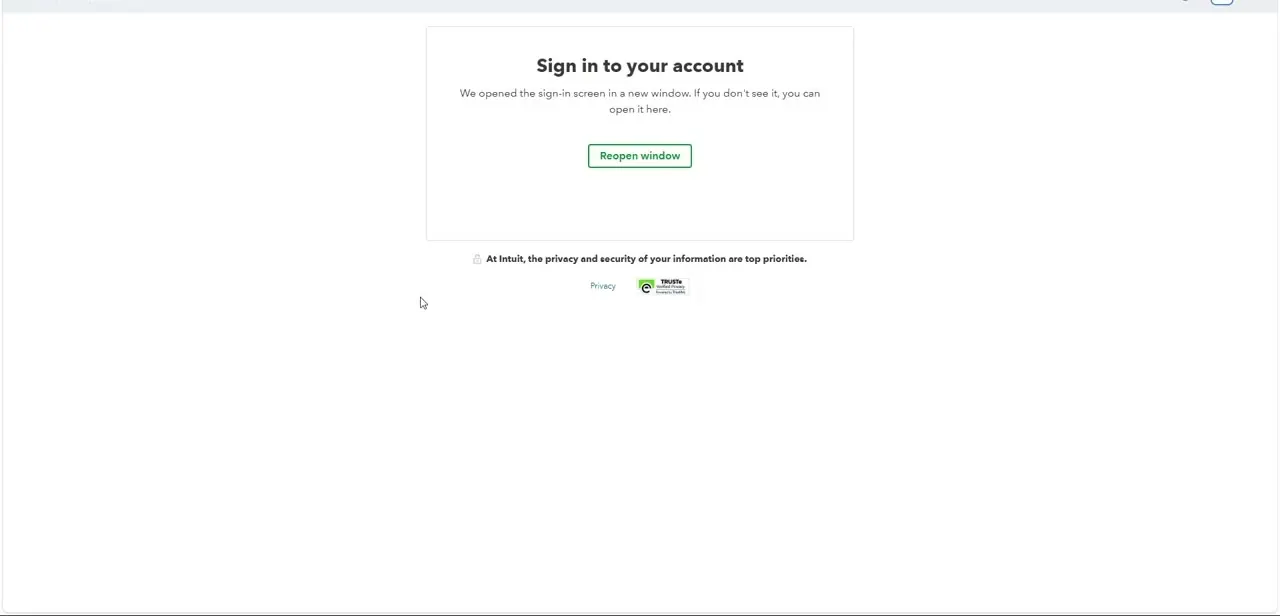
Selecting PayPal opens a new browser window for you to sign in directly on PayPal's own site — QuickBooks never asks for your PayPal password itself. If that window doesn't appear or you close it accidentally, QuickBooks shows a "Sign in to your account" screen with a Reopen window button rather than leaving you stuck; click it to relaunch PayPal's sign-in without restarting the whole connection process. Complete PayPal's login and authorize the data-sharing consent on their end, and control returns to QuickBooks automatically once that's done.
04Watch for PayPal activity in your bank transactions feed
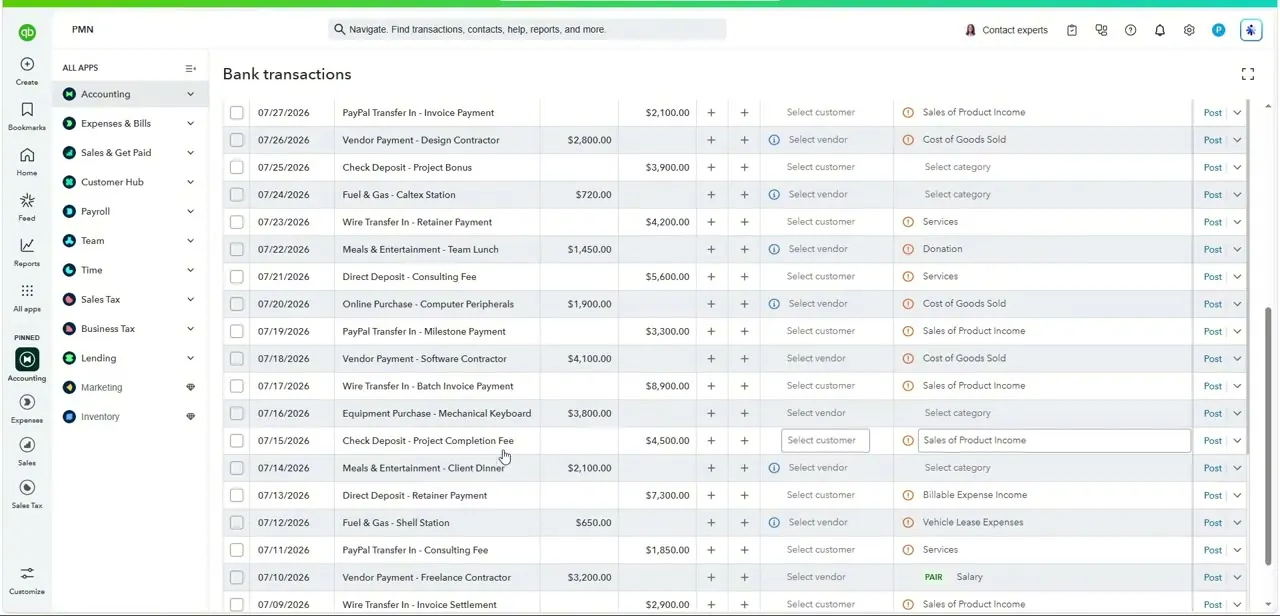
Once connected, PayPal transfers start appearing in the Bank transactions feed alongside your other connected accounts, labeled with descriptions like "PayPal Transfer In" and a date and amount. This feed is where the real work happens post-connection: each row needs a customer or vendor selected and a category assigned before you post it to your books, and QuickBooks will start suggesting matches based on patterns it recognizes from your history. The feed doesn't distinguish PayPal sales from PayPal refunds automatically — that judgment call is still yours on each line.
05Troubleshoot a stalled or missing connection
If PayPal transactions stop appearing after previously working, the most common cause is that PayPal has asked you to re-authorize the connection, often after a password change or a routine security review on their end — check your PayPal account for a pending permissions request before assuming QuickBooks is broken. A second common issue is duplicate transactions when both a bank feed and a PayPal feed pick up the same transfer; use the match, not add, feature in the transactions list whenever QuickBooks flags something as a possible match to an existing entry.
06Keep the connection accurate over time
Review the bank transactions feed at least weekly rather than letting PayPal activity pile up uncategorized, since a backlog of fifty unlabeled transfers is far more tedious to sort through than five at a time. Set up bank rules for recurring PayPal transaction types — a specific customer's recurring payment, or a predictable monthly fee — so QuickBooks starts auto-categorizing them and you only need to review exceptions.
Frequently asked questions
Why should I link PayPal to QuickBooks Online?
It keeps your financial records accurate without manual re-entry, simplifies tax preparation, and gives real-time insight into cash flow instead of waiting to reconcile PayPal separately.
Where do I find PayPal when connecting a new account?
It's not shown among the default bank tiles on the connection screen — type "PayPal" into the search-by-name field and it will appear as its own connectable account type.
Does QuickBooks see my PayPal password?
No. You sign in to PayPal directly in a separate window or pop-up, and QuickBooks only receives the authorized data connection, never your credentials.
What if the PayPal connection isn't working correctly?
Check PayPal for a pending re-authorization request first, since that's the most common cause — and use the match feature rather than add when QuickBooks flags a possible duplicate transaction.
Does this integration require ongoing maintenance?
Yes, in a light way. Reviewing the bank transactions feed weekly and setting up bank rules for recurring transaction types keeps the connection useful instead of becoming a backlog.
Watch the full walkthrough
The same steps, demonstrated on screen from start to finish.


