Easy Tech Tuts
How to Use the n8n Edit Field Set Node Easily 2026
By Impran M N
The Edit Fields node, still widely known by its old name Set, is one of the most-used building blocks in n8n for reshaping data as it moves through a workflow. Rather than letting whatever an upstream node returns pass through untouched, Edit Fields lets you add, rename, or restructure values into exactly what the next node expects. This guide walks through the actual node interface — its Manual Mapping and JSON modes, the Add Field option, and where to run it against real input — starting from an empty n8n workspace.
01See what's already in your n8n workspace
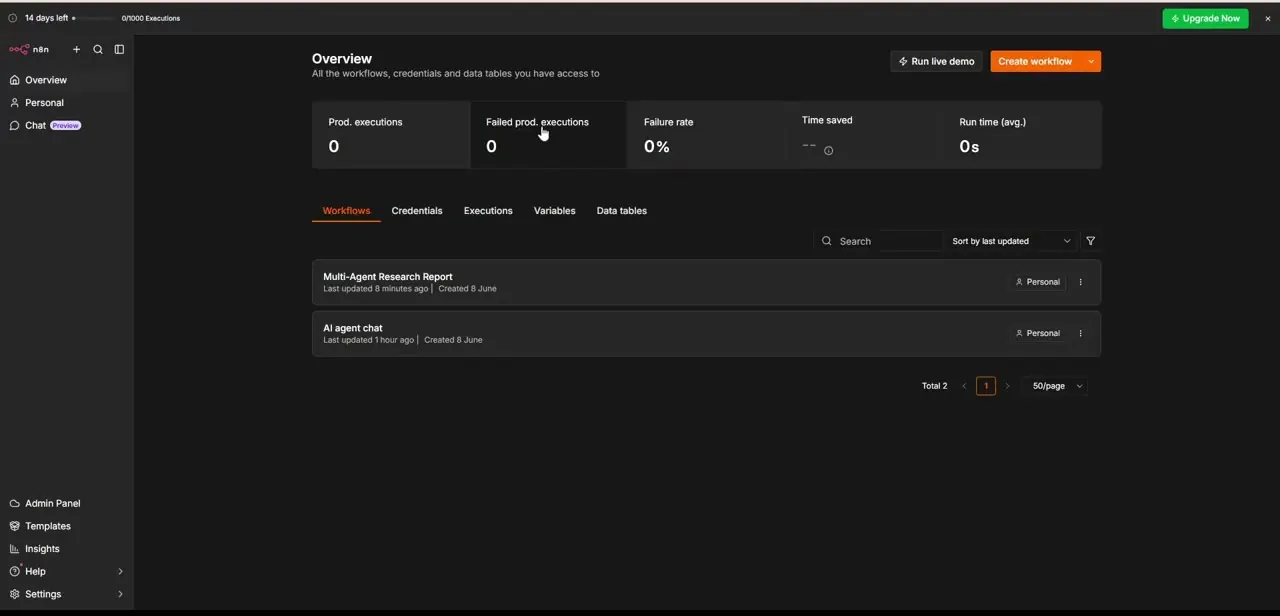
Opening n8n lands you on the Overview page, listing every workflow you have access to alongside execution stats like production executions, failure rate, and average run time. An account with some history might already show a couple of workflows — a research pipeline, an AI chat flow — while a brand-new one will be empty aside from the Create workflow button. Either way, this is your starting point before you build or edit anything.
02Start a new workflow
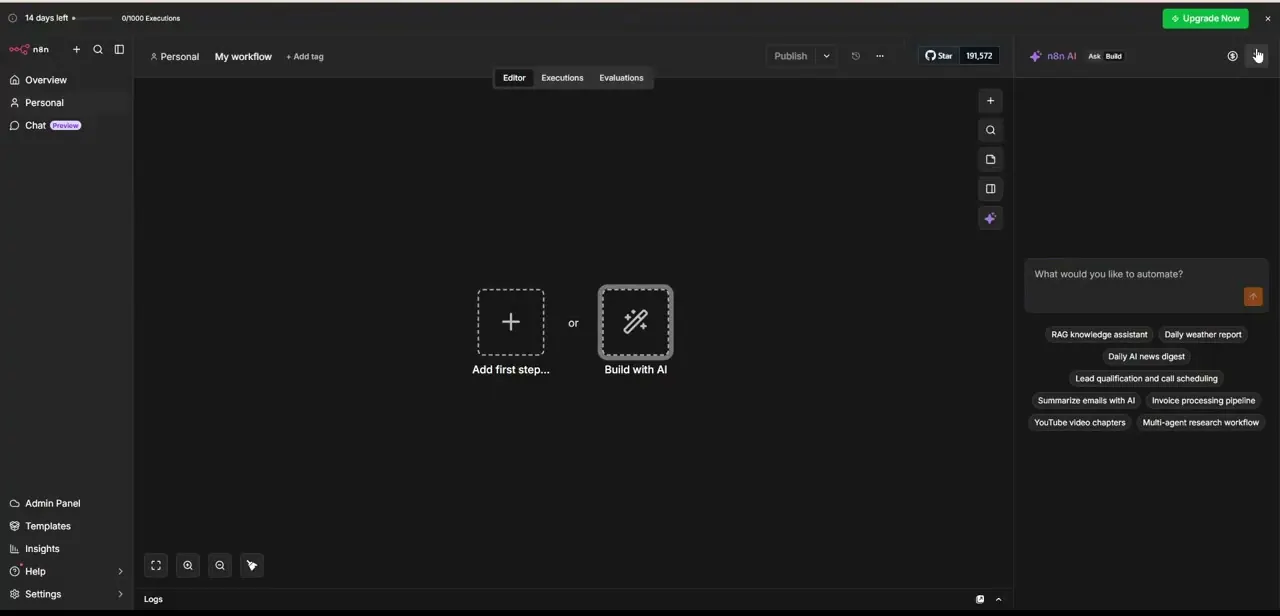
Inside a fresh workflow, the canvas offers two starting points: "Add first step," which opens the manual node picker, or "Build with AI," which opens a chat panel where you describe what you want automated and n8n suggests a starting structure. For learning exactly what the Edit Fields node does, Add first step is the more direct route, since it lets you place and configure nodes one at a time instead of accepting a generated flow.
03Add a trigger before you add Edit Fields
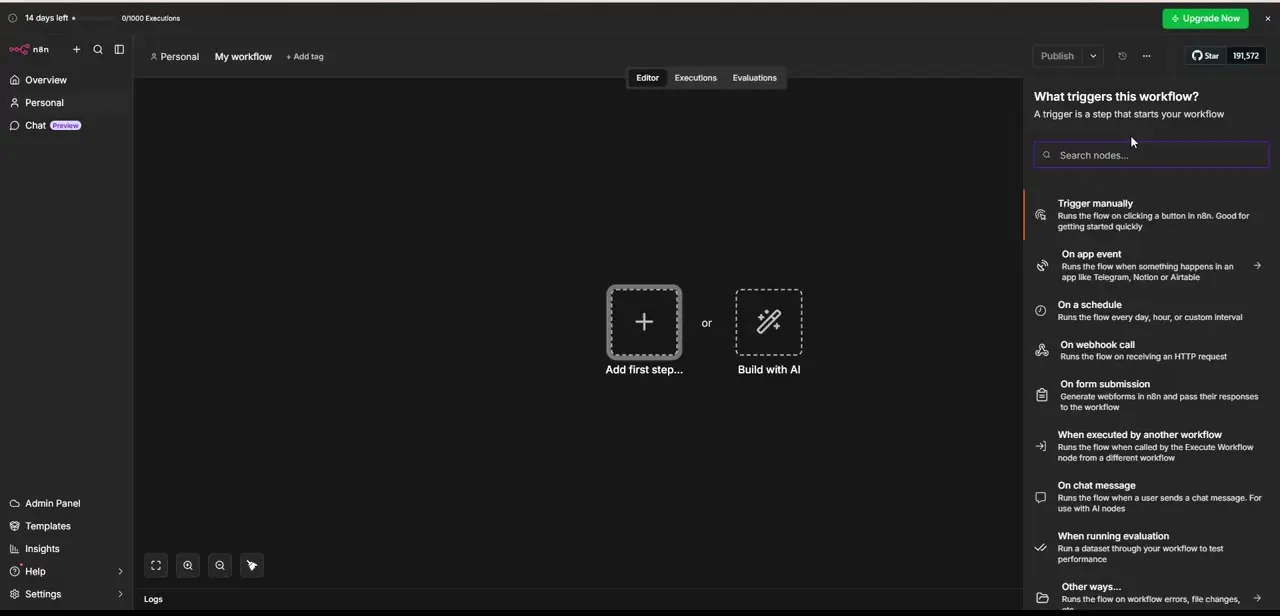
Every workflow needs something to start it, so the first node picker you'll see is "What triggers this workflow?" with options like Trigger manually, On a schedule, On webhook call, On form submission, and When executed by another workflow. For testing the Edit Fields node in isolation, Trigger manually is the simplest choice — it runs the flow on a button click in the n8n editor, which is described right in the picker as good for getting started.
04Add the Edit Fields node and pick a mode
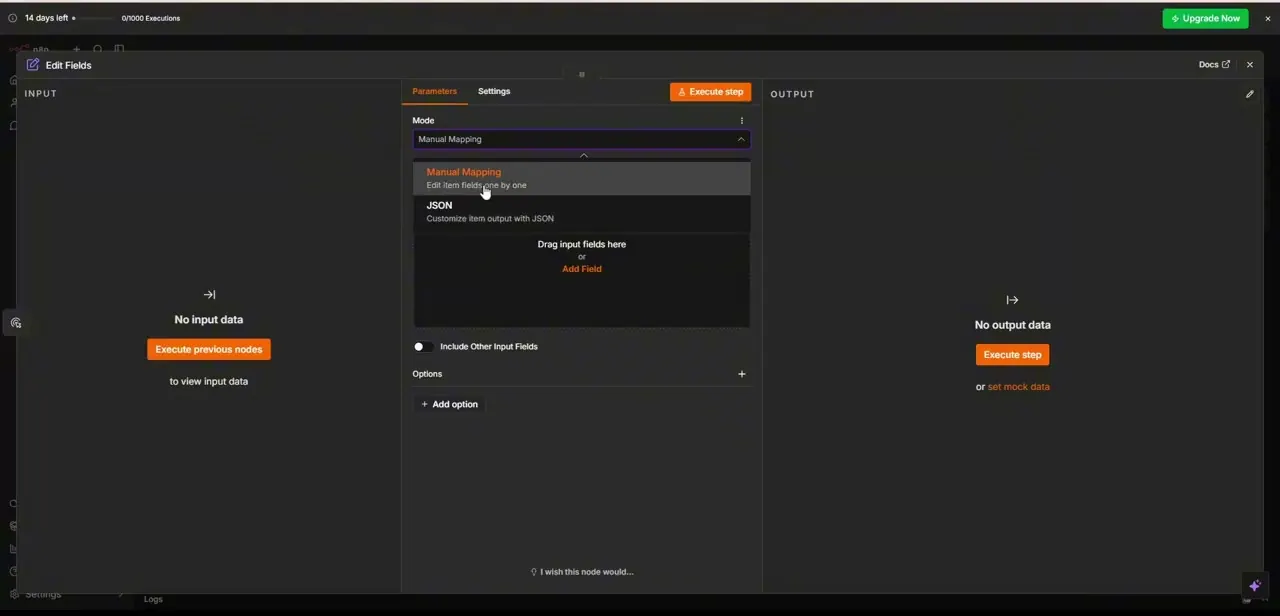
With a trigger in place, search for and add Edit Fields to the canvas, then open it to see its Parameters tab. The first setting is Mode, with two options: Manual Mapping, described as editing item fields one by one, and JSON, for customizing the item's output with raw JSON instead. Manual Mapping is the more approachable option for straightforward field changes, while JSON mode is faster once you're comfortable writing the data structure directly.
05Build your fields in Manual Mapping mode
In Manual Mapping mode, the node shows a drop zone for input fields plus an "Add Field" link — click it to define a field name, type it as a string, number, boolean, or object, and set its value, either typed directly or pulled from an upstream node through an expression. There's also an "Include Other Input Fields" toggle, which controls whether fields you haven't explicitly touched still pass through to the output, or whether only the fields you've defined here survive.
06Switch to JSON mode for bulk changes
If you need to restructure a payload more heavily than a handful of individual fields allows, switch Mode to JSON and write or paste the output structure directly, referencing upstream data with the same expression syntax n8n uses elsewhere. This is usually faster for nested objects or arrays than building the same structure field by field in Manual Mapping.
07Test the node before moving on
The node's Input and Output panels sit on either side of the parameters and start out showing "No input data" and "No output data" until you run something through them. Click "Execute previous nodes" to pull real data in from whatever comes before Edit Fields on the canvas, or use "Execute step" to run the node itself and see your configured fields in the Output panel — confirming the shape is correct before you connect anything downstream.
Frequently asked questions
What is the Edit Fields (Set) node used for in n8n?
It reshapes the data passing through a workflow — adding, updating, or restructuring fields before the next node receives them.
What's the difference between Manual Mapping and JSON mode?
Manual Mapping lets you add and type individual fields one at a time; JSON mode lets you write or paste the entire output structure directly.
How do I reference data from a previous node?
Use an expression when setting a field's value in Manual Mapping, or reference upstream data directly inside the JSON when using JSON mode.
Can the Edit Fields node remove data I don't need?
Yes. Turn off "Include Other Input Fields" so only the fields you've explicitly defined in the node carry through to the output.
How do I see what the node actually outputs?
Use "Execute previous nodes" to pull in real input, then "Execute step" to run Edit Fields itself and check the Output panel.
Watch the full walkthrough
The same steps, demonstrated on screen from start to finish.