Easy Tech Tuts
How to Update n8n Locally in Terminal Easily 2026
By Impran M N
If you installed n8n locally through npm, there's no settings toggle for updates — you do it from the terminal, the same way you installed it in the first place. This guide walks through the actual command prompt output of an update, including the dependency warnings you'll likely see along the way, so you know which ones are safe to ignore and which command to run depending on whether you want the stable release or the next channel.
01Open a terminal and check what you're running
Before touching anything, open Command Prompt (or your terminal of choice) so you have a clean window to run commands in. If n8n is currently running locally, note the version shown in its dashboard first — that way you have a before-and-after to compare once the update finishes. Close or stop the running instance so the update doesn't collide with an active process holding the same files.
02Run the standard update command
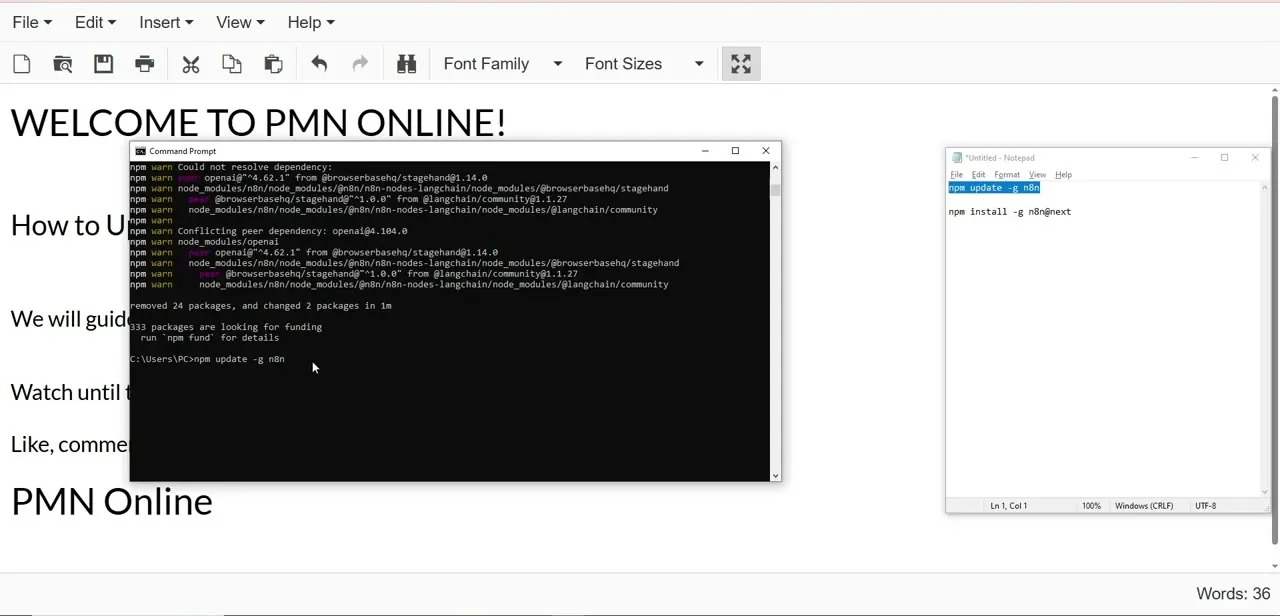
For a global npm installation, the update itself is a single line: npm update -g n8n. Running it pulls the latest compatible version of the package and its dependencies.
Expect a wall of npm warn lines about peer dependency conflicts — things like conflicting openai or langchain package versions are common and, on their own, don't mean the update failed. What matters is the summary line at the end confirming packages were removed, added, or changed.
03Use npm install for the next channel instead
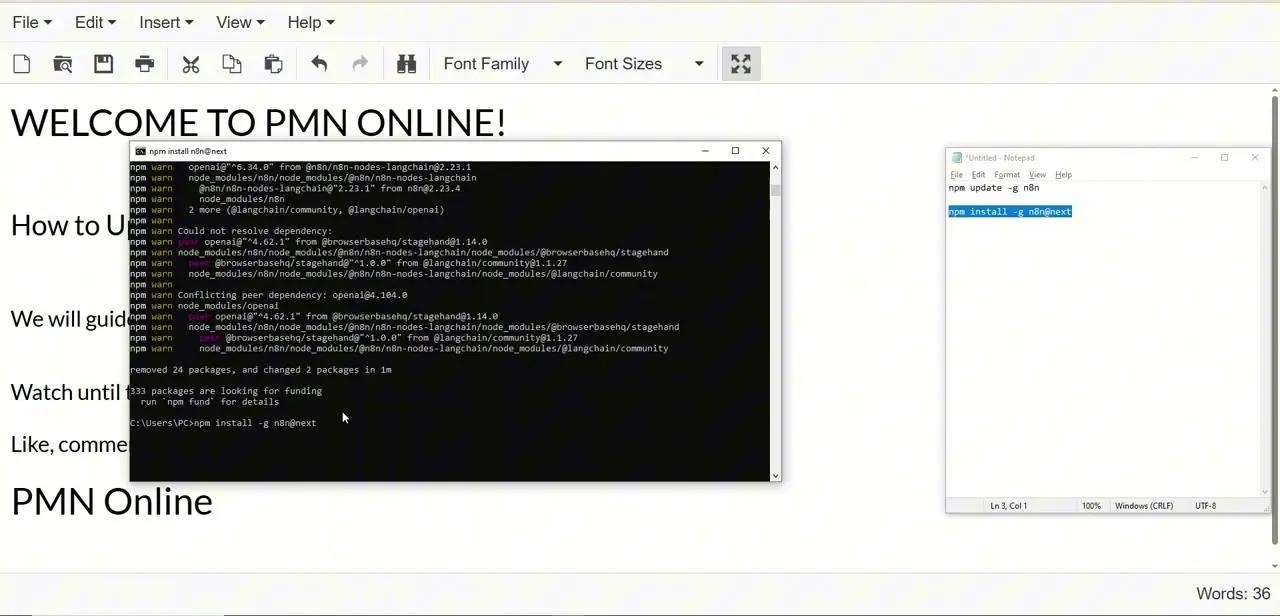
If you specifically want the newest pre-release build rather than the latest stable version, the command changes to npm install -g n8n@next. This targets the next tag on npm, which ships features and fixes ahead of the stable release but carries more risk of breaking changes. Stick with the plain update command above unless you have a specific reason to track the bleeding edge.
04Let the install finish and read the summary
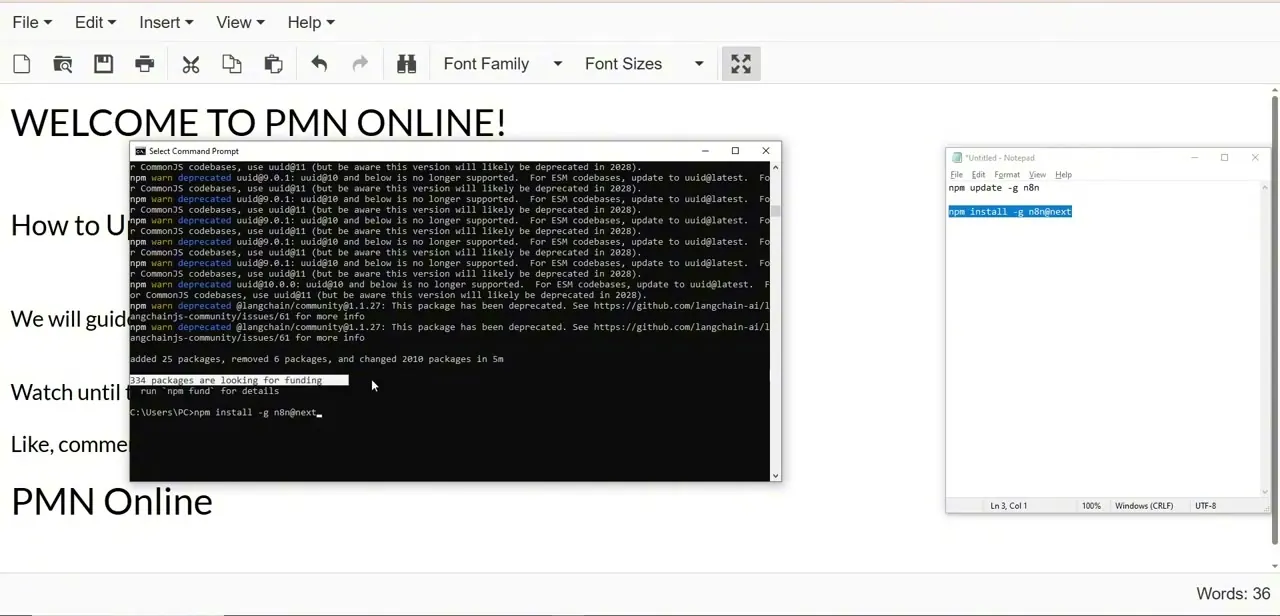
Either command can take a few minutes, since npm is resolving and rewriting a large dependency tree — don't assume it's frozen just because the terminal goes quiet for a stretch. When it completes, npm prints a summary like packages added, removed, and changed, along with a count of total packages scanned. That summary line is your real confirmation the update went through, independent of how many warnings scrolled past above it.
05Restart n8n and confirm the new version
Launch n8n again from the terminal the same way you normally start it locally. On first boot after an update, n8n may run a brief database migration to bring your existing workflow storage in line with the new version — this is normal and shouldn't touch your actual workflow logic. Once it's running, open the local dashboard in your browser and check the version number to confirm it matches what you just installed.
06Run a quick workflow to sanity-check the upgrade
Before trusting the new version with production workflows, execute one of your existing workflows manually and watch it complete without errors. This catches the rare case where a dependency change affects a node you actually use, and it's a lot cheaper to find that out on a manual test run than after a scheduled trigger fires unattended.
Frequently asked questions
Do I need to stop n8n before updating it locally?
Yes, stopping the running process first helps avoid port conflicts and file lock issues while npm rewrites the installed package.
What command updates a local npm installation of n8n?
Run npm update -g n8n for the current stable release, or npm install -g n8n@next if you specifically want the pre-release next channel.
Are the npm warn messages during the update a problem?
Usually not. Peer dependency warnings about conflicting package versions are common noise during npm updates and don't necessarily mean the update failed — check the final summary line instead.
Will updating n8n affect my existing workflows?
Your workflow data is generally preserved through a database migration on first restart, but it's worth running one workflow manually afterward to confirm nothing behaves differently.
How do I confirm the update worked?
Restart n8n, open your local dashboard in the browser, and check that the displayed version number matches the version you just installed.
Watch the full walkthrough
The same steps, demonstrated on screen from start to finish.