 Easy Tech Tuts
How to Comment in Microsoft Loop Easily 2026
By Impran M N
Microsoft Loop is built around live, shared components, and comments are how a team actually talks about them without leaving the page. Instead of pasting a table into a chat thread and hoping everyone finds the right row, you can pin feedback directly to the piece of content it's about. This guide walks through opening a workspace, finding a component worth discussing, and dropping a comment on it, along with where that comment shows up so nothing gets lost in the page.
01Open your Loop workspace
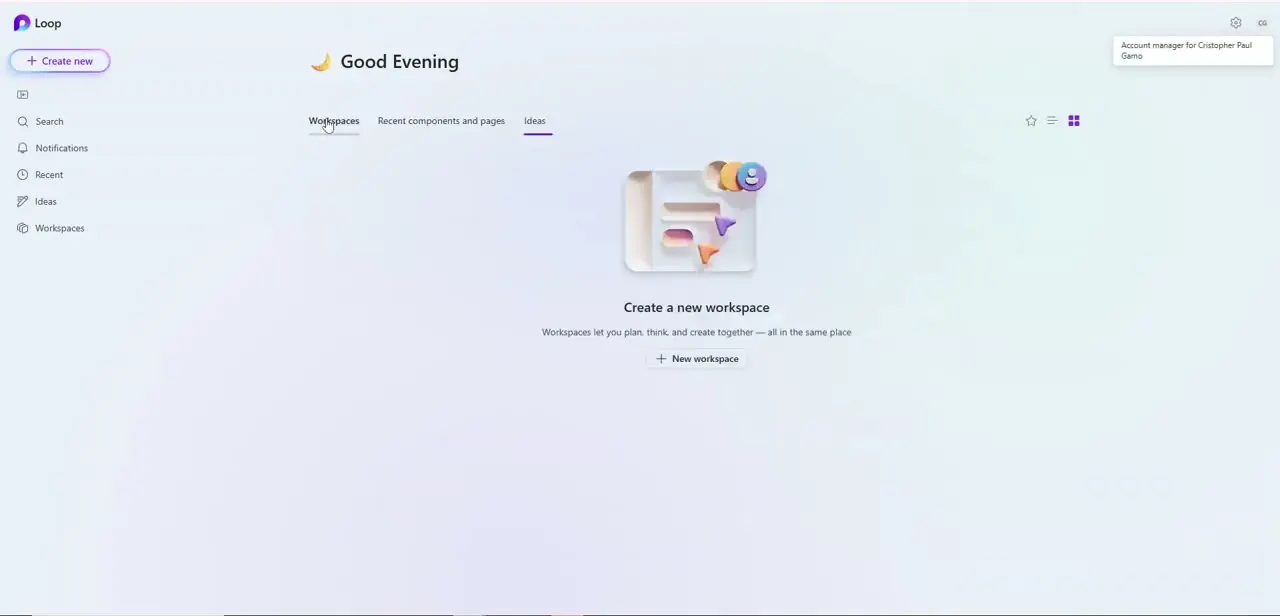
Sign in and land on the Loop home screen, which greets you by time of day and offers three tabs: Workspaces, Recent components and pages, and Ideas. If you haven't created a workspace yet, this is also where you'd start one — workspaces are the shared containers that hold your pages, tables, and boards. Pick an existing workspace from the left-hand list or the grid view to move into the page you actually want to comment on.
02Navigate to the page and find the component
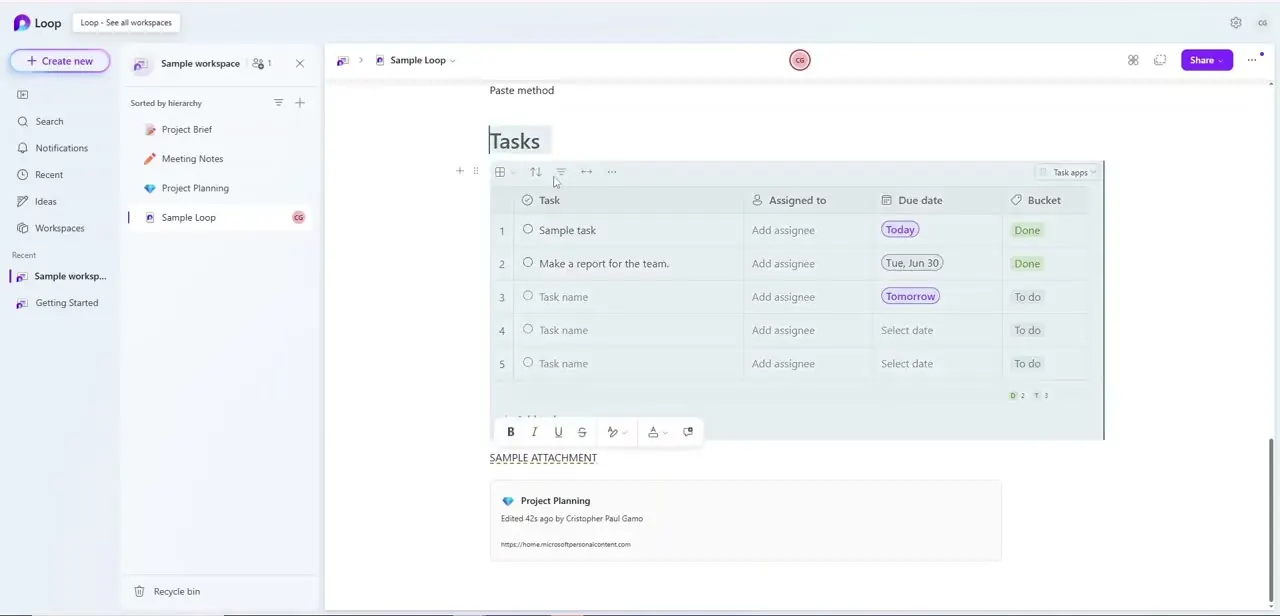
Inside a workspace, the left sidebar lists every page — Project Brief, Meeting Notes, Project Planning, and any sample pages Loop has generated for you. Open the one with the content you want to discuss.
In this example, that's a Sample Loop page containing a live Tasks table with rows for sample work, due dates, and status buckets like Done and To do. Comments in Loop attach to specific components like this table, not just to the page as a whole, so it's worth navigating to the exact block before opening the comment tool.
03Open the comment box
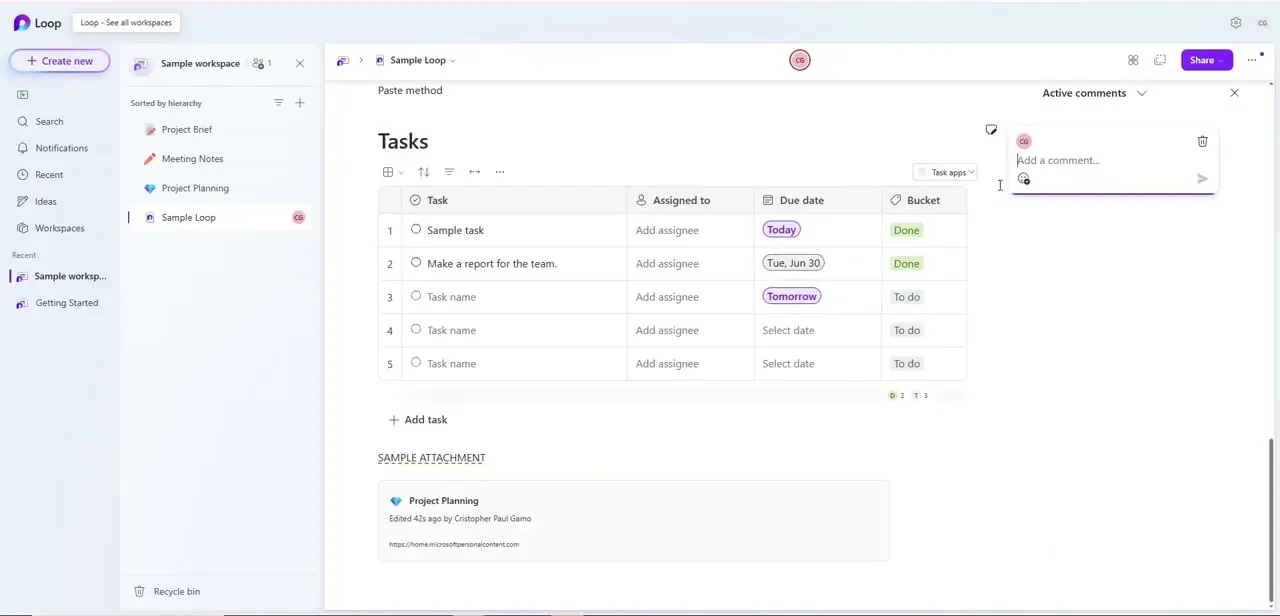
Hover near the top-right corner of the table (or select the text or block you want to talk about) and click the small comment bubble icon that appears. Loop opens a comment field right beside the component, under an "Active comments" heading, with a text box prompting "Add a comment..." This keeps the conversation visually tied to the exact table or paragraph it's about, which is the whole point of commenting inside Loop instead of a separate chat app — anyone opening the page later sees the feedback sitting right next to the thing it refers to.
04Type your comment and tag teammates
Click into the comment box and type your feedback. If you need to pull in a specific person, type @ followed by their name to mention them — this notifies them directly rather than relying on them to stumble across the comment on their own. Keep comments specific to the component they're attached to; a note like "can we move this task's due date up" is far more useful sitting next to the actual table row than buried in a general chat thread.
05Post the comment and confirm it landed
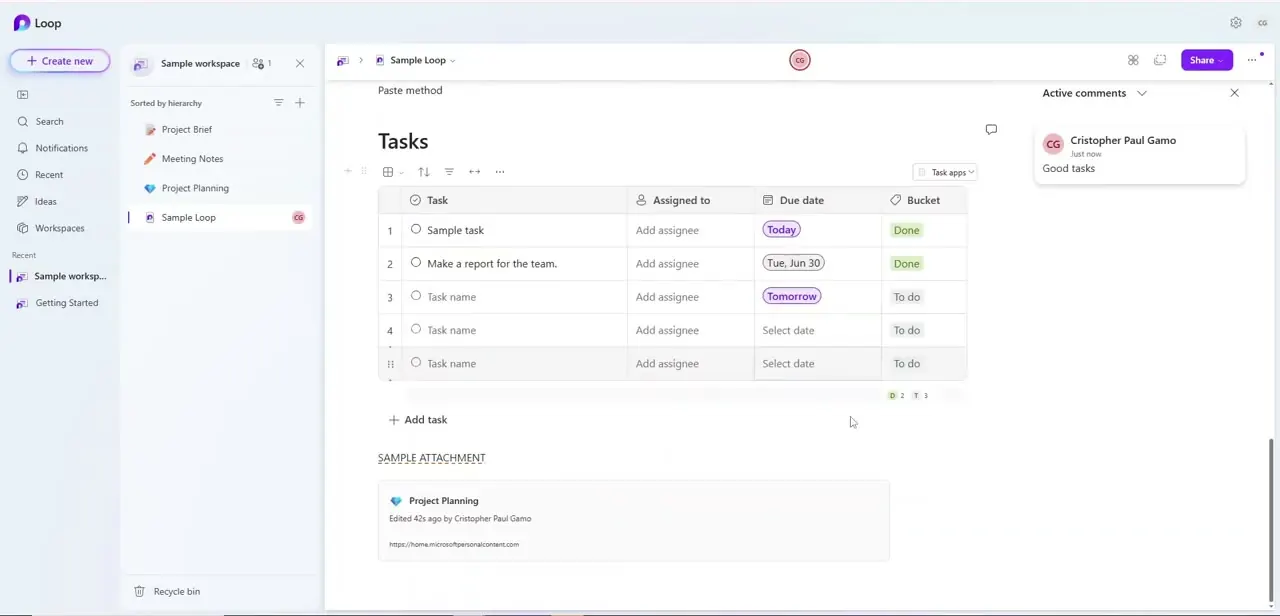
Send the comment, and it appears immediately in the Active comments panel on the right, tagged with the commenter's name and a "Just now" timestamp — in this case, a short note reading "Good tasks" attached to the Tasks table. Everyone with access to the page sees the same panel update in real time, which is Loop's multiplayer model at work: no refresh needed, no separate notification tab to check first.
06Manage replies and resolve threads
As the conversation grows, reply directly under the original comment to keep related feedback grouped instead of scattering new top-level comments across the page. Once the point raised has been addressed — a due date changed, a task reassigned — click the checkmark on that comment thread to mark it resolved. Resolved threads collapse out of the active view, which keeps the Active comments panel readable instead of turning into a scrollable backlog of settled discussions.
Frequently asked questions
How do I add a comment in Microsoft Loop?
Hover over the component or text you want to discuss, click the comment bubble icon that appears, type your note in the "Add a comment" box, and send it. It will show up in the Active comments panel next to that component.
Can I comment on a specific table row in Loop, not just the whole page?
Yes. Loop's comments attach to individual components like tables and text blocks, not only to the page as a whole, so feedback on a Tasks table stays pinned to that table rather than floating at the top of the page.
How do I tag a teammate in a Loop comment?
Type @ followed by their name inside the comment box. This sends them a direct notification instead of relying on them to notice the comment on their own.
Where do posted comments show up in Loop?
In the Active comments panel that opens on the right side of the page, next to the component being discussed. Each comment shows the author's name and a timestamp.
How do I close out a finished comment thread in Loop?
Click the checkmark on the comment thread once the feedback has been addressed. Resolved comments collapse out of the active view, keeping the panel focused on open discussions.
Watch the full walkthrough
The same steps, demonstrated on screen from start to finish.



