Easy Tech Tuts
How to Embed Instagram into GoHighLevel Website Easily 2026
By Impran M N
A live Instagram feed on your website does something a static gallery can't: it proves the business behind the page is active right now. GoHighLevel doesn't have a dedicated Instagram widget, but its site editor includes a Custom Code element that accepts any embed snippet, and Instagram generates exactly that kind of snippet for free from any public post. This guide walks through grabbing that code from Instagram and dropping it into a GoHighLevel page section, plus where in your layout it actually earns its space instead of just adding clutter.
01Get the embed code from Instagram
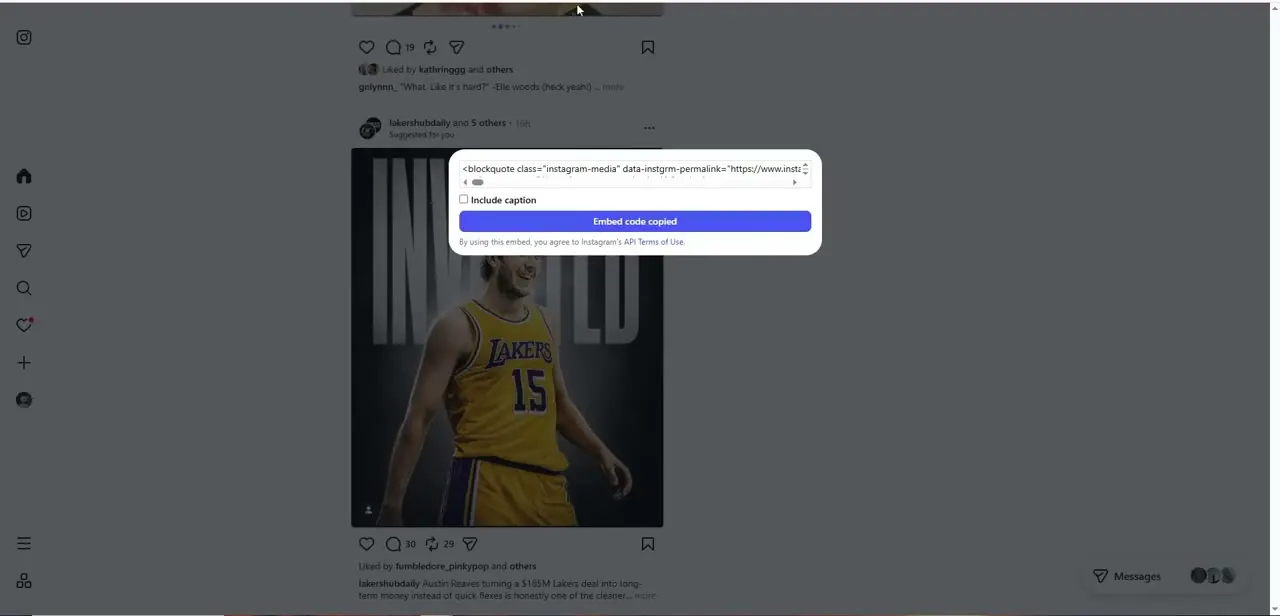
Open the post you want to feature on Instagram's web version and use the share or options menu to bring up its embed dialog. Instagram generates a block of HTML starting with a blockquote tag carrying the post's permalink, and a toggle lets you choose whether the original caption comes along with it.
Click the button to copy the code — Instagram confirms with a label like "Embed code copied" once it's on your clipboard, and that's the exact snippet you'll paste into GoHighLevel. Using this method means the embed is live: it pulls the post's current likes and comments rather than a screenshot frozen in time.
02Open the Quick Add panel in your GoHighLevel page editor
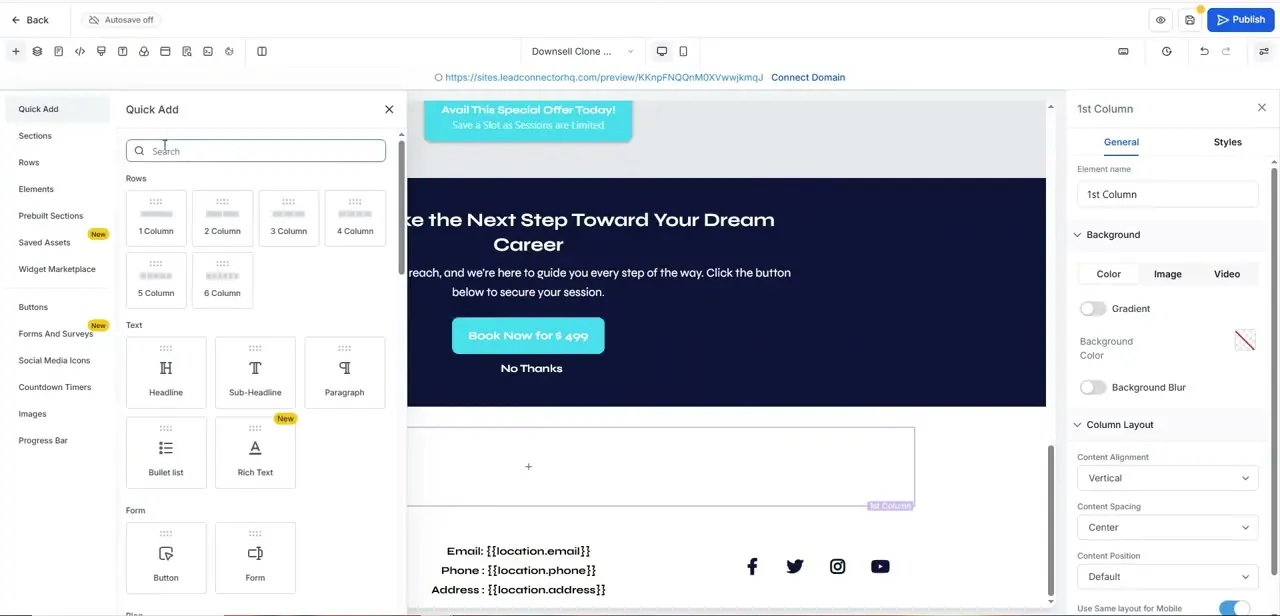
In the GoHighLevel website builder, open the page you want the feed on and click into a section where you want it to sit. The Quick Add panel slides in with a searchable list of rows, elements, and prebuilt sections — headlines, paragraphs, buttons, forms, and further down, a Custom Code element built specifically for pasting in outside snippets like the one Instagram just gave you. Pick a one-column row first if you're placing a single embedded post, since Instagram's blockquote renders at a fixed width and a narrow column keeps it from looking squeezed.
03Paste the code into the Custom Code element
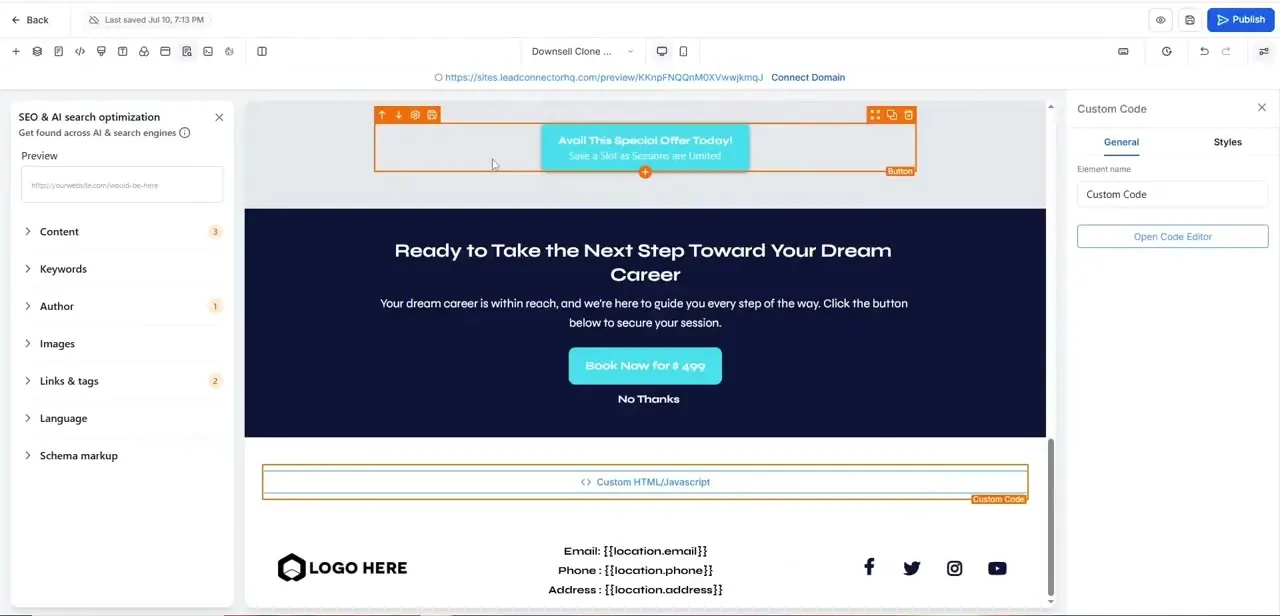
Drop a Custom Code element into your chosen section and click it to open its settings panel on the right. You'll see an "Open Code Editor" button under the General tab — click it, paste the blockquote snippet you copied from Instagram, and save. GoHighLevel treats this as raw HTML/Javascript, so it renders whatever Instagram sent, including the small script that turns the plain blockquote into the styled, interactive embed with the profile photo and post image.
04Place the feed where it supports your existing content
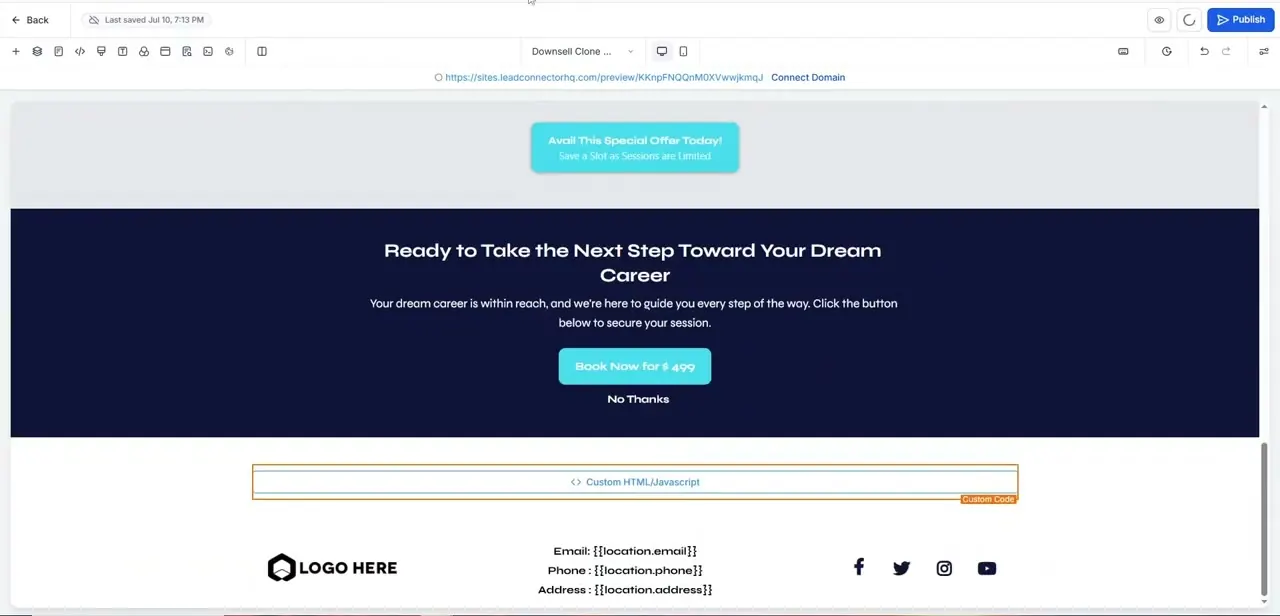
An embedded Instagram post works best positioned near content it reinforces, not dropped into the hero at the top of the page where it competes with your main call to action. A gallery, testimonials section, or the area just above your footer are natural spots — visitors who've already engaged with your services are the ones most likely to click through to follow you. For a restaurant, that might mean placing it near a menu section; for a fitness brand, next to transformation photos or class listings.
05Repeat for multiple posts if you want a fuller feed
Instagram's individual embed code only pulls one post at a time, so a richer feed means repeating the copy-and-paste process for several posts, each in its own Custom Code element inside a multi-column row. Keep the row to two or three columns on desktop so each embed has enough width to render its image properly, and check the mobile preview in the GoHighLevel editor afterward — a row that looks fine on desktop can stack awkwardly narrow on phones if the columns weren't set to adjust.
06Save and publish, then verify the live page
Save your changes and hit Publish, then load the live URL rather than trusting the editor preview alone — embed scripts occasionally behave differently once a page is actually served. Confirm the post renders with its image intact, the like and comment counts are visible, and clicking through the embed opens the real Instagram post in a new tab. If a post you embedded gets deleted or the account goes private later, the embed will break silently, so it's worth a periodic check rather than a one-time setup.
Frequently asked questions
Do I need a business Instagram account to embed my feed?
No — Instagram's embed feature works on any public post regardless of account type. The post simply needs to be visible to the public, since the embed pulls live data from Instagram's servers each time the page loads.
Will embedding Instagram slow down my GoHighLevel website?
It adds a small amount of load time since the browser fetches the embed script and post data from Instagram's servers, but for one or a handful of posts the impact is minor. Embedding many posts on one page will add up, so keep the count reasonable.
Can I customize which posts appear in the embedded feed?
With the native embed method, you choose posts one at a time by grabbing each one's individual embed code — there's no automatic "latest posts" feed built into GoHighLevel itself. For a live auto-updating feed you'd need a third-party widget instead.
Is embedding Instagram useful for service-based businesses?
Yes — fitness centers, salons, and similar service businesses can use it to visually back up claims with real client results or before-and-after content, which builds more trust than text alone.
What if my embedded post stops showing up?
This usually means the original post was deleted, the account was set to private, or Instagram changed its embed script. Re-copy a fresh embed code from a current public post to fix it.
Watch the full walkthrough
The same steps, demonstrated on screen from start to finish.