Easy Tech Tuts
How to Create an Instagram Reel in Canva Easily 2026
By Impran M N
Instagram Reels reward fast, punchy editing, and Canva's template library is built to get you there without learning a traditional video editor. Rather than animating text and cutting clips from scratch, you search Canva's template gallery for Reels made in your niche, then rework the text layers already sitting on its timeline. This guide follows that exact workflow — finding a matching template, opening its timeline, and swapping the placeholder message for your own — which is the fastest route from idea to a postable Reel.
01Search the template gallery for Instagram Reels
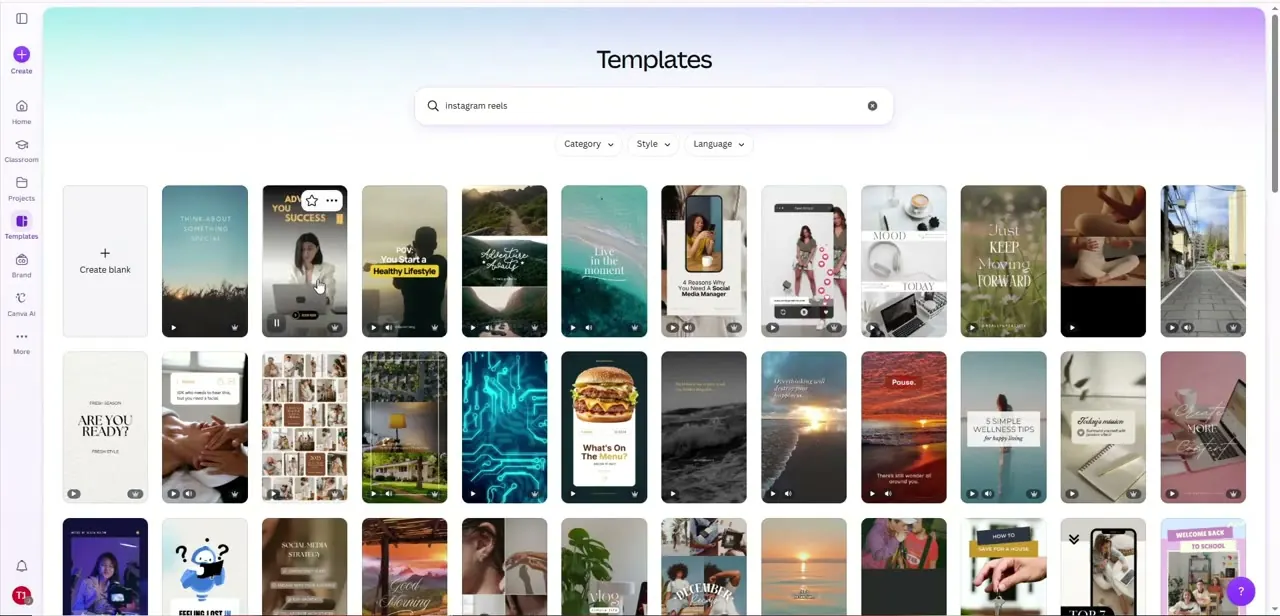
Canva's Templates panel has its own search field separate from the general design search — typing "instagram reels" here filters specifically to vertical, Reels-formatted templates, with Category, Style, and Language filters above the results grid. Each thumbnail plays a short animated preview so you can judge pacing and mood before opening one, which matters more for video templates than static ones since you're really judging motion and timing, not just a layout.
02Open the template and preview its full sequence
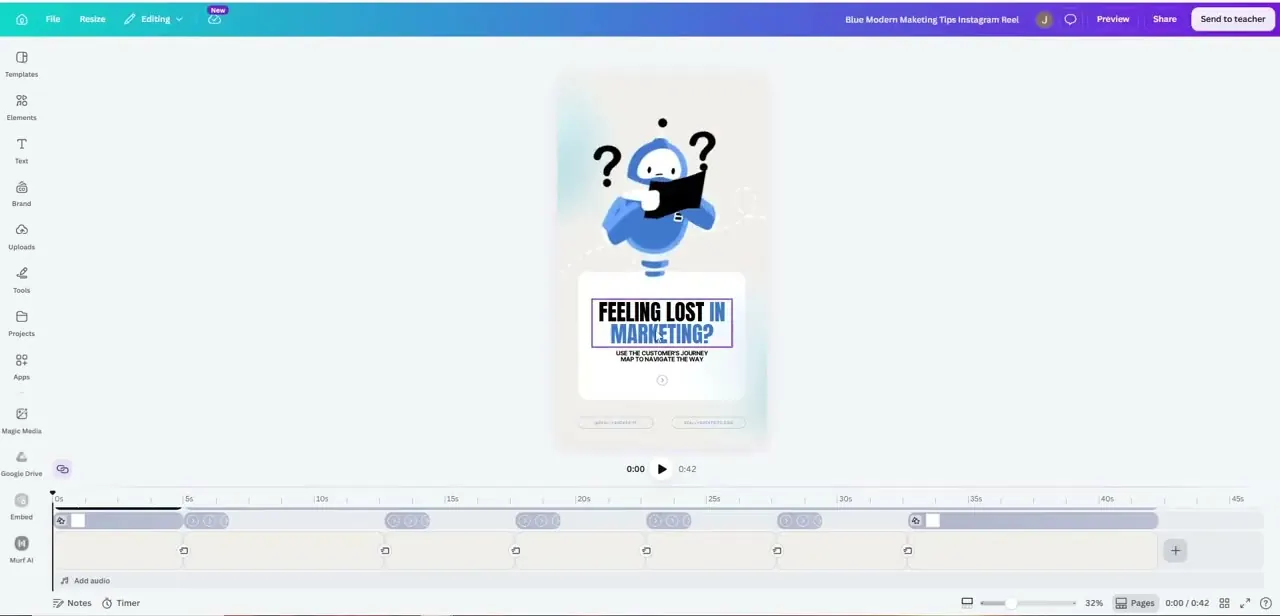
Opening a template — in this case, a "Blue Modern Marketing Tips Instagram Reel" — loads it into the editor with a scrubbable timeline along the bottom and a Preview button in the top corner. The example here runs 42 seconds, built from cartoon character animation and a text card reading "Feeling Lost in Marketing?
Use the customer's journey map to navigate the way," with handle and website text sitting below it. Watching the whole thing once before editing tells you which sections are template structure worth keeping and which lines need to become your own.
03Edit the text layers directly on the timeline
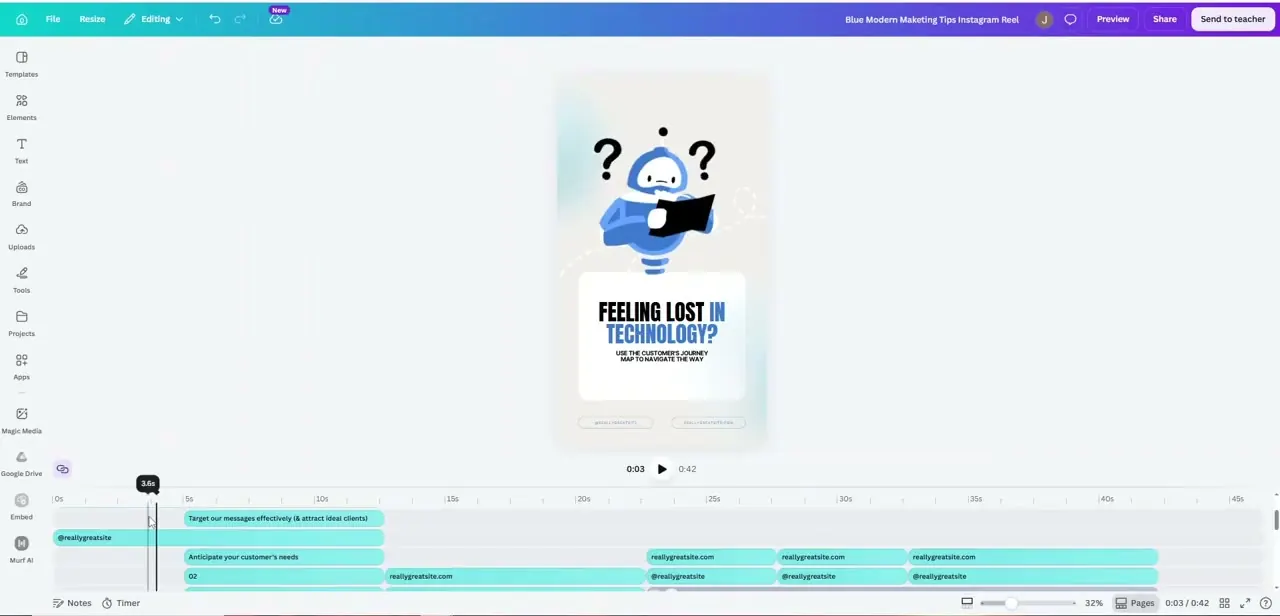
Clicking into the timeline strip breaks the Reel down into individual text and clip segments — in this template, separate bars for the headline, the handle (@reallygreatsite), and the website URL, each repeated at different points across the 42 seconds. Double-clicking any segment lets you rewrite it in place, which is how the template's original "Feeling Lost in Marketing?" became "Feeling Lost in Technology?" in this example — same layout and animation timing, entirely different topic. Update every repeated instance of your handle and site URL, since templates often place them multiple times across the sequence.
04Swap in your own brand handle and link
Beyond the headline, go through every visible instance of the placeholder handle and website — reallygreatsite.com in this template — and replace it with your actual Instagram handle or link. It's an easy detail to miss because it repeats quietly at the bottom of several frames rather than standing out like the main headline, but a wrong or placeholder handle undermines an otherwise polished Reel.
05Adjust pacing if a section drags
Use the timeline scrubber to check whether any single card holds too long relative to the rest — Reels lose viewers fast, so a section that lingers a beat longer than it needs to is worth trimming even if the rest of the template's timing is solid. Canva keeps the entrance and exit animations attached to each segment, so trimming duration doesn't usually require rebuilding the animation itself.
06Add or adjust the audio track
Use "Add audio" beneath the timeline to layer in music from Canva's library or your own upload, then trim it to match the Reel's total length. If the template already came with a background track, listen for whether it still fits once your text and message have changed — a tone built for a generic marketing tip won't necessarily suit a different topic.
07Preview, export, and upload to Instagram
Run the Preview one final time end to end, then export as MP4. Because the template was already built in Instagram's vertical Reels format, there's no cropping or resizing step before upload — just download the file and post it directly through Instagram's app.
Frequently asked questions
Do I need video editing experience to make a Reel in Canva?
No. Starting from a template in Canva's Reels-formatted gallery means the animation and pacing are already built — editing mainly involves rewriting the text segments on the existing timeline.
Can I create multiple Reels quickly using the same template?
Yes. Since the animation and timing live on the template's timeline, you can duplicate the project and swap in new text and media for each new Reel without rebuilding the structure.
What's the easiest thing to miss when editing a Reel template?
Repeated handle or website text. Templates often place your handle at multiple points across the timeline, and it's easy to update the headline while leaving an old placeholder handle further down the sequence.
How do I get the Reel onto Instagram after editing?
Export the finished design as an MP4 from Canva, then upload it directly through Instagram's Reels post flow — no resizing is needed if you started from a Reels-formatted template.
Can I add my own music instead of the template's audio?
Yes. The "Add audio" option below the timeline lets you replace or layer in your own track, which is worth doing if the original background music doesn't fit your new topic.
Watch the full walkthrough
The same steps, demonstrated on screen from start to finish.