 Easy Tech Tuts
How to Set Up a Gumroad Account, Make Store Easily 2026
By Impran M N
Starting to sell digital products on Gumroad begins with a single account screen, but which sign-in method you pick and how you fill out your profile afterward shapes how professional your storefront looks from day one. This guide walks through Gumroad's actual sign-up screen, the options it offers, and what to do once you're logged in and looking at an empty store for the first time.
01Look at what you're signing up for
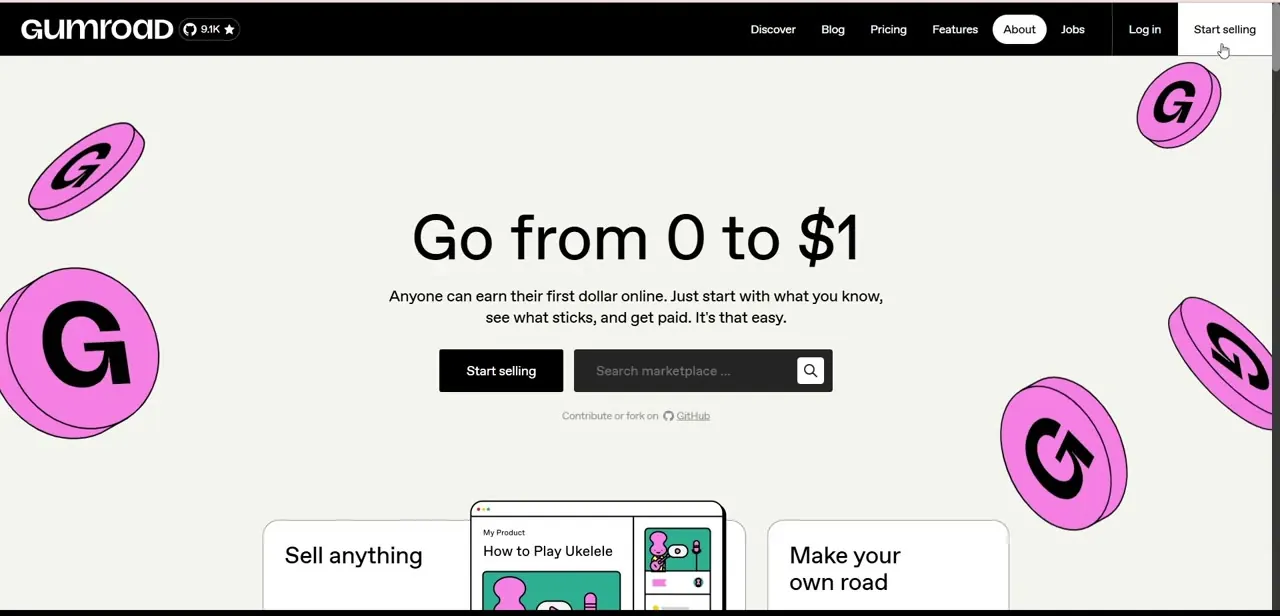
Before creating an account, it's worth seeing Gumroad's own pitch: the homepage headline reads "Go from 0 to $1," with copy about starting with what you know and getting paid, next to a black Start selling button and a marketplace search bar. It's a low-friction pitch by design — Gumroad wants the signup itself to feel as easy as the promise, and the account creation screen you'll hit next backs that up.
02Create your account
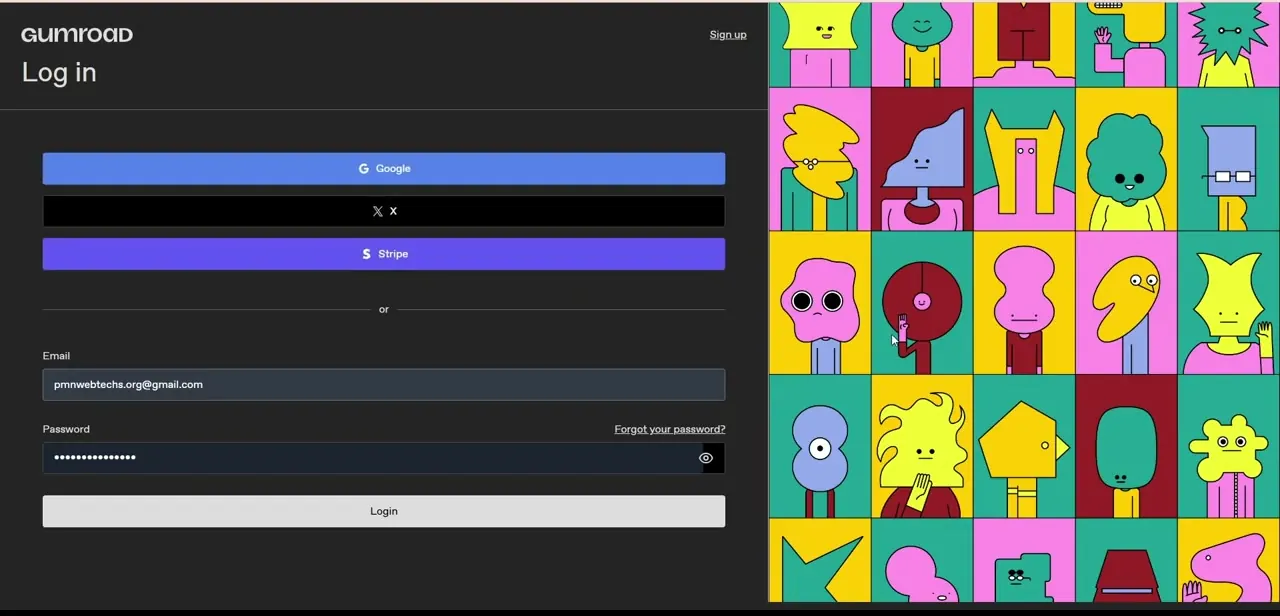
Clicking through to sign up lands you on a single screen with four ways in: continue with Google, continue with X, continue with Stripe, or use an email and password directly. Using Google, X, or Stripe skips typing a password entirely and can also speed up payout setup later, since Stripe in particular is one of the payment processors Gumroad supports.
If you'd rather keep your creator account separate from other logins, the email and password fields below the social options work exactly like a normal signup form. There's also a "Sign up" link in the top corner if you land on the login version of this screen instead.
03Land on your dashboard for the first time
Once you're authenticated, Gumroad drops you into your dashboard, which starts empty apart from a getting-started checklist. This is normal — there's no product, no sales, and no followers yet, so don't expect a polished storefront on the first screen. Treat this as your control room going forward: the left-hand navigation is where you'll create products, check sales, and adjust settings, so it's worth clicking through each section once just to see what's there before you start building.
04Fill in your profile so your store isn't blank
Before publishing anything, open your profile settings and add a name, bio, and profile photo — this is what a customer sees before they trust you enough to buy. A generic or missing profile is one of the fastest ways to make an otherwise solid product page look unfinished. Keep the bio short and specific about what you make; vague descriptions read as less credible than a plain sentence about the actual products you sell.
05Add branding to your storefront
Beyond the profile basics, Gumroad lets you customize colors and layout elements on your public store page so it doesn't look identical to every other creator's default setup. Consistent branding between your storefront, your product thumbnails, and any social accounts you link makes the whole operation look more established than it might actually be at this stage — which matters more than people expect for a first-time buyer deciding whether to trust a small, unfamiliar creator with their payment details.
06Configure payment settings before you publish
The last step before you're truly ready to sell is payouts. Depending on which sign-in method you used, Gumroad may already have a head start on this if you connected through Stripe, but you'll still need to confirm payout details in your account settings so earnings actually reach a bank account. Do this before your first product goes live rather than after your first sale — chasing payout setup while a customer is waiting on their download is a worse experience for everyone involved.
Frequently asked questions
Is it free to create a Gumroad account and store?
Yes. Creating an account and setting up your storefront is free — Gumroad takes a percentage of each sale instead of charging upfront fees.
What sign-in options does Gumroad offer?
You can continue with Google, X, or Stripe, or sign up with a plain email and password — all four options sit on the same account screen.
Do I need a business entity to sell on Gumroad?
No. Individual creators can sell on Gumroad without a registered business, though payout requirements may vary by country.
Why is my dashboard empty after I sign up?
A brand-new account has no products, sales, or followers yet, so the dashboard starts with a getting-started checklist instead of live data — that's expected.
Can I customize how my storefront looks?
Yes. You can add a profile photo, bio, and branding elements so your storefront doesn't look like a bare default template to visitors.
Watch the full walkthrough
The same steps, demonstrated on screen from start to finish.


