 Easy Tech Tuts
How to Sell Your Online Course on Gumroad Easily 2026
By Impran M N
Gumroad handles the checkout, delivery, and payment side of selling an online course, so you can focus on the content instead of building separate hosting infrastructure for video and downloads. The setup happens in a single product-creation flow: pick a product type, name it, set a price, then fill in the description and cover image students will see before buying. This guide walks through that flow using the actual screens, including where existing products already sit on a live account.
01See where your course will live
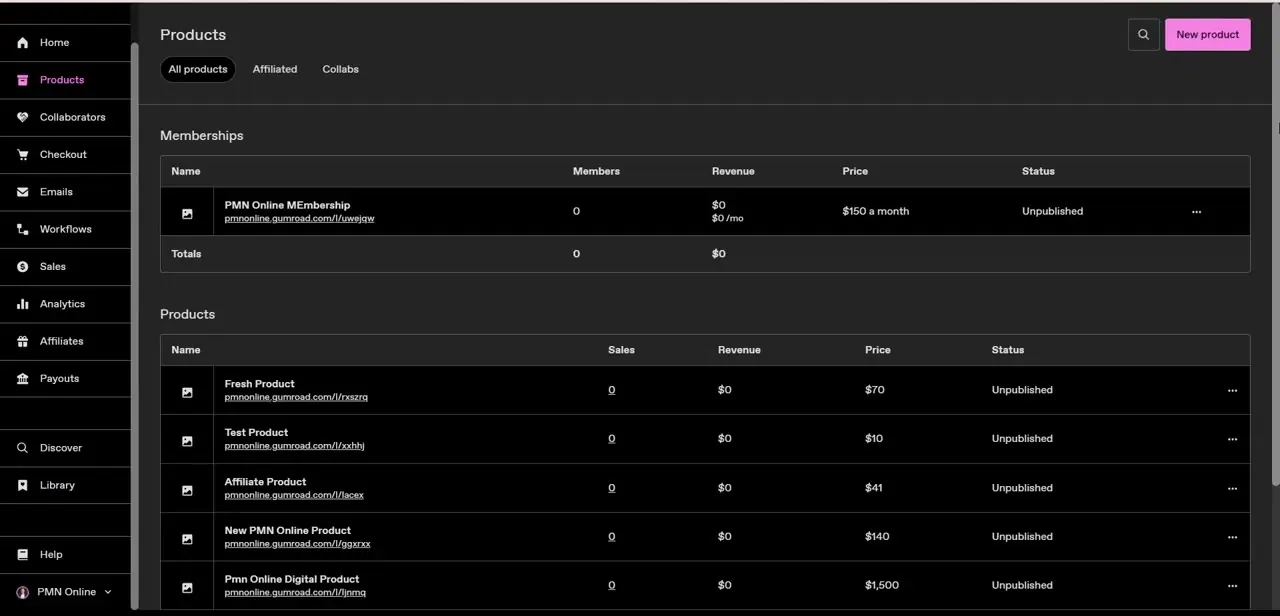
Before creating anything, open Products in the left menu to see the table where every listing you build ends up — memberships in one section, one-time products in another, each row showing sales, revenue, price, and status. A fresh account or one that's still testing will show several products marked "Unpublished" with zero sales, which is completely normal; nothing goes live to buyers until you publish it. This table is also where you'll come back to check how your course is performing once it's live, so it's worth knowing the layout before you build anything.
02Choose the Course or tutorial product type
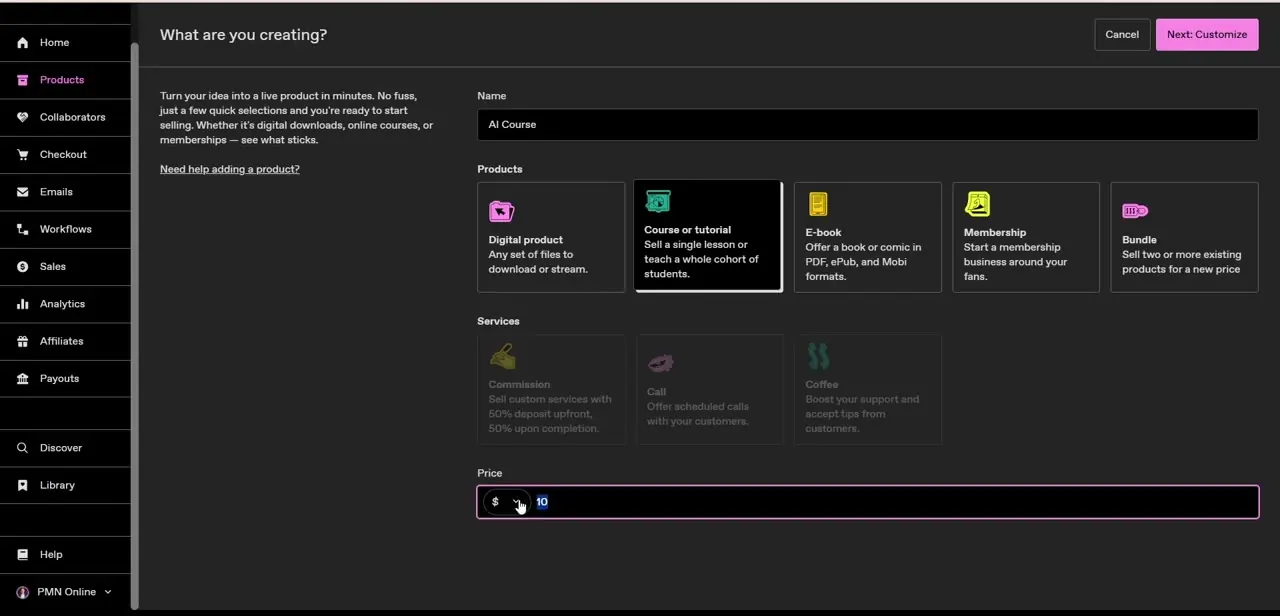
Click New product and you land on "What are you creating?" with six product types: Digital product, Course or tutorial, E-book, Membership, and Bundle, plus service types like Commission and Call. Course or tutorial is described as the option to "sell a single lesson or teach a whole cohort of students," which is the right choice over plain Digital product if you want Gumroad's course-specific structure rather than treating it as one flat file download. Name the product, set your price in the field below — it defaults to a small starting amount you'll want to change — and continue to customize the rest.
03Write the description and add cover art
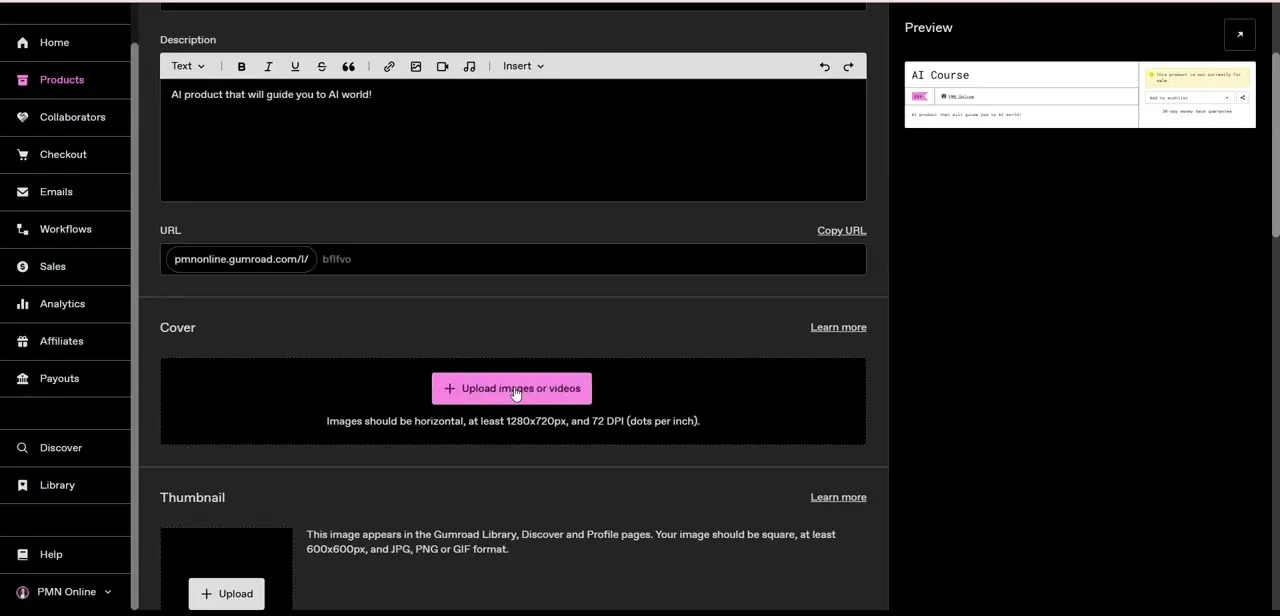
The next screen is where the actual sales page takes shape. The Description field is a full rich-text editor with bold, italic, headers, links, images, and embedded audio or video, so you can lay out a real course description rather than a plain paragraph — keep the opening lines specific about what a student will actually be able to do after finishing, since that's what convinces someone to buy over a competing listing.
Below it, the Cover section accepts images or video at a minimum 1280x720px, and the Thumbnail — a separate square image shown across the Gumroad Library, Discover, and your profile — needs to be at least 600x600px. A live Preview panel on the right updates as you type, showing exactly how the listing will look to a buyer before you publish.
04Upload your actual course content
With the sales page built, scroll to the content section to add the files students receive after paying — video lessons, PDFs, worksheets, or any mix of formats the course needs. Organize multi-lesson courses into a clear order rather than one long unsorted list, since a student's first impression of a paid course is often just how navigable the content feels once they're inside it.
05Set pricing that matches the format
Revisit the price you set earlier now that you can see the whole course laid out. A single short lesson justifies a lower price than a structured multi-week curriculum, and Gumroad supports both one-time pricing and, through the Membership product type instead, recurring pricing if you'd rather charge monthly for ongoing access. Compare your price against similar course listings on Discover before finalizing it — pricing a first course too low is a more common mistake than pricing it too high, since it's easy to raise a price later but harder to convince early buyers a jump was fair.
06Publish and start promoting
Once the description, cover, content, and price all look right in the preview, publish the listing to flip its status from Unpublished to live. From there, the product page shows up in your Products table with real sales and revenue numbers instead of zeros, and you can start linking it from social profiles, email, or anywhere your audience already looks for you — a course sitting unpublished or unpromoted in that table won't sell itself.
Frequently asked questions
What product type should I pick to sell a course on Gumroad?
Choose "Course or tutorial" from the product type picker rather than plain Digital product — it's built for a single lesson or a full cohort-style course.
Can I upload multiple lesson files for one course on Gumroad?
Yes. You can add multiple videos, PDFs, and other materials to a single course product after setting up its name, price, and description.
How does Gumroad handle payment for course sales?
Gumroad processes checkout and payment directly, then deposits your earnings according to your configured payout settings.
Can I charge monthly instead of a one-time price?
For recurring pricing, use the Membership product type instead of Course or tutorial, which is built for one-time purchases.
Do students get instant access after purchase?
Yes. Once payment completes, students get immediate access to whatever content you've uploaded to the course product.
Watch the full walkthrough
The same steps, demonstrated on screen from start to finish.


