 Easy Tech Tuts
How to Buy an Ebook on Gumroad Easily 2026
By Impran M N
Buying an ebook on Gumroad is a normal checkout process, but knowing where to actually browse for titles and what the checkout screen expects makes the whole thing faster the first time you try it. This guide walks through Gumroad's Discover marketplace, a real product listing with pricing and ratings, and the checkout page itself, so you know what to expect before you type in a card number.
01Open the Discover marketplace
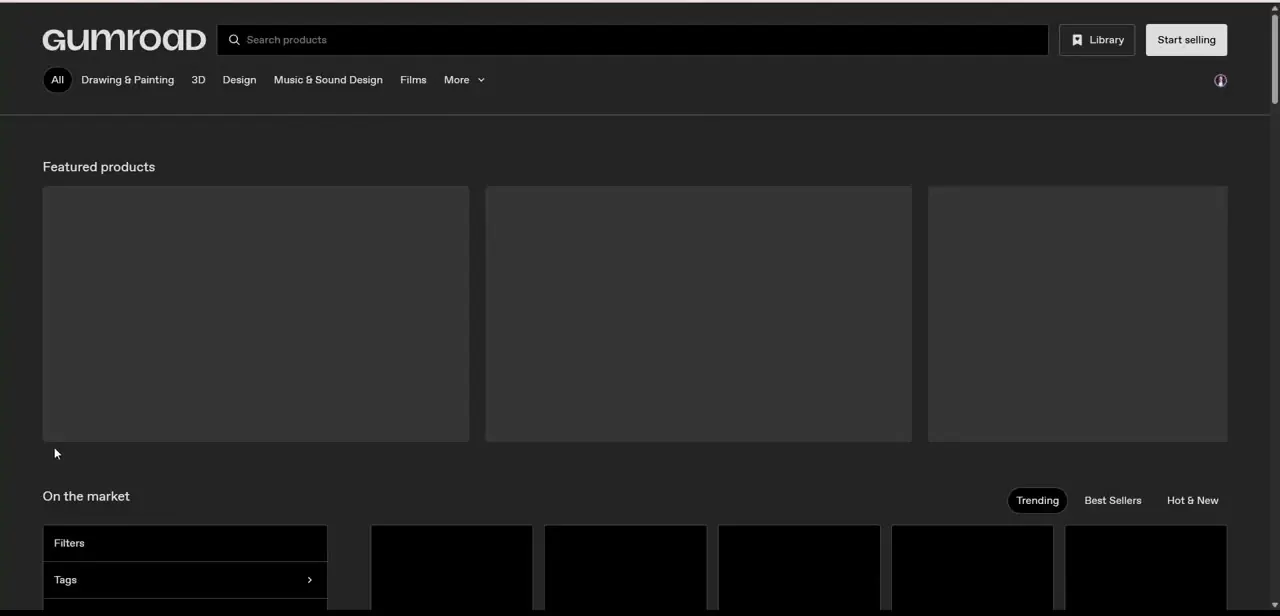
Gumroad's Discover page is where every buyer starts if they don't already have a direct link to a creator's product. A search bar sits at the top, with category tabs underneath for things like Drawing & Painting, 3D, Design, and Music & Sound Design, plus a "More" dropdown for categories that don't fit those headline tabs. Below that, the page organizes listings into "Featured products" and "On the market," with filters on the left for sorting by tags, price, or rating — useful once you're searching for ebooks specifically rather than browsing everything.
02Review a listing before you buy
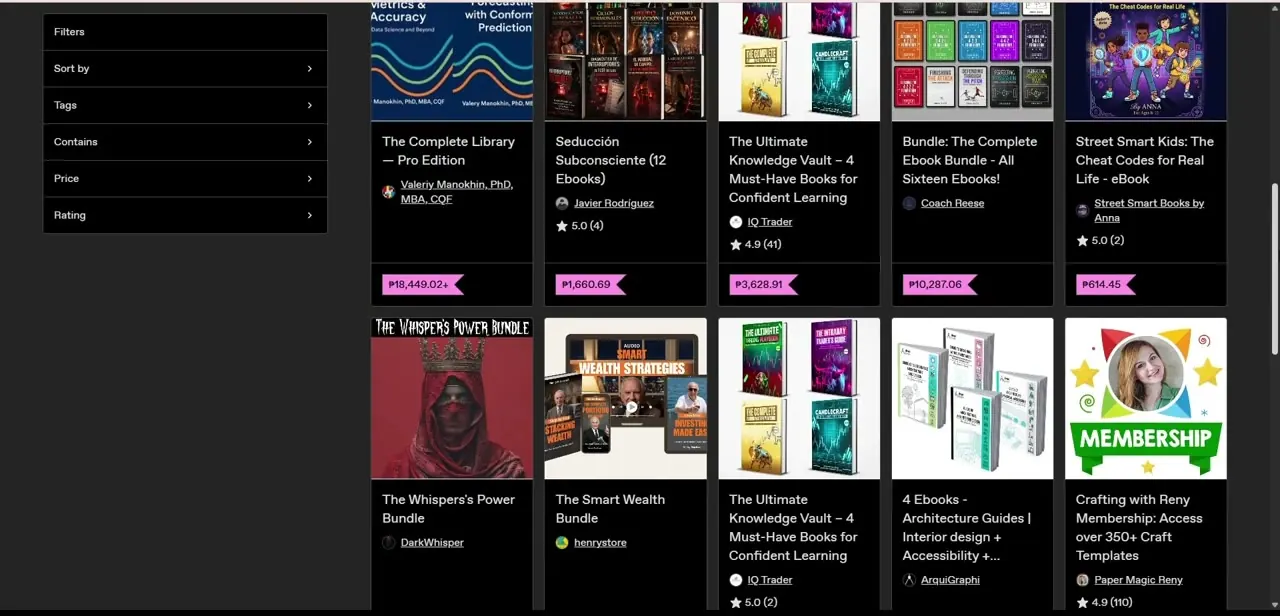
Product cards on Gumroad show a cover thumbnail, title, creator name, star rating with review count, and price up front, so you can compare options without opening every listing individually. Titles here range from single ebooks to bundles — one listing bundles four architecture guides together, another packages sixteen ebooks as a set — and prices vary just as widely, since Gumroad supports whatever a creator decides to charge, including different currencies depending on the seller. Click through to a listing that looks right, and check the full description and any preview pages before adding it to your cart, since ebook content and formatting quality vary a lot by creator.
03Add it to your cart and reach checkout
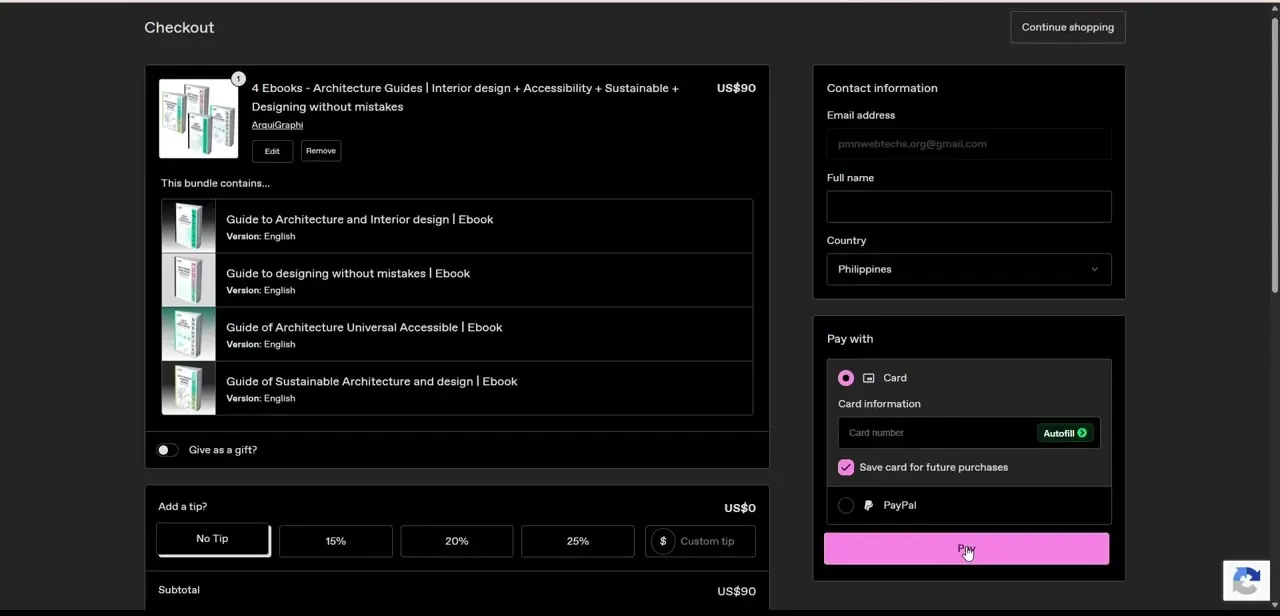
Once you choose a listing, the purchase flow takes you to a checkout page that lists exactly what you're buying. For a bundle, this includes each individual title inside it with its own version or language noted, so you can confirm you're getting what you expected before paying. There's also a toggle to give the purchase as a gift, and a tip section with preset percentages if you want to add extra beyond the listed price — entirely optional and defaulted to no tip.
04Fill in contact information and pay
The right side of checkout asks for an email address, full name, and country, which is what Gumroad uses to send your receipt and download link — there's no separate account signup required in this flow. Payment options include a card, with an autofill shortcut and an option to save the card for future purchases, or PayPal as an alternative. Review the subtotal at the bottom, including any tip you added, then hit Pay to finish the transaction.
05Download your ebook after payment
After payment goes through, Gumroad shows a confirmation screen with a direct download link, and sends the same link to the email address you entered at checkout. If you created or were signed into a Gumroad account during the purchase, the ebook also appears permanently in your Library, which is the more reliable place to find it later than digging through old emails.
06Fix a missing download
If no download link shows up, check the spam or promotions folder in your inbox first, since receipt emails from marketplaces get filtered there often. If you were logged into an account during checkout, your Library section keeps a record of every purchase regardless of what happened to the email, so that's the fastest fallback. If neither turns anything up, the creator's product page usually lists a support contact, since payment or delivery issues on a specific listing are ultimately theirs to resolve.
Frequently asked questions
Do I need a Gumroad account to buy an ebook?
No. Checkout only asks for an email, name, and country — an account just makes it easier to find the purchase again later in your Library.
Where do I browse ebooks on Gumroad?
The Discover page, which has a search bar, category tabs, and filters for tags, price, and rating to help narrow down listings.
How do I access my ebook after buying it?
You'll get a download link on the post-purchase confirmation page and in an email receipt, and it's saved in your Library if you were signed in.
What if I don't receive my download link?
Check your spam folder for the receipt email first, then check your Gumroad Library if you had an account signed in during checkout.
Can I pay with something other than a card on Gumroad?
Yes. The checkout page offers PayPal as an alternative to entering card information directly.
Watch the full walkthrough
The same steps, demonstrated on screen from start to finish.


