 Easy Tech Tuts
How to Add Custom Domain on Gumroad, Create Easily 2026
By Impran M N
Using your own domain instead of the default gumroad.com link makes your storefront look more established and gives you a URL that's actually easy to hand out. The setting itself is small — a single field tucked in an advanced settings tab — but getting it to verify depends on DNS work happening outside Gumroad entirely, which is where most people get stuck. This guide covers exactly where the field lives, what it expects, and what to check when a domain refuses to verify.
01Find the custom domain field in Settings
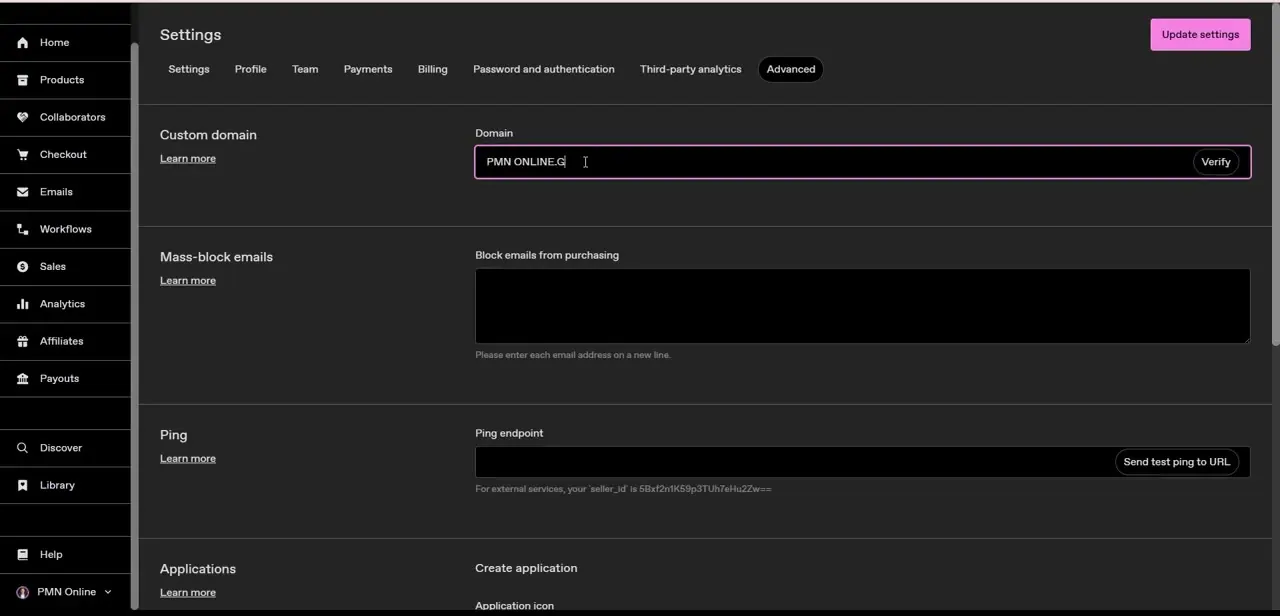
In your Gumroad account, open Settings, then click over to the Advanced tab — custom domain isn't under Profile or Payments, which is the first place most people look. The Advanced tab groups it alongside unrelated developer-facing options like mass-blocking emails, ping endpoints, and API applications, so scroll only as far as the first section: Custom domain, with a single Domain input field and a Verify button next to it. Whatever you type there is the exact address Gumroad will check against your DNS records, so accuracy matters more than it looks like it should for one text box.
02Point your domain's DNS at Gumroad
Before that Verify button will succeed, you need to update DNS records at wherever you registered the domain — not inside Gumroad. Gumroad's documentation specifies the exact CNAME or A record values to add, and those need to be entered precisely, since a mistyped record is the single most common reason verification fails. If you're using a subdomain like shop.yoursite.com rather than the bare root domain, double-check you're editing the right record type for that structure, since root and subdomain setups sometimes use different record types.
03Enter the domain and verify it
Once your DNS records are saved at the registrar, go back to the Custom domain field, type the domain exactly as you configured it, and click Verify. This step checks whether Gumroad can see the DNS records you just added, so if you click Verify immediately after saving DNS changes, don't be surprised if it fails on the first try — that's a propagation issue, not necessarily a mistake on your part.
04Wait out DNS propagation
DNS changes don't take effect everywhere instantly. Depending on your registrar and the record's TTL setting, propagation can take anywhere from a few minutes to a full day or two. If verification fails right after you've made changes, the correct move is usually to wait rather than start second-guessing and re-editing records, since repeated changes just restart the propagation clock.
05Test the domain once it verifies
After Gumroad confirms verification, open the custom domain directly in a browser, ideally in a private or incognito window so cached DNS doesn't give you a false result. It should load your storefront exactly as it appears at your default Gumroad URL. If it loads a registrar parking page or an error instead, the DNS records likely still haven't fully propagated on your network, even if Gumroad's own check has already passed.
06Troubleshoot a domain that won't verify
If Verify keeps failing well past a reasonable propagation window, go back to the DNS records at your registrar and compare them character by character against what Gumroad's documentation asked for — trailing dots, wrong record types, and typos in the target value are the usual culprits. Also confirm you're editing the DNS for the exact domain or subdomain you typed into Gumroad's field, since editing the wrong record on a multi-subdomain setup is an easy mistake to make and won't throw an obvious error on either side.
Frequently asked questions
Do I need to buy a domain separately to use this feature?
Yes. You need to own a domain name through a separate registrar before you can connect it in Settings > Advanced on Gumroad.
Where exactly is the custom domain setting in Gumroad?
Settings > Advanced, in the Custom domain section near the top of the tab — it's a single domain field with a Verify button.
How long does it take for a custom domain to activate?
DNS changes can take anywhere from a few minutes to 24-48 hours to fully propagate before Gumroad's verification succeeds.
What's the most common reason a custom domain fails to verify?
Incorrectly entered DNS records at the registrar, or not waiting long enough for propagation, are the most frequent causes.
Can I switch back to the default Gumroad URL later?
Yes. Connecting a custom domain doesn't remove your default Gumroad URL — you can clear the Advanced settings field again if you want to revert.
Watch the full walkthrough
The same steps, demonstrated on screen from start to finish.


