Easy Tech Tuts
How to Extract Data From a PDF to Google Sheets Easily 2026
By Impran M N
Retyping numbers out of an invoice or a research report is slow and it's exactly the kind of task where a stray keystroke turns into a bad total three tabs later. Google Sheets doesn't parse PDFs on its own, but the Workspace Marketplace has add-ons built specifically for this, and once one is installed the whole job becomes point-and-click instead of copy-and-paste.
This guide walks through finding a PDF-to-Sheets add-on, installing it, and running it against a real PDF so the tables land in your spreadsheet ready to use. It's aimed at anyone who handles invoices, reports, or forms regularly and would rather spend that time on analysis than data entry.
01Find a PDF extraction add-on in the Workspace Marketplace
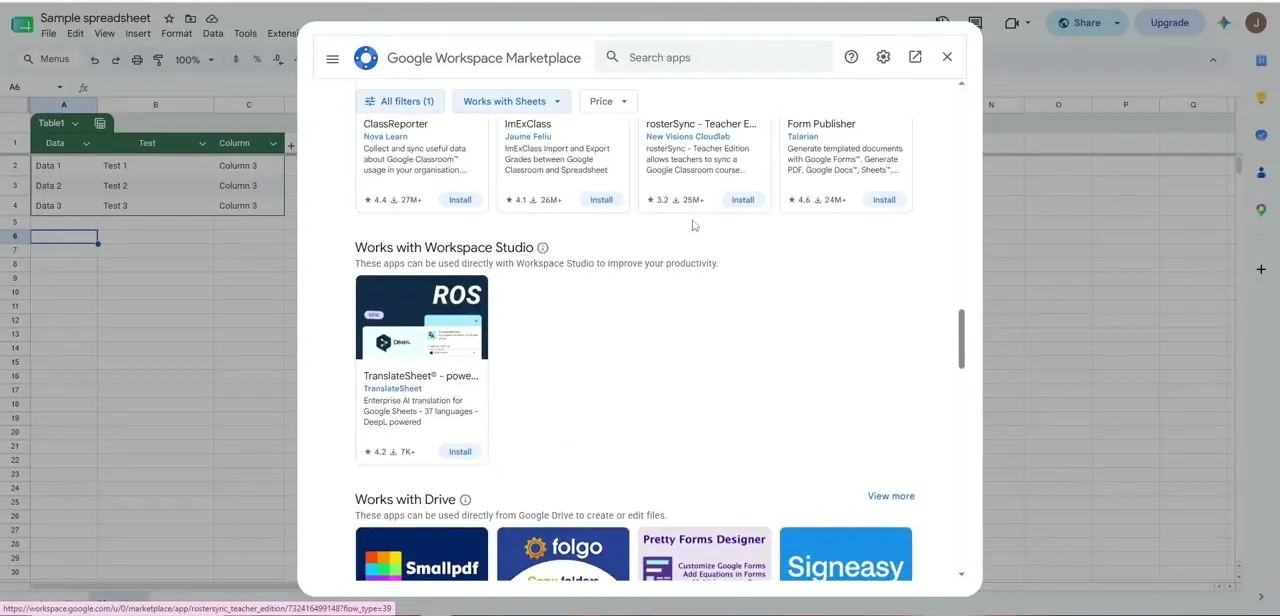
Open a spreadsheet, go to Extensions, and choose Add-ons > Get add-ons to open the Google Workspace Marketplace directly inside Sheets. Search for PDF-related tools and you'll see several options built for exactly this job, each listing what it connects to and its install count and rating.
Look for one that explicitly mentions PDF-to-Sheets conversion rather than a general document tool, since those are tuned to recognize tables and page layouts. Installing is a single click, and it asks for permission to access the spreadsheet you're working in — that's normal for any add-on that needs to write data back into your sheet.
02Open the add-on from the Extensions menu
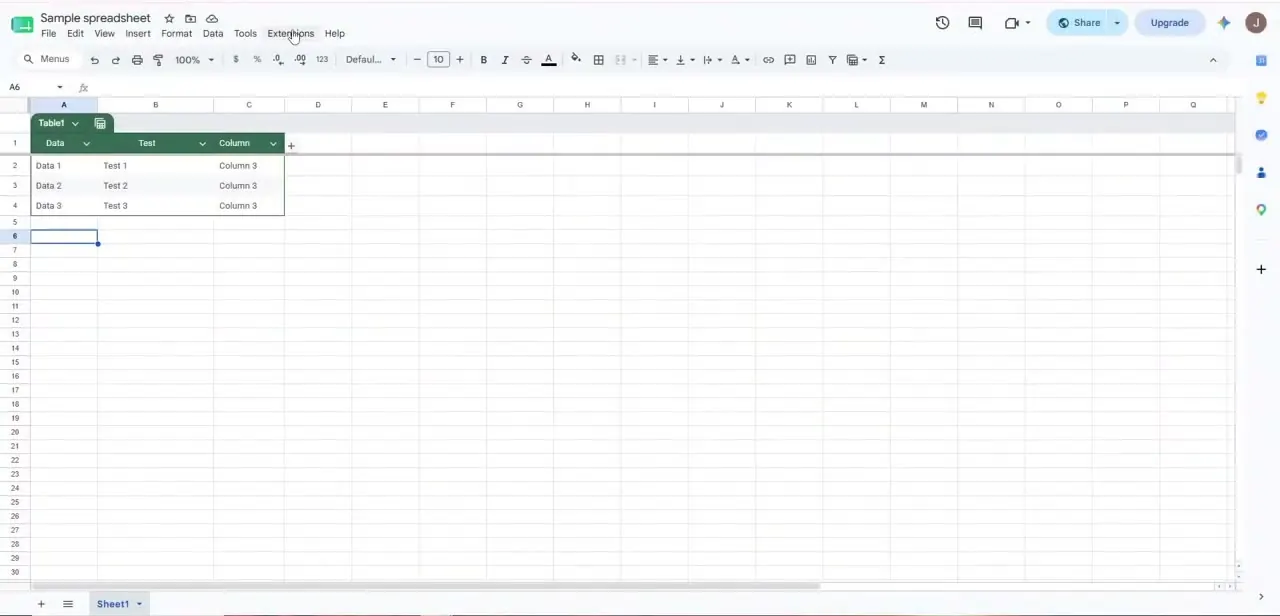
Once installed, every add-on you add lives under the same Extensions menu you used to find it — it doesn't add a new top-level menu of its own. Open the spreadsheet where you want the extracted data to land, click Extensions, and you'll see the add-on listed with its own submenu, usually with an option like "Open" or "Start." This is also a good moment to set up the destination sheet: a blank tab with clear column headers makes it much easier to check that the extraction lined up correctly once it runs.
03Upload the PDF and select the pages to process
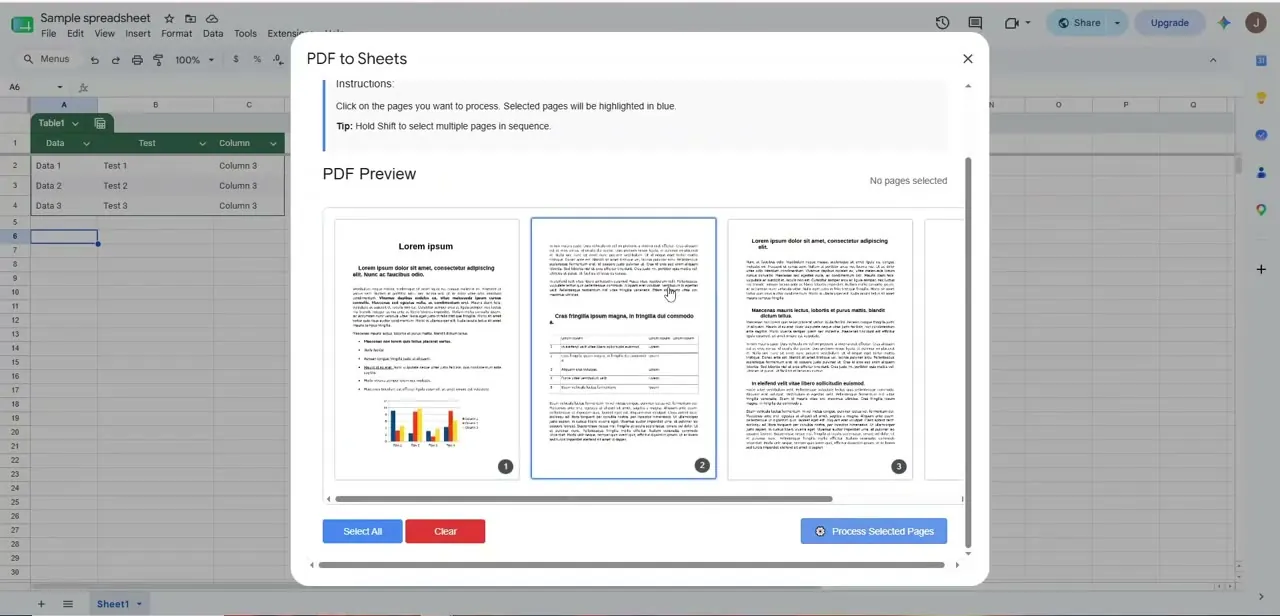
The add-on opens its own dialog with a preview of every page in the PDF you upload, numbered and displayed as thumbnails. Click a page to select it — selected pages highlight in blue — and hold Shift to grab a run of consecutive pages at once, which matters if you're pulling data from a multi-page report rather than a single-page invoice. Take a moment here rather than selecting everything by default: processing only the pages that actually contain tables keeps the extraction clean and avoids pulling in cover pages or narrative text that Sheets has no use for.
04Process the pages and check the output
With the right pages selected, click Process Selected Pages and the add-on reads the tables and text on those pages and writes them into your spreadsheet. Well-structured tables with clear rows and columns come through cleanly; PDFs with merged cells, multi-line entries, or inconsistent spacing are more likely to need a manual fix afterward. Scroll through the new data before doing anything else with it — catching a misaligned column now is far cheaper than catching it after you've built a formula on top of it.
05Clean up formatting issues
Extracted data rarely arrives perfectly shaped. Watch for numbers imported as text (they'll left-align instead of right-align), dates in an unexpected format, and columns that got split or merged because the PDF's layout wasn't a strict grid.
Use Data > Split text to columns for anything that landed in a single cell that should be several, and reformat number columns explicitly rather than assuming Sheets guessed correctly. This cleanup step is usually faster than the manual retyping it replaces, but it's not optional — skipping it is how extraction errors turn into reporting errors.
06Set up the process for recurring documents
If you're pulling the same kind of document — a monthly vendor invoice, a weekly export — every cycle, keep the destination sheet and column layout consistent so each new extraction drops into the same shape. Some add-ons support saving a page-selection template or watching a folder for new PDFs, which turns this from a repeated manual task into something closer to automatic. Even without that, a consistent process — same add-on, same tab layout, same cleanup checklist — cuts the time each new document takes by more than half after the first couple of runs.
Frequently asked questions
Can Google Sheets extract data from a scanned PDF?
Not on its own, and not reliably with most extraction add-ons either — a scanned PDF is really an image, so it typically needs OCR (optical character recognition) processing first before any tool can pull out real text and numbers.
Do I need to install anything to extract PDF data into Sheets?
Yes. Google Sheets doesn't parse PDFs natively; you install a PDF-to-Sheets add-on from the Workspace Marketplace via Extensions > Add-ons > Get add-ons, and it runs from that same Extensions menu afterward.
What if the extracted data doesn't line up correctly?
This is common with complex layouts — merged cells, multi-line fields, or inconsistent spacing in the original PDF. Use Data > Split text to columns and reformat number and date columns manually after extraction.
Can I extract just certain pages of a long PDF?
Yes. The extraction dialog shows a thumbnail of every page; click to select individual pages or hold Shift to select a consecutive range, then process only those.
Can this be automated for recurring reports?
Some add-ons support saved page-selection templates or folder-watching for new files. Even without that, keeping a consistent destination sheet and cleanup routine makes repeat extractions much faster after the first one.
Watch the full walkthrough
The same steps, demonstrated on screen from start to finish.