 Easy Tech Tuts
How to Connect Your Google Drive to Canva Easily 2026
By Impran M N
There's more than one way to link Canva and Google Drive, and the one that surprises people is that you can set it up from the Drive side rather than digging through Canva's settings. Google Drive's "Open with" menu lets you connect entirely new apps through the Google Workspace Marketplace, and Canva is listed there as an installable add-on. This guide walks through finding that option inside Drive, installing Canva, and what changes in your file menu once it's connected.
01Know what you're connecting before you start
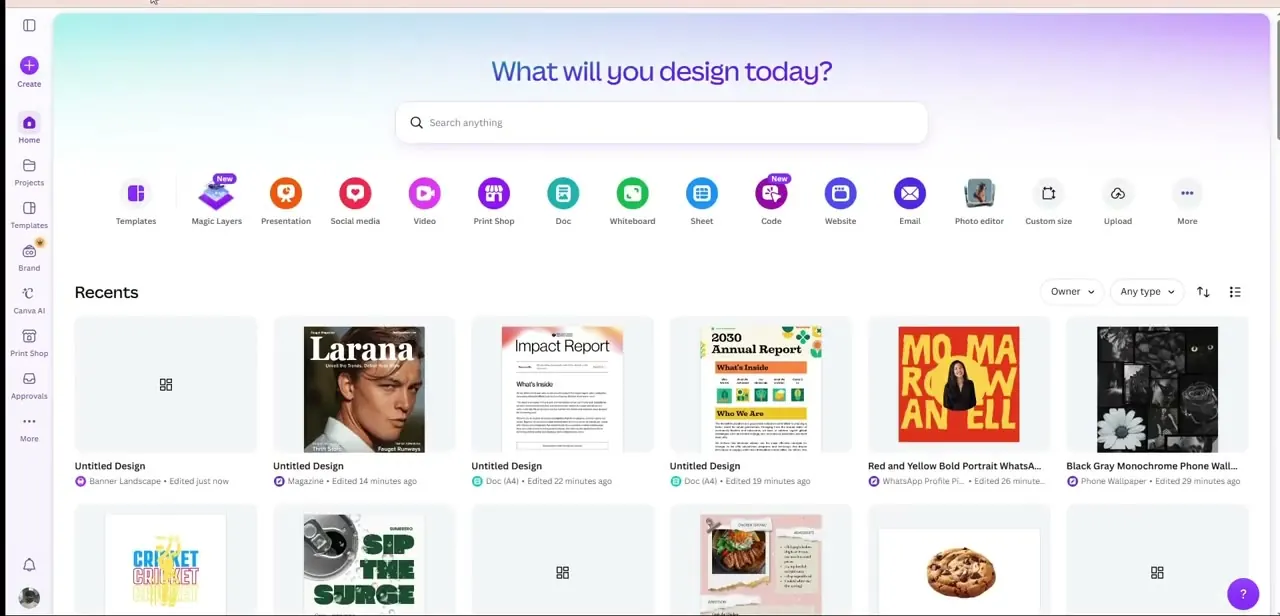
Canva's home screen — the "What will you design today?" dashboard with its row of content-type shortcuts for Docs, Sheets, Presentations, and more — is the tool you're about to make reachable directly from Google Drive. Once connected, you won't need to open Canva separately just to turn a Drive file into a design; the option shows up in Drive itself. Worth knowing going in, since the setup happens on Google's side, not by hunting through Canva's own settings menu.
02Right-click a file in Drive and open the app menu
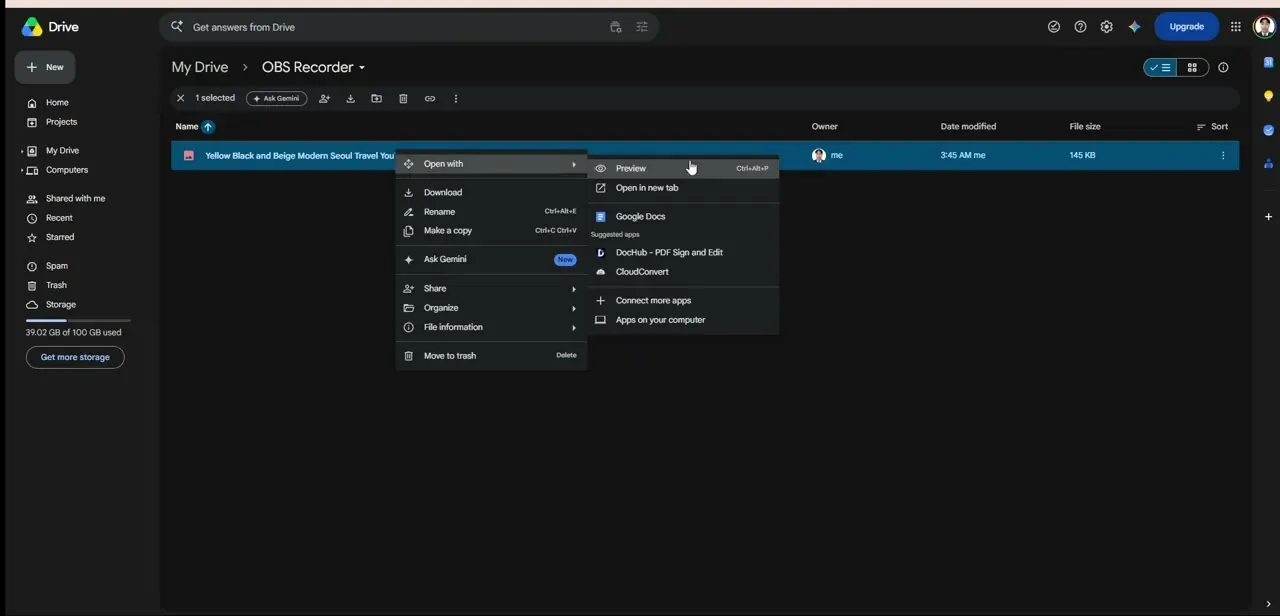
In Google Drive, right-click any file and hover over "Open with" in the context menu. A submenu appears listing apps that already know how to open that file type — Preview, Open in a new tab, Google Docs — followed by a "Suggested apps" section with a couple of third-party options, and below that, a "Connect more apps" link. That link is what takes you to the Google Workspace Marketplace, where Canva lives as one of thousands of installable add-ons.
03Find Canva in the Workspace Marketplace and install it
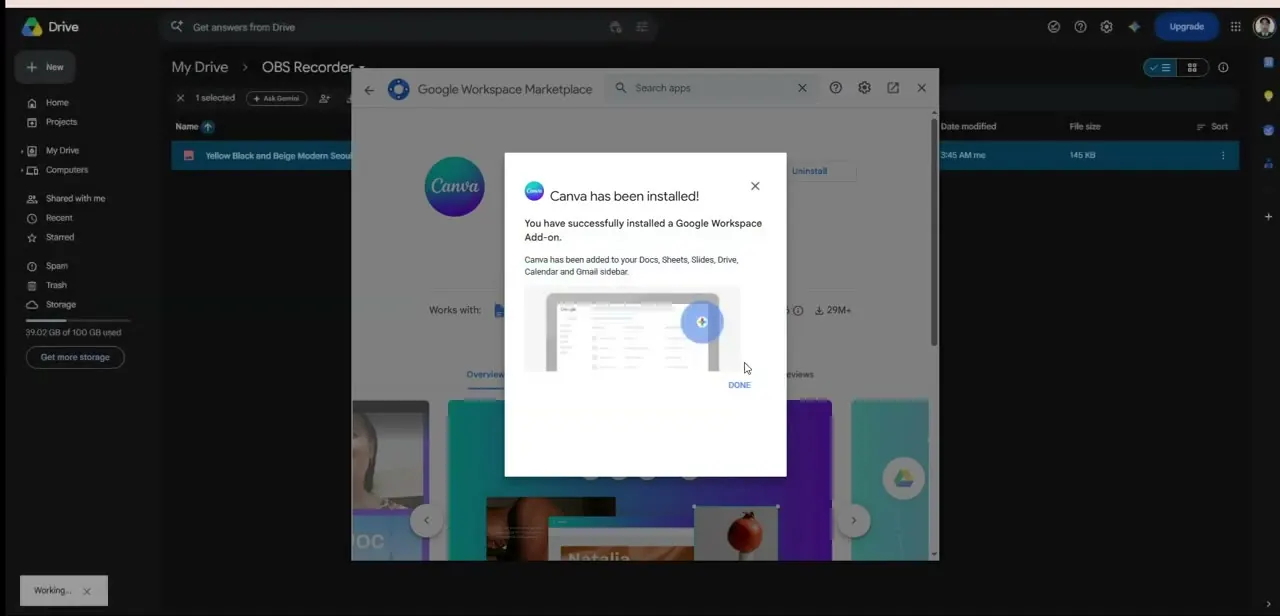
Search for Canva inside the Marketplace window that opens over Drive and click Install. Google will ask you to confirm the permissions Canva is requesting, since the add-on needs access to read and create files in your Drive to function. Once approved, a confirmation card appears reading "Canva has been installed," confirming the add-on was added to your Docs, Sheets, Slides, Drive, Calendar, and Gmail sidebar all at once — not just Drive on its own.
04Create a Canva design directly from inside Drive
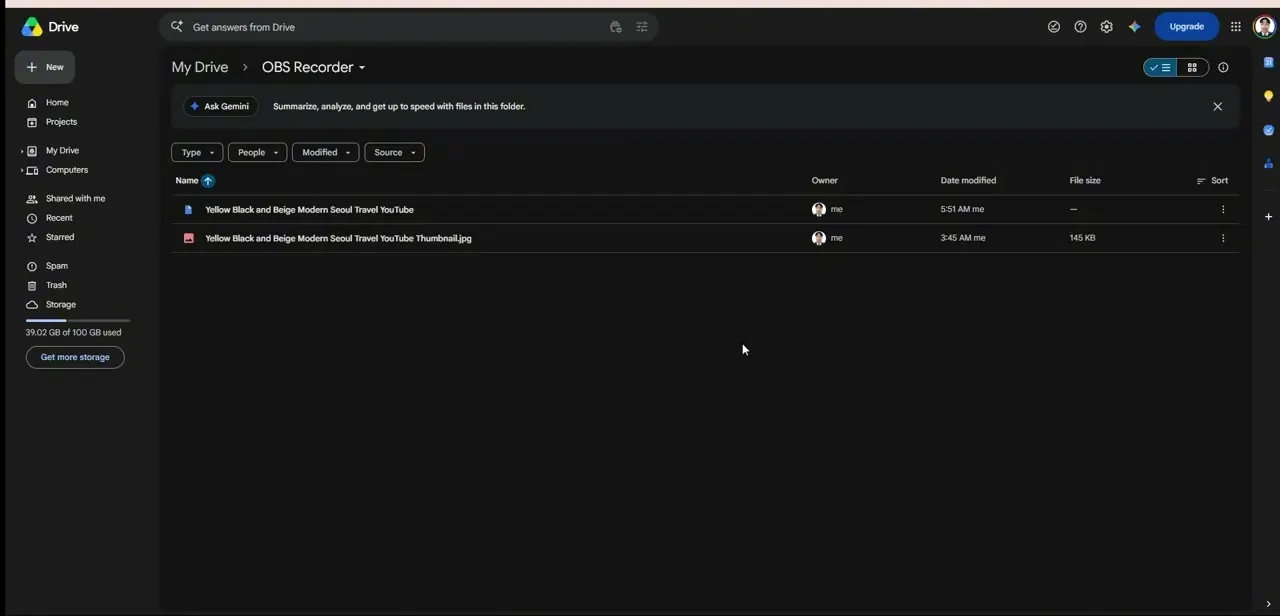
Back in your Drive folder, use the New button or right-click an empty area, and Canva now appears as an option alongside Google Docs and Sheets for creating a new file. Choosing it opens the Canva editor in a new tab and, once you save, drops a linked design file back into that same Drive folder — so a design created this way lives right next to the source images or documents you built it from, instead of scattered across a separate Canva projects list.
05Open existing Drive files straight into Canva
The same right-click, Open with menu you used to install the add-on now lists Canva directly as an option for opening existing files, not just creating new ones. Select an image or document already sitting in Drive and choose Canva to bring it into the editor without a manual upload step — useful for brand assets, client photos, or logos your team already stores in shared Drive folders.
06Disconnect it later if you need to
If you ever want to remove the connection, Google's own Workspace Marketplace and your Google Account's connected apps settings both let you uninstall or revoke Canva's access. Doing so removes it from the Open with menu and the various sidebars, but any designs you already created and saved into Drive stay exactly where they are.
Frequently asked questions
Is connecting Google Drive to Canva free?
Yes — installing Canva as a Google Workspace add-on doesn't cost anything on its own. Your Canva plan (free or Pro) still determines which templates, elements, and export options are available once you're inside the editor.
Can I disconnect Google Drive later?
Yes, you can uninstall the Canva add-on through the Google Workspace Marketplace or your Google Account's connected apps settings at any time.
Will my files be automatically synced?
Files stay stored in Drive, and Canva reads and saves to them through the connection, so changes you make in Canva reflect back in the Drive file when you save — there's no separate manual sync step.
Do I need special permissions to connect my Drive?
Yes — installing the add-on requires approving the permissions Google's Marketplace prompt asks for, since Canva needs access to read and create files in your Drive to work from inside it.
Does this only work in Google Drive, or other Google apps too?
The same install adds Canva to the sidebar in Docs, Sheets, Slides, Calendar, and Gmail as well, not just Drive, since it's installed once at the Google Workspace account level.
Watch the full walkthrough
The same steps, demonstrated on screen from start to finish.


