 Easy Tech Tuts
How to Connect Google Drive to Claude.ai | Ask Your Files Anything | Easily 2026
By Impran M N
Connecting Google Drive to Claude lets you ask questions about the files already sitting in your Drive instead of downloading them, opening each one, and hunting for the answer yourself. The setup takes about three minutes, and most of that time is a standard Google account sign-in rather than anything Claude-specific.
This guide covers exactly where the connector lives inside Claude's settings, what the Google authorization screen looks like, and what to actually expect once your files are searchable from inside a conversation. It also walks through what the connection does and doesn't grant, since understanding the permission boundary matters as much as the setup steps themselves.
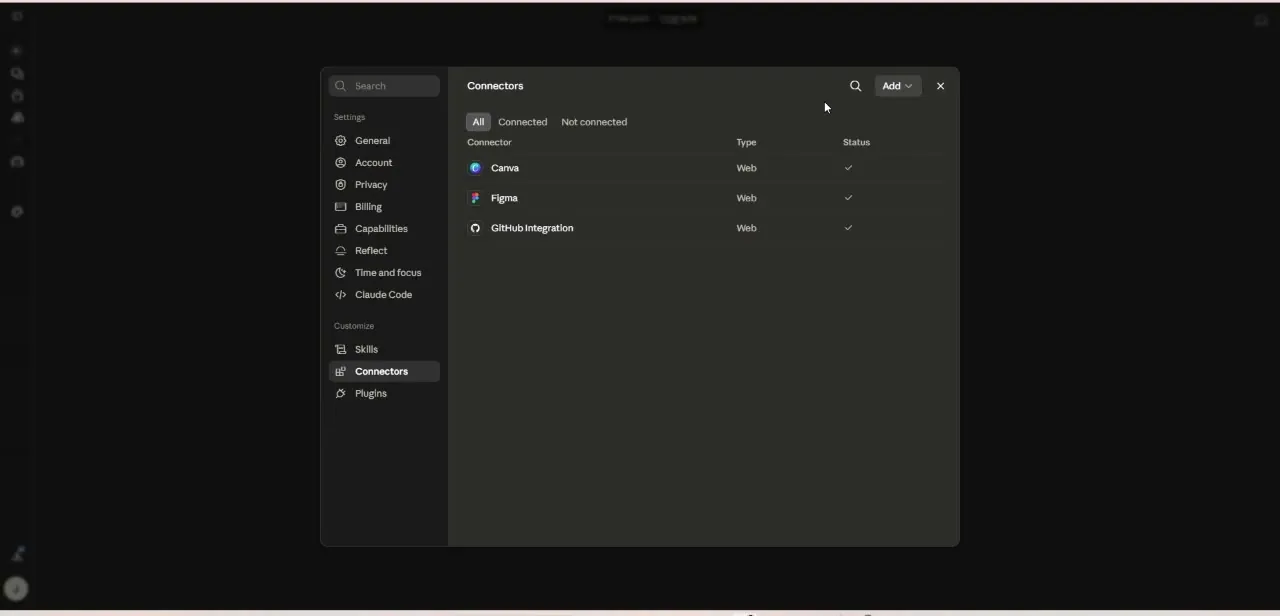
01Open Claude's Connectors settings
Head to Settings inside Claude and open the Connectors page. This is the same place every other integration lives — the example here already shows Canva, Figma, and a GitHub Integration connected, each listed with a Web type and a green checkmark confirming it's active.
Google Drive isn't connected yet at this point, which is exactly the state you're starting from; adding it follows the same pattern as any connector already on the list. Seeing several connectors listed together is a useful reminder that Drive isn't a special case — once you've connected one service this way, adding the next one is largely repeating the same few clicks.
02Add Google Drive and choose your account
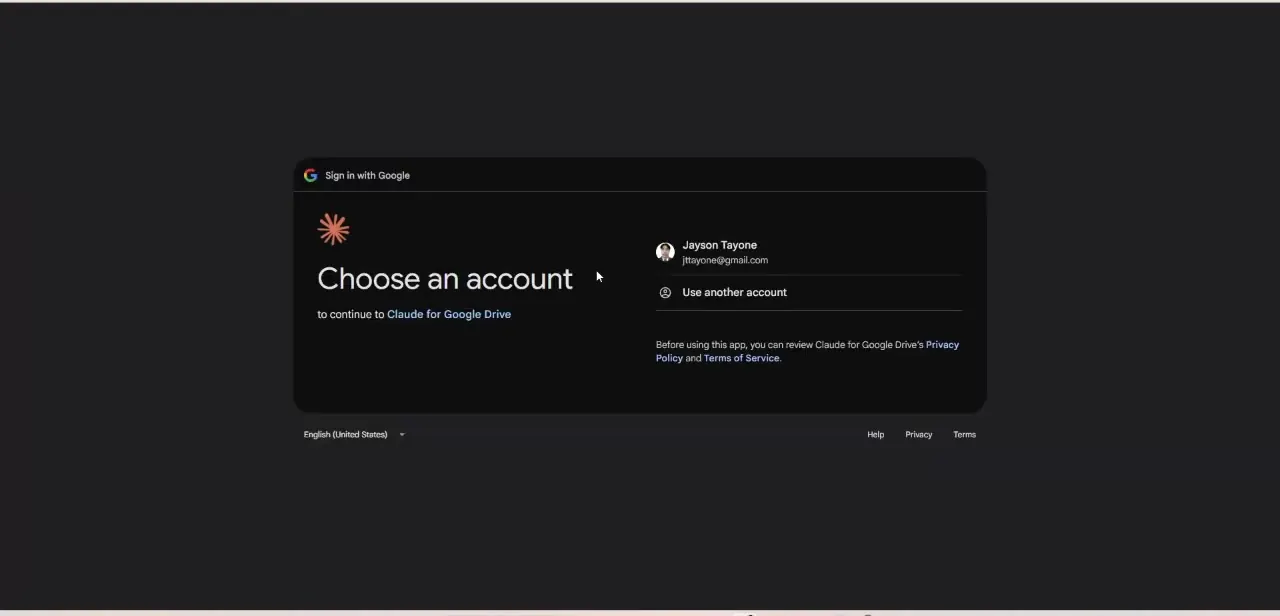
Clicking Add and selecting Google Drive redirects you to a standard Google sign-in screen headed "Choose an account," continuing to "Claude for Google Drive." If you're already signed into Google in that browser, your account will be listed and ready to select; otherwise use "Use another account" to sign in first. Before continuing, Google surfaces links to Claude for Google Drive's privacy policy and terms of service — worth a glance, since this is the point where you're granting an external app access to files in your account.
03Confirm the permissions you're granting
After choosing an account, Google will show you the specific scopes Claude is requesting — typically read access to your Drive files rather than the ability to edit or delete them. Review this screen rather than clicking through automatically, since it tells you precisely what Claude can and can't touch. Once you approve, you're redirected back to Claude and Google Drive will now appear in your Connectors list alongside the others, marked as connected.
04Understand how file queries actually work
With Drive connected, you can ask Claude about a document by name, request a summary of a spreadsheet, or ask it to find a file related to a topic without knowing exactly where it's stored. Claude searches within the scope of what your Google account has access to, so shared drives and folders you can already open are fair game, while anything outside your own permissions stays out of reach — the connector doesn't expand what you can see, only how you can ask about it. Being specific in your query still helps: naming the file, the folder it's likely in, or an approximate date narrows the search the same way it would if you were using Drive's own search bar.
05Apply it to real work
This is most useful for retrieving information you know exists somewhere in Drive but don't want to manually search for — pulling figures from a report before a meeting, checking what a contract says without reopening it, or asking Claude to compare two versions of a document. For small teams, it turns Drive from a folder structure you have to remember into something you can just ask questions of directly.
06Keep the connection tidy as you go
If you ever want to disconnect Google Drive, the same Connectors settings page is where you'll remove it, and you can also revoke Claude's access directly from your Google Account's third-party app permissions. Checking back on this list periodically is good practice once you've connected several tools, since it's the fastest way to see everything Claude currently has access to in one place.
07Pair it with other connectors thoughtfully
Drive tends to be most useful alongside other connectors rather than on its own — reference a document from Drive while drafting something in another connected tool, or pull background from a file before asking Claude to summarize a related conversation elsewhere. Add connectors one at a time as you find an actual use for them rather than turning everything on up front; it keeps your Connectors list easy to audit and makes it obvious what Claude can currently reach.
Frequently asked questions
How long does it take to connect Google Drive to Claude?
Only a few minutes — most of the process is a standard Google account sign-in and permission confirmation, the same flow you'd see connecting Drive to any third-party app.
Where do I find the Google Drive connector in Claude?
In Claude's Settings, under Connectors. Click Add and select Google Drive to start the Google sign-in flow.
What can Claude actually see once Drive is connected?
Only the files and folders your signed-in Google account already has access to. The connector changes how you can ask about your files, not what you're permitted to see.
Is this integration only for large businesses?
No — it's just as useful for freelancers and small teams who want to ask questions about their own files without manually digging through folders.
How do I revoke Claude's access to my Drive later?
Remove Google Drive from Claude's Connectors settings, or revoke access directly from your Google Account's third-party app permissions page.
Watch the full walkthrough
The same steps, demonstrated on screen from start to finish.


