 Easy Tech Tuts
How to Connect Google Drive Folder to Power BI (Cloud File Setup) Easily 2026
By Impran M N
Power BI doesn't have a dedicated "Google Drive folder" connector the way it does for OneDrive or SharePoint, which surprises people who assume the two integrate as smoothly as Microsoft's own cloud storage. The practical workaround is connecting through the file's shareable link — most commonly a Google Sheets URL — so Power BI pulls data straight from Google's cloud rather than a downloaded copy sitting on your desktop. This guide covers where that connector lives, how the URL-based connection and Google sign-in actually work, and how to keep the link stable so it doesn't break the next time someone renames the file.
01Get your Google file link ready before opening Power BI
Open the Google Sheet you want to report on and use Share to generate a link, making sure sharing is set to at least "Anyone with the link can view" — Power BI needs to reach the file over the web, and a link restricted to specific people it can't authenticate as will fail silently. Copy the full URL from the address bar or the share dialog; you'll paste this directly into Power BI in the next step, so keep it on your clipboard or in a notes file rather than retyping it.
02Add the Google Sheets connector from Get Data
In Power BI Desktop, choose Get Data and search for Google Sheets rather than looking under a Google or Drive category, since that's the specific connector Microsoft ships for this. Selecting it opens a small dialog with a single field for the Google Sheet URL. This is the actual mechanism behind "connecting a Drive folder" in practice — you're not browsing a folder tree the way you would with OneDrive, you're pointing Power BI at one file's address directly.
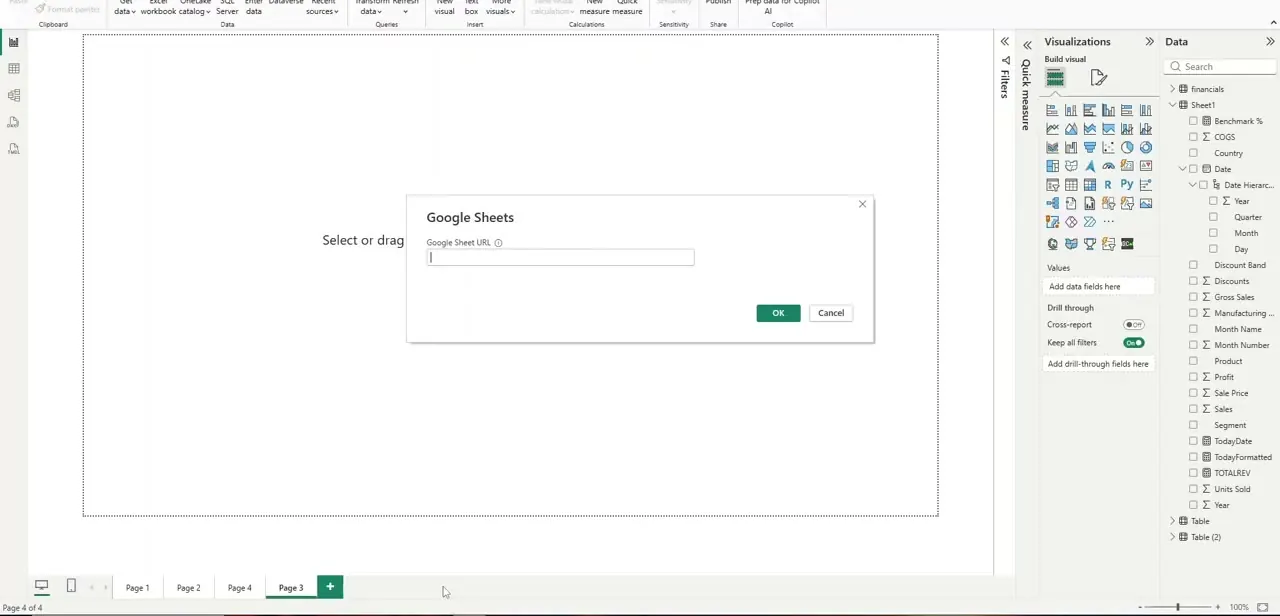
03Sign in with the Google account that owns or can view the file
After pasting the URL and confirming, Power BI opens a Google authentication window. If you're already signed in on that machine, it shows your current account with a "You are currently signed in" message and a Sign in as different user option — useful if the sheet lives under a work account separate from your personal Google login. Pick the account that actually has view access to the file; signing in with the wrong Google identity is the most common reason this step silently fails to connect.
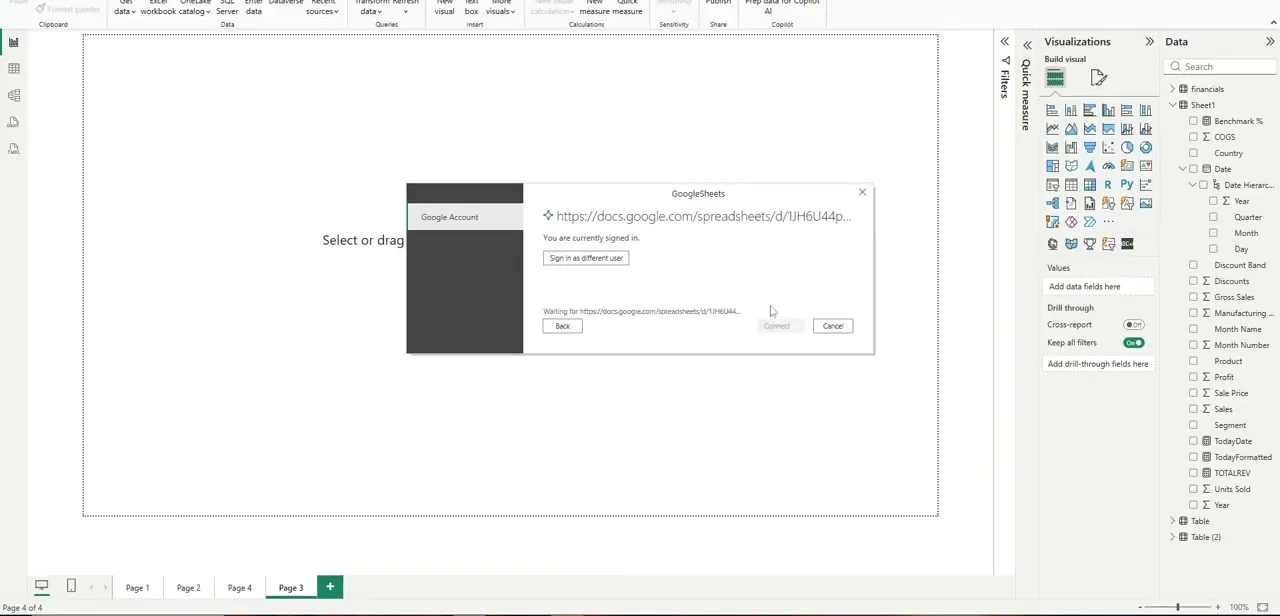
04Load the data and check what came through
Once authenticated, Power BI reads the sheet's tabs and presents them in the Navigator, where you select which ones to load, similar to how it handles a multi-tab Excel workbook. Review the column headers and data types before clicking Load, since Google Sheets doesn't always type columns as cleanly as Excel does — dates and numbers imported as text are a common cleanup step you'll want to catch in Power Query before building visuals on top of them.
05Keep the link stable so the connection doesn't break
This setup is only as reliable as the URL you connected to, so avoid moving the Google Sheet to a different folder or changing its sharing permissions after the fact — either can break the refresh without any obvious error message pointing to the cause. If your team reorganizes Drive folders often, it's worth keeping a single "reporting source" folder that stays put, with the actual sheets living inside it, so the links Power BI depends on never have to change.
06Automate refreshes once the connection is solid
Publish the report to the Power BI service and set a scheduled refresh from the dataset settings, the same as you would for any cloud-based source. Because the underlying connector authenticates against Google rather than Microsoft's own cloud, double-check that the scheduled refresh completes successfully after publishing — mismatched account permissions between your desktop session and the service account are a common first-run snag worth catching early rather than discovering during a live report.
Frequently asked questions
Does Power BI have a native Google Drive folder connector?
No. Power BI connects to individual Google Sheets by URL through its Google Sheets connector rather than browsing a Drive folder structure the way it does with OneDrive or SharePoint.
Do I need special permissions to connect a Google Sheet to Power BI?
The sheet needs to be shared with at least "Anyone with the link can view" access, and you need to sign in with a Google account that has permission to view it during the connector's authentication step.
Will changes to my Google Sheet show up automatically in Power BI?
Yes, once you publish the report and configure a scheduled refresh in the Power BI service. Without a refresh schedule, the data stays frozen at whatever it was when you last loaded it.
Why did my Google Sheets connection stop working after I moved the file?
Power BI connects to the specific URL you provided. Moving the file to a different folder or changing its sharing settings can change or invalidate that link, breaking the refresh.
Is this setup suitable for a small business without dedicated IT support?
Yes — it uses cloud storage most small teams already have rather than requiring new infrastructure, though it's worth having one person own the sharing settings so the connection doesn't break unexpectedly.
Watch the full walkthrough
The same steps, demonstrated on screen from start to finish.


