 Easy Tech Tuts
How to Remove Gemini AI Photo Watermark | What's Actually Allowed | Easily 2026
By Impran M N
Gemini stamps a small watermark on the images it generates, and if you're planning to use that image in a client deliverable, an ad, or a product mockup, a watermark in the corner is a problem. This guide covers a practical way to remove it using Canva's Magic Eraser, a free tool that's more reliable on complex backgrounds than most people expect, plus the compliance question that matters more than the technical steps: what you're actually allowed to do with an AI-generated image once the watermark is gone. Get that part right first, since the editing itself takes seconds — the part people skip is the part that actually determines whether the final image is safe to publish.
01Understand what's actually allowed before you edit anything
AI image generators including Gemini attach watermarks partly to signal that an image is AI-generated, and removing that marker doesn't change the image's underlying origin or your rights to it. Google's terms govern how Gemini-generated images can be used, and those terms — not the presence or absence of a visible watermark — are what actually determine whether a given use is permitted.
This guide isn't legal advice: if you're using generated images commercially, especially in a business or client context, read the current terms for the plan you're on and check whether disclosure of AI-generated content applies in your region before you publish anything. Some platforms and ad networks have their own separate rules about AI-generated imagery too, so it's worth checking the destination — a social platform, a print vendor, an ad network — in addition to Google's own terms, since a use that's fine under one policy can still run into a different one downstream.
02Generate or locate the image in Gemini
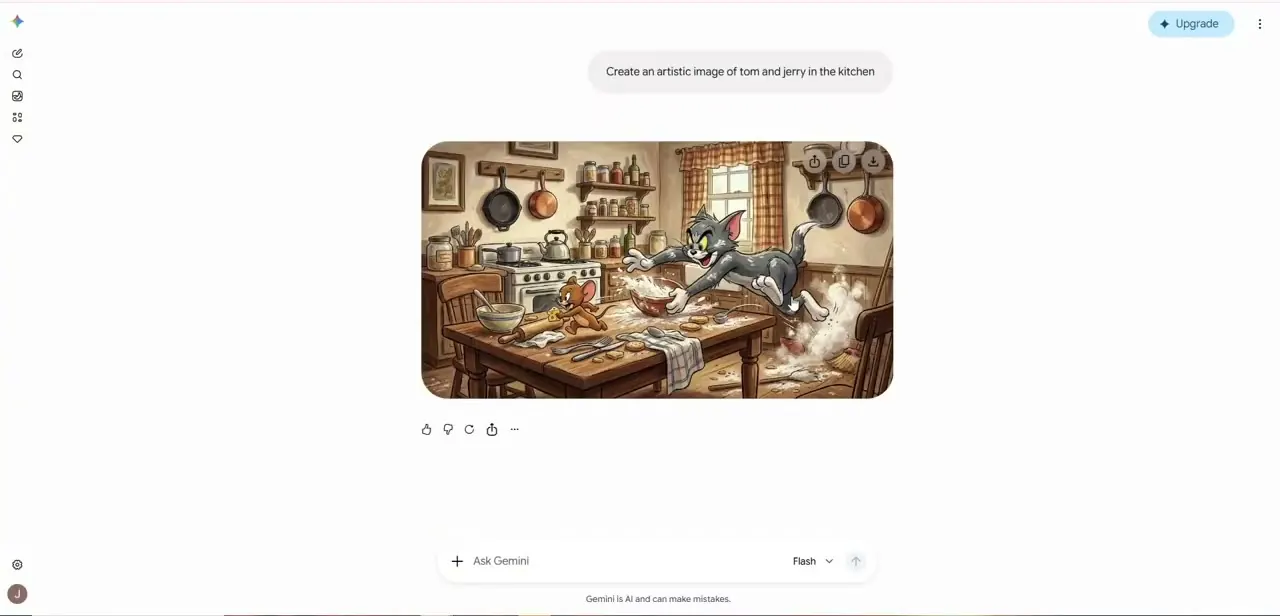
Open Gemini and either generate a new image from a prompt or pull up one you've already created. The example here is a simple test case — an artistic image of two cartoon characters in a kitchen — generated directly in the Gemini chat interface, which stamps its usual small watermark into the corner of the output once the image renders. If you're generating specifically for this workflow, aim for a composition with a reasonably busy or textured background rather than a lot of flat empty space, since that detail makes the watermark removal step later noticeably easier to pull off cleanly.
03Download the image at full resolution
Use the download icon on the image to save it locally rather than screenshotting it — a screenshot compresses the image and can make later edits, including watermark removal, look noticeably rougher around the edges. Keep the original file somewhere you can get back to it, since you'll want it as a fallback if an edit doesn't turn out the way you expected. It's also worth keeping a personal record of your original prompt alongside the file, so you can regenerate a fresh version quickly if the edited copy ever needs redoing from scratch rather than patched further.
04Open a blank canvas in Canva
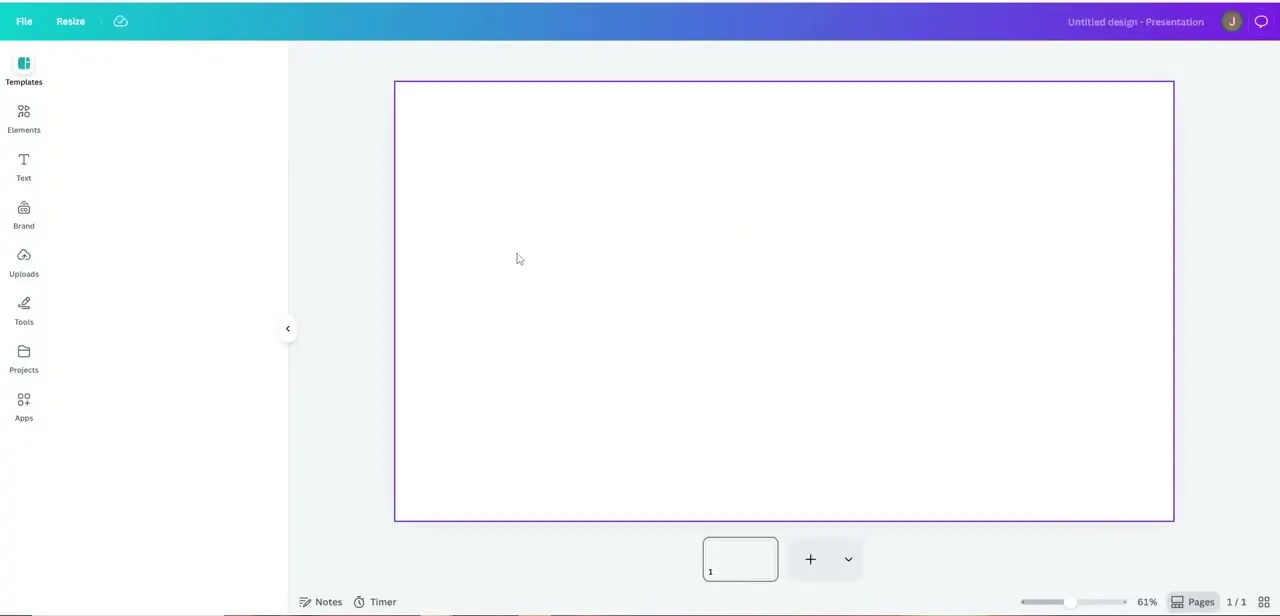
Start a new design in Canva and upload the downloaded image onto the canvas. Canva's free tier includes the tools needed for this specific job, so there's no need for a paid plan or a separate photo editor just to clean up one watermark.
05Remove the watermark with Magic Eraser
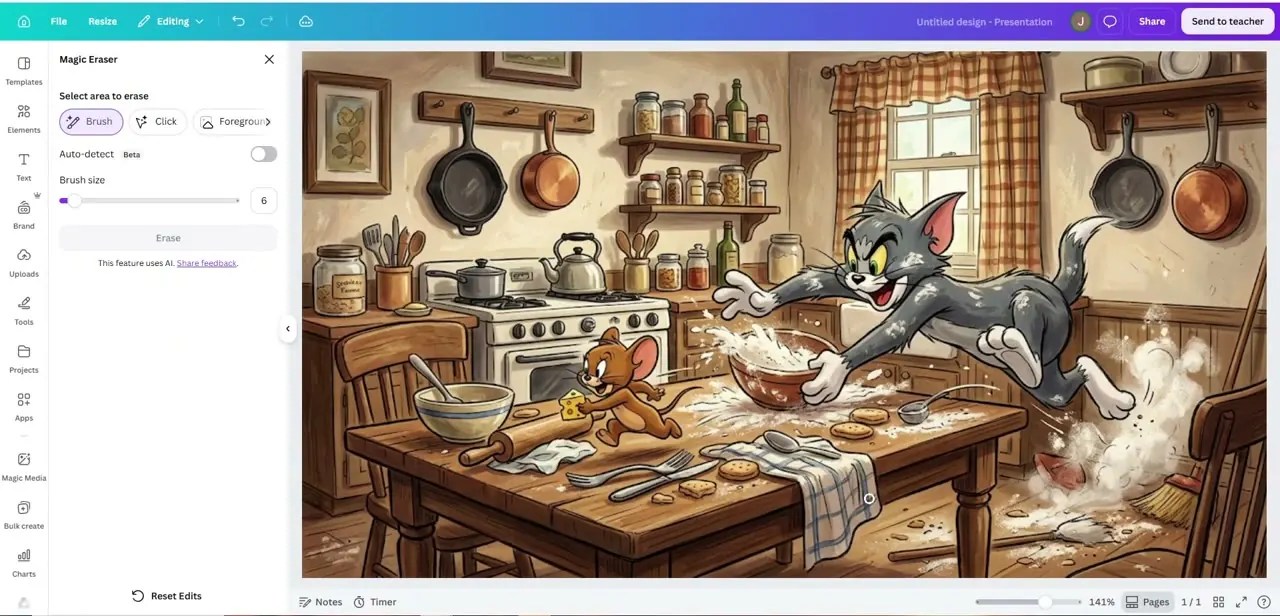
With the image placed on the canvas, open Canva's Magic Eraser tool from the editing panel. Select the Brush option, size it to roughly cover the watermark without spilling much past its edges, and paint over the mark.
The tool uses AI to fill in what it predicts should be there based on the surrounding pixels, which works cleanly on busy backgrounds like the kitchen scene shown here, where there's plenty of surrounding detail for it to blend into. There's also a Click mode and a Foreground option alongside Brush, which can work better for a watermark sitting on a single flat-colored area rather than a mixed, detailed one — worth trying if Brush doesn't give a clean result on your first attempt.
06Check the result before you rely on it
Zoom in on the area you just erased and look for smudging, warped lines, or a patch that doesn't quite match the surrounding texture — Magic Eraser is good, not perfect, and busier backgrounds tend to hide small mistakes better than flat, solid-colored ones. If the first pass leaves an obvious artifact, undo and try a smaller brush size or a couple of shorter strokes instead of one long pass. It also helps to check the edit at both actual size and zoomed in, since something that looks perfectly clean at a glance can still show a faint seam once you view it at full resolution, which matters if the image is headed for print or a large display.
07Export and use the image within the rules you checked earlier
Download the final version from Canva once you're happy with it. Before it goes into a client deliverable, an ad campaign, or any commercial use, circle back to the terms you reviewed in the first step — a clean image with no visible watermark doesn't automatically mean every use case is covered, and getting that confirmed up front is a lot cheaper than finding out otherwise after the image is already published. Keep a note of which images went through this process, especially in a shared team folder, so anyone reusing the asset later knows it started as an AI generation and can check the same terms before repurposing it somewhere new.
Frequently asked questions
Is it legal to remove the watermark from a Gemini AI image?
This depends on how you intend to use the image and the terms that apply to your Gemini plan — removing a watermark doesn't itself violate copyright law, but it doesn't grant you rights you didn't already have either. Check Google's current terms for your use case, particularly for commercial work.
Do I need paid software to remove an AI watermark?
No. Canva's free tier includes the Magic Eraser tool used in this guide, which is enough for a single watermark on an otherwise clean image.
Does Magic Eraser work on any background?
It works best on busy or textured backgrounds where the tool has plenty of surrounding detail to blend into. Flat, solid-colored backgrounds make any smudging or artifacts from the edit more noticeable.
Can businesses use watermark-free Gemini images in marketing?
Often yes, but confirm this against the applicable terms for your account and region before publishing, since disclosure requirements for AI-generated content vary and aren't determined by whether a watermark is visible.
What should I do if the erased area looks smudged?
Undo the edit and try again with a smaller brush size or a couple of shorter strokes rather than one large pass — this usually produces a cleaner blend than trying to cover the whole watermark in a single stroke.
Watch the full walkthrough
The same steps, demonstrated on screen from start to finish.


