 Easy Tech Tuts
How to Copy and Paste Content From Google Gemini to a Word Document Easily 2026
By Impran M N
Moving a long Gemini response into a Word document sounds trivial until the formatting shows up wrong — bullet points collapse into one paragraph, headers lose their bold, and you end up cleaning up more than you saved by not typing it yourself. Gemini has a copy button built into every response specifically to avoid this, and using it instead of manually selecting text is the difference between a clean paste and twenty minutes of reformatting.
This matters most for the kind of content Gemini is genuinely good at producing — structured research summaries, numbered lists with sub-points, and multi-section reports — which are exactly the formats that break the worst when copied the wrong way. This guide covers getting a response out of Gemini and into Word with its structure intact, plus what to check once it lands and how to fix the occasional thing that still comes through wrong.
01Open Gemini and start your request
Go to gemini.google.com and use the prompt box to ask for whatever content you need — a report section, a research summary, a list, anything with real structure to it. Gemini's plain "Ready when you are" screen is the starting point for every session, and there's nothing to configure here before you begin; the copy tooling you'll use later is attached automatically to every response Gemini generates. If you already know you'll want the output broken into clear sections with headers, say so directly in your prompt — asking for a structured response with labeled sections up front produces something that pastes far more cleanly than a plain paragraph you'd have to reformat by hand afterward.

02Let the response finish generating fully
Wait for Gemini to finish writing before you try to copy anything — a response mid-generation can cut off structure like numbered headers or nested bullet points if you grab it too early. Longer, structured responses like multi-section lists benefit especially from this, since Gemini builds out headers and sub-points as it goes rather than all at once, and a section that looks complete on screen may still be a few sub-points away from finished. Watch for the icon row below the response to appear — that's your visual signal that generation has actually stopped and the content is stable enough to copy.
03Use the copy icon instead of selecting text manually
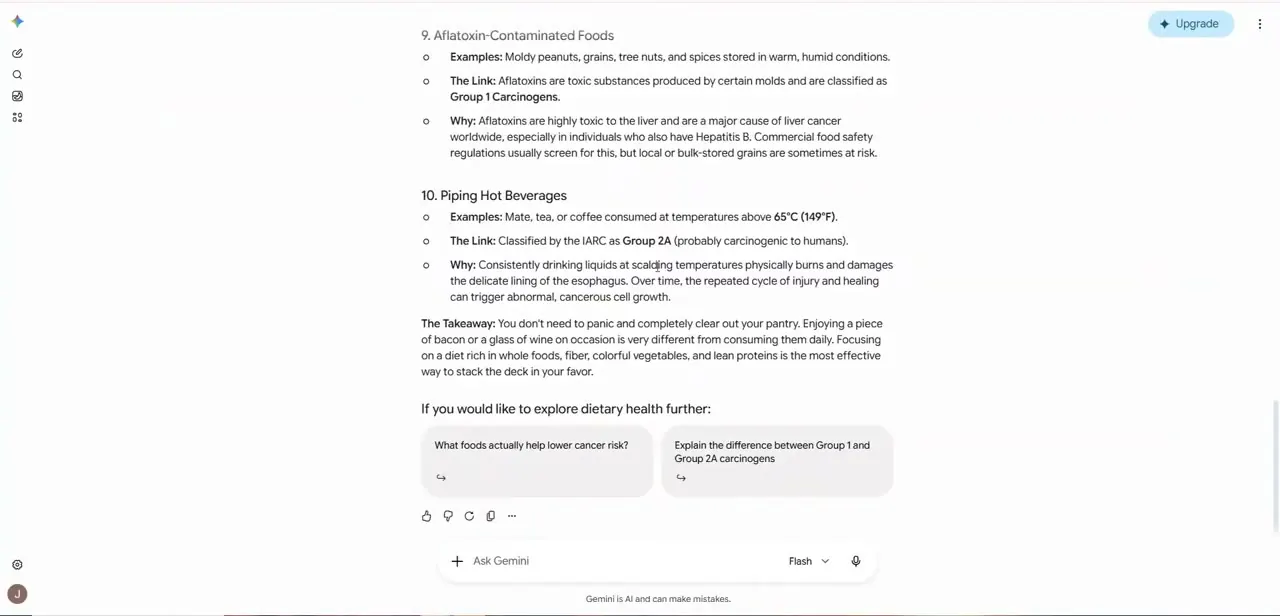
At the bottom of a finished response, Gemini shows a small row of icons — thumbs up and down, a regenerate arrow, and a copy icon. Click the copy icon rather than dragging your cursor across the text.
Manual selection tends to grab surrounding UI elements or miss the boundary of a formatted block, while the copy button captures the response's actual structure — headers, bold text, and bullet or numbered lists — the way Gemini intended it to be read. This one click replaces what would otherwise be a careful, precise drag across a long response, and it's far less error-prone on a touchpad or a smaller screen where manual selection is fiddly to begin with.
04Paste into Word using the default paste option
In your Word document, place your cursor where you want the content and paste normally with Ctrl+V or Cmd+V. Word's default paste behavior generally preserves headers, bold text, and list formatting reasonably well when the source content was copied through Gemini's copy button rather than a manual selection, since it's carrying real structural markup instead of plain highlighted text. If you're pasting into a document that already has its own established styles, Word sometimes offers a small paste-options icon right after you paste — worth clicking to choose "Match destination formatting" if you want the incoming text to immediately blend with the rest of the document instead of carrying its own font.
05Check formatting immediately after pasting
Scroll through what just landed and check three things specifically: that numbered lists kept their numbers instead of turning into plain paragraphs, that bold or heading text still looks distinct from body text, and that nested sub-points (like the "Examples," "The Link," and "Why" structure common in Gemini's research-style answers) kept their indentation. Catching an issue here takes seconds; catching it after you've kept editing around it takes much longer.
06Fix the occasional formatting mismatch
If something did come through wrong — usually an inconsistent font or a heading that pasted as regular text — select just that section and use Word's Format Painter, or reapply the correct Style from the Home tab, rather than manually adjusting font size and weight by hand. This keeps the section consistent with the rest of your document instead of creating a one-off formatting exception that's easy to forget about later.
07Build a faster habit for repeat transfers
Once you're doing this regularly, keep a Word document with your usual heading styles already set up, so pasted Gemini content can absorb the local formatting quickly with a Style match instead of you rebuilding headers from scratch each time. For long reports pulled together from multiple Gemini responses, paste each section as you go rather than compiling everything in Gemini first — it's easier to fix one section's formatting immediately than to untangle several pasted blocks at once after the fact. This also gives you a natural checkpoint to review each section for accuracy before moving to the next, rather than discovering an issue only after the whole document is assembled.
Frequently asked questions
Why does content look wrong after pasting from Gemini into Word?
This usually happens when text was manually selected and dragged rather than copied with Gemini's copy button, which strips out the structural formatting like headers and list numbering that the copy button preserves.
Where is the copy button on a Gemini response?
It's part of the small icon row below a finished response, alongside thumbs up/down and a regenerate option. It only appears once the response has fully finished generating.
Do I need to wait for Gemini to finish before copying?
Yes. Copying a response mid-generation can cut off headers or nested bullet points before Gemini has finished building out the full structure.
What's the fastest way to fix a formatting mismatch after pasting?
Use Word's Format Painter or reapply the correct paragraph Style from the Home tab rather than manually adjusting font size and weight, which keeps the pasted section consistent with the rest of the document.
What kinds of Gemini content transfer best into Word?
Structured content — numbered lists, headers, and clearly bolded terms — transfers most reliably, since Word's paste behavior is built to recognize and preserve that kind of formatting.
Watch the full walkthrough
The same steps, demonstrated on screen from start to finish.


