Easy Tech Tuts
How to Design a Facebook Ad Post in Canva for Real Estate with this Tutorial Easily 2026
By Impran M N
A real estate listing has to work harder in a Facebook feed than it does on a listing site — people are scrolling past it, not searching for it. Canva's dedicated Facebook Ad format gives you a canvas sized correctly for Meta's ad specs from the start, and its template library includes layouts built for exactly this kind of announcement. This guide walks through picking a starting template, swapping in real property photos, and building the short, scannable feature list that makes a listing ad actually stop the scroll.
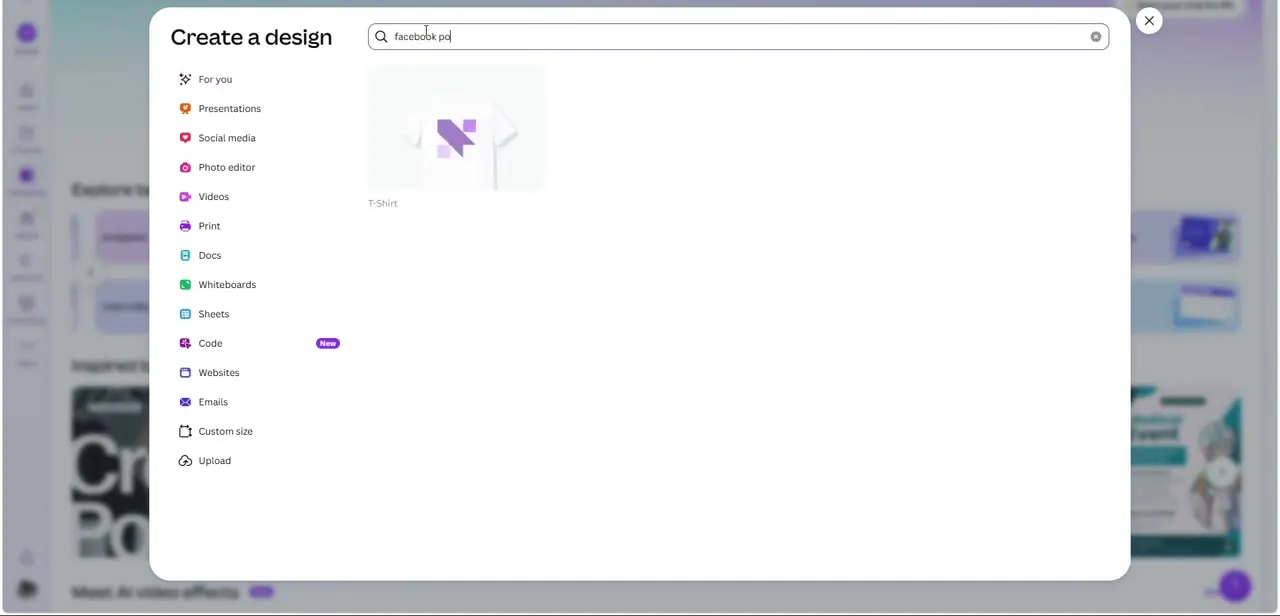
01Start a Facebook Ad design and browse templates
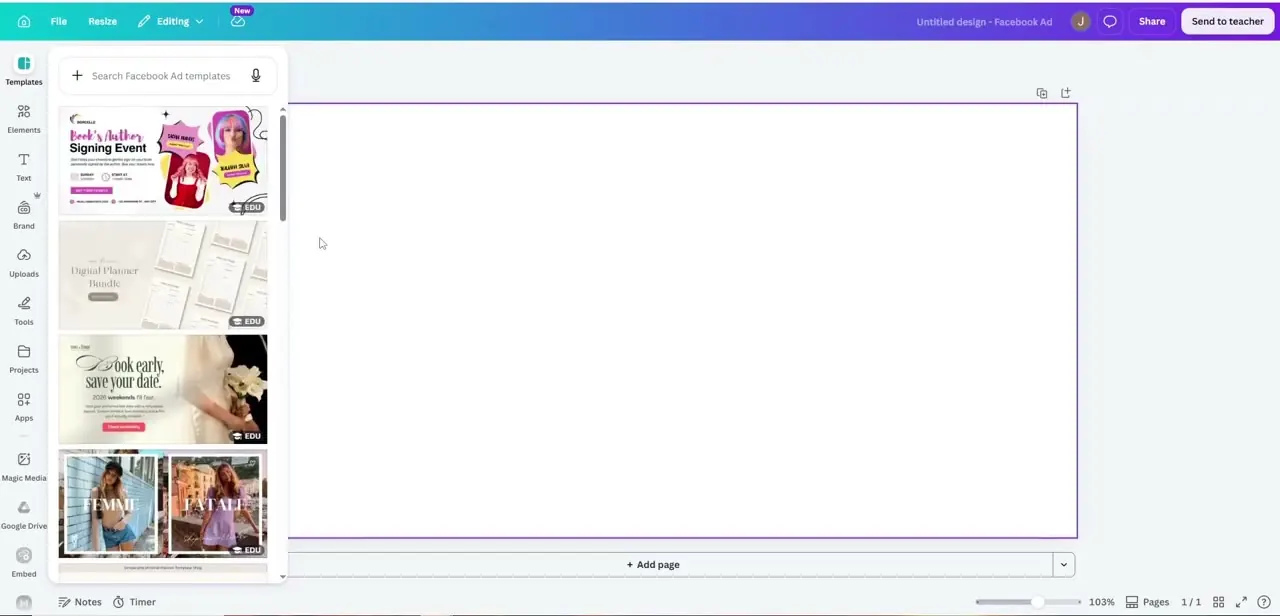
Search for Facebook Ad as your design type in Canva, which opens a blank canvas pre-sized to Meta's ad dimensions on the right and a template search panel on the left. Type a relevant search term into the "Search Facebook Ad templates" box, and Canva returns a scrollable list of ready-made layouts — some clearly aimed at events or announcements, others closer to product or lifestyle promotion. None need to match real estate exactly; you're looking for a layout structure — a strong headline zone, room for a photo, and space for supporting text — that you can reskin with property content.
02Swap in your property photos through Uploads
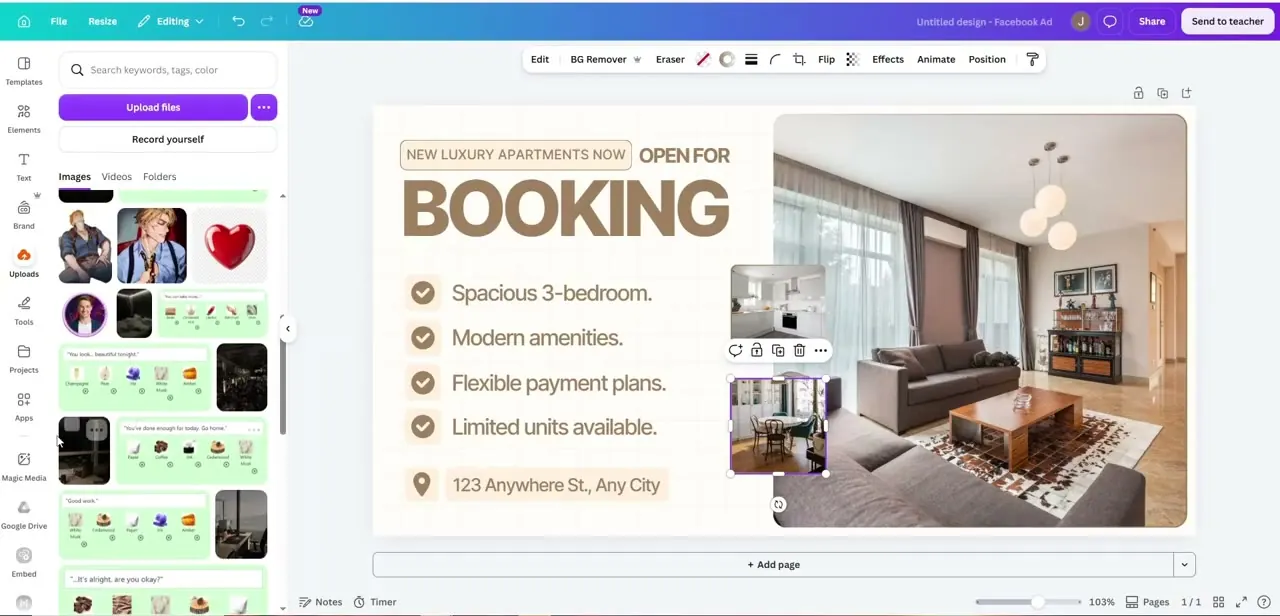
Open the Uploads panel and either upload new listing photos or select ones already added to your Canva account, then drag them directly onto the template's image placeholders. In this build, a large living-room photo anchors the right side of the ad while two smaller uploaded photos — a kitchen shot and an additional room — sit stacked in the corner, giving the ad more than one angle of the property without cluttering the main image. Choose the photo with the best light and the widest, most flattering angle for the primary spot, since that's what carries the ad's first impression.
03Write a headline and a short feature checklist
Replace the template's placeholder headline with your actual offer — "New Luxury Apartments Now Open for Booking" in this example — kept short enough to read in a second of scrolling. Below it, a checklist-style list with checkmark icons next to short phrases ("Spacious 2-bedroom," "Modern amenities," "Flexible payment plans," "Limited units available") does more work than a paragraph of copy, since Facebook ad viewers scan rather than read. Close with the address or a location line so the ad clearly signals where the property actually is.
04Round out the layout with Canva's Elements panel
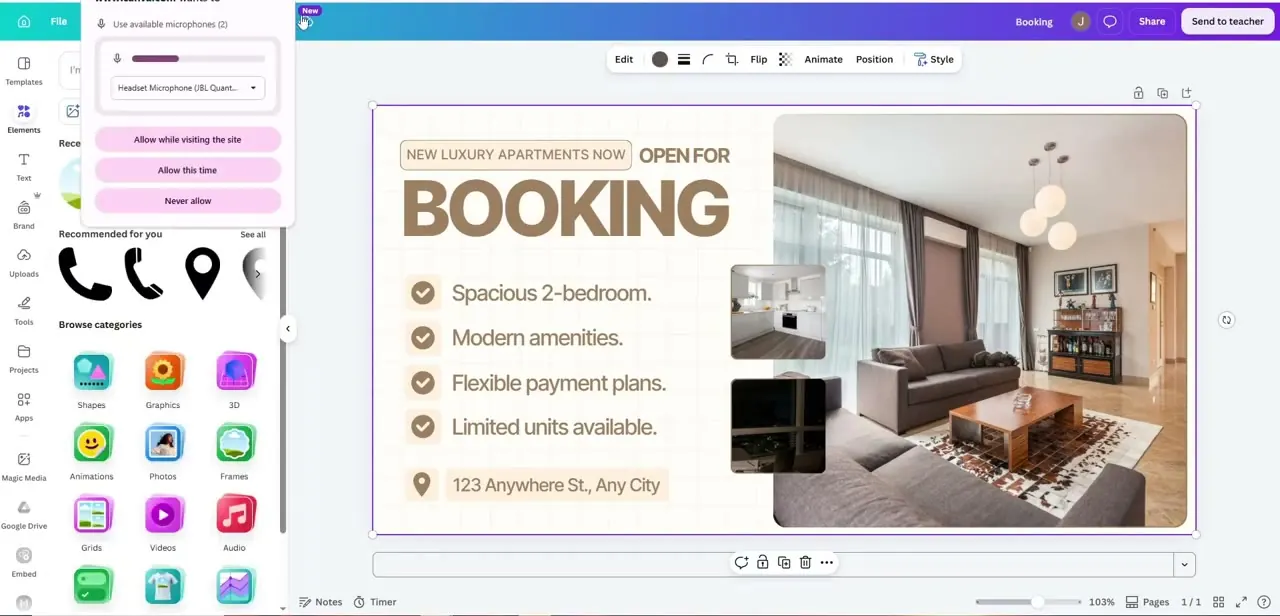
The Elements panel organizes Canva's graphic library into browsable categories — Shapes, Graphics, 3D, Animations, Photos, Frames, Grids, Videos, and Audio — searchable by keyword if you know what you want, or browsable by category if you're looking for inspiration. A small icon set for amenities, a subtle divider line between the headline and the checklist, or a frame around a secondary photo are the kinds of small additions from this panel that make a template feel custom rather than obviously reused.
05Apply your brand colors and logo
Swap the template's default color palette for your agency's actual brand colors, and place your logo in a consistent spot — a corner or the header band works well without competing with the property photo. If you've set up a Brand Kit in Canva, apply it directly rather than manually reselecting colors each time, which also keeps every listing ad you produce visually consistent as a series rather than looking like one-off designs.
06Export at the right size for Ads Manager
Once the design is finished, use Download and choose PNG or JPG at the resolution Canva's Facebook Ad template already sized for you, so there's no guessing at dimensions before upload. Bring the file into Meta Ads Manager, attach your ad copy and targeting, and if you're running more than one listing, duplicate the Canva file and swap the photos, headline, and checklist rather than starting each new ad from scratch.
Frequently asked questions
What size should a Facebook ad image be?
Canva's Facebook Ad templates are pre-sized to Meta's recommended ad dimensions, so starting from that design type means you don't have to calculate or set the size yourself.
Can I create multiple listing ads quickly?
Yes — duplicate a finished design and swap in new photos, the headline, and the feature checklist for each new property, which is much faster than rebuilding the layout from scratch.
Do I need design experience to make a real estate ad in Canva?
No — starting from a Facebook Ad template means most of the work is replacing placeholder photos and text rather than building a layout from a blank canvas.
Can I animate the ad for more engagement?
Yes, Canva's Animate option (available from the toolbar above a selected design) can turn a static ad into a short animated version, useful if you're running it as a video-format placement instead of a static image.
Where do I find real estate-specific icons for the feature list?
The Elements panel's Graphics and Shapes categories are searchable — typing terms like "bedroom," "location pin," or "checkmark" surfaces relevant icons you can drop straight into a feature list.
Watch the full walkthrough
The same steps, demonstrated on screen from start to finish.