 Easy Tech Tuts
How to Import Data From Excel into QuickBooks Online Easily 2026
By Impran M N
Retyping a spreadsheet full of debits and credits into QuickBooks Online is slow and invites transcription errors. QuickBooks Online's journal entry screen includes a paste-from-Excel option that takes rows you've already built in a spreadsheet and drops them straight into the entry table, filling in accounts, amounts, and descriptions in one move instead of one field at a time. This guide covers preparing that spreadsheet, finding the paste option inside a journal entry, and getting the data in cleanly.
01Start from your QuickBooks Online dashboard
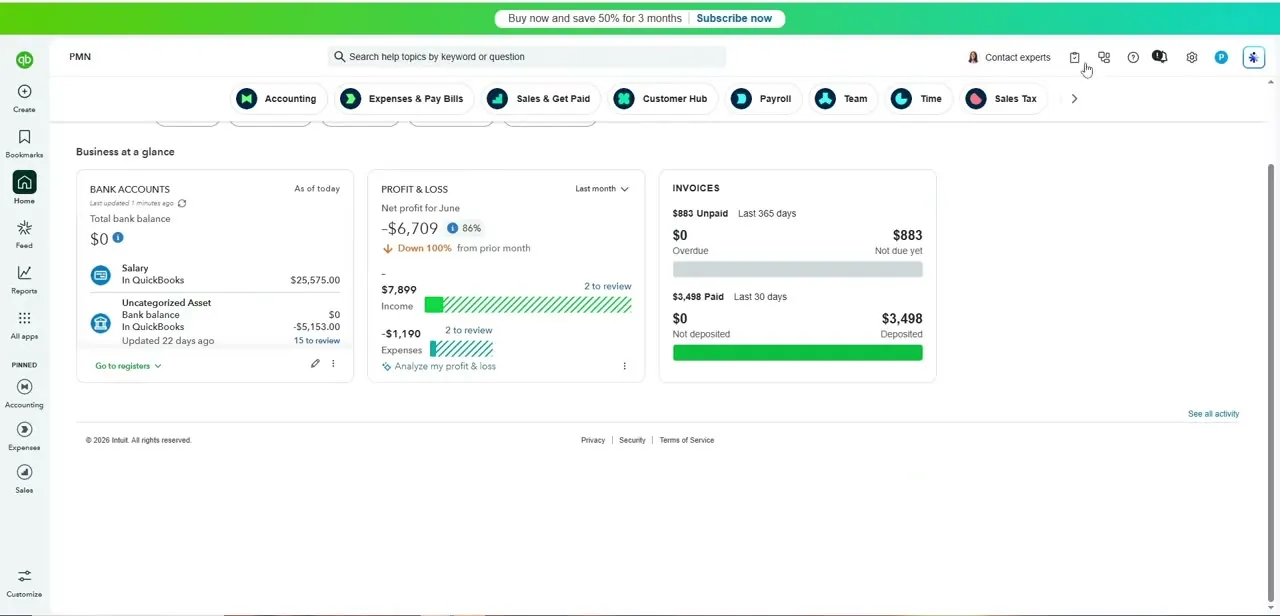
Log in and land on the homepage, where "Business at a glance" shows your bank balances, profit and loss, and invoice status across three cards. This is your normal working view, and it's also where you'll navigate from to create the journal entry you're about to fill with pasted data — from here, use the Create menu (the plus icon) and choose Journal entry to open a blank entry.
02Prepare your Excel data to match the entry columns
A journal entry table in QuickBooks Online has fixed columns — Account, Debits, Credits, Description, and Name — so your Excel rows need to line up with that order before you copy them. Put each transaction line on its own row with the account name spelled exactly as it appears in your QuickBooks chart of accounts, since a mismatched name won't map automatically. Leave a header row out of your copied range; QuickBooks expects raw data starting at row one of the entry table, not a labeled header.
03Open a blank journal entry
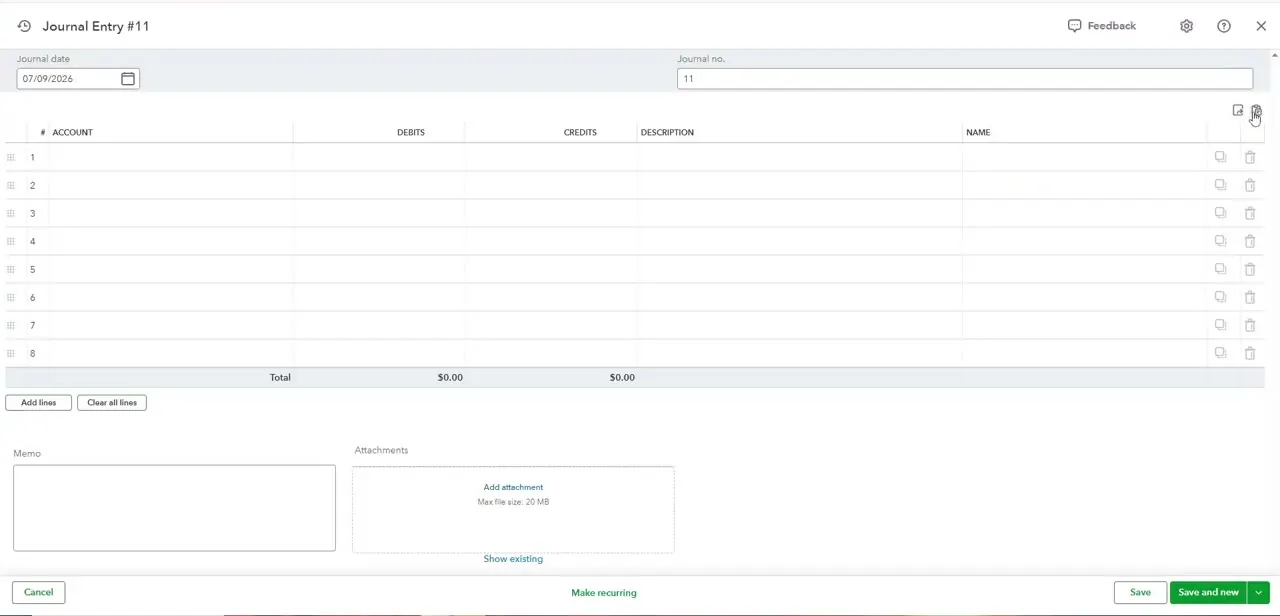
A new journal entry opens with a numbered grid of empty rows under Account, Debits, Credits, Description, and Name, plus a Journal date and Journal number at the top. Small toolbar icons sit above the top-right corner of the grid — one of them is the paste option that accepts rows copied from Excel, distinct from manually clicking into each cell. Below the grid, Add lines and Clear all lines give you a manual fallback if you only need to adjust a couple of rows after pasting.
04Copy your rows in Excel and paste them into the grid
Back in Excel, select the range of cells covering just your data rows — account through name, no headers — and copy it. Return to QuickBooks Online, click the paste icon above the journal entry table, and the copied rows populate the grid's Account, Debits, Credits, Description, and Name columns in the same order they were arranged in Excel. This single action replaces manually retyping each line, which is the entire point of using this route instead of the standard entry form.
05Check the mapping and fix any mismatches
Scroll through the populated rows and confirm each Account field resolved to a real account in your chart of accounts rather than sitting blank — a typo or slightly different spelling from Excel will paste as plain text QuickBooks doesn't recognize, and you'll need to reselect the correct account from the dropdown manually. Also confirm the Total row at the bottom shows matching Debits and Credits; a journal entry won't save until both sides balance to zero difference.
06Add a memo, attach the source file, and save
Use the Memo field to note what the entry represents and why it was made — useful context for anyone reviewing the books later, including your future self. The Attachments panel lets you upload the original Excel file or supporting documentation directly to the entry, up to 20 MB, which keeps the source data linked to the transaction instead of living only on your computer. Click Save, or Save and new if you have another entry to build from a different spreadsheet.
Frequently asked questions
What types of data can I import from Excel into QuickBooks Online?
This paste method works specifically for journal entries — debits, credits, accounts, and descriptions. Customers, vendors, and products use separate dedicated import tools elsewhere in QuickBooks Online, not the journal entry paste feature.
What happens if my account names don't match exactly?
A pasted account name that doesn't exactly match your chart of accounts won't auto-select an account — that row's Account field will need to be manually corrected from the dropdown after pasting.
Can I undo a journal entry if something goes wrong?
Yes — an existing journal entry can be edited or deleted from its detail screen after saving, so a mistake isn't permanent, but it's still worth reviewing the pasted rows carefully before you save the first time.
Is there a limit to how many rows I can paste at once?
A single journal entry is limited to the rows QuickBooks Online's entry screen supports (you can add more lines as needed, but very large data sets are better split into multiple entries for clarity and easier review).
Do I need a header row in my Excel selection before pasting?
No — copy only the data rows. QuickBooks Online expects the pasted range to start with actual transaction data, not a labeled header row.
Watch the full walkthrough
The same steps, demonstrated on screen from start to finish.


