 Easy Tech Tuts
How to Combine Multiple Excel Files in Power BI (One Query, All Files) Easily 2026
By Impran M N
Manually pasting together data from a handful of separate Excel files is tedious and error-prone, especially when new files keep arriving from different departments. This guide shows how to combine multiple Excel files in Power BI using the Folder connector's built-in Combine option, so every file in a folder feeds into one clean table through a single query. It also covers a save error that can show up midway through the process, since knowing what it means saves a lot of confused troubleshooting the first time you hit it.
01Put your Excel files in one folder
Before opening Power BI, gather the files you want to combine into a single folder — in this walkthrough that's a folder on the desktop containing EmployeeData.xlsx and SalesReport.xlsx. The files should share a reasonably consistent structure, since the combine step works by stacking each file's contents on top of the others; wildly different column layouts between files will produce a messy result even if the combine itself succeeds.
02Choose Excel workbook from Get Data
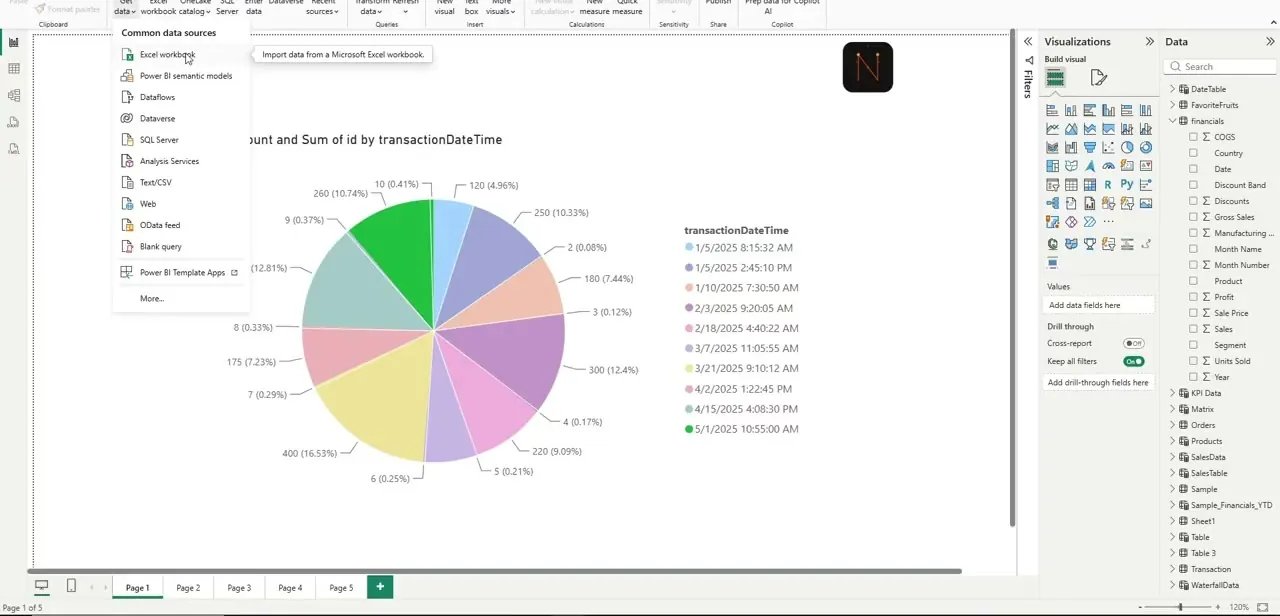
From an open report, click Get Data to see the Common data sources list, with Excel workbook as the first option and a tooltip confirming "Import data from a Microsoft Excel workbook." For combining several files at once rather than a single workbook, you'll actually want the Folder connector further down the same list, which is the one that scans an entire directory instead of asking you to pick one file.
03Point the Folder connector at your files
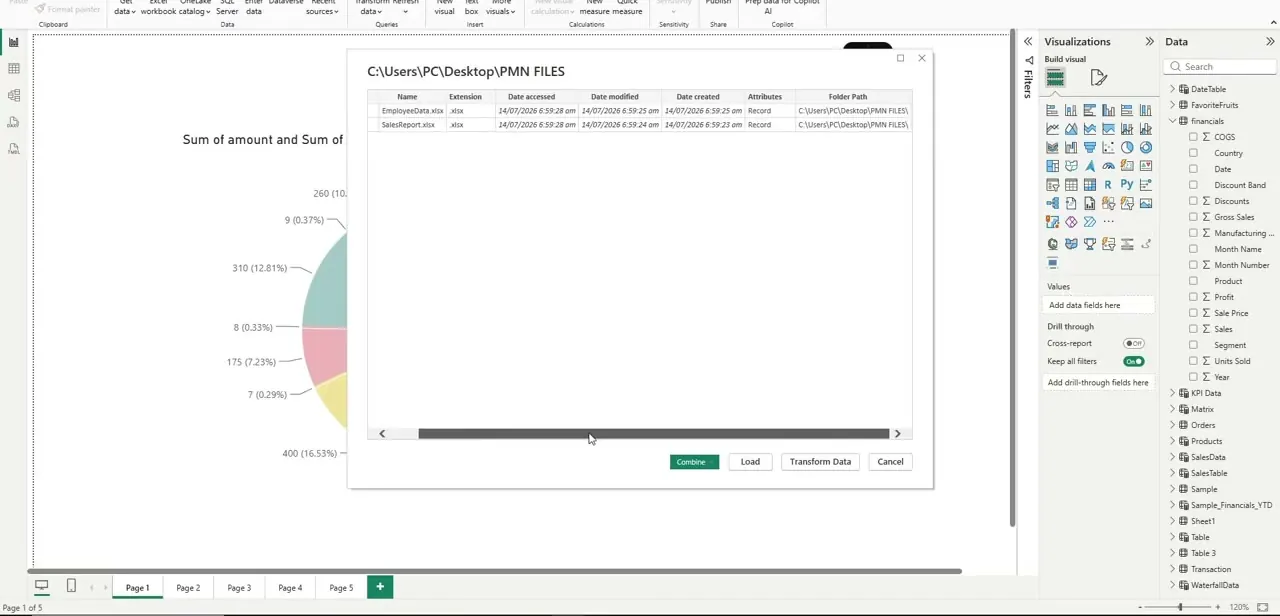
Once you select Folder and browse to the directory, Power BI lists every file it finds inside — here, EmployeeData.xlsx and SalesReport.xlsx, each with its extension, dates, and full folder path shown in a table. At the bottom of this dialog sit four buttons: Combine, Load, Transform Data, and Cancel. Combine is the one that does the actual merging work, so that's what you click next rather than Load, which would just import the file list itself as a table of metadata.
04Choose Combine & Transform vs. Combine & Load
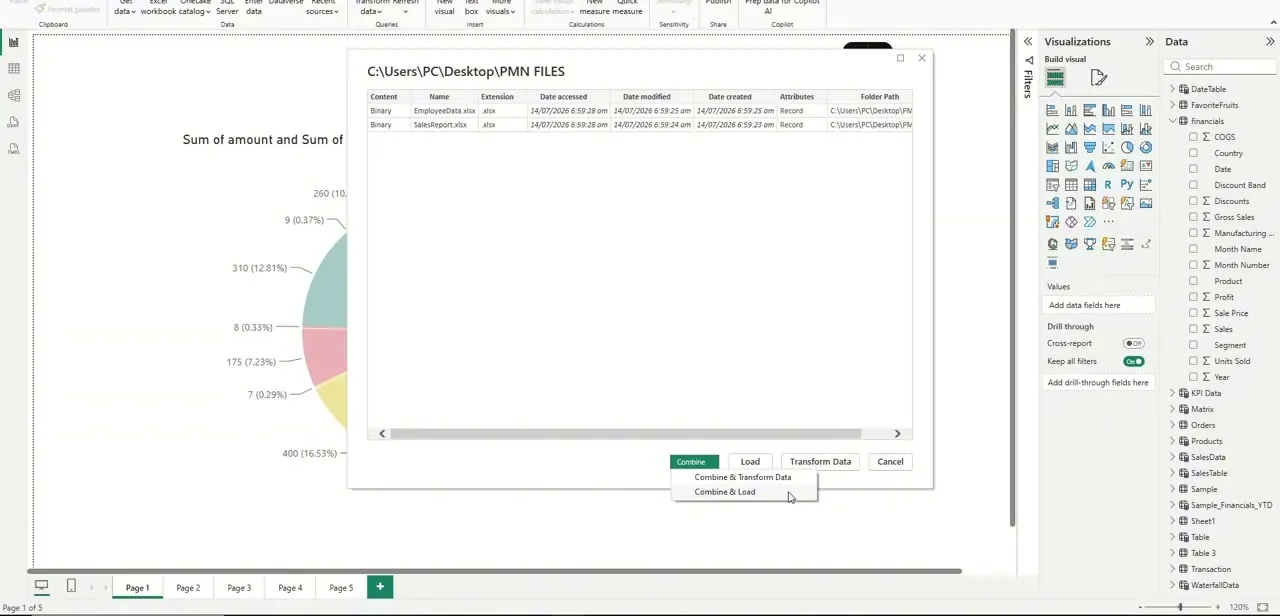
Clicking Combine opens a small menu with two choices: Combine & Transform Data and Combine & Load. Combine & Transform Data routes you through Power Query first, letting you clean column names, fix data types, and remove any duplicate header rows before anything loads into your report — this is the safer default almost every time. Combine & Load skips straight to loading the merged result, which is faster but leaves you cleaning up formatting problems after the fact instead of before.
05Recognize a save error if one shows up
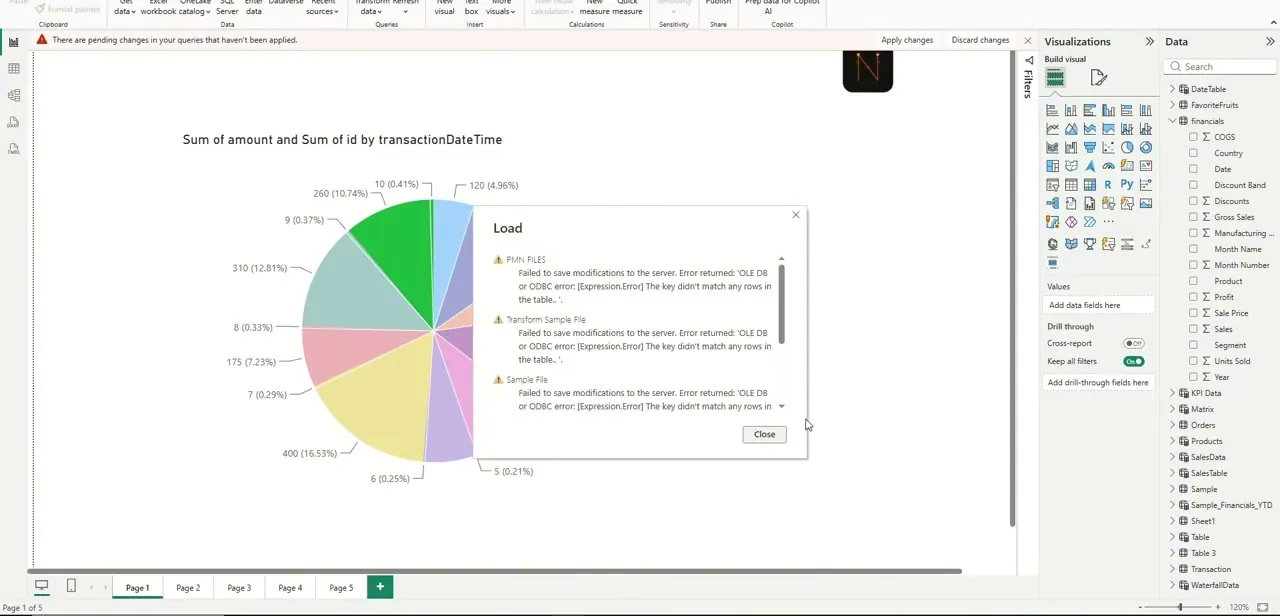
Occasionally, applying changes after a combine throws a Load error like the one shown here: "Failed to save modifications to the server. Error returned: 'OLE DB or ODBC error: [Expression.Error] The key didn't match any rows in the table.'" This typically points to a mismatch between what a query step expects and what's actually in the combined data — often because one of the source files has a renamed column or a structural difference from the others. If you hit this, go back into Power Query, check each source file's query step by step, and confirm the column names driving the combine are identical across every file before reapplying.
06Refresh to pick up new files automatically
The real payoff of connecting to a folder rather than individual files is that the query isn't tied to specific filenames — it's tied to the folder itself. Drop a new file with the same structure into that folder and hit Refresh, and Power BI picks it up and folds it into the combined table without you touching the query again. This is what makes the folder-based approach worth the initial setup over just importing each file separately.
Frequently asked questions
Do all the Excel files need identical column structures?
It works best when files share the same columns and layout, since mismatched structures can cause errors — including save errors like a key not matching rows in the table — or missing data during the combine step.
What happens if I add a new Excel file to the folder later?
As long as the query is connected to the folder, refreshing the report will automatically include the new file's data in the combined table, no query changes needed.
Should I use Combine & Transform Data or Combine & Load?
Combine & Transform Data is the safer default, since it routes you through Power Query first to clean column names and data types before anything loads. Combine & Load is faster but skips that cleanup step.
What does a 'key didn't match any rows in the table' error mean during combine?
It usually signals a structural mismatch between one of the source files and what a query step expects — commonly a renamed or differently formatted column. Check each file's structure in Power Query before reapplying changes.
Will combining large numbers of files slow down my report?
Combining many large files can increase refresh times, so it's worth monitoring performance and considering filtering unnecessary data early in the process.
Watch the full walkthrough
The same steps, demonstrated on screen from start to finish.


