 Easy Tech Tuts
How to Change Excel Data Source Path in Power BI (Fix Broken Links) Easily 2026
By Impran M N
Reports built on Excel data break the moment the underlying file moves, gets renamed, or is shared to a different folder path, and Power BI won't fix that on its own. This guide covers locating the current broken link and updating the data source path so your report reconnects properly, using the Data source settings dialog where the actual fix happens. It's a short fix aimed at anyone who's opened a report to find its visuals still there but the numbers refusing to refresh.
01Understand why the path breaks in the first place
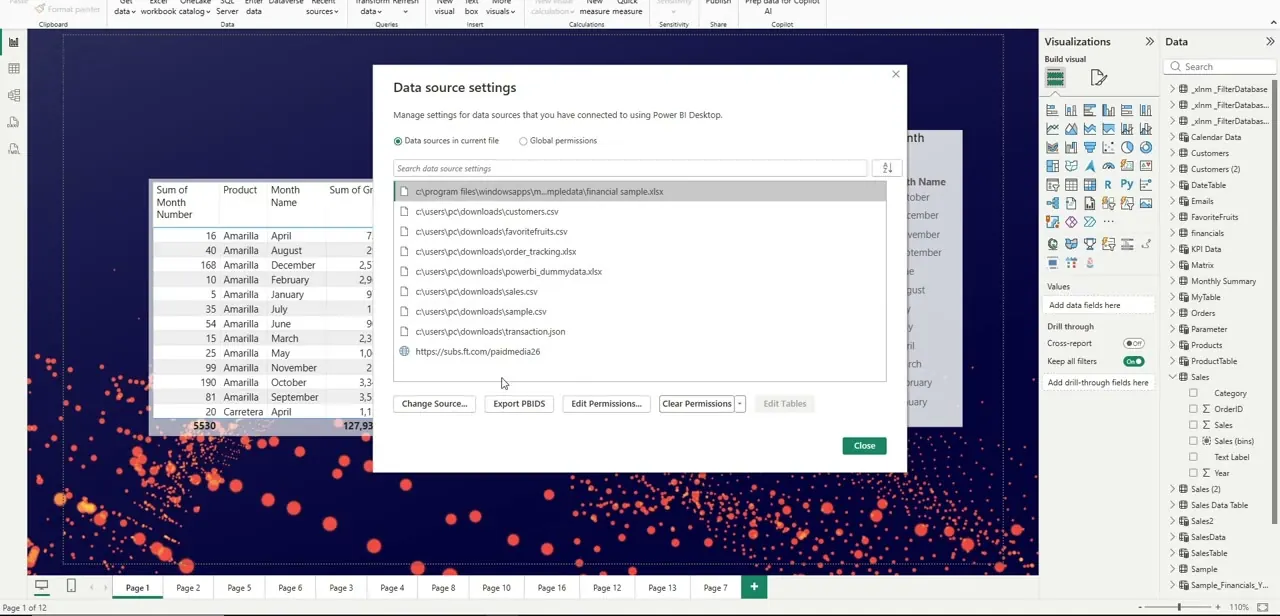
Excel-based data sources in Power BI reference an exact file path recorded at the moment you first connected — something like c:\users\pc\downloads\sample.csv. Move that file to a different folder, rename it, or push it to a shared drive, and Power BI has no way to follow it; the connection just stops resolving. This is the same reason a report can look completely fine when you open it and only fail the moment you try to refresh.
02Recognize the symptom in the report itself
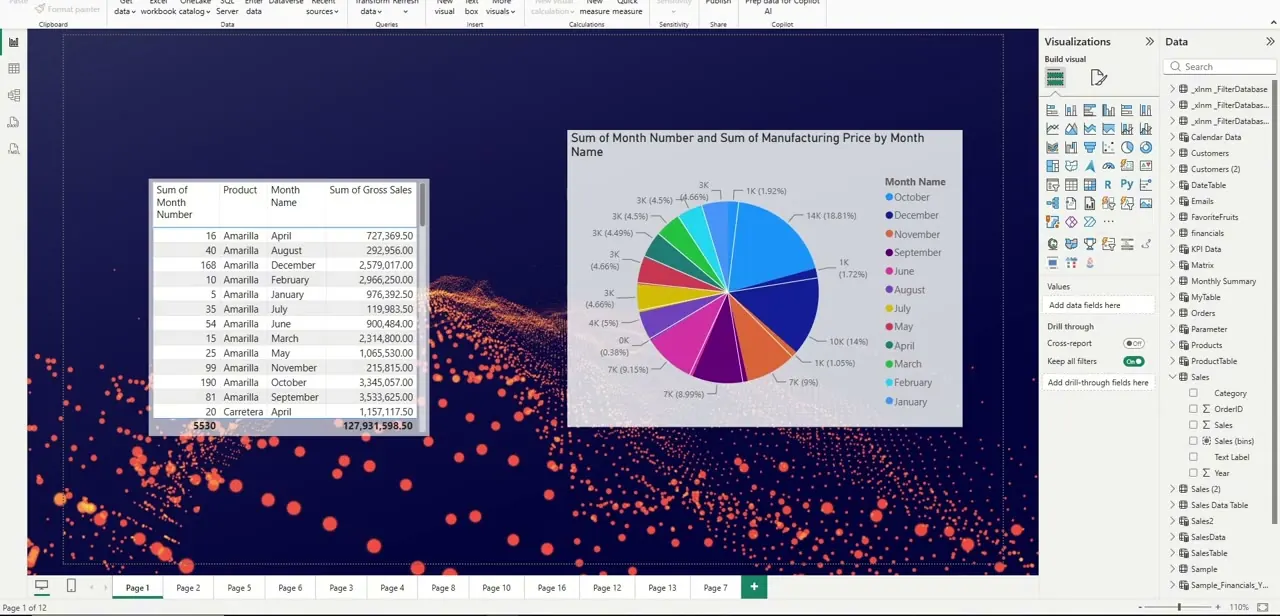
A report with a broken source usually still renders its last successful data pull, so tables and pie charts like the ones here keep showing numbers even though the connection underneath them is dead. The tell is that a manual refresh either errors out or silently does nothing — the sale figures and month breakdowns stay frozen at whatever they were the last time the file was reachable, which is easy to miss if nobody's actively watching for it.
03Open Data source settings to find the failing connection
From the ribbon, go to File > Options and settings > Data source settings, which opens a dialog listing every source the current report has ever connected to — you can see the full mix here, from local downloads folders and CSV files to a OneDrive-hosted financial workbook and a web API endpoint. Each row is a separate connection, so scan for the specific Excel file causing the error rather than assuming it's the first one in the list.
04Use Change Source to point to the file's new location
Select the broken entry and click Change Source at the bottom of the dialog. This opens a file browser where you navigate to wherever the Excel file actually lives now — a different folder, a renamed file, or a shared drive it got moved to. Confirm the selection and Power BI rewrites its stored path to match, which is the entire fix; nothing else about the report's structure changes.
05Refresh and confirm the connection holds
After changing the source, trigger a manual refresh from the Home ribbon and watch for errors. If the file structure changed along with its location — different column names or a renamed sheet — you may also need to revisit the query in Power Query Editor, but a straightforward move or rename typically resolves the moment the refresh completes cleanly.
06Move the file to a location that won't break again
A local downloads folder is the single most common source of these errors, since it's exactly where files get reorganized, renamed, or cleaned out without anyone thinking about the report depending on them. Moving the source Excel file to a stable, shared location like OneDrive or SharePoint — the way the financial sample workbook in the settings list already was — means the path stays constant even as people on the team come and go.
Frequently asked questions
Where do I fix a broken Excel data source in Power BI?
Go to File > Options and Settings > Data Source Settings, select the broken connection, and use Change Source to update the file path.
Why does my Power BI report break every time I move the Excel file?
This happens because Power BI stores the exact file path used when the connection was first created, so any change to that path requires manually updating the source.
Why do my charts still show numbers if the connection is broken?
Power BI displays the last successfully loaded data even after a source stops resolving. The visuals won't update until you fix the path and refresh successfully, so a broken connection can go unnoticed for a while.
How can I prevent broken links to Excel files in the future?
Storing your Excel source in a consistent shared location, like a OneDrive or SharePoint folder rather than a local downloads folder, reduces the chances of the path changing unexpectedly.
Does fixing the data source path affect my existing report visuals?
No, updating the path just reconnects Power BI to the correct file — as long as the structure of the data hasn't changed, your visuals and measures stay intact.
Watch the full walkthrough
The same steps, demonstrated on screen from start to finish.


