Easy Tech Tuts
How to Connect Claude to Notion | Smarter Notes & Docs | Easily 2026
By Impran M N
Bringing Claude into Notion means it can search, read, and update the pages you already keep your notes and project docs in, instead of you copying context back and forth between two tabs. The connection lives in Claude's Directory of connectors rather than anywhere inside Notion itself, which is the part that trips people up on a first attempt.
This guide walks through finding that connector, authorizing it against your workspace, and what Claude can actually see and do once it's connected — plus where the integration is most useful for organizing project and knowledge-base pages. It also covers the permission boundaries worth understanding up front, especially if you're connecting a workspace you don't fully own.
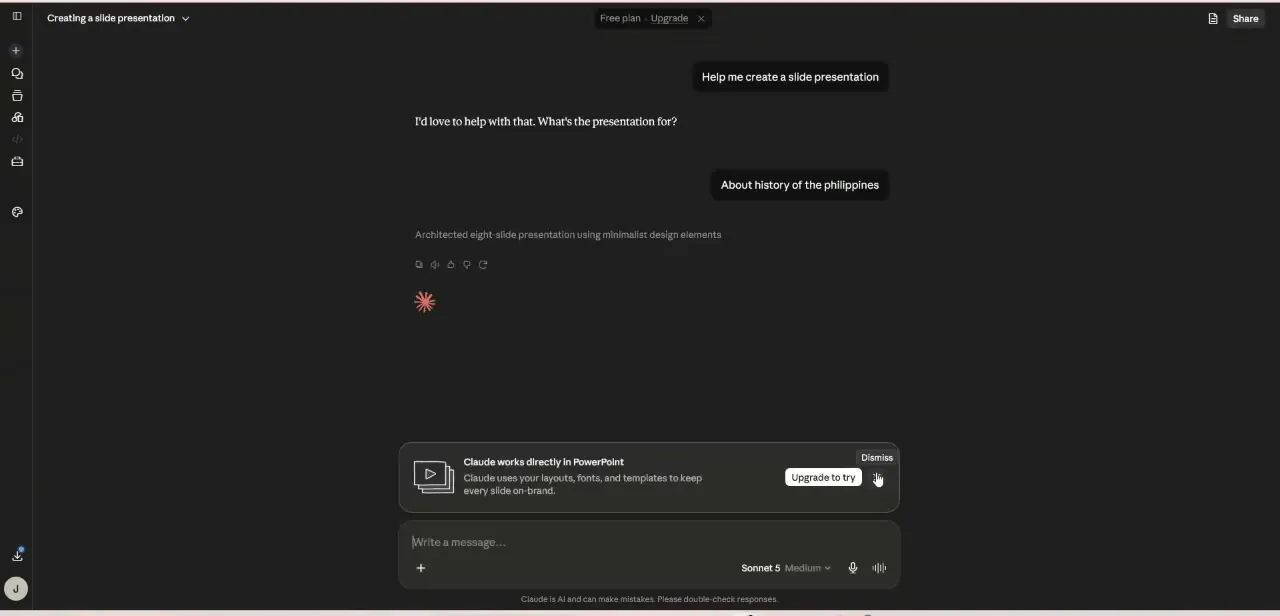
01Open Claude's account menu
From Claude's home screen, click your account icon in the bottom-left corner to open the account menu. This is where Settings lives, alongside options like Language, Get help, and Get apps and extensions — it's a small menu, but it's the entry point for every account-level configuration, including the connectors you'll need for Notion. If you use Claude across a desktop app and a browser tab, note that connectors are tied to your account rather than the device, so you only need to complete this setup once regardless of where you access Claude afterward.
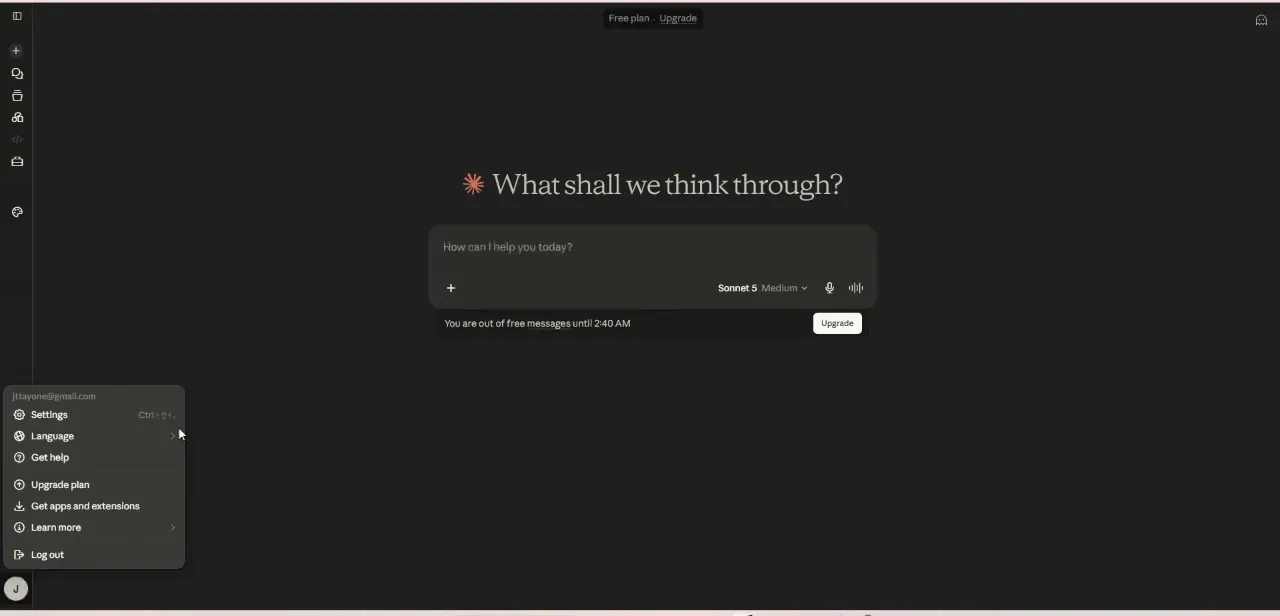
02Find Notion in the connector directory
Inside Settings, open the Directory and switch to the Connectors tab. Search for Notion and you'll find it listed — marked as one of the more popular connectors — with a short description: "Connect your Notion workspace to search, update, and power workflows across tools." Click the plus icon on the Notion card to start the connection. The same directory lists dozens of other connectors alongside it, so search is the fastest way to find the one you want rather than scrolling.
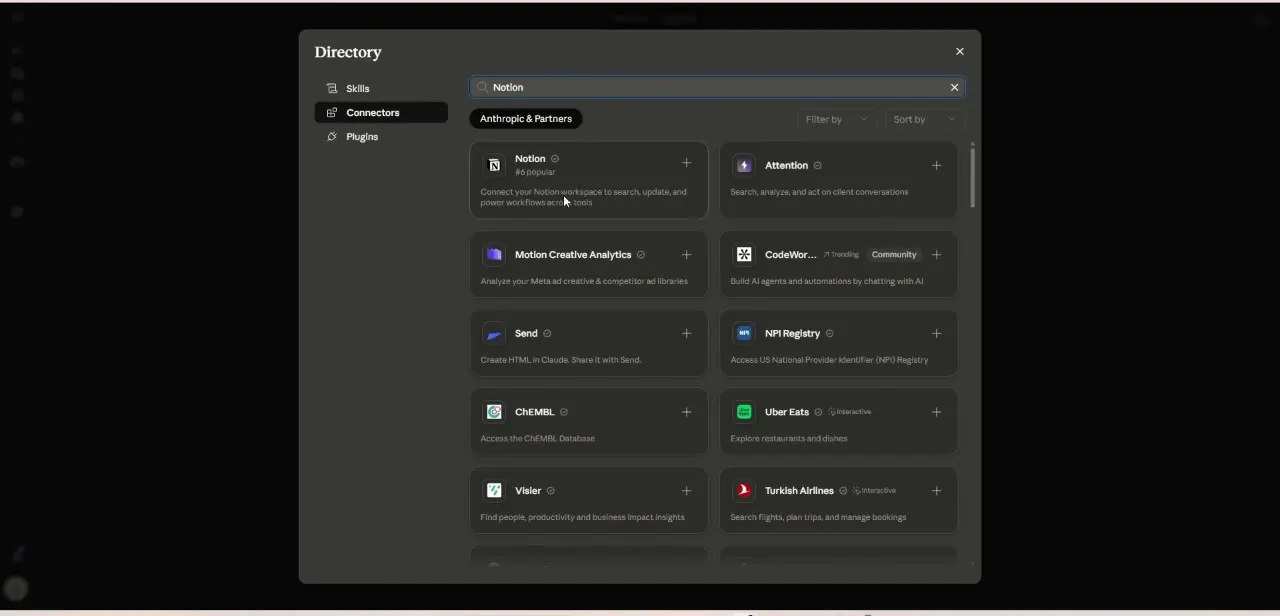
03Authorize access to your workspace
Clicking the plus on Notion's card redirects you through Notion's own authorization flow, where you choose which workspace to connect and confirm the permissions Claude is requesting. Pick the workspace you actually want Claude searching and editing — if you're a guest in someone else's workspace rather than the owner of your own, you'll only be able to grant access to the pages you already have permission to see, not the whole workspace. If you belong to multiple Notion workspaces, Notion will ask you to pick one explicitly during authorization, so double-check you're selecting the workspace you actually intend before confirming.
04See what Claude can now reach
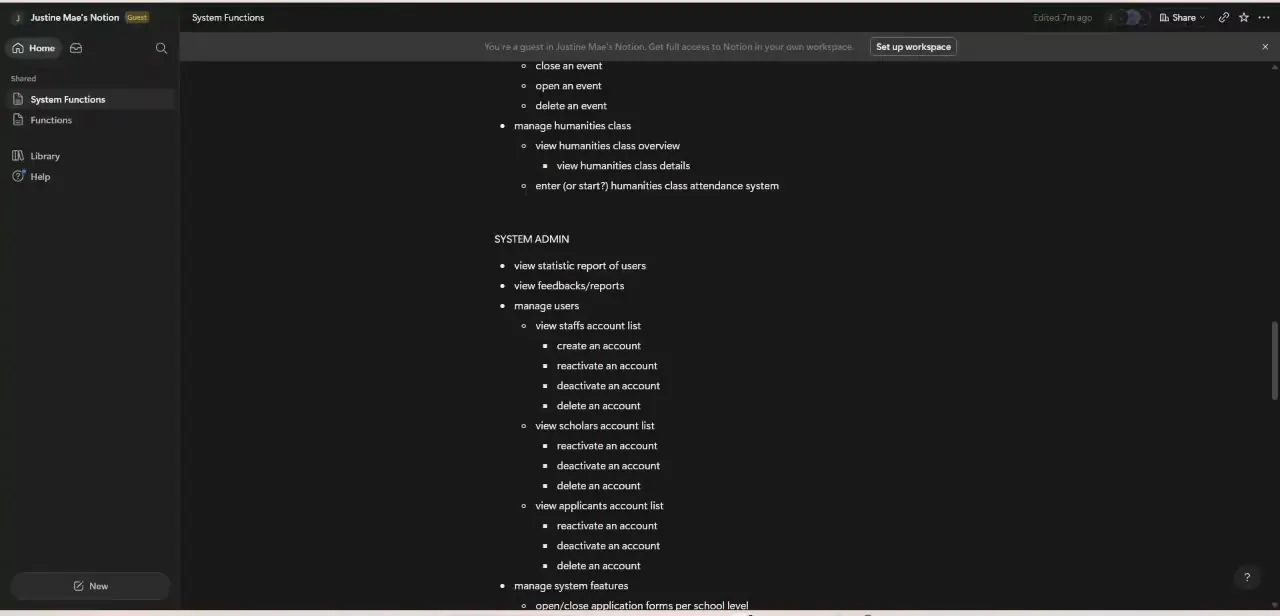
Once connected, Claude can search across pages in the authorized workspace and read their contents in response to your questions — for example, pulling structured content like a nested bullet list documenting a system's functions, the kind of page-level detail that would otherwise mean opening Notion and scanning manually. This is the practical payoff: instead of describing your notes to Claude, you can ask about them directly and get answers grounded in what's actually written on the page.
05Use it for project docs and knowledge bases
The integration is most valuable on pages with real structure already in place — project trackers, system documentation, onboarding wikis — because Claude can navigate that structure instead of treating the page as one undifferentiated block of text. Ask it to summarize a specific page, compare details across a few related pages, or draft new content that follows the format of what's already there. For teams, this turns Claude into a faster way to onboard someone to a documentation-heavy workspace, since they can ask questions instead of reading every page cover to cover.
06Keep permissions scoped as your usage grows
Revisit the Connectors tab occasionally to confirm Notion is still listed as connected, and disconnect it from the same screen if you ever switch workspaces or want to reset access. Because Claude only sees what your Notion account has permission to see, changes to your own workspace access — like being removed from a shared page — automatically limit what Claude can retrieve too, so there's no separate permission system to manage on top of Notion's own.
07Write prompts that point Claude at the right page
Once several pages exist across a connected workspace, naming the page or its parent section in your question — rather than just describing the topic loosely — gets you a more accurate answer faster. Treat Claude's Notion search the way you'd treat Notion's own search bar: specific titles and section names narrow results quickly, while vague topic descriptions can pull in more pages than you actually wanted referenced.
Frequently asked questions
Where do I connect Claude to Notion?
Open Claude's account menu, go to Settings, then Directory, and select the Connectors tab. Search for Notion and click the plus icon on its card to start the authorization flow.
What does connecting Claude to Notion actually let it do?
Claude can search across pages in your authorized Notion workspace and reference their actual content when answering questions, rather than you having to copy and paste notes into the chat.
Can Claude see my entire Notion workspace?
Only the pages your Notion account already has permission to access. If you're a guest in someone else's workspace, Claude is limited to the same pages you can see.
Is this integration only useful for individuals?
No — it works well for teams too, particularly for onboarding someone into a documentation-heavy workspace by letting them ask Claude questions instead of reading every page manually.
How do I disconnect Notion later?
Go back to the Connectors tab in Claude's Settings Directory, find Notion, and remove it from there — the same screen used to connect it in the first place.
Watch the full walkthrough
The same steps, demonstrated on screen from start to finish.