 Easy Tech Tuts
How to Make Greeting Cards on Canva Easily 2026
By Impran M N
Whether it's for a birthday, a thank-you, or a small business promotion, designing your own greeting card gives you far more control than picking one off a shelf. This guide covers how to make a personalized greeting card in Canva from a fresh dashboard through to a finished, on-brand design. It's approachable for complete beginners while still useful for anyone wanting more polished results than Canva's defaults, since most of the work is really just knowing which panel to open for text, color, and graphics.
01Start from your Canva home screen
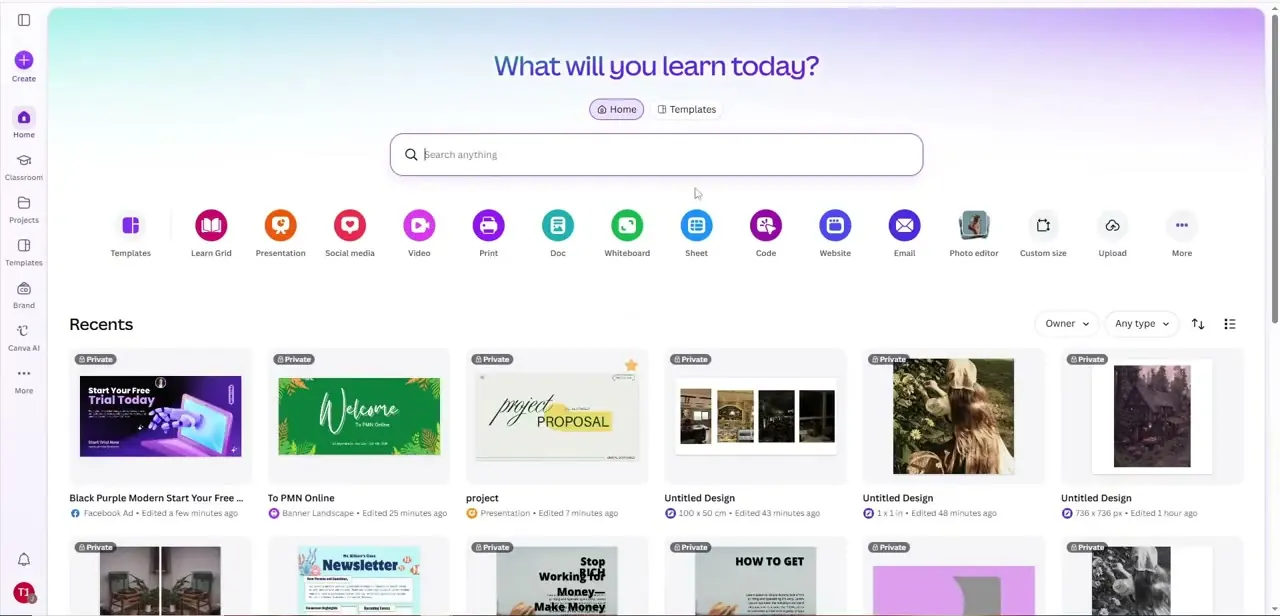
Log into Canva and you land on the home dashboard, which asks "What will you learn today?" and shows a row of format shortcuts — Templates, Presentation, Social media, Print, and more — along with your recent designs underneath. For a greeting card, you can either click Templates directly or type into the search bar at the top; searching is usually faster since it filters by card type immediately instead of making you browse categories.
02Search and pick a greeting card template
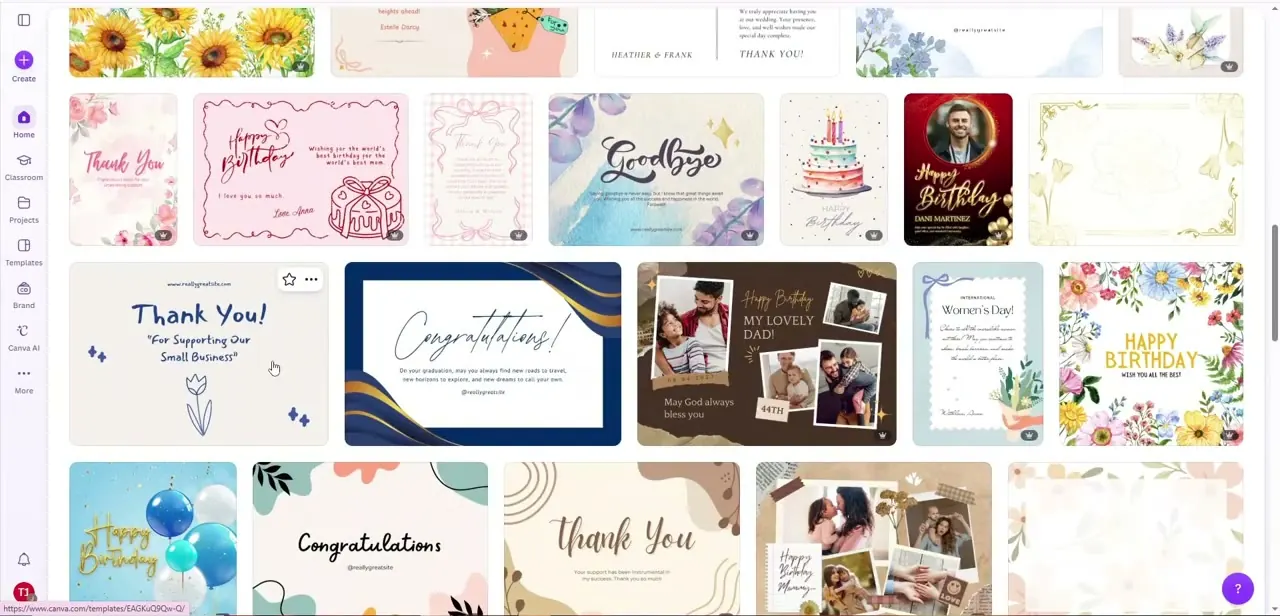
Typing a card type into search pulls up a grid of ready-made designs — florals, doodled thank-you cards, birthday layouts with photo placeholders, and minimal ones with just a line of script text. Scroll past a few rows before committing, since the templates near the top aren't necessarily the best fit; look for one whose layout already matches roughly what you want to say, because reworking a template's structure takes longer than just choosing a closer starting point. Clicking a thumbnail opens it directly in the editor.
03Edit the text to fit your occasion
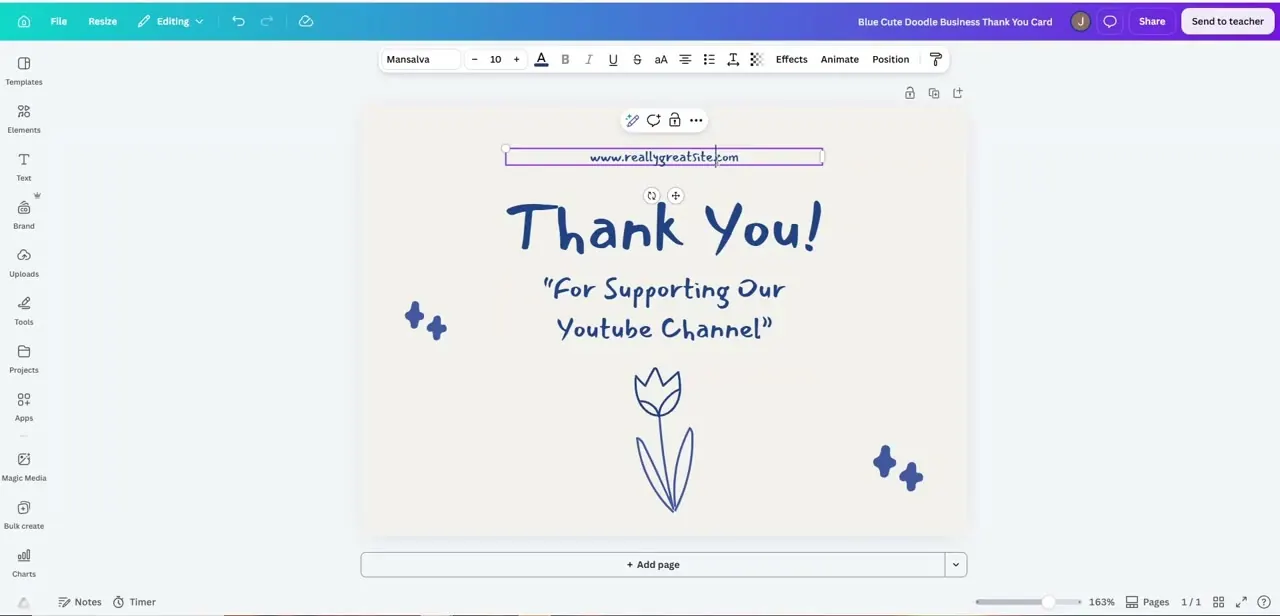
Inside the editor, every text box on the template is editable by clicking directly on it — the headline, the subtext, and any small credit line like a website URL sit as separate elements you can select, retype, and restyle individually. Change the headline from a generic "Thank You" to whatever fits your occasion, and don't skip the smaller text underneath; that's usually where the personal message goes, and leaving placeholder copy in a finished card is one of the most common mistakes people miss until after they've sent it.
04Adjust colors and graphic elements
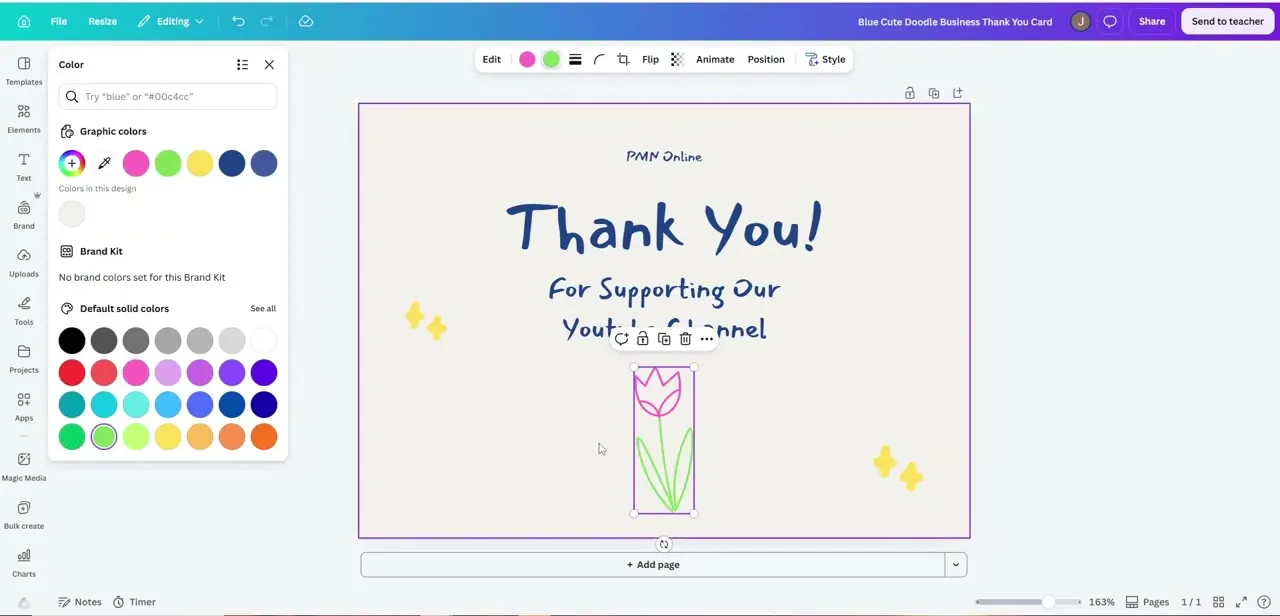
Select any graphic on the card — an illustrated flower, an icon, a shape — and the toolbar swaps to element-specific controls, including a Color panel that shows every color currently used in the design plus a full default palette to pick from. This is the fastest way to make a template feel less like a template: swap the accent color to match a brand kit or a recipient's favorite color, and Canva keeps the swap consistent if the same color is reused elsewhere in the design. There's no need to redraw anything — recoloring an existing illustration takes a couple of clicks.
05Add your own photos or images
For a more personal card, use the Uploads panel in the left sidebar to bring in your own photos, then drag one onto any image placeholder in the template — Canva automatically crops and fits it to the frame. This works well for birthday or family cards built around a photo, and it's also how a small business would drop in a logo instead of relying on generic clip art. If a template doesn't have a built-in photo frame, you can still add an image from the Elements panel and resize it manually.
06Review, save, and export
Before exporting, zoom in and check every text box for leftover placeholder copy, misaligned elements, or a color that didn't update everywhere it should have — these are the details that are easy to miss at normal zoom. Canva autosaves as you work, but exporting is a separate step: use the Share or download option to save the card as a PDF for printing or a PNG/JPG for sharing digitally, and pick the higher-resolution PDF option if you're sending it to a print shop rather than viewing it on screen.
Frequently asked questions
Do I need a paid Canva account to make a greeting card?
No, Canva's free plan includes a wide range of templates, text tools, and the color and image editing shown above — everything needed to design a complete greeting card.
Can I print my Canva greeting card at home?
Yes, once exported as a PDF or high-resolution image, most greeting card designs can be printed on a home printer or sent to a professional print service.
Can I reuse the same greeting card design for multiple occasions?
Yes, duplicate the design in Canva and swap the text and colors using the same panels covered above to quickly adapt it for a different occasion or recipient.
Is it possible to add my own logo for a business greeting card?
Yes, upload your logo through the Uploads panel and place it on the card the same way you would any other image, which is useful for businesses sending branded thank-you cards.
Why does my recolored graphic not match the rest of the card?
Check the Color panel while the element is selected — if the shade you want isn't listed under "Colors in this design," you may be picking a similar but different hex value from the default palette instead of reusing the exact one already in use.
Watch the full walkthrough
The same steps, demonstrated on screen from start to finish.


