 Easy Tech Tuts
How To Create Asana Task From Email Easily 2026
By Impran M N
Every Asana project has a hidden email address that turns a forwarded message into a task, which is a faster way to capture an action item than opening a browser tab, finding the right project, and filling out a form by hand. This guide covers finding that address, formatting the email so the subject and body land in the right fields, and using CC to set an assignee — then shows what the project looks like once the task is sitting there next to everything else on the board.
01Open the project that should receive the task
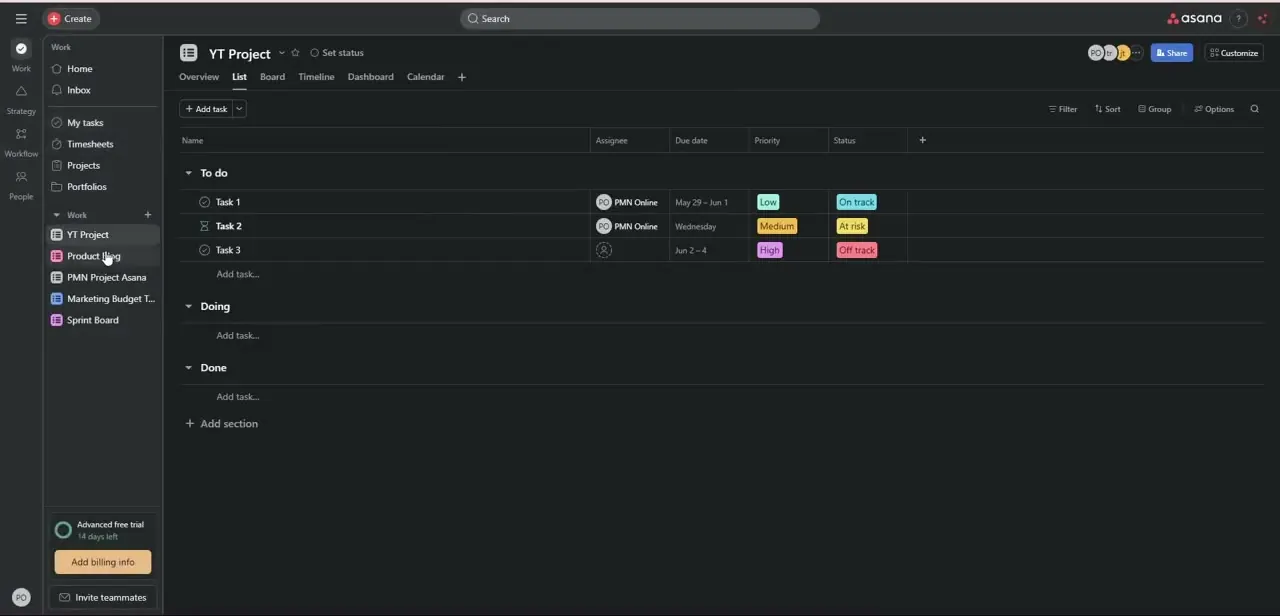
Start from the Asana project you want new tasks to land in — in this example, a "YT Project" board organized into To do, Doing, and Done sections, with columns for Assignee, Due date, Priority, and Status. Knowing this structure ahead of time matters, because a task created by email drops into the project's default section with none of these fields set beyond the title and description, so you'll want to move and configure it afterward unless you set values through email syntax.
02Locate the project's Add Tasks via Email address
Open the project's menu (the "..." or options icon near the project name) and look for Add Tasks via Email. Clicking it reveals a long, unique address tied specifically to that project — not your personal Asana account, and not shared across other projects. Copy it somewhere you can paste from, since you'll need it every time you want to route an email into this particular project.
03Draft the email like you're writing to a person
Open your regular email client — Gmail, Outlook, whichever you already use — and start a new message addressed to the project's copied address, exactly as you'd email a colleague. There's no special app or plugin required on the sending side; Asana's mail server on the receiving end does the parsing once the message arrives.
04Write the subject as the task title
Asana takes your email's subject line and uses it directly as the new task's title, so write it the way you'd want the task to read on the board — short and specific, not a full sentence. The body of your email becomes the task description, so anything you'd normally type into Asana's description field can go there instead: context, links, or instructions for whoever picks it up.
05CC an assignee and add attachments
To assign the task on creation, CC the email address tied to the intended assignee's Asana account — it has to match an existing account with access to that project, or the assignment silently won't apply. Any files attached to the email carry over and attach to the new task automatically, which makes this a fast way to log a task and hand off a reference document — a spec, a screenshot, a PDF — in the same action.
06Send it and check the project for the new task
Send the email, then switch back to Asana and refresh the project. The new task should appear in the default section — often the first one, like To do — with the subject as its title and the body as its description, ready to be dragged into the right section, assigned a due date, or given a priority if those weren't set through CC or syntax. If nothing shows up after a minute or two, double-check that you copied the exact project email address rather than a truncated or outdated one.
Frequently asked questions
Where do I find the project's unique email address?
Open the project's options menu inside Asana and look for Add Tasks via Email, which reveals the project-specific address to copy.
Can I attach files by forwarding an email?
Yes. Any attachments included in the email carry over and attach to the newly created task automatically.
Does this work from any email provider?
Yes. It works from any email client, including Gmail and Outlook, since it relies only on sending a message to the project's address.
Why didn't my task pick up the assignee I CC'd?
The CC'd address must match an email tied to an existing Asana account that has access to that project, otherwise the assignment doesn't apply.
Which section of the project does the new task land in?
A task created by email drops into the project's default section rather than a specific one you choose, so you'll typically need to move it afterward.
Watch the full walkthrough
The same steps, demonstrated on screen from start to finish.


